Guide
Use scorecards and structured reviews
By the end your position has a scorecard, you have submitted your own review of a candidate, and you can read how the rest of the team rated them.
5 min · 11 steps · Captured from the live product 5 Oct 2026 Changelog Copy as Markdown
Before you start
- A Truffle account. The 7-day free trial works: 30 credits, no credit card.
- A position with at least one candidate, and teammates invited to your account.
1Open Reviews & scoring
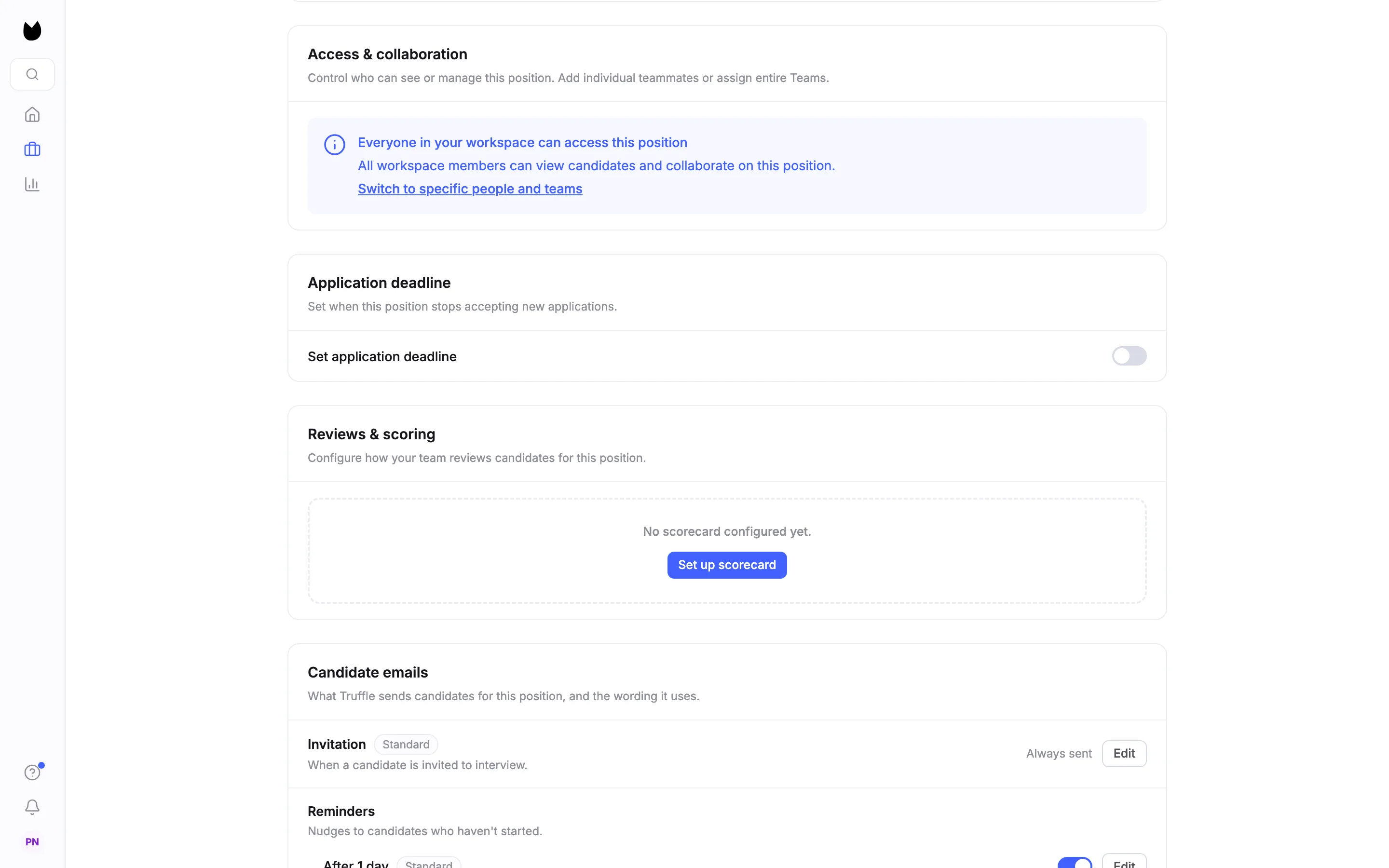
Open the position and choose Settings under its name in the sidebar. Scroll to Reviews & scoring, which reads Configure how your team reviews candidates for this position. A new position shows No scorecard configured yet. Choose Set up scorecard.
2Start from the suggested criteria
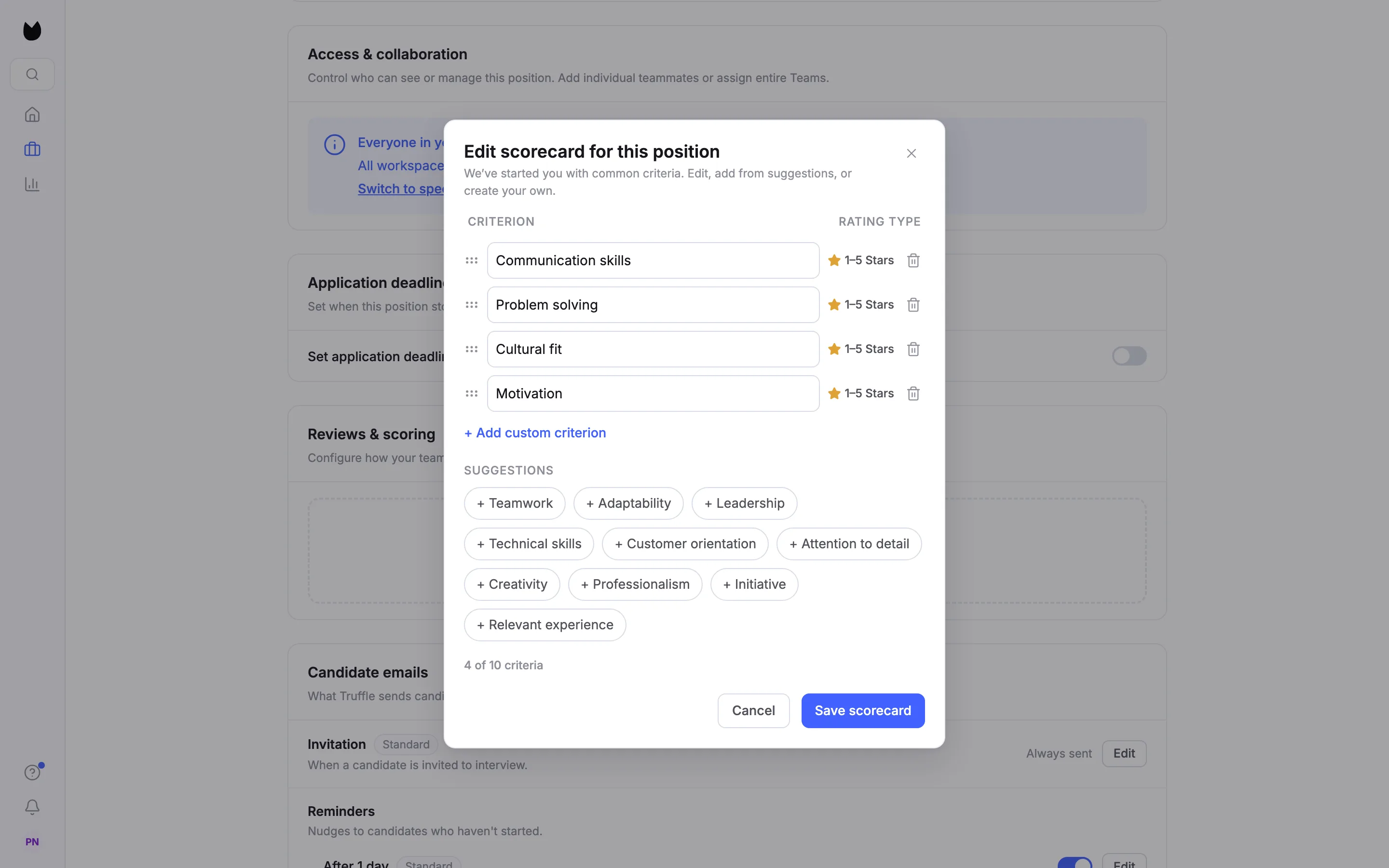
Edit scorecard for this position opens with four common criteria: Communication skills, Problem solving, Cultural fit and Motivation. Every criterion is rated on 1 to 5 stars. Use the bin icon next to a criterion to delete it.
3Make the criteria fit the role
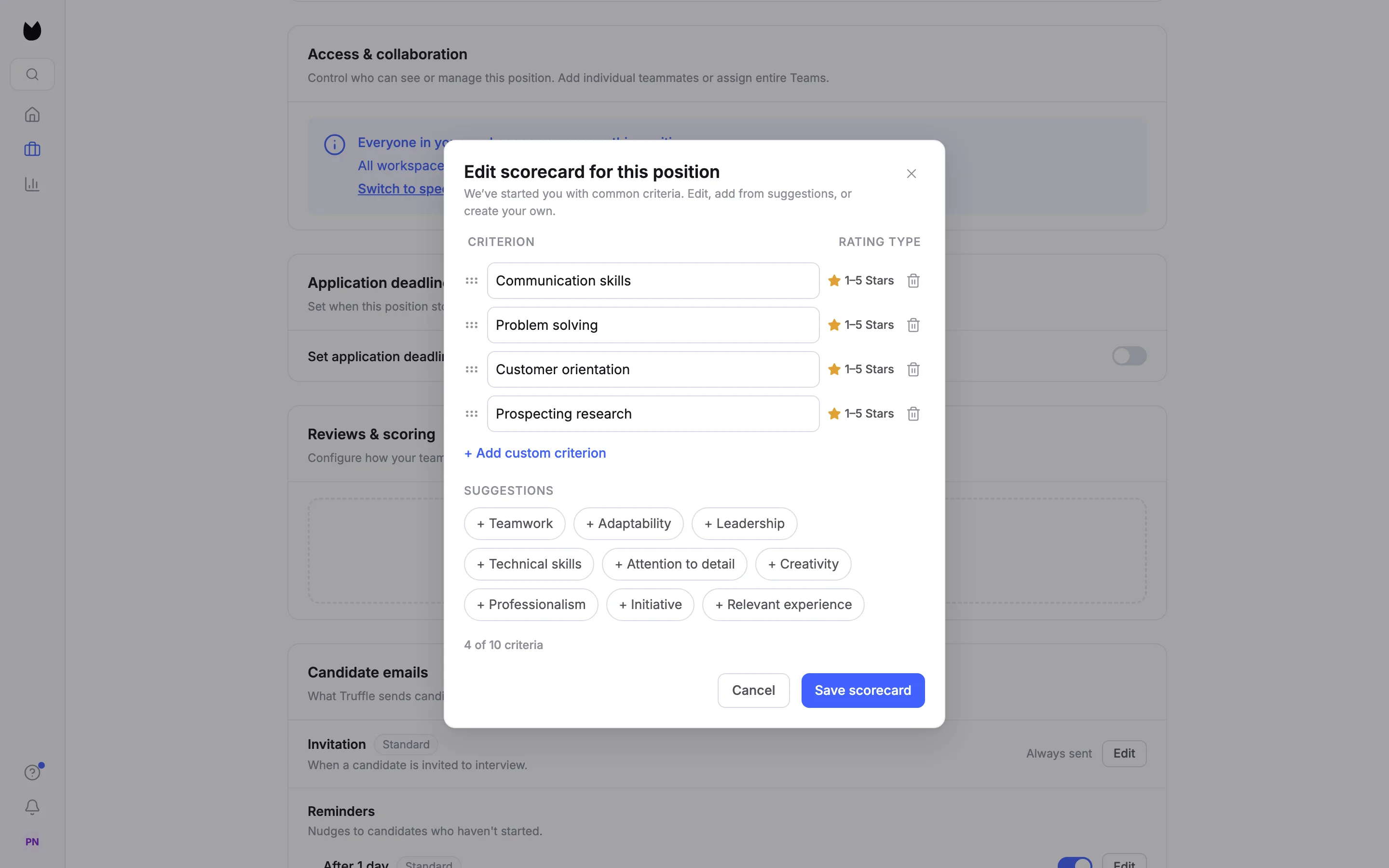
Add from SUGGESTIONS, such as + Customer orientation, or choose + Add custom criterion, type a name and choose Add. For a Sales Development Representative this scorecard keeps Communication skills and Problem solving, and adds Customer orientation and a custom Prospecting research. A scorecard holds up to 10 criteria; the count under the list shows where you are.
4Save the scorecard
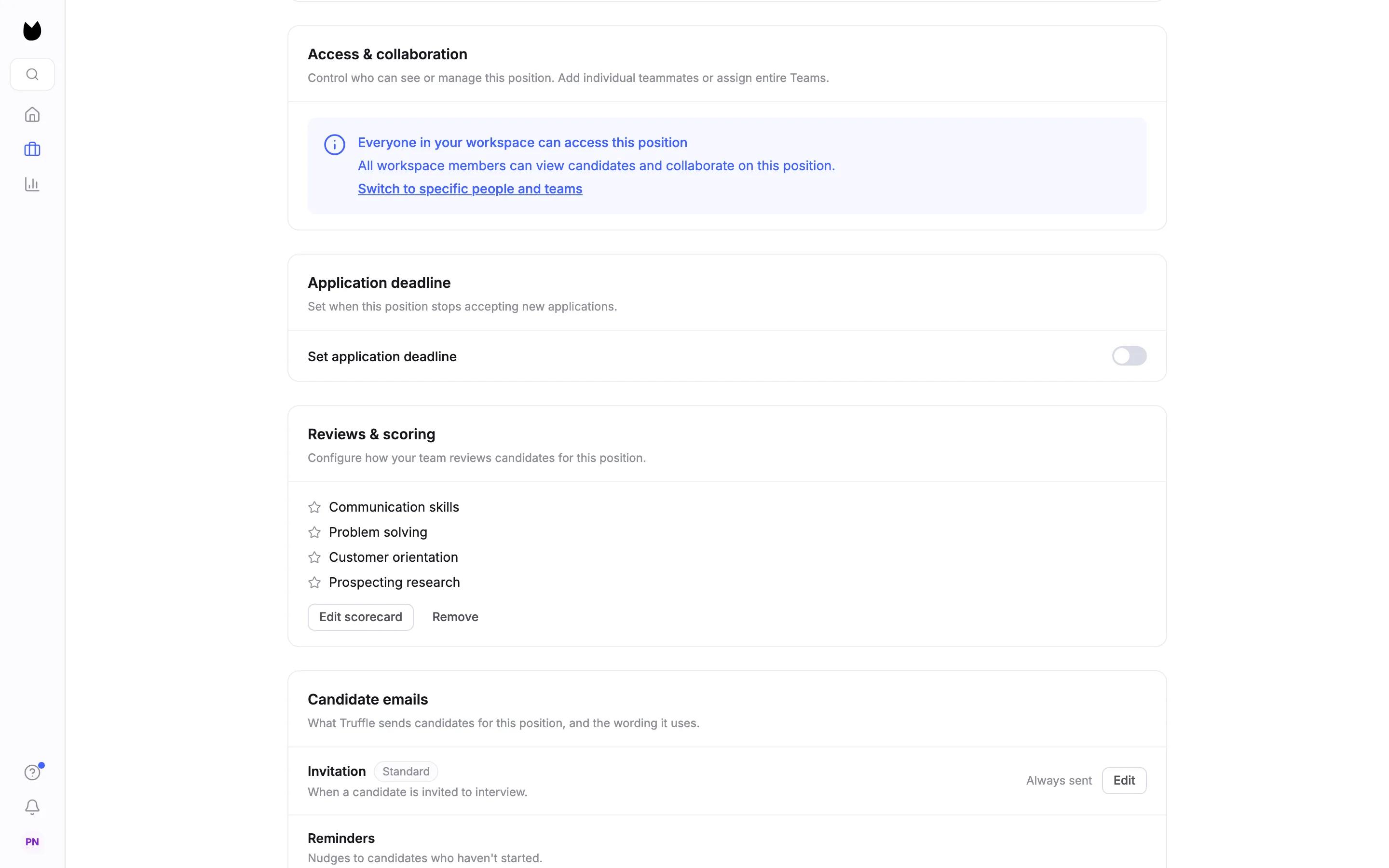
Choose Save scorecard. Reviews & scoring lists the criteria with Edit scorecard and Remove. Every reviewer on the position now rates candidates against these criteria.
5Open your review of a candidate
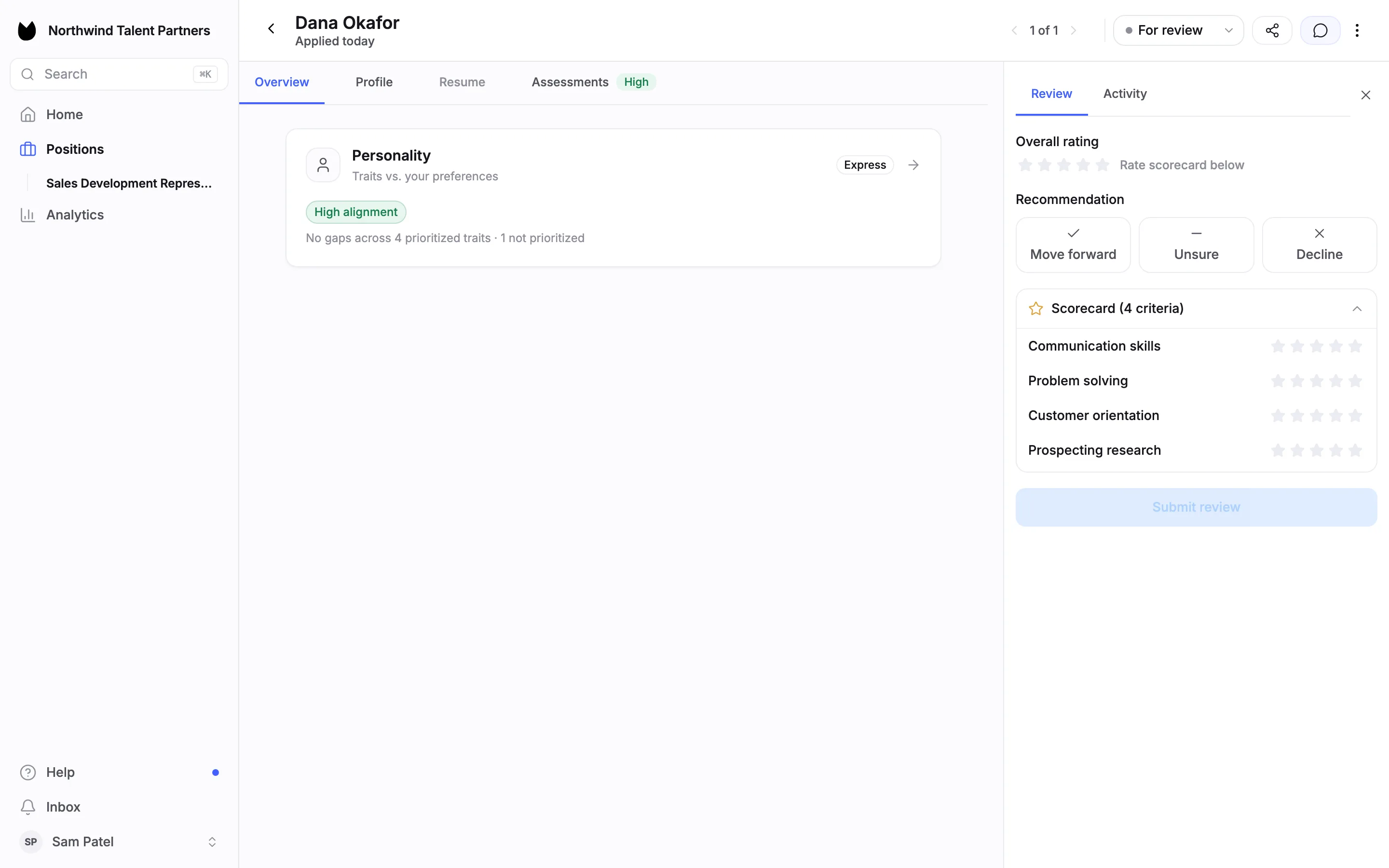
Open the candidate's profile and choose the speech bubble icon at the top right to open the evaluation panel. Your review shows Overall rating, Recommendation with Move forward, Unsure and Decline, and Scorecard (4 criteria). With a scorecard the overall rating says Rate scorecard below: it is worked out from your criterion ratings.
6Rate each criterion and recommend
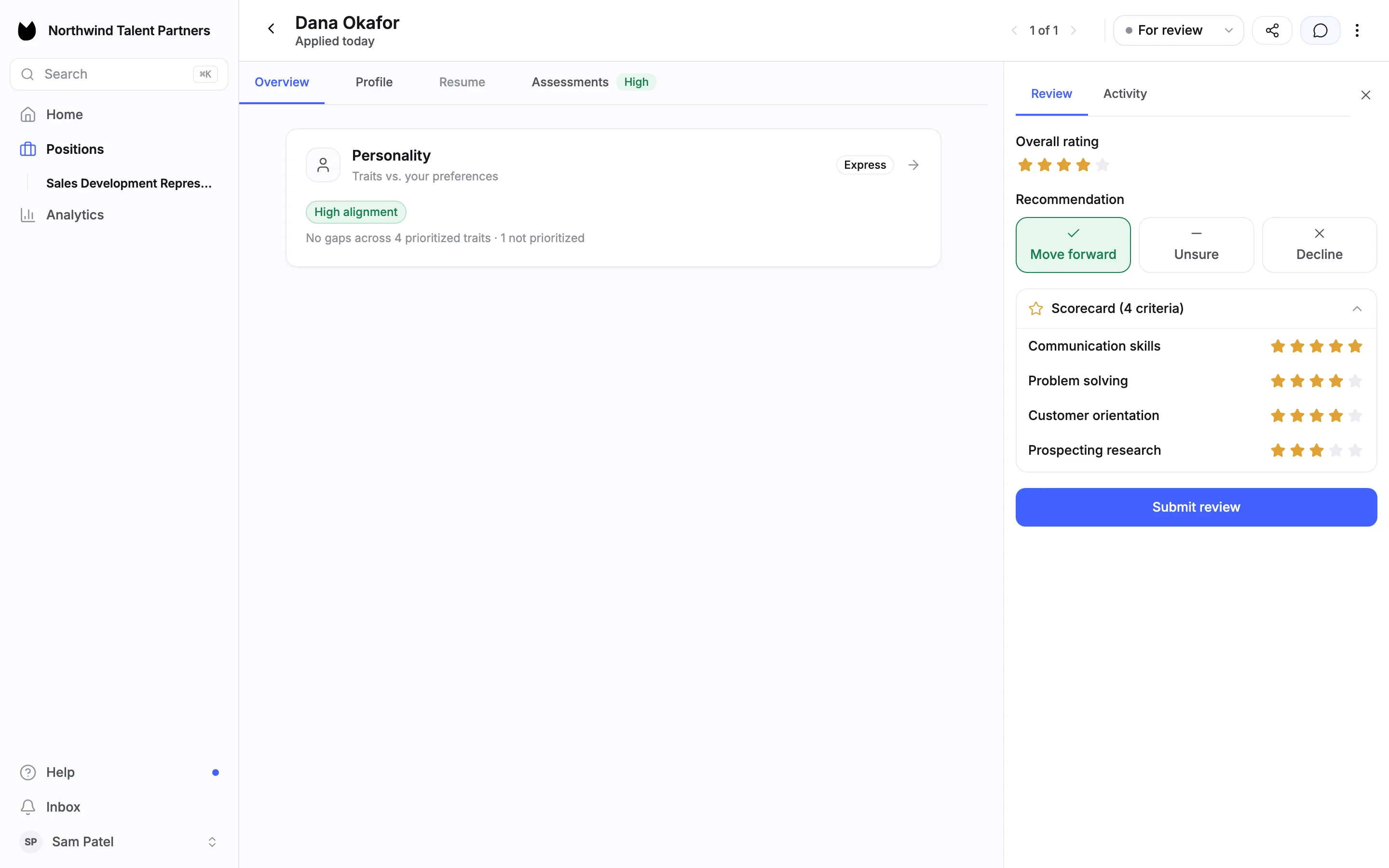
Click the stars next to each criterion. The overall rating fills in from your criterion ratings. Pick a recommendation. Submit review stays greyed out until you have chosen one. A recommendation is your view for the team. It does not change the candidate's status; you still decide that yourself.
7Submit your review
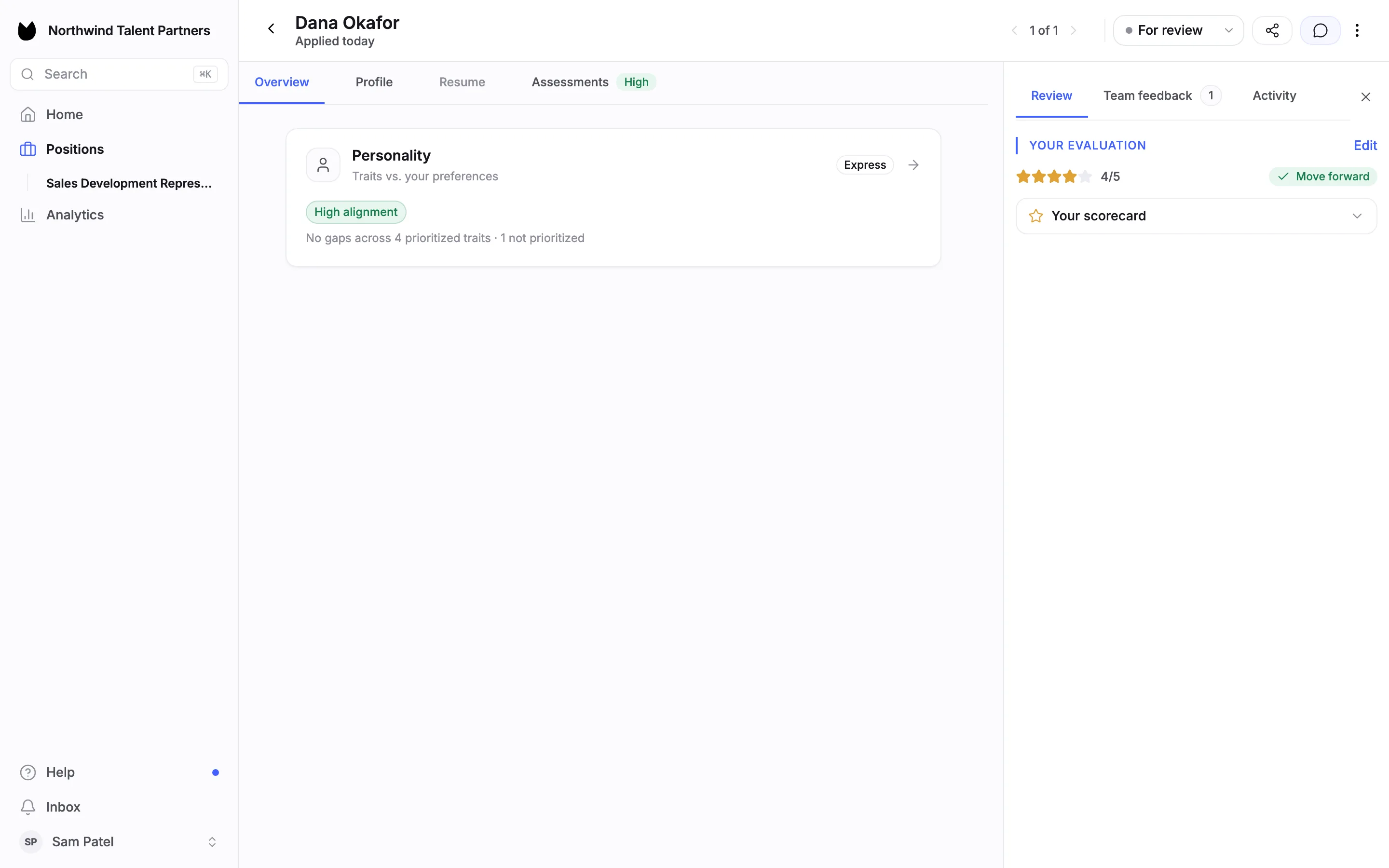
Choose Submit review. The panel shows YOUR EVALUATION with your overall rating (here 4/5), your recommendation and Your scorecard, which opens to show each rating. Choose Edit to change it later. Your ratings are yours: no one else can change them.
8See the team's reviews once yours is in
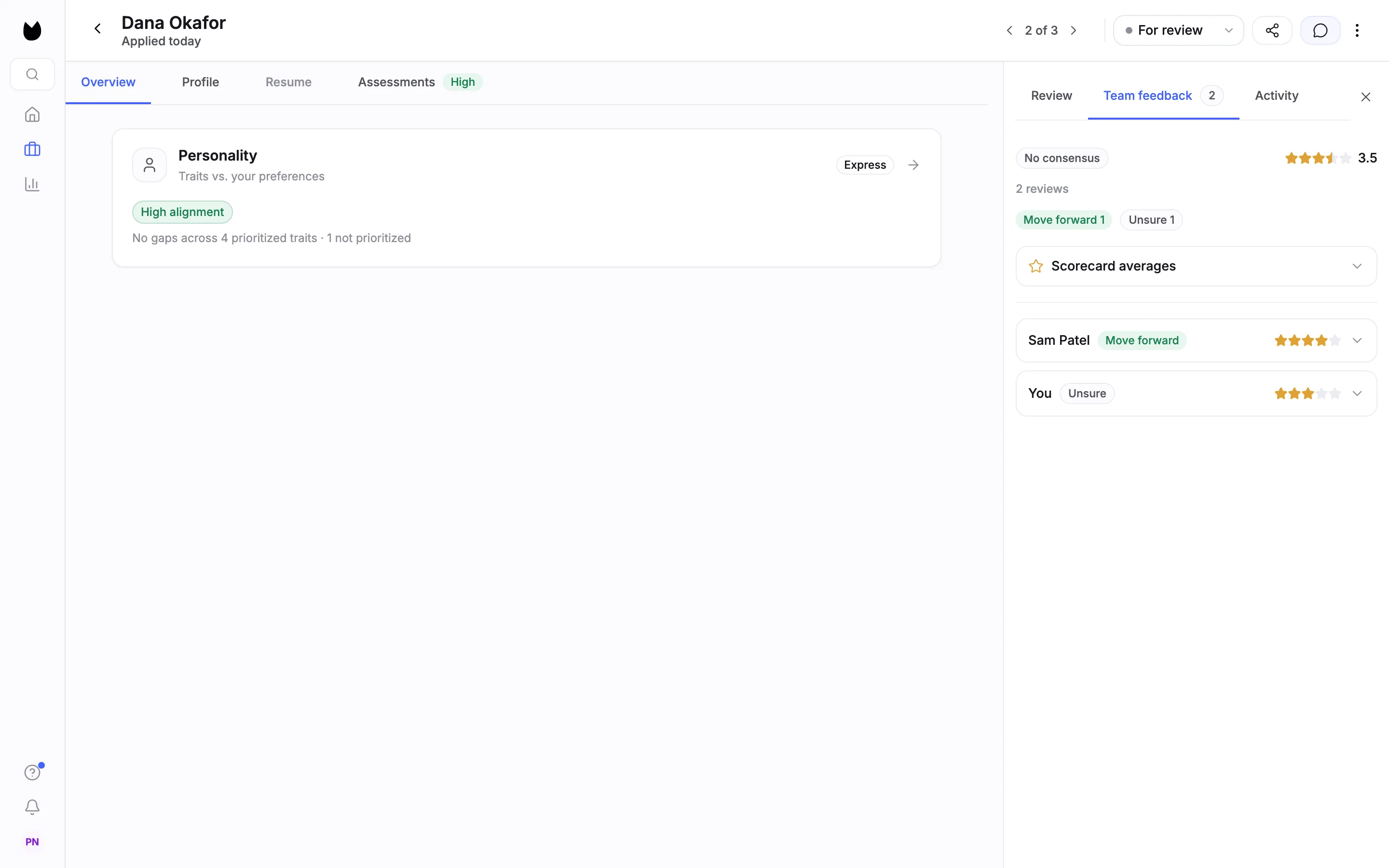
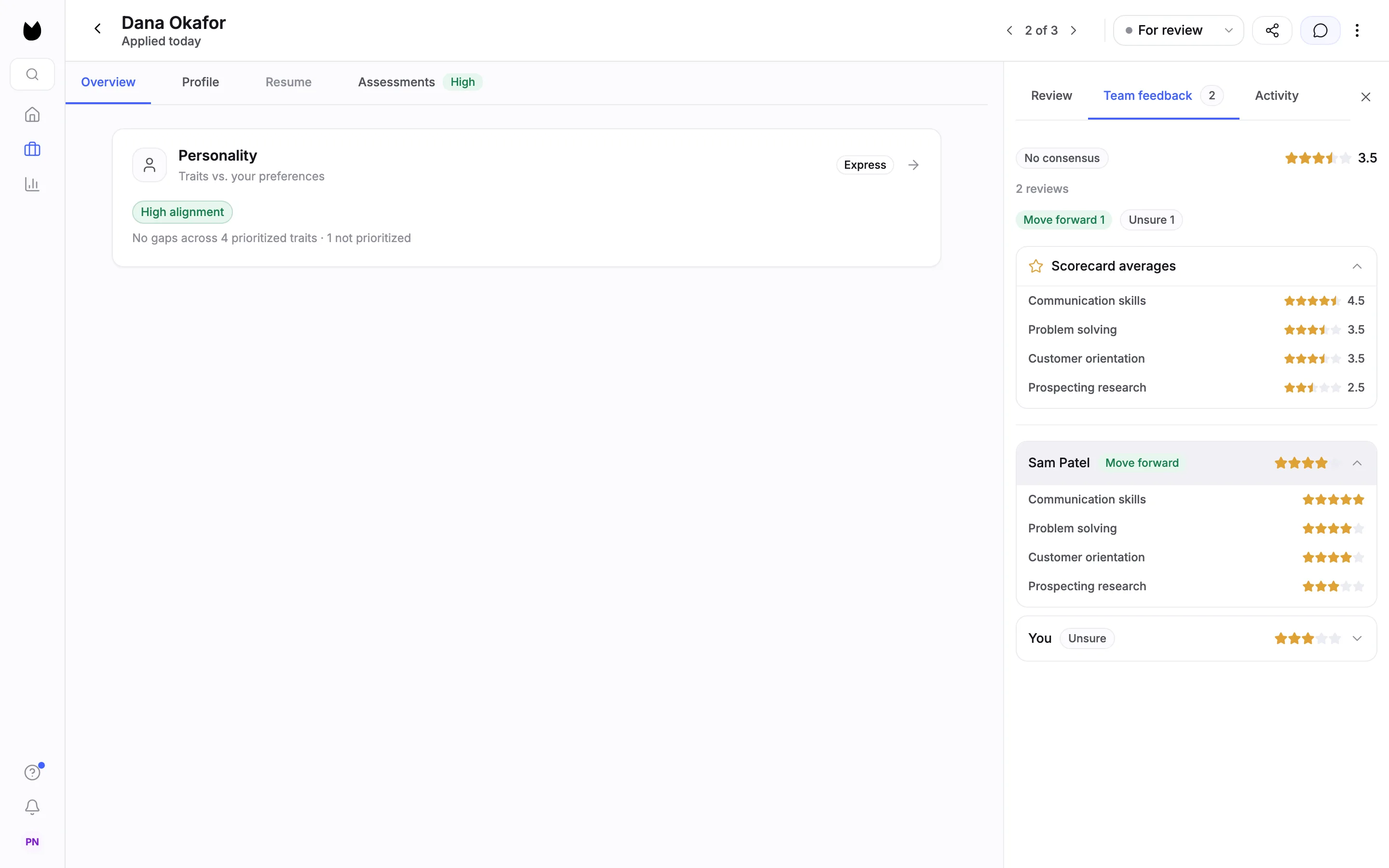
A Member does not see anyone else's review of a candidate until they submit their own. After that, the team's reviews appear in the panel: the consensus, the average star rating, the number of reviews, the split of recommendations, Scorecard averages and one row per reviewer. Here two reviewers disagree, so it reads No consensus, 3.5, 2 reviews, Move forward 1 and Unsure 1.
9Compare ratings per criterion
Open Scorecard averages to see the average for each criterion, and open a reviewer's row to see their own criterion ratings. This shows where reviewers agree and where they differ: here both rate Communication skills highly and differ most on Prospecting research.
10Owners and Admins can look first
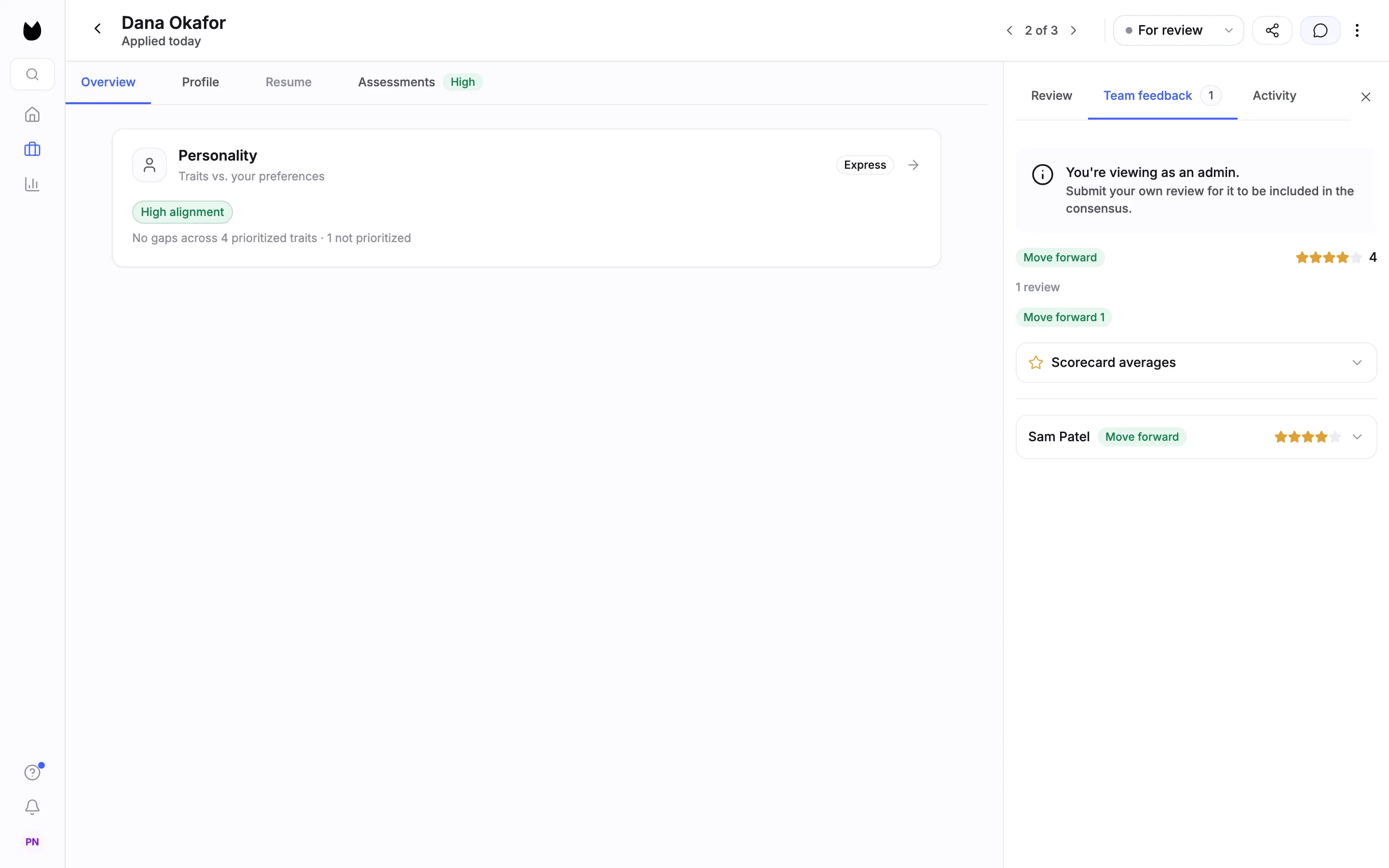
Owners and Admins can see the team's reviews before they submit their own. The panel then says You're viewing as an admin. and Submit your own review for it to be included in the consensus.
11The scorecard locks once ratings are in
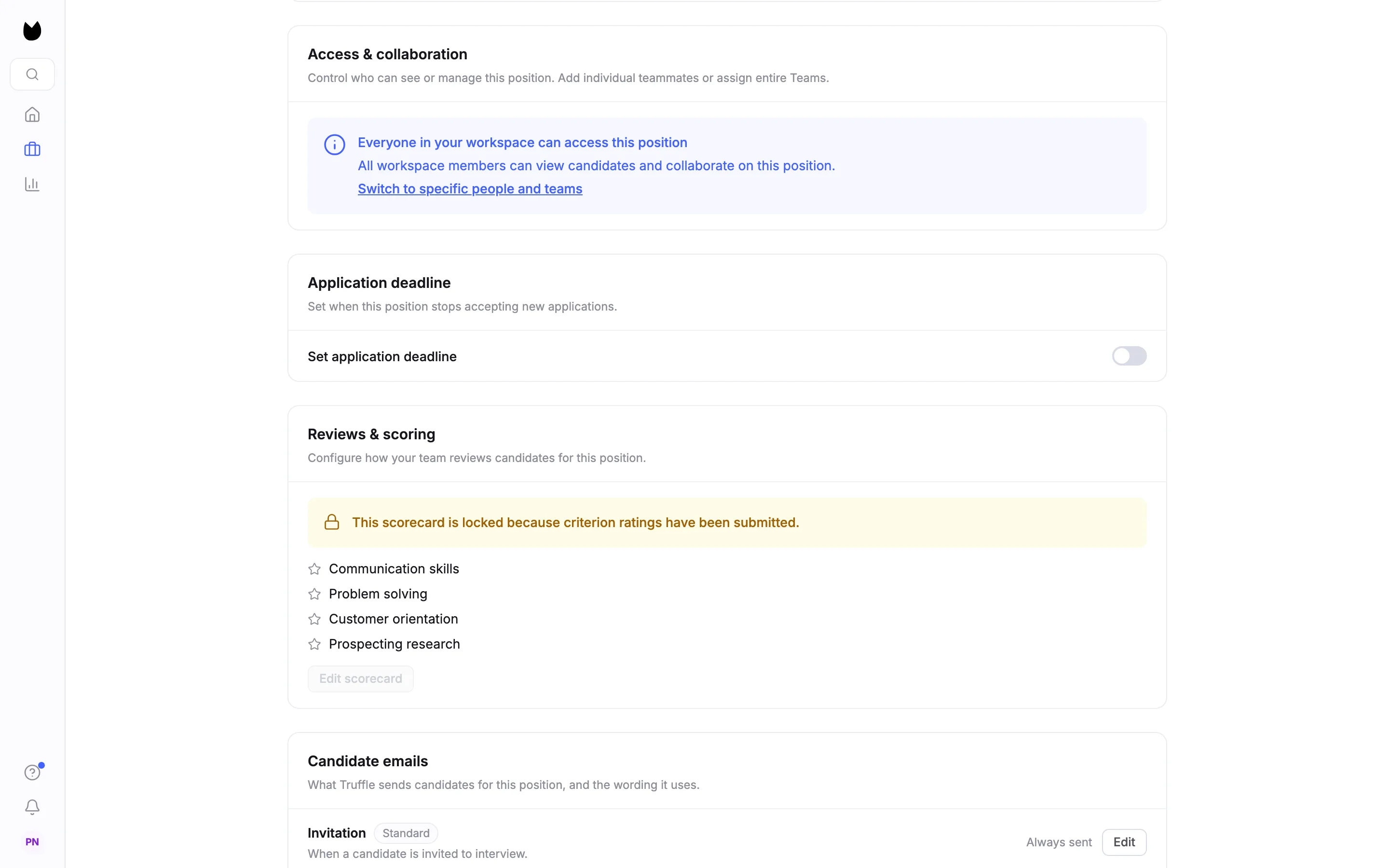
As soon as anyone submits criterion ratings, Reviews & scoring shows This scorecard is locked because criterion ratings have been submitted. and Edit scorecard is greyed out, so every review on the position uses the same criteria.
Note. Set the criteria before your team starts reviewing.
Questions
Does a review move the candidate forward or reject them?
No. Move forward, Unsure and Decline are each reviewer's view for the team. The candidate's status only changes when someone on your team decides.
Can teammates see my review before they write theirs?
Members cannot. They see the team's reviews only after they submit their own. Owners and Admins can look before reviewing, and the panel tells them their own review is not in the consensus yet.
Can someone change my rating?
No. Each reviewer's ratings and recommendation are their own. You can change yours with Edit.
Can I change the scorecard after reviews start?
No. Once anyone has submitted criterion ratings the scorecard is locked and Edit scorecard is greyed out. Set the criteria before reviews begin.
How many criteria can a scorecard have?
Up to 10. Each one is rated from 1 to 5 stars.
Related
See something here that doesn't match what you see in Truffle? Tell us and we'll fix the page.