Guide
Read a candidate profile
By the end you know where every part of a candidate's results sits on their profile, what each score is measured against, and where the reasoning behind it is.
6 min · 10 steps · Captured from the live product 5 Oct 2026 Changelog Copy as Markdown
Before you start
- A Truffle account. The 7-day free trial works: 30 credits, no credit card.
- A position with at least one candidate who has finished their screening.
1Open the profile
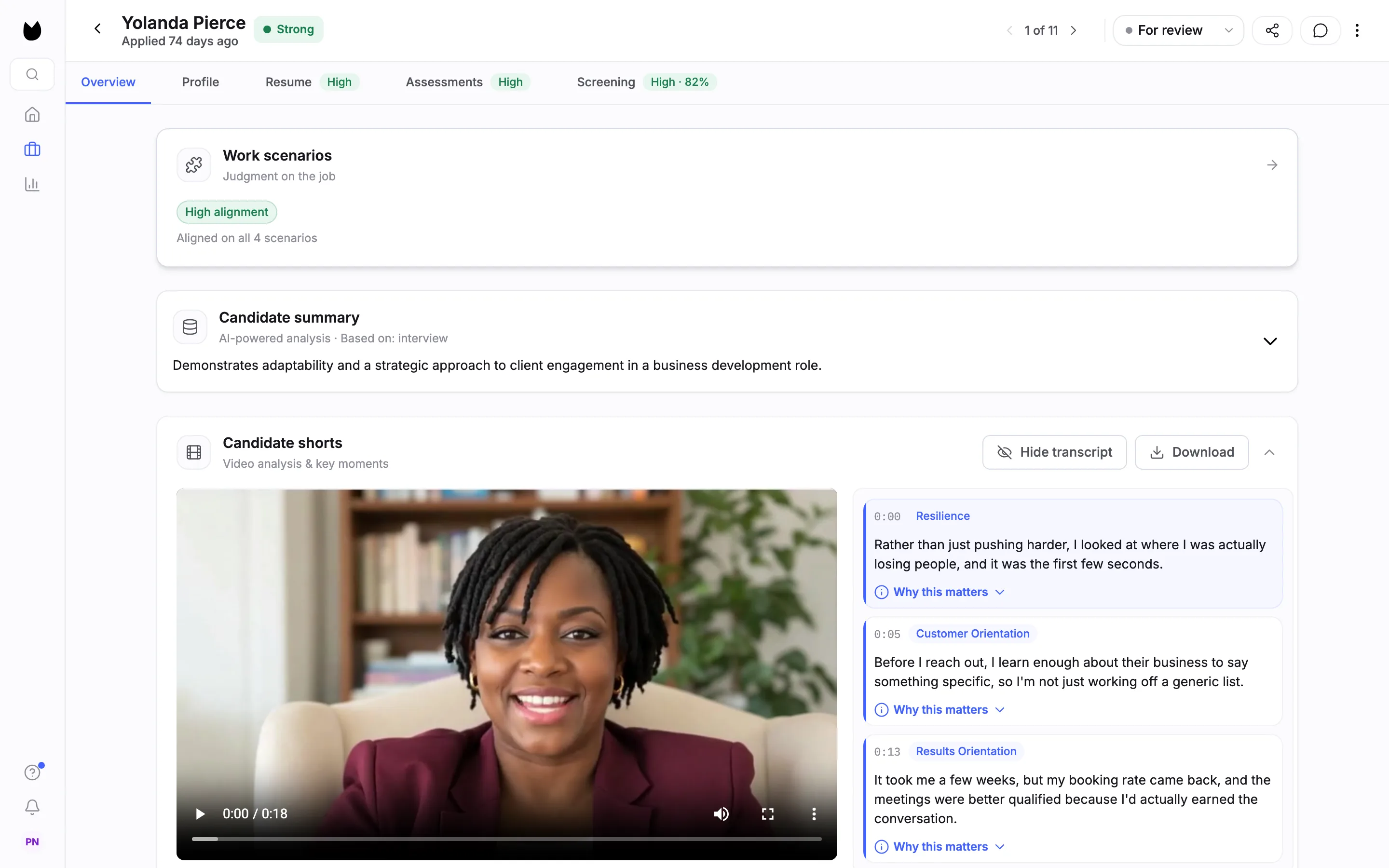
On a position's candidate list, click a candidate's name. The profile opens as a full page. The header shows the name, the Overall signal (here Strong), when they applied, a counter such as 1 of 11 with arrows to the previous and next candidate, and the status control, here For review. The tabs underneath carry the signals too: Resume and Assessments read High, Mid or Low, and Screening shows the interview band and match score, such as High · 82%.
Note. You can also reach this page from Magic Review with Full Profile. The Magic Review guide covers that view.
2Read the Candidate summary
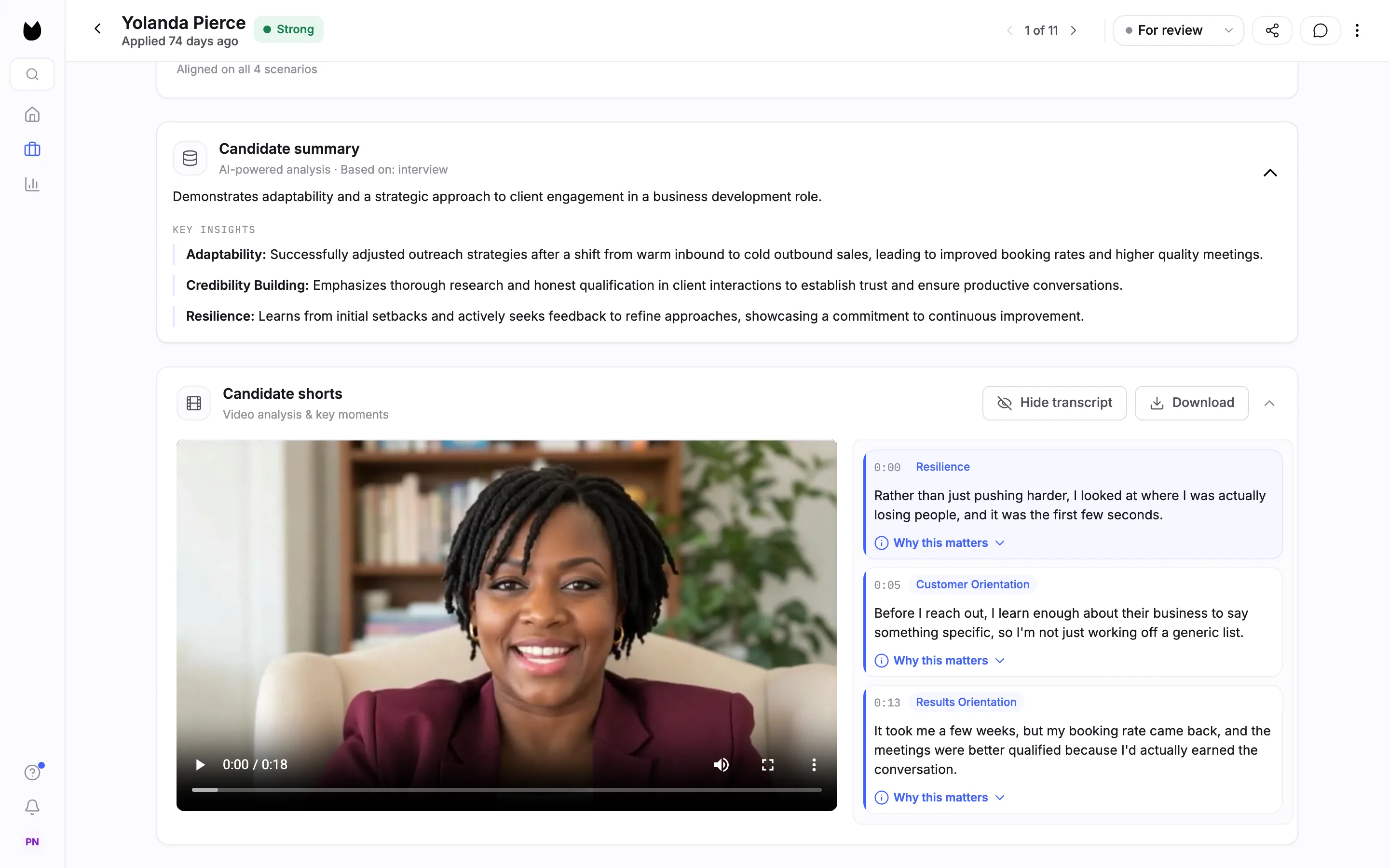
Overview is the first tab. The Candidate summary card says what it is based on, here AI-powered analysis · Based on: interview, and opens on a one-sentence read. Click the card to open it. Under KEY INSIGHTS, each line names a competency and what the answers showed for it, such as Adaptability and Credibility Building. Above the summary, each assessment the position uses has its own card, here Work scenarios with High alignment.
3Watch the Candidate Shorts
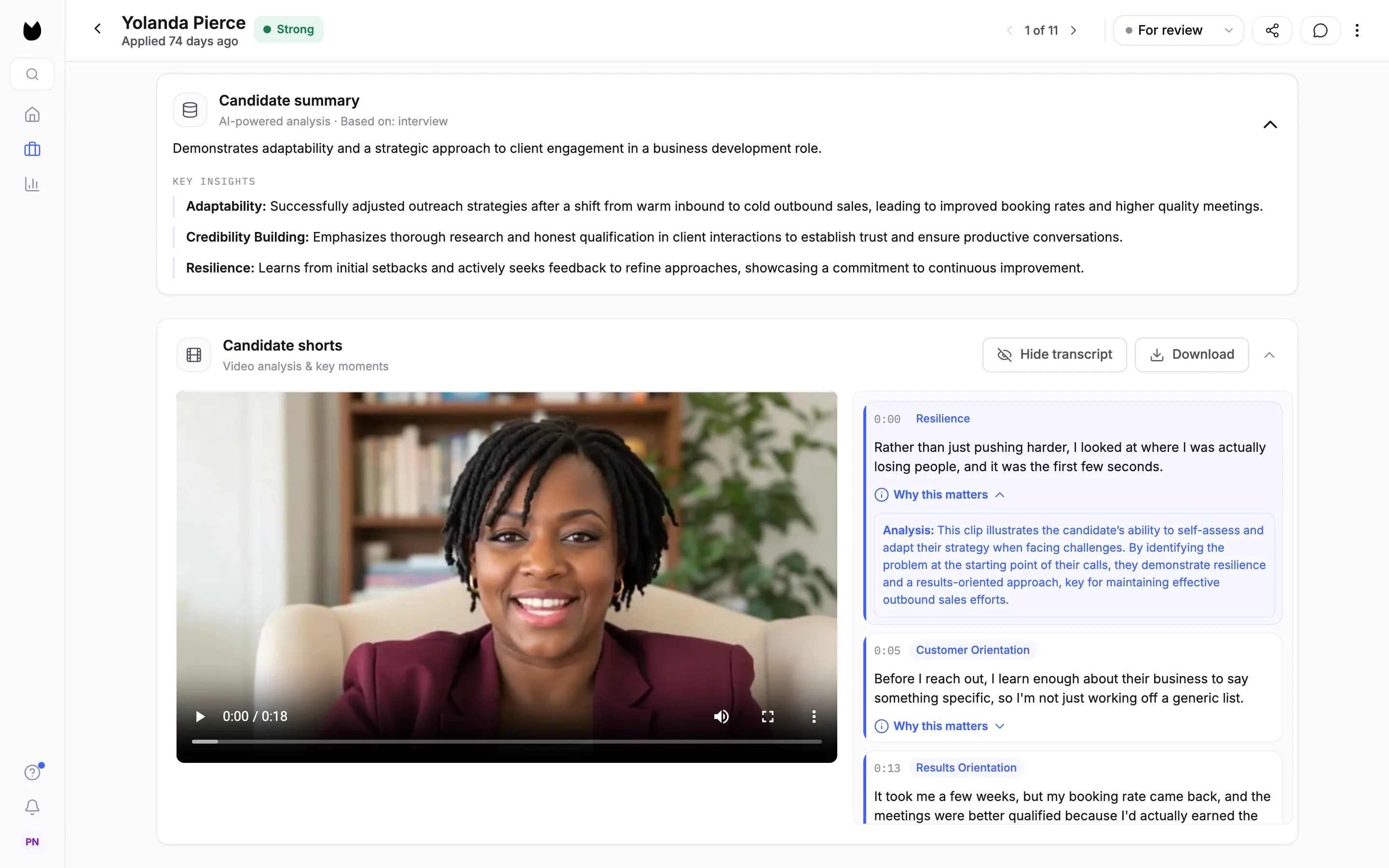
Candidate shorts (Video analysis & key moments) are short clips from the interview. Each clip has a timestamp, a competency tag such as Resilience or Customer Orientation, and its transcript. Open Why this matters on a clip to read why it was picked. Hide transcript hides the text next to the player.
4Check contact details and qualification checks
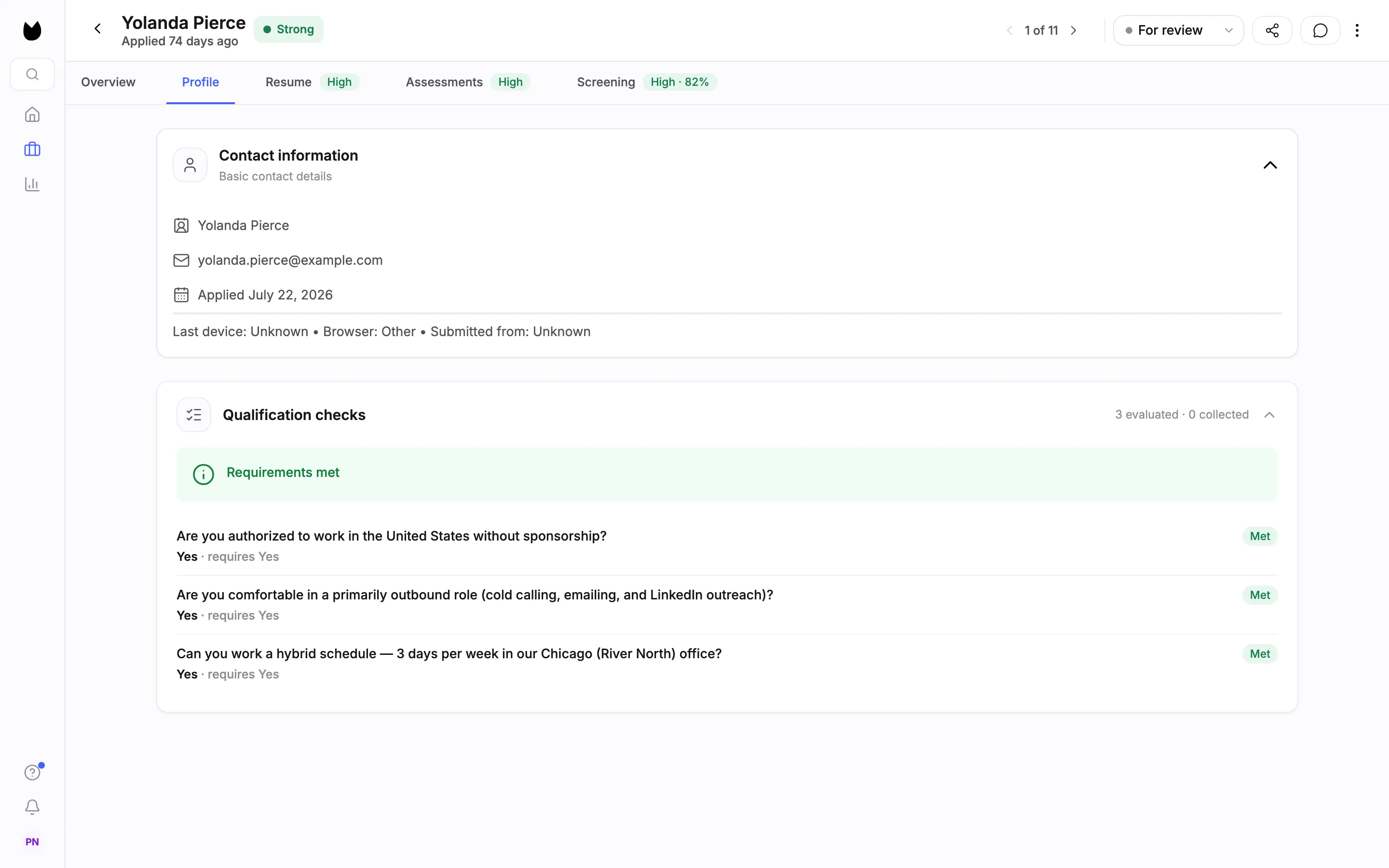
Profile holds Contact information: name, email, the date they applied, then the last device, browser and the country they submitted from (Submitted from). Under it, Qualification checks lists each question with the candidate's answer, what the position requires and the result, such as Yes · requires Yes and Met. When every check passes, the card says Requirements met.
5See how the resume scored
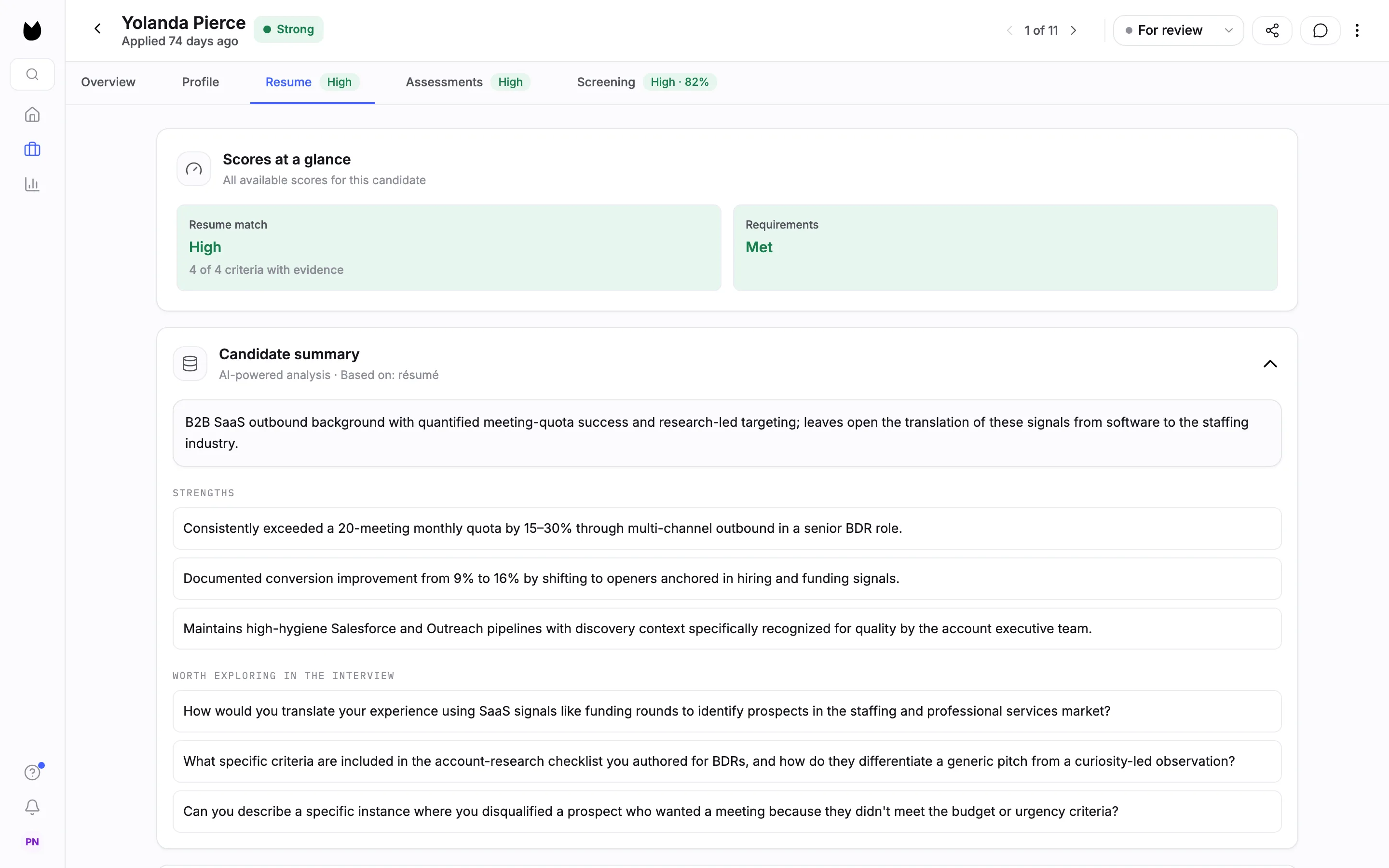
Resume opens on Scores at a glance: the Resume match band with how many criteria have evidence (here 4 of 4 criteria with evidence) and the Requirements result. Below it, a second Candidate summary, based on the resume, lists STRENGTHS and questions WORTH EXPLORING IN THE INTERVIEW. When the resume leaves gaps against the criteria, they are listed here too.
6Read the criteria match
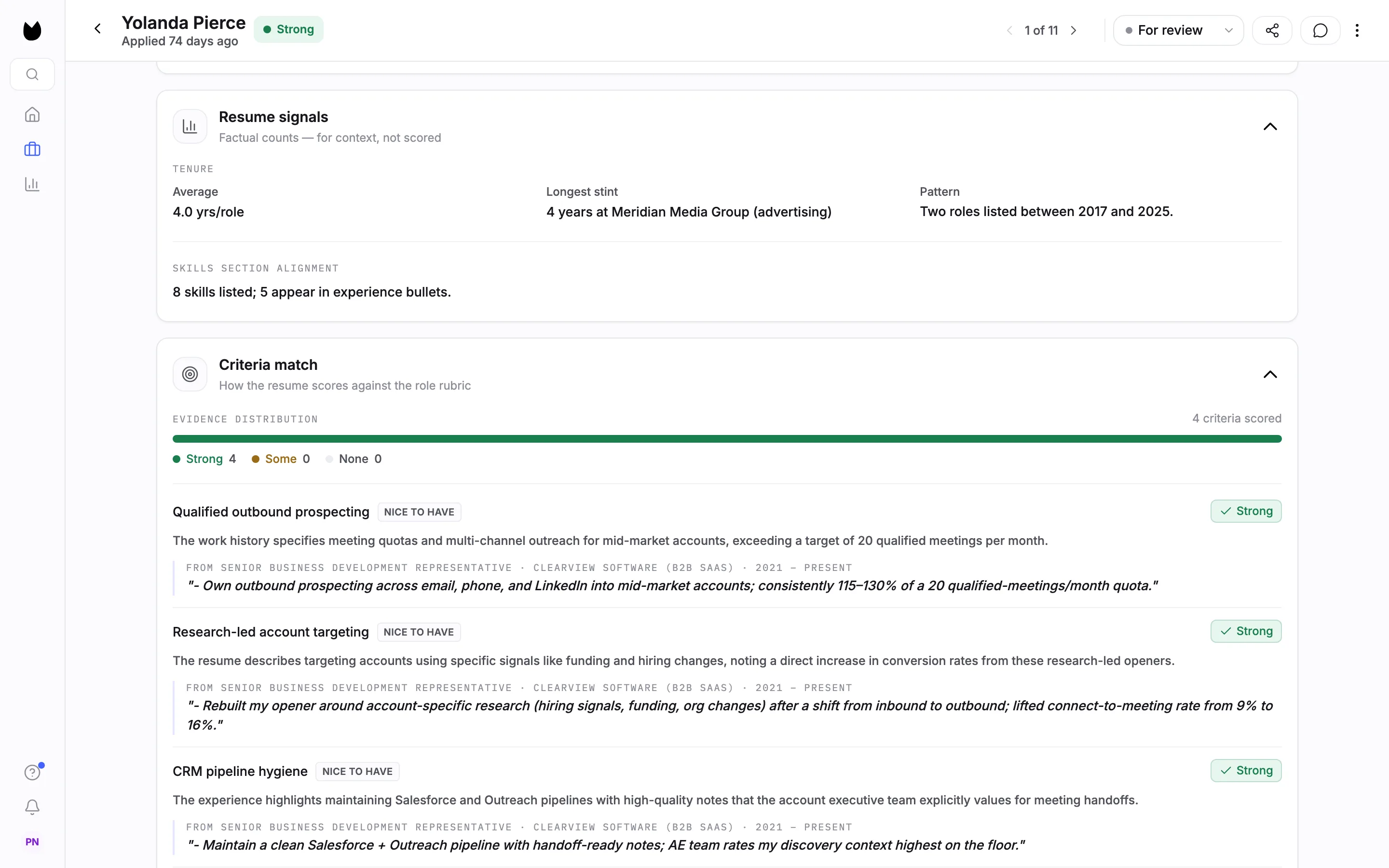
Resume signals are factual counts for context, not scored: average tenure, longest stint, the pattern of roles, and how many listed skills appear in the work history. Criteria match shows how the resume scores against the position's resume criteria. EVIDENCE DISTRIBUTION counts criteria with Strong, Some or None. Each criterion then shows whether it is required (here NICE TO HAVE), its result, the reasoning, and the line from the resume it is based on.
7Check the resume itself
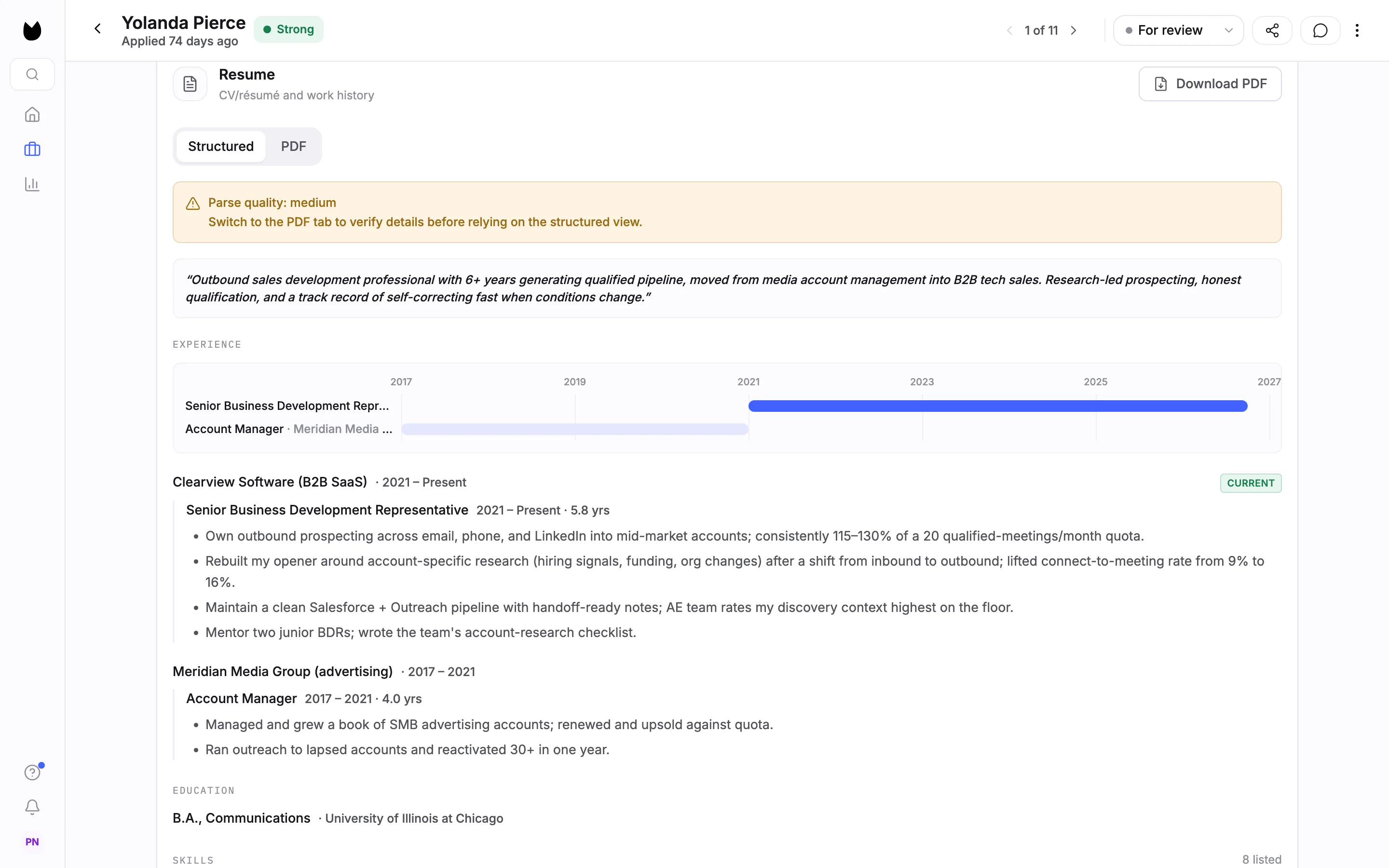
Further down, the Resume card shows the resume in two views. Structured is the parsed version: summary, experience on a timeline, education and skills. PDF shows the file the candidate sent, and Download PDF saves it. If the parse was not clean, a note such as Parse quality: medium asks you to check the PDF before relying on the structured view.
8Go through the interview answers
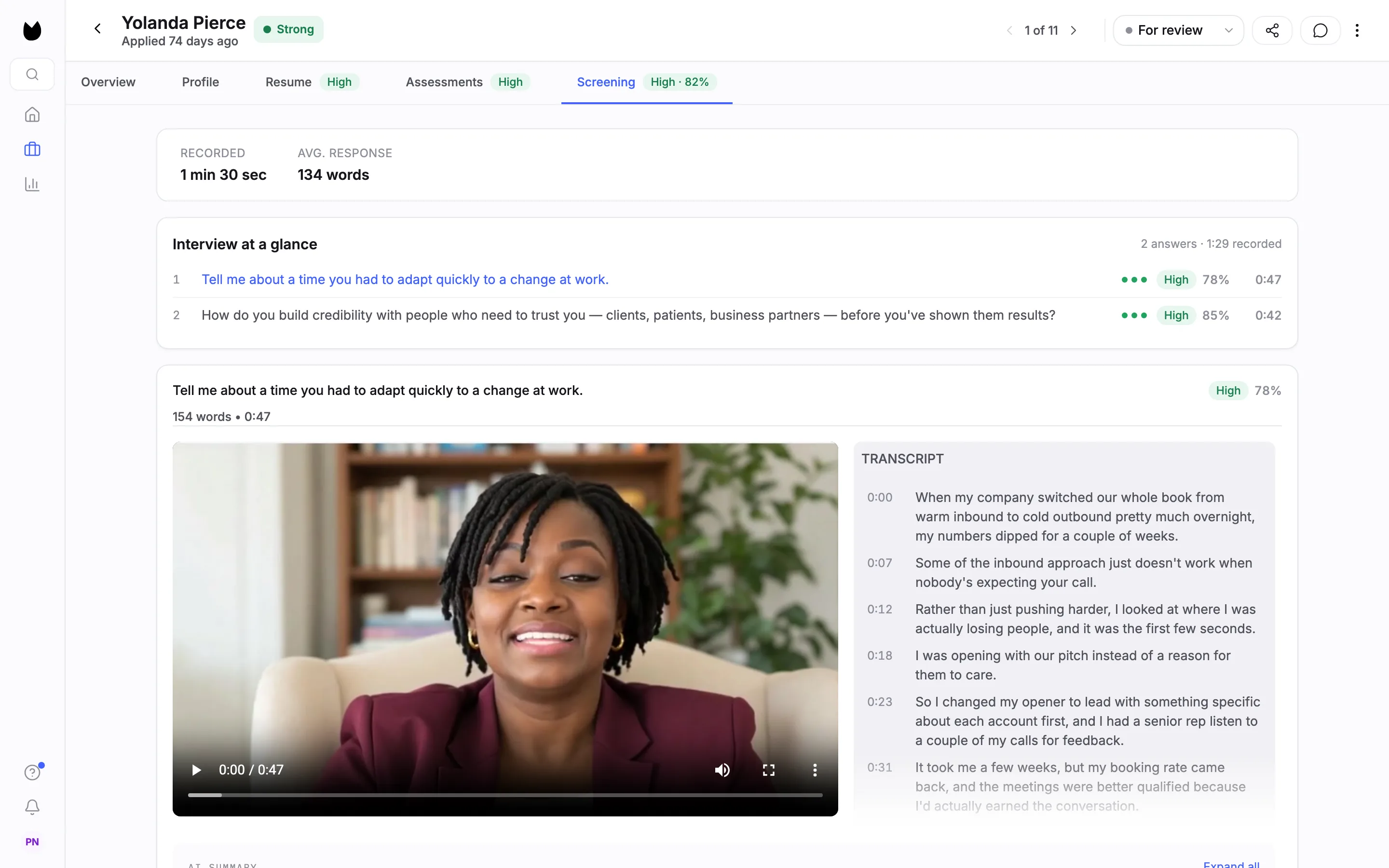
Screening starts with the total RECORDED time and the AVG. RESPONSE length. Interview at a glance lists every question with its band, score and answer length. Each answer then has its video, its word count and length, and the TRANSCRIPT with timestamps.
9Read how each answer scored
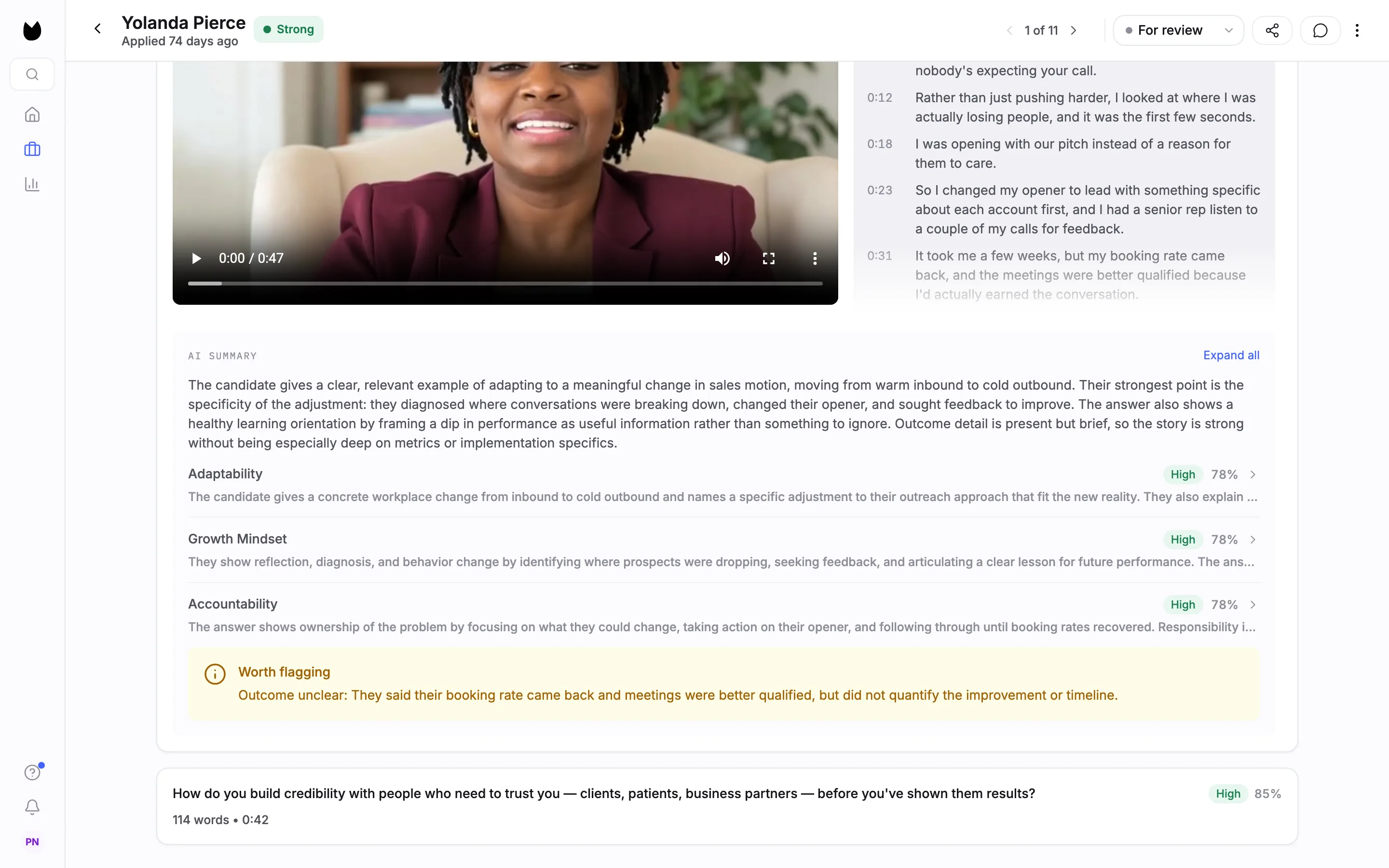
Under each answer, AI SUMMARY describes the answer against what the question looks for. Each competency the question scores, such as Adaptability or Accountability, gets its own band, score and reasoning. The reasoning is shortened in each row; choose Expand all to read it in full. Worth flagging points out anything to follow up, for example an outcome the candidate did not quantify.
Note. When a question carries scoring guidance, its header also has About this question, which opens why the question is asked, what it looks for and its evaluation criteria. The questions in this example have none, so the link does not show.
10Check the assessments
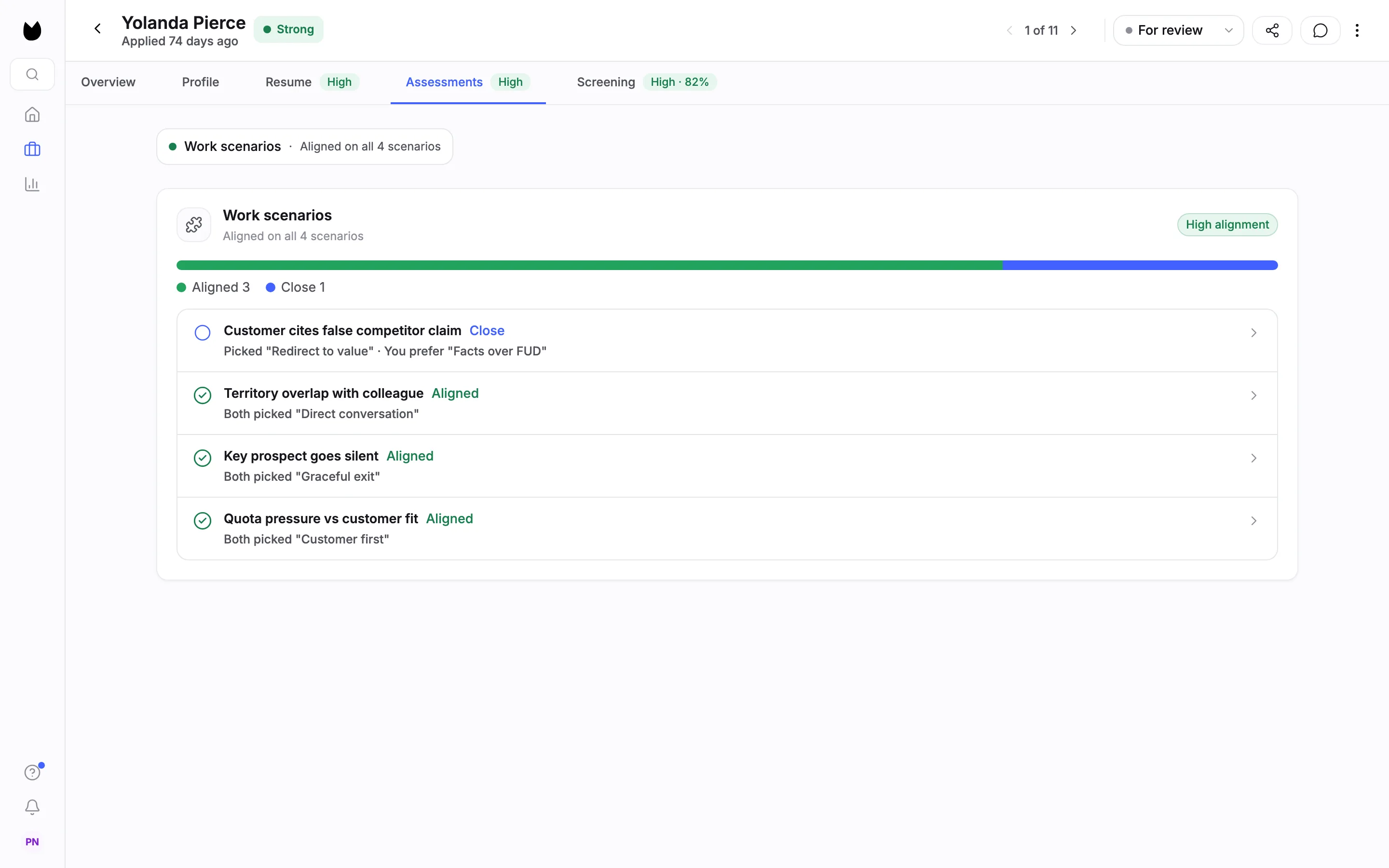
Assessments has one section per assessment the position uses. For Work scenarios, the header gives the overall read (High alignment, Aligned on all 4 scenarios) and a bar of how many scenarios were Aligned or Close. Each scenario then shows the approach the candidate picked next to the one you set, such as Both picked a given approach, or the candidate's pick beside You prefer.
Note. The Assessments page explains how each assessment is scored. Scores are measured only against the criteria for this position, and they never decide anything: you do.
Questions
What does the Overall signal on the profile mean?
When a position measures two or more things, such as a resume, an interview and assessments, Truffle rolls their signals into one Overall read: Strong, Mixed or Weak. Each underlying score, and the reasoning behind it, stays on its own tab.
What is the interview score measured against?
Each question has a scoring rubric built from your position description and role brief. Every answer is scored against its question's rubric, and the per-question scores roll up into the match score on the Screening tab.
Why are there two Candidate summaries?
One is based on the interview and sits on the Overview tab. The other is based on the resume and sits on the Resume tab. Each card says what it is based on under its title.
Where do I record my decision?
Use the status control at the top right of the profile, which shows the current status, for example For review. You decide what happens to every candidate. The scores do not.
Why is there no Clarity card on this profile?
Clarity read (beta) is off by default and is turned on per position. A candidate's profile shows the Clarity card only on positions that use it, for interviews completed after it was turned on.
Related
See something here that doesn't match what you see in Truffle? Tell us and we'll fix the page.