Guide
Connect Pinpoint
By the end the Truffle plugin in Pinpoint holds your Truffle key, your team can run Truffle from a Pinpoint candidate, and results land back on the candidate's Pinpoint record.
10 min · 8 steps · Captured from the live product 5 Oct 2026 Changelog Copy as Markdown
Before you start
- A paid Truffle plan. Integrations are available on paid plans, so a free trial cannot connect Pinpoint.
- The Owner or Admin role in Truffle. Only owners and admins can connect Pinpoint.
- The Truffle plugin added in Pinpoint. The key you create goes into its configuration.
- Open Truffle positions set up for what you will run: resume criteria for resume screening, an interview or assessments for the interview.
1Open the Pinpoint card
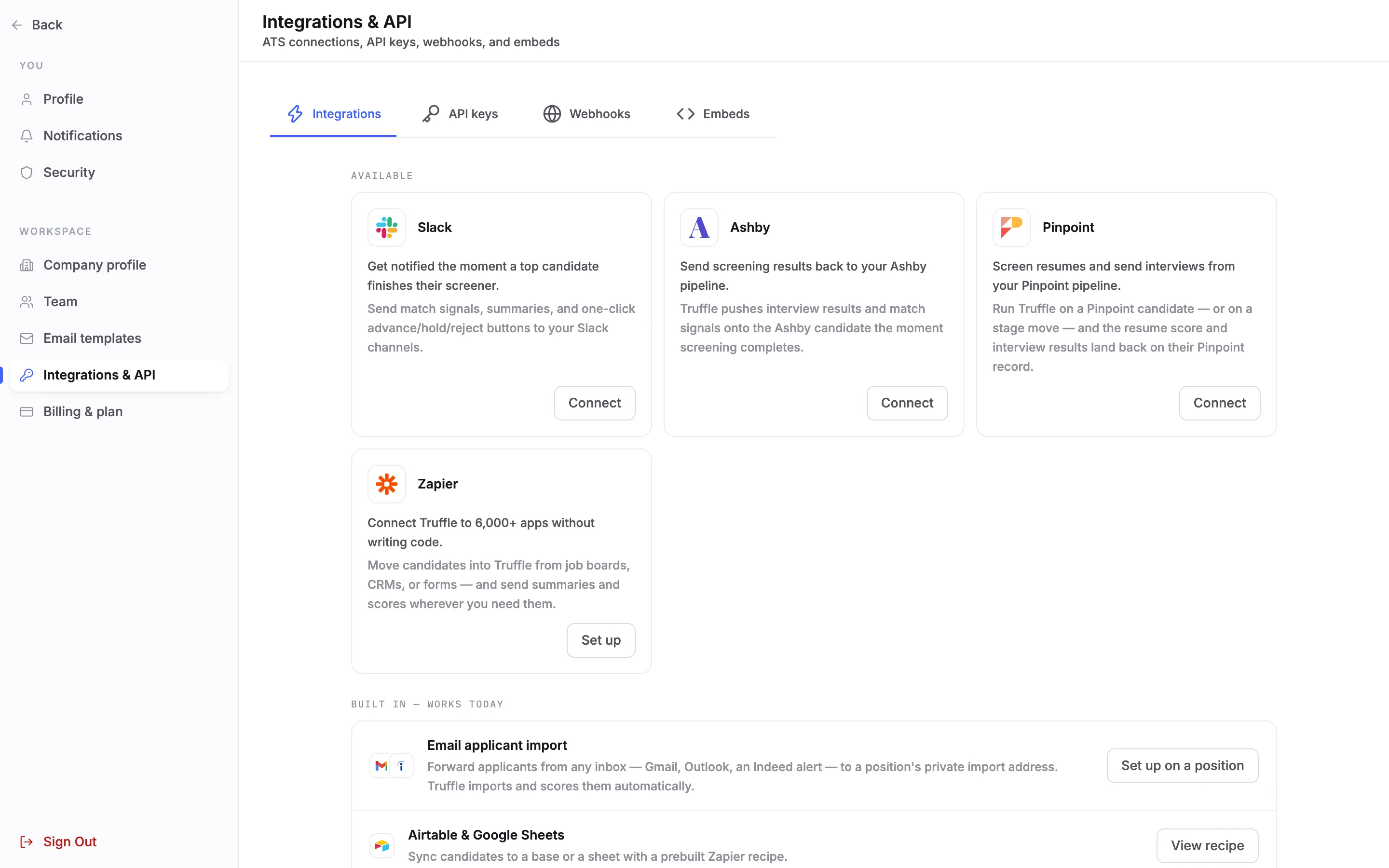
Open Settings and choose Integrations & API under WORKSPACE. On the Integrations tab, find Pinpoint under Available: Screen resumes and send interviews from your Pinpoint pipeline. Choose Connect.
2Create the key
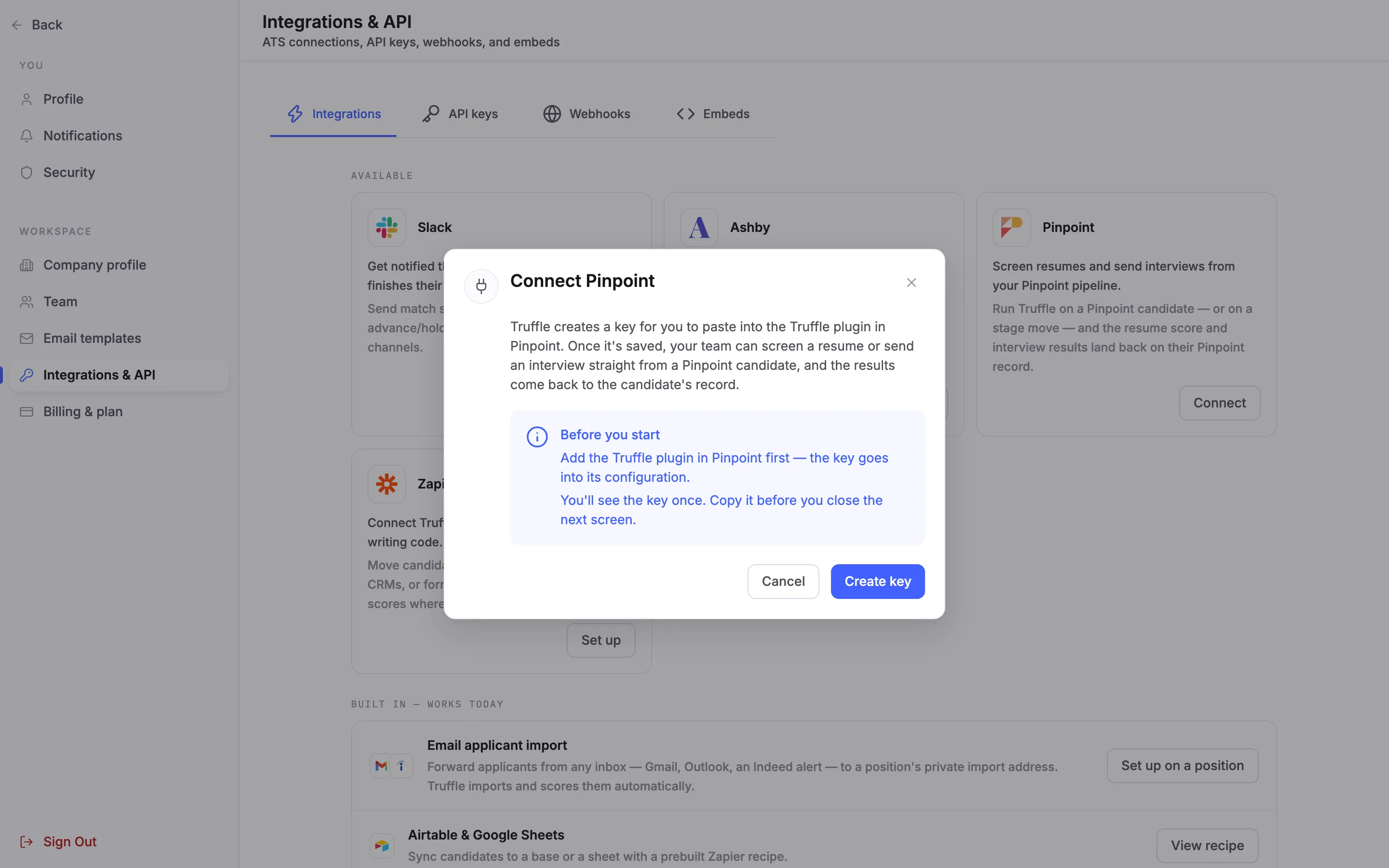
Connect Pinpoint explains what happens: Truffle creates a key for you to paste into the Truffle plugin in Pinpoint. Before you start reminds you to add the plugin in Pinpoint first, and that you see the key once. Choose Create key. Truffle asks for nothing from Pinpoint.
3Copy the key, shown once
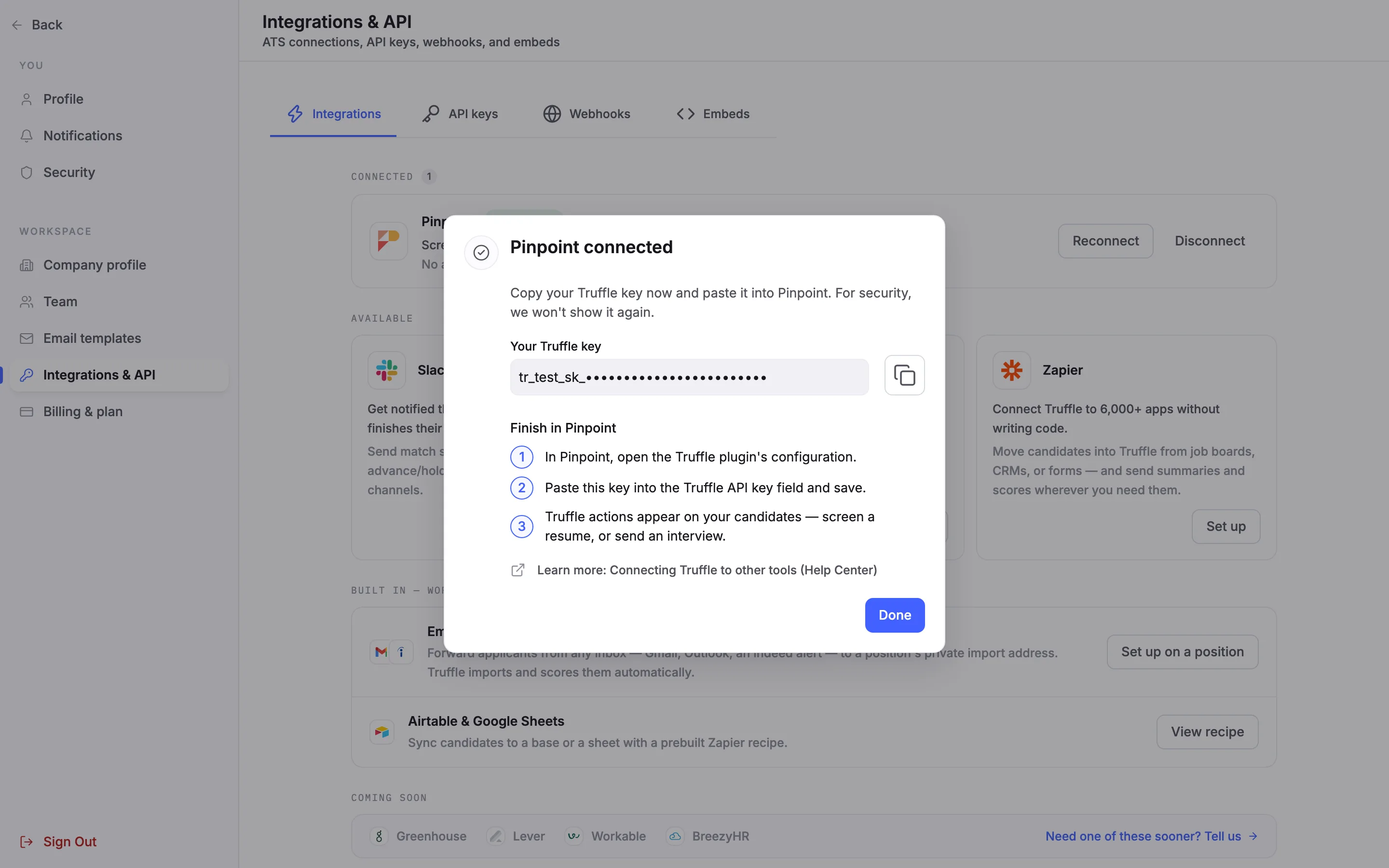
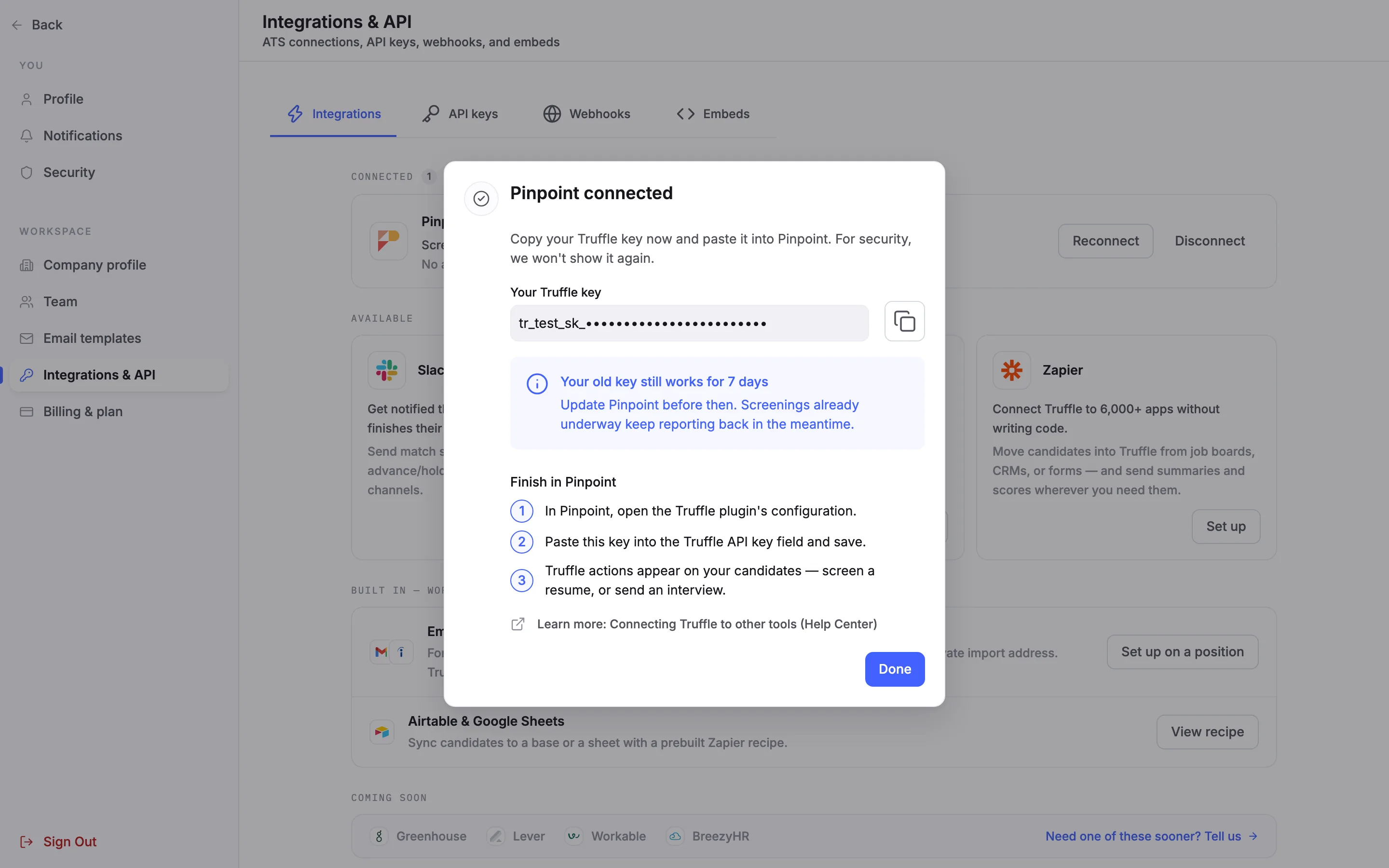
Pinpoint connected shows Your Truffle key with a copy button. Copy it now: For security, we won't show it again. Under Finish in Pinpoint are the steps to take next. This panel only closes with Done, so a stray click cannot lose the key.
4Paste the key into the Truffle plugin
This step happens in Pinpoint. Open the Truffle plugin's configuration, paste the key into the Truffle API key field, and save. The Truffle actions then appear on your Pinpoint candidates.
5Check the connection
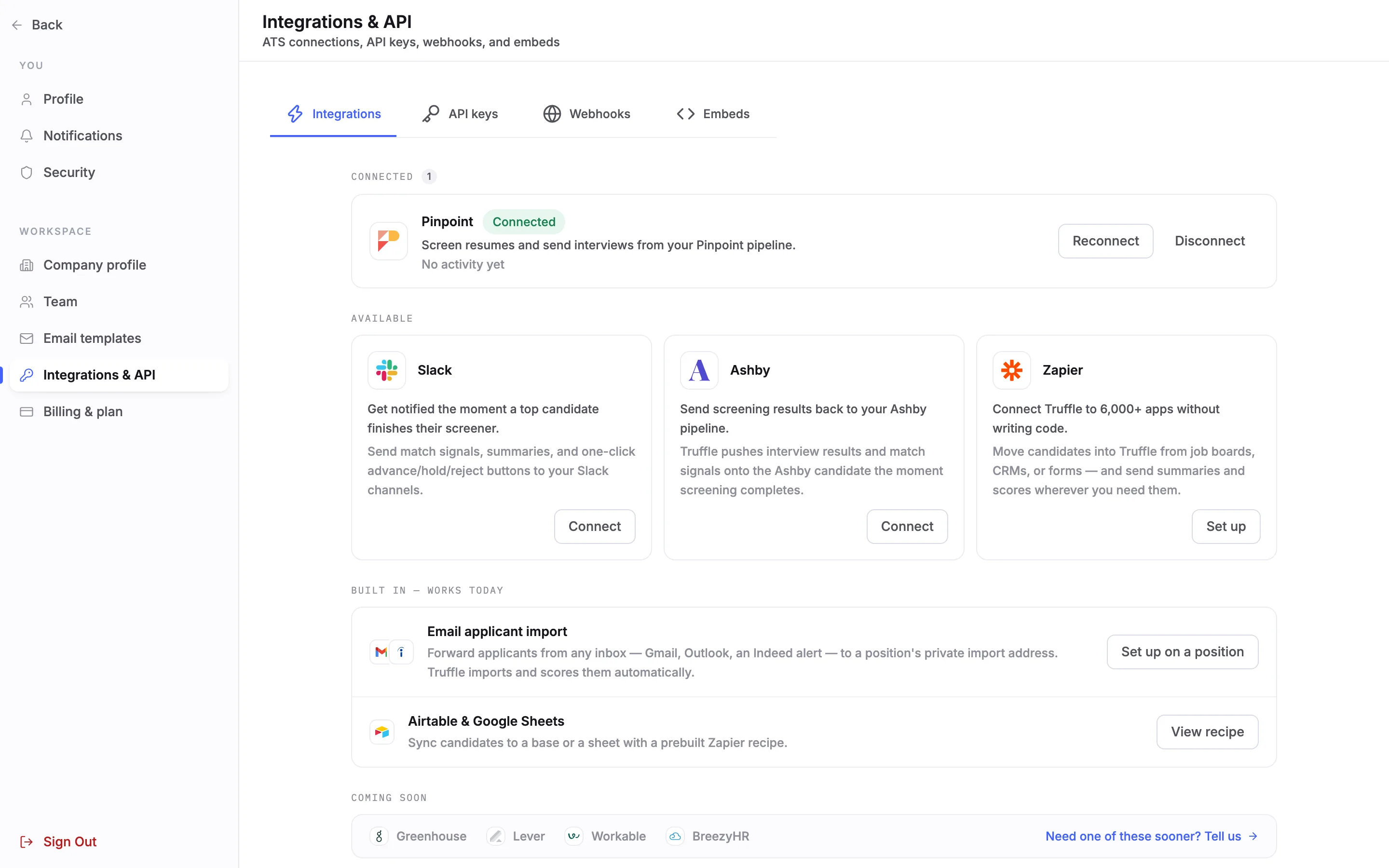
Back in Truffle, Pinpoint now sits under Connected with the Connected pill and its last activity, which reads No activity yet until the first action runs. If something goes wrong, the pill changes to Degraded or Action needed. Reconnect and Disconnect are on the right.
6Run Truffle on a Pinpoint candidate
This step happens in Pinpoint. The plugin adds two actions to a candidate. Screen resume with Truffle scores the candidate's resume against the position's resume criteria and does not contact the candidate. Send Truffle interview sends the candidate Truffle's interview invitation. Each action only offers open Truffle positions set up for it. When scoring or the interview finishes, the result lands on the candidate's Pinpoint record: the resume match score and tier, the interview score and tier, assessments as a tier, and a link to the candidate in Truffle.
Note. The resume must be a PDF or DOCX file of up to 5 MB. Closed, archived or expired positions refuse new sends. Scores never reject anyone: you decide what happens next in Pinpoint.
7Replace the key
To replace the key, choose Reconnect, then Create key. Truffle shows the new key once, and Your old key still works for 7 days, so screenings already underway keep reporting back. Paste the new key into the plugin before then.
8Disconnect Pinpoint
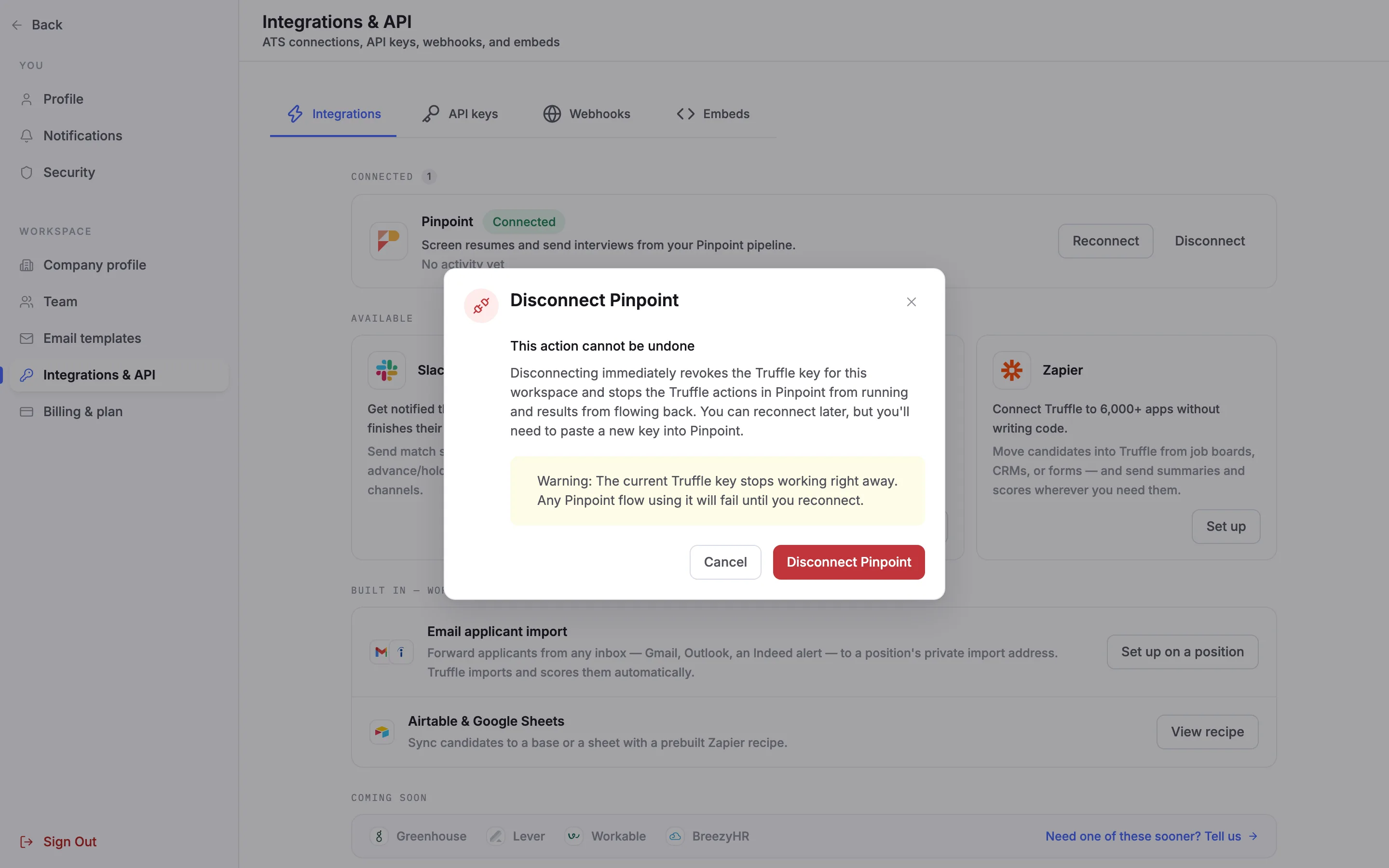
Disconnect opens Disconnect Pinpoint. It revokes the Truffle key at once, which stops the Truffle actions in Pinpoint and stops results flowing back. To connect again later, you create a new key and paste it into Pinpoint.
Questions
Do I need a Pinpoint API key?
No. Pinpoint calls Truffle through the plugin, so the only key is the one Truffle creates for you to paste into the plugin.
Does Screen resume with Truffle email the candidate?
No. It scores the resume against the position's resume criteria and does not contact the candidate. Send Truffle interview is the action that sends an invitation.
I closed the key panel without copying the key. What now?
Truffle cannot show it again. Choose Reconnect and Create key to get a new one. The old key keeps working for 7 days while you update the plugin.
Why does a position not show up in the plugin?
Each action only offers open Truffle positions set up for it. Closed, archived or expired positions refuse new sends.
How do assessments come back to Pinpoint?
As a tier, without a score. The resume and the interview each come back with a score and a tier, plus a link to the candidate in Truffle.
Who can connect Pinpoint?
Owners and admins, on a paid plan.
Related
See something here that doesn't match what you see in Truffle? Tell us and we'll fix the page.