Guide
Export candidates
By the end you can download a CSV of a position's candidates or of the ones you pick, save one candidate's screening as a PDF document, and, on an annual plan, download a zip with one PDF per candidate.
4 min · 7 steps · Captured from the live product 5 Oct 2026 Changelog Copy as Markdown
Before you start
- A Truffle account. The 7-day free trial works: 30 credits, no credit card.
- A position with candidates who have finished their screening.
- For the zip of PDFs: an annual plan.
1Export the list as a CSV
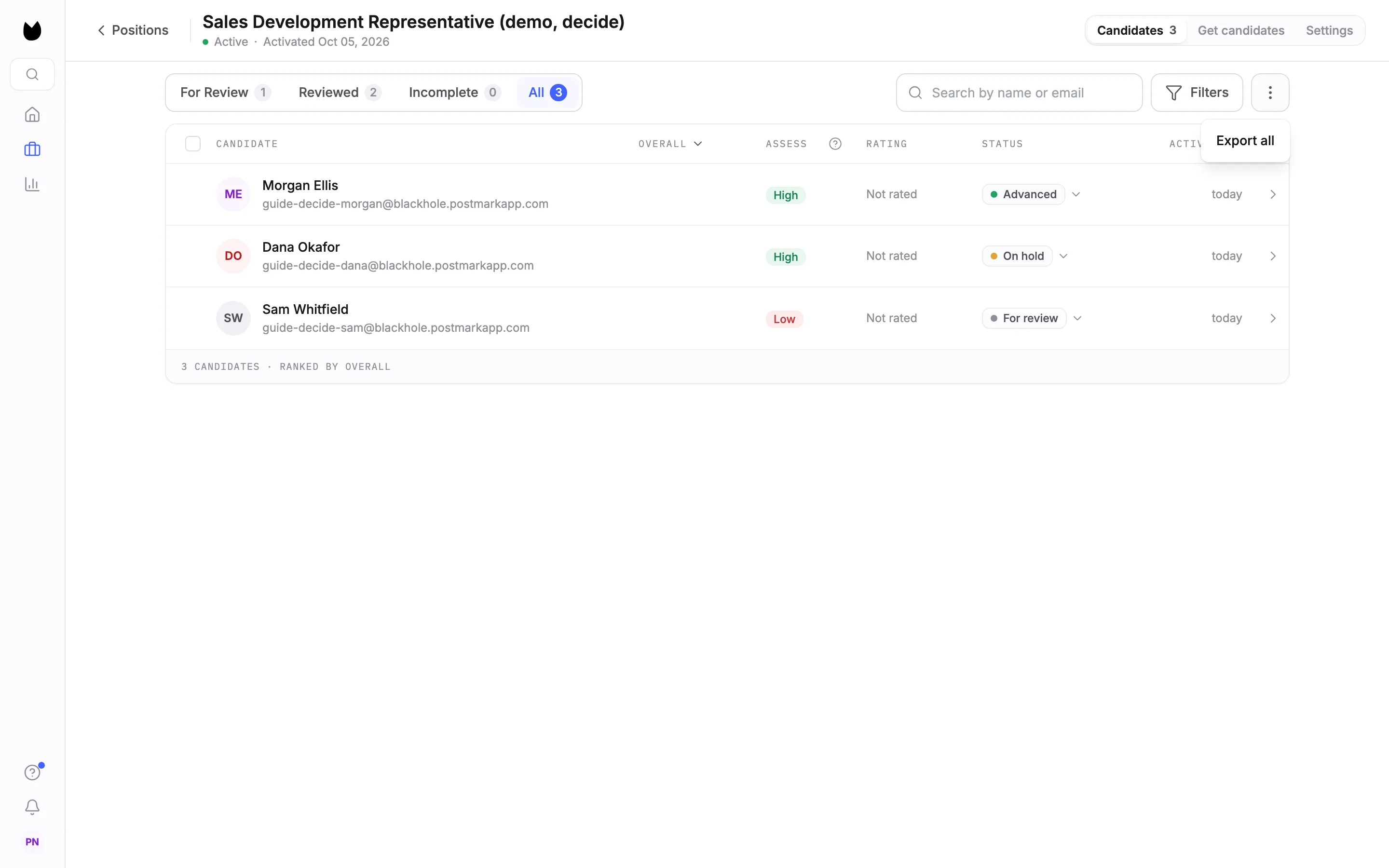
Open the position and pick the tab you want, here All with three candidates. Choose the menu button (three dots) next to Filters, then Export all. The CSV holds the candidates listed on the tab you have open.
2Check the file
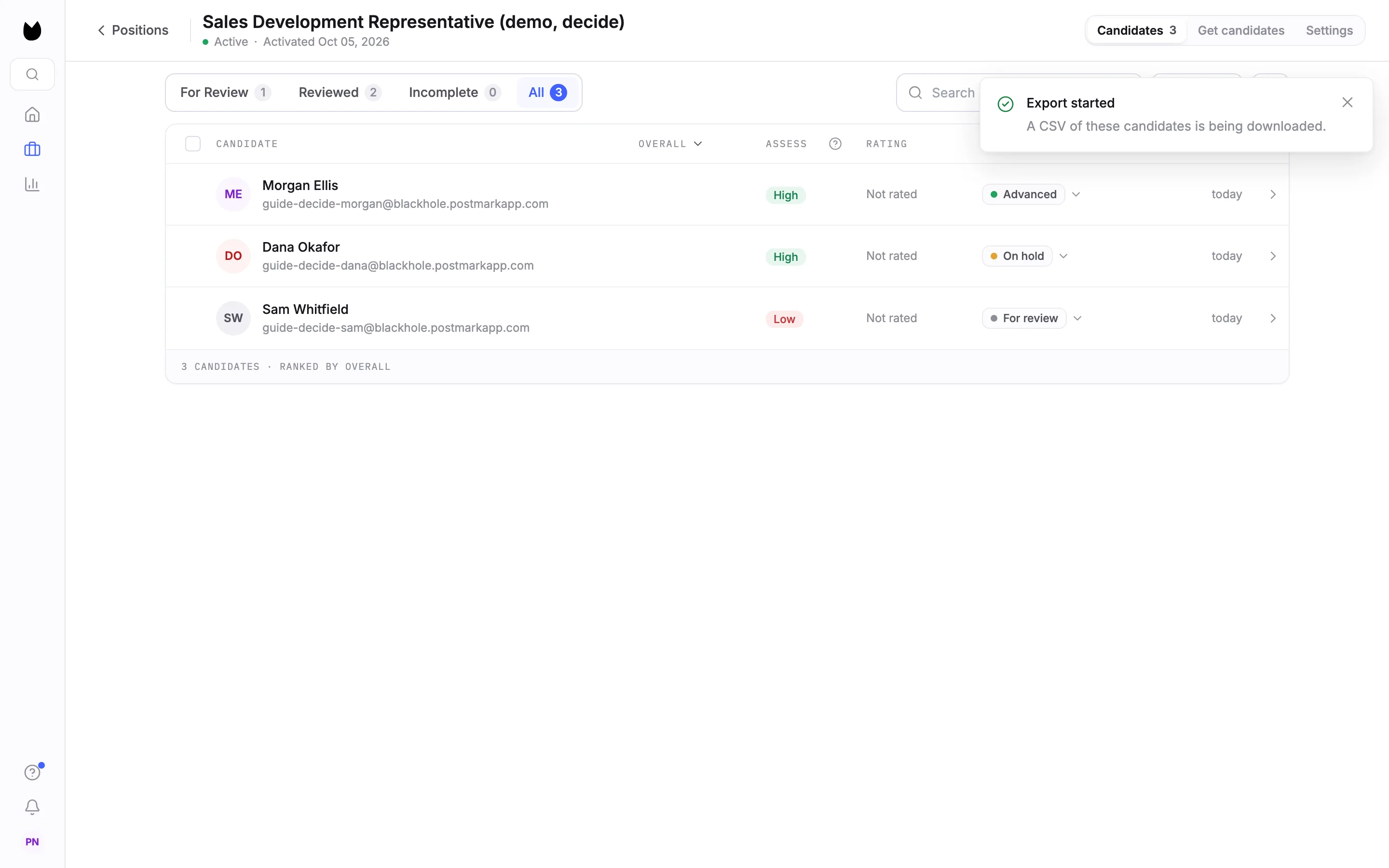
Truffle confirms Export started and the file downloads, named after the position and the date. It has one row per candidate with these columns: First name, Last name, Email, Phone, Job title, Source, Status, Match score (%), Date applied, Date hired, Candidate link and Candidate ID. The Status column uses the labels you see in the app, such as For Review and On Hold.
3Export only the candidates you pick
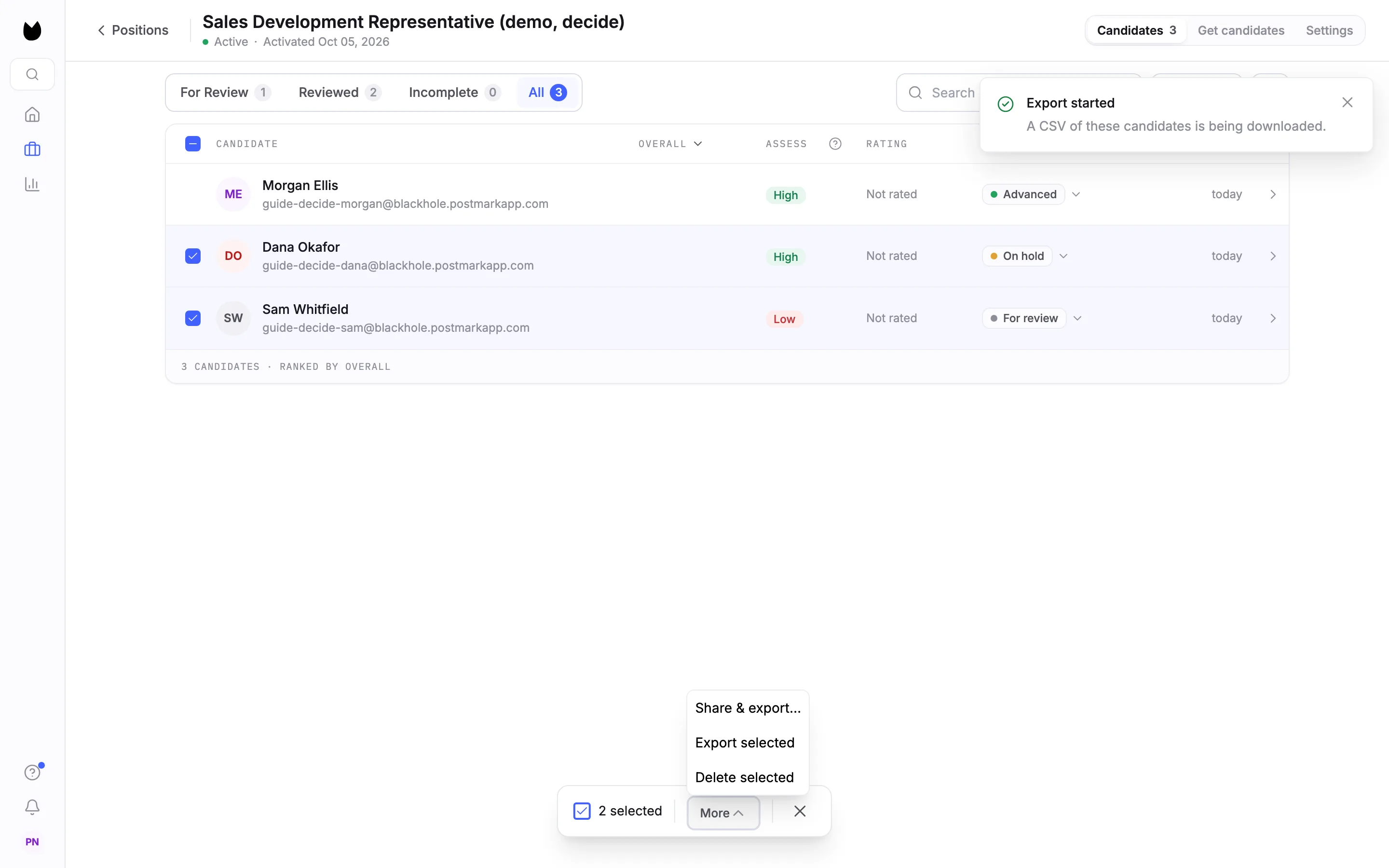
Tick the candidates you want. In the bar at the bottom, choose More, then Export selected. The CSV has the same columns, with only those candidates.
4Save one candidate as a PDF
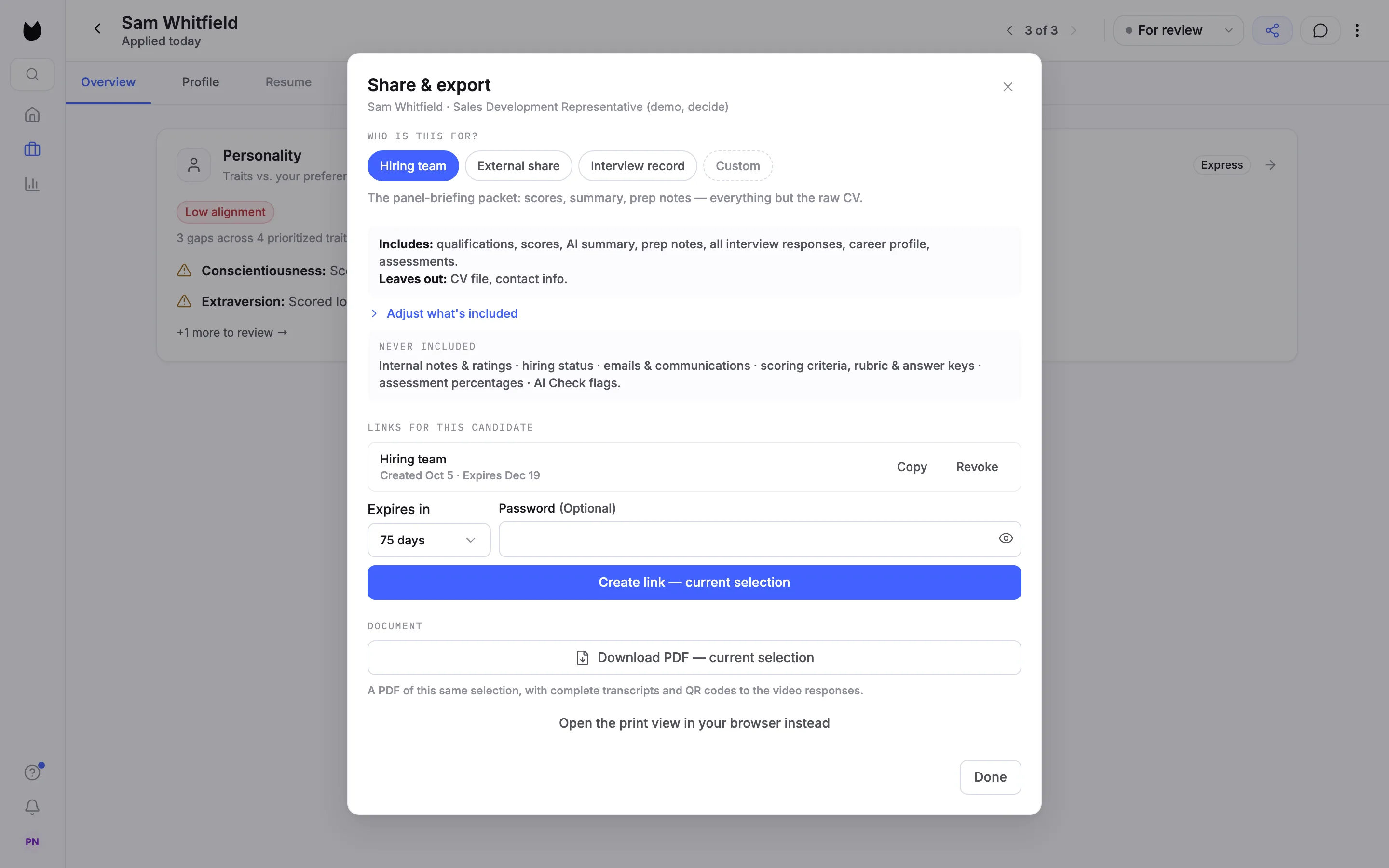
Open the candidate's profile, choose the share icon and go to DOCUMENT at the bottom of Share & export. Download PDF makes a document of the current selection: the audience you picked above, such as Hiring team, decides what it carries. With interview responses included, the PDF has the complete transcripts and QR codes that open the video responses.
Note. The share guide explains what each audience carries and leaves out.
5Or print it from your browser
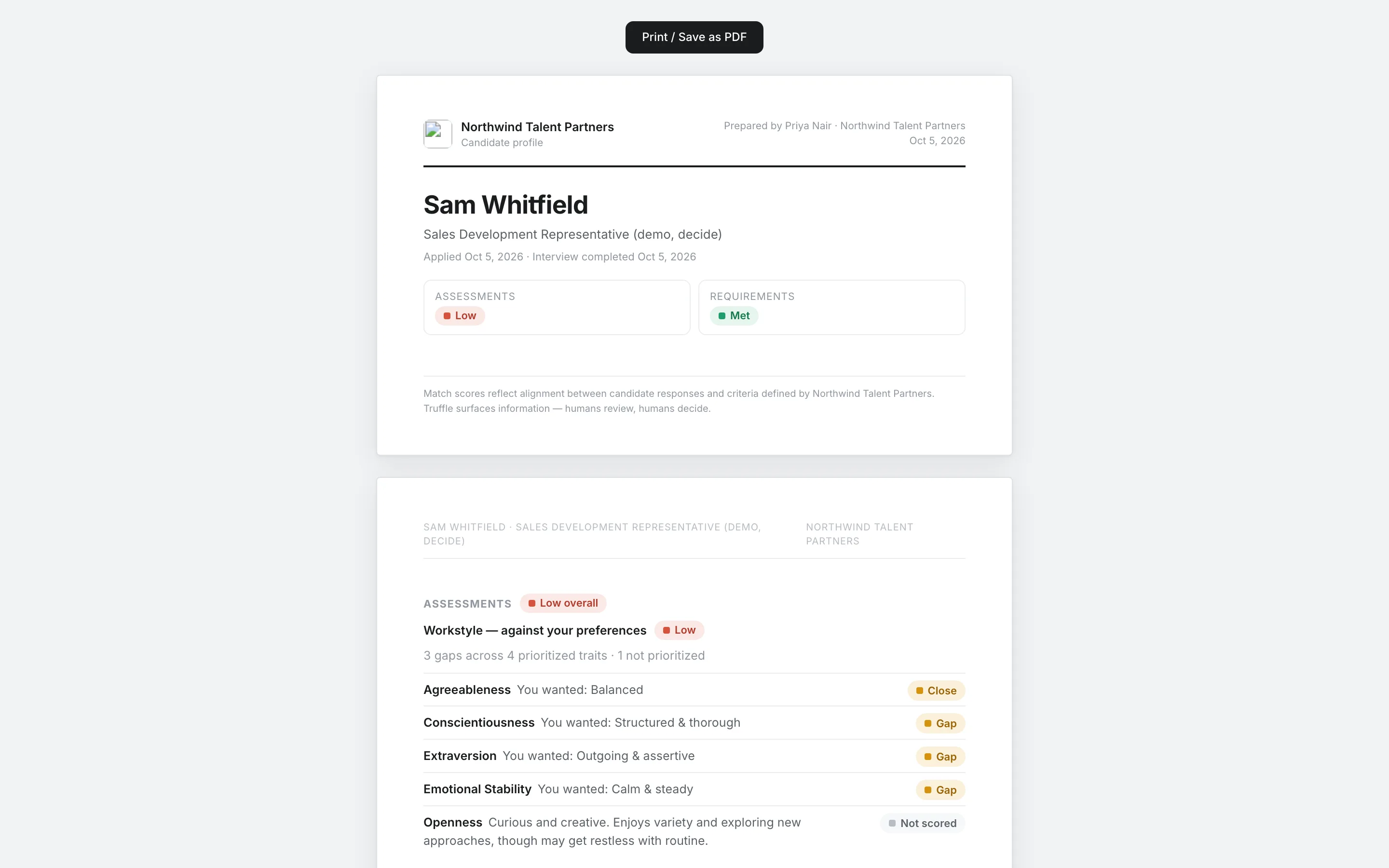
Open the print view in your browser instead opens the same document in a new tab, with Print / Save as PDF at the top. It starts with the candidate's name, the position, when they applied and completed, and their signals, then a section for each part the selection carries.
6Know that the document uses a share link
The PDF, the print view and the zip each use a share link with the same selection. Truffle reuses a matching link or creates one, and it is listed under LINKS FOR THIS CANDIDATE like any other. Revoke it there when you no longer need it.
7Download several as a zip
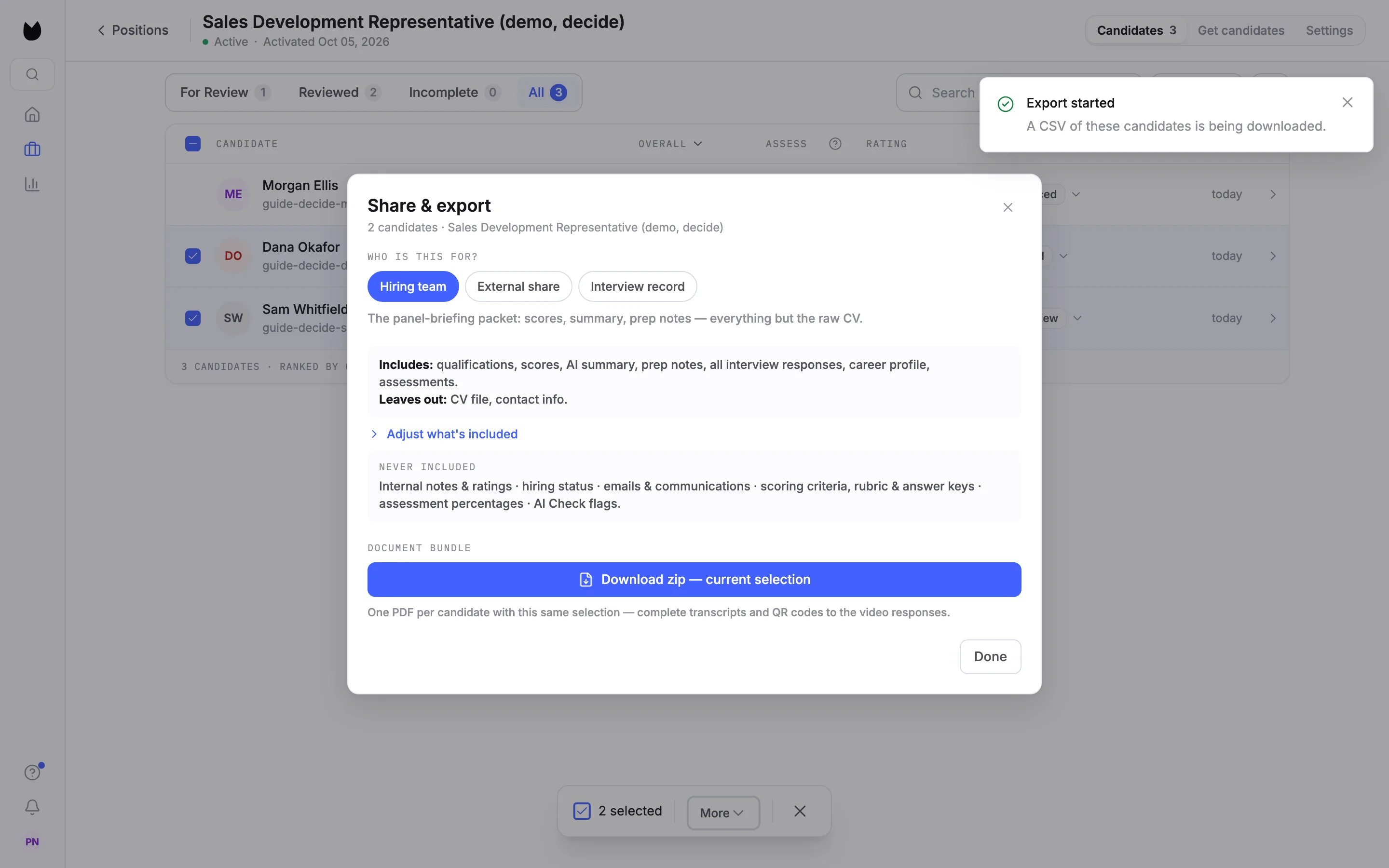
On an annual plan, tick the candidates, choose More, then Share & export…. With more than one candidate selected, the panel shows DOCUMENT BUNDLE and Download zip: one PDF per candidate, with the same selection for all of them.
Questions
Which formats can I export from the candidate list?
A CSV, of the tab you have open or of the candidates you tick. One candidate can also be saved as a PDF document from Share & export, and on annual plans several can be downloaded as a zip of PDFs.
What is in the CSV?
One row per candidate: name, email, phone, job title, source, status, match score, date applied, date hired, a link to the candidate in Truffle and the candidate ID.
What does the PDF include?
What the selected audience carries, the same as a share link with that selection. With interview responses on, it has the complete transcripts and QR codes to the video responses. Internal notes, ratings and hiring status are never included.
Who can download a zip of PDFs?
Accounts on an annual plan. On other plans, save candidates one at a time with Download PDF.
Does exporting change anything about the candidate?
No. Exporting does not change a candidate's status or email them. The PDF and the zip do use a share link for the selection, which you can revoke under Links for this candidate.
Related
See something here that doesn't match what you see in Truffle? Tell us and we'll fix the page.