Guide
Add work scenarios
By the end you have a live position that runs work scenarios against the approaches you picked, and you know where to read how each candidate's ranking compares with yours.
8 min · 14 steps · Captured from the live product 5 Oct 2026 Changelog Copy as Markdown

Key moments and transcript
- 0:00 Define the role
- 0:16 Build the position, then configure screening
- 0:45 Review and activate, then what happens next
Here's how to add work scenarios to a position, so you can see how candidates would handle real situations from the job. Start a new position, and describe the situations the job involves, like prospects who go quiet, or push back on price. On Build position, keep Assessments on, and choose Work Scenarios. Truffle drafts scenarios for the role, like a key prospect going silent. Open one. There are four responses, and you pick the one you'd want. Your pick is what candidates are compared against. Truffle suggests a starting pick. Change it if your team would do it differently. Or swap a scenario for another from the library. Then review, and activate. Each candidate's ranking is compared with your picks, scenario by scenario, and labelled, from Aligned to Opposite. It sits next to everything else you know about them, and the call is yours. Start free at hiretruffle.com.
Before you start
- A Truffle account. The 7-day free trial works: 30 credits, no credit card.
- A position description of at least 200 characters. A position cannot go live on less.
- A view on how your team handles the hard moments of the role. Truffle drafts the scenarios and suggests an approach for each, and you decide which approach you want.
1Describe the situations in the role
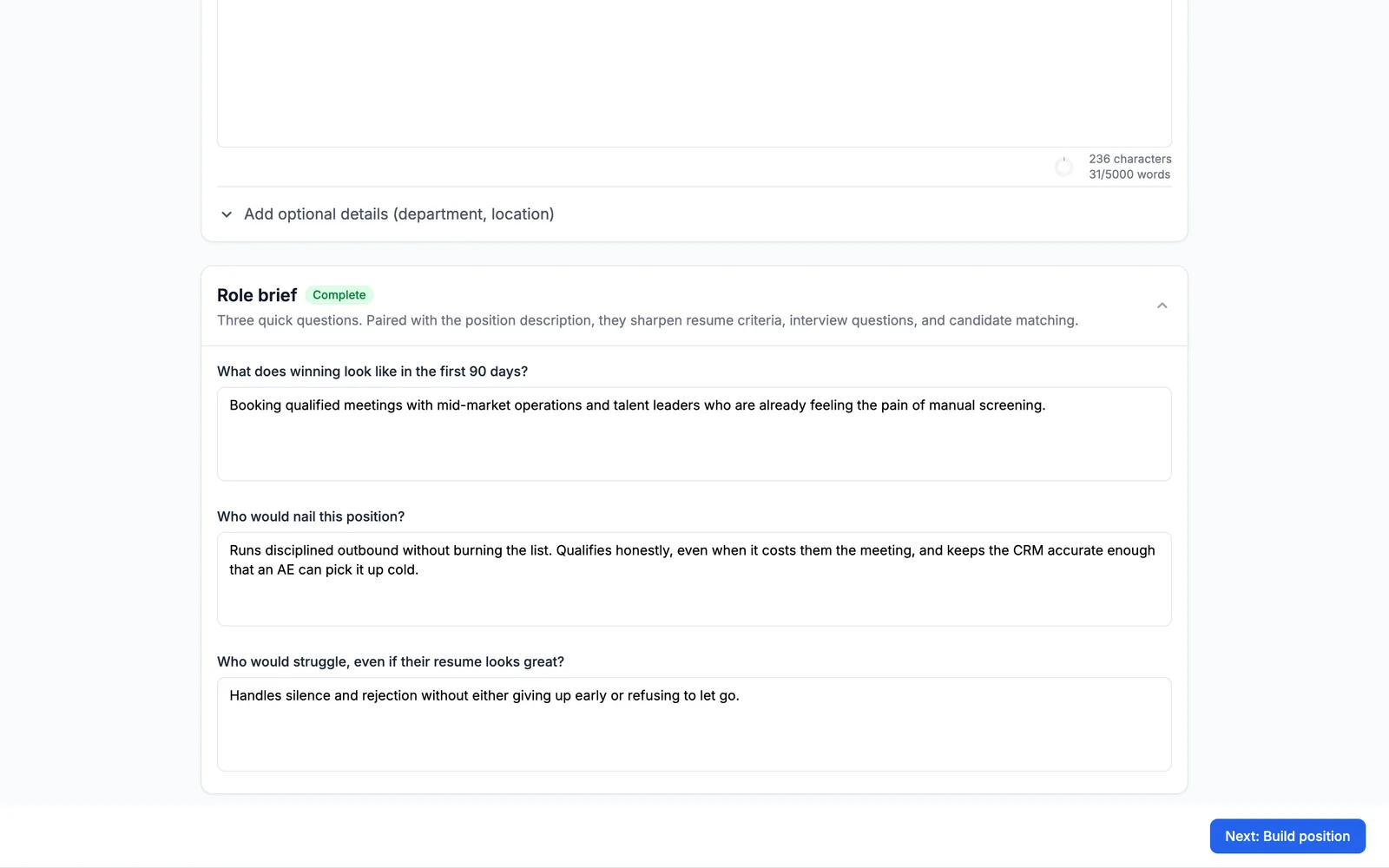
Start a new position. On Define the role, enter a Position title and a Position description. Truffle drafts the scenarios from the role, so name the situations the job involves. For this Sales Development Representative, the description names prospects who go quiet after a first call, push back on price, or repeat a competitor's claims. The Role brief is optional. Here it answers What does winning look like in the first 90 days?, Who would nail this position? and Who would struggle, even if their resume looks great? Choose Next: Build position.
2Check that Work Scenarios is on
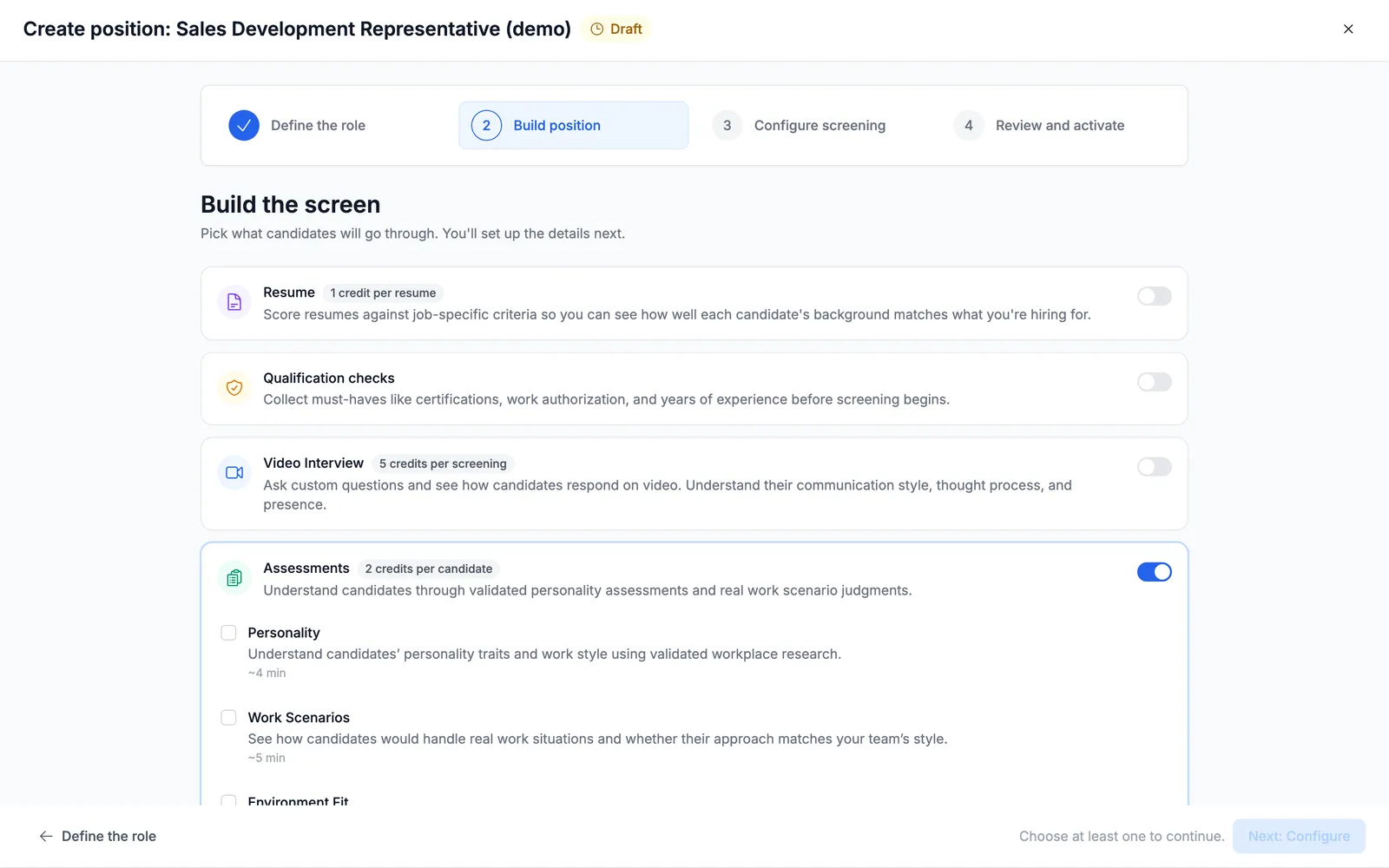
Build the screen arrives with Truffle's suggestions already switched on. Assessments costs 2 credits per candidate and has a switch for each assessment, with the time it takes a candidate: Personality (5 min), Work Scenarios (6 min) and Environment Fit (2 min). Here Work Scenarios arrives on, marked Suggested, with a line that quotes the prospect situations from the description. If it arrives off for your role, switch it on.
3Decide what else runs
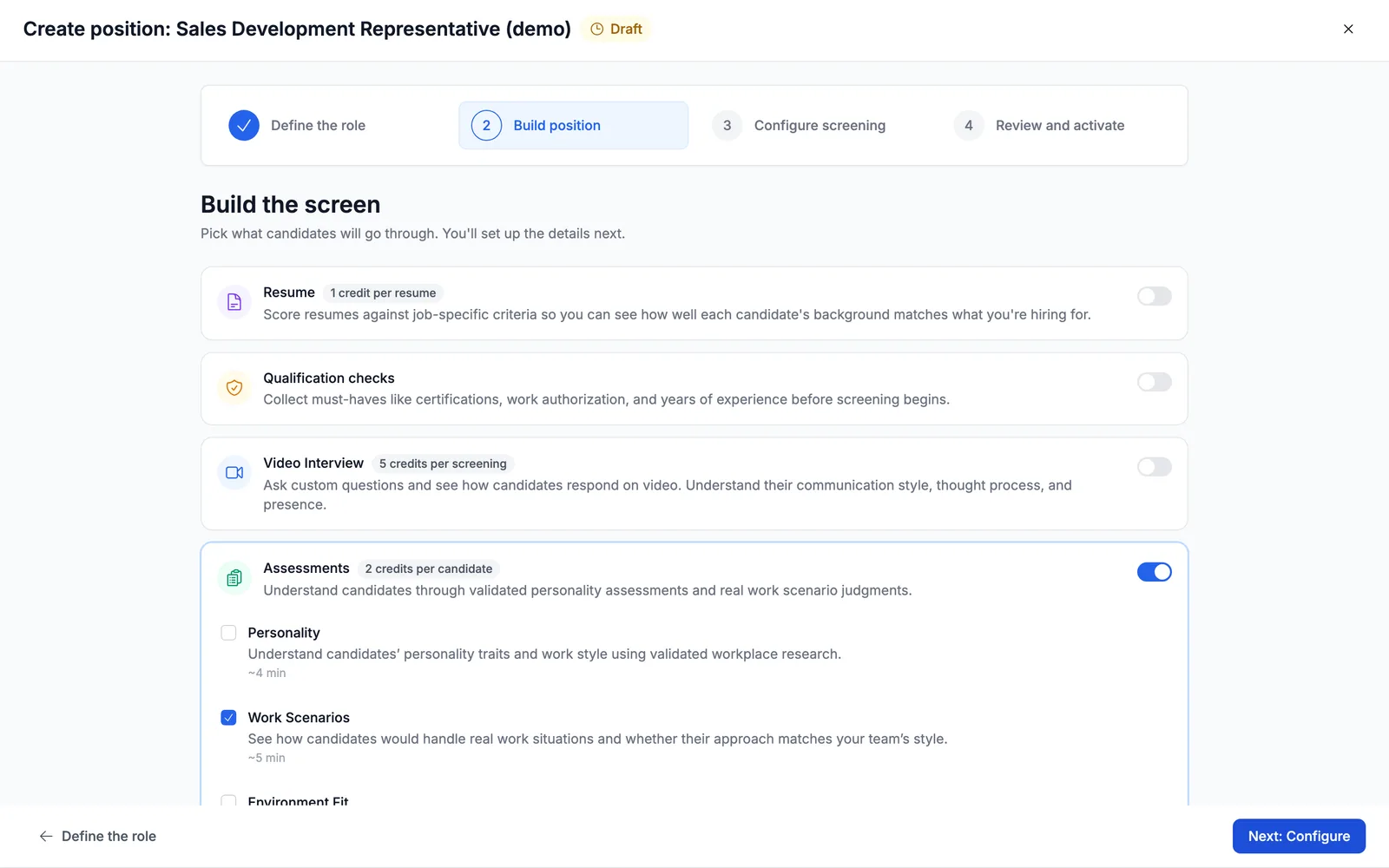
Work Scenarios can run on its own. This guide switches off Resume, Video Interview, Personality and Environment Fit, and keeps Assessments and Work Scenarios on. How this position runs shows the flow: Candidate arrives, Completes assessments, You review. The footer shows the candidate's time (6 minutes) and the credits charged as candidates finish (2). Choose Next: Configure.
Note. Keeping resume screening or a one-way interview on is fine. Each adds its own section to Configure screening.
4Let Truffle draft the scenarios
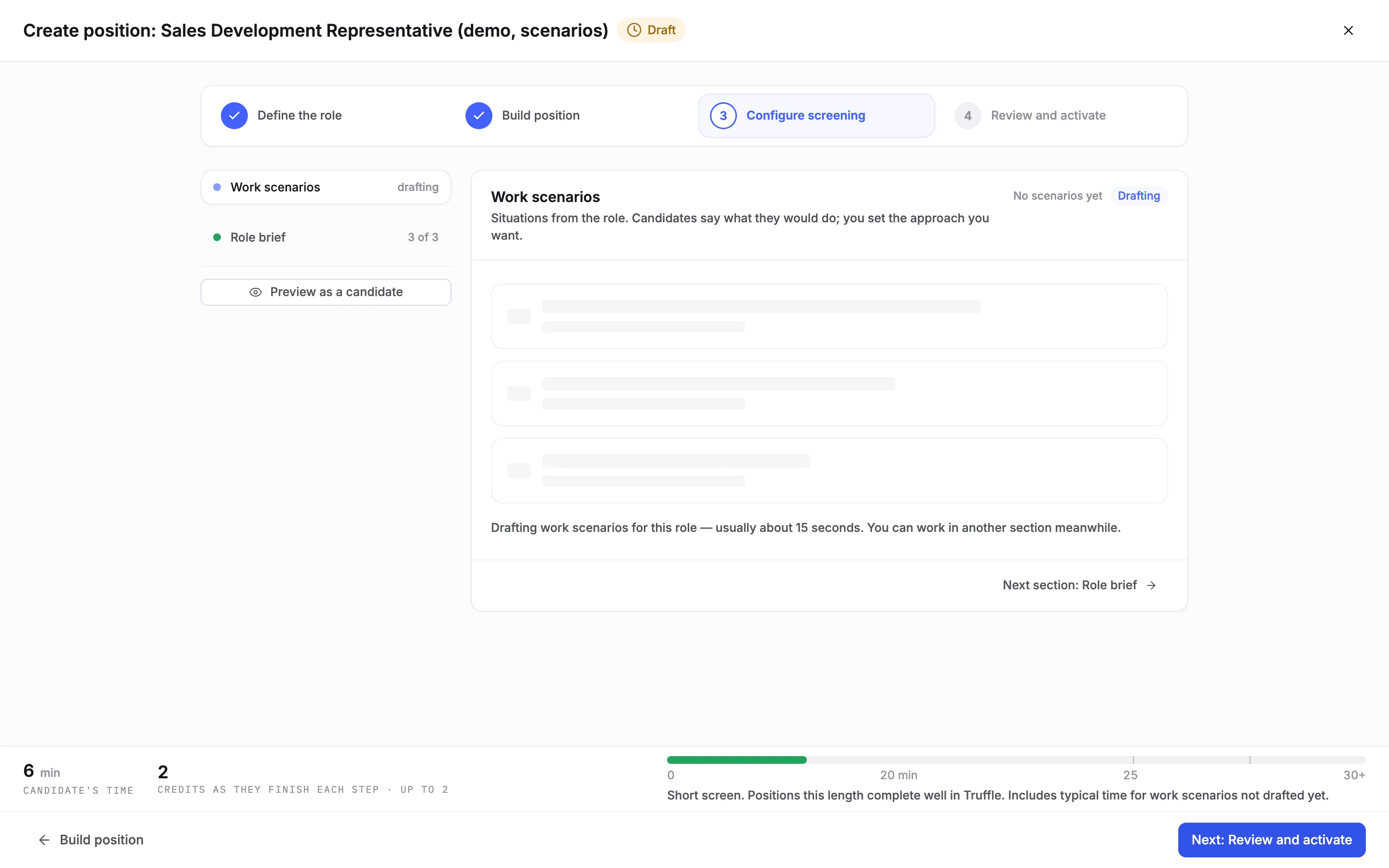
Configure screening opens on Work scenarios, marked drafting in the list of sections on the left: Situations from the role. Candidates say what they would do; you set the approach you want. While it drafts, the section reads Drafting work scenarios for this role, usually about 15 seconds. You can work in another section meanwhile.
5Read the drafted set
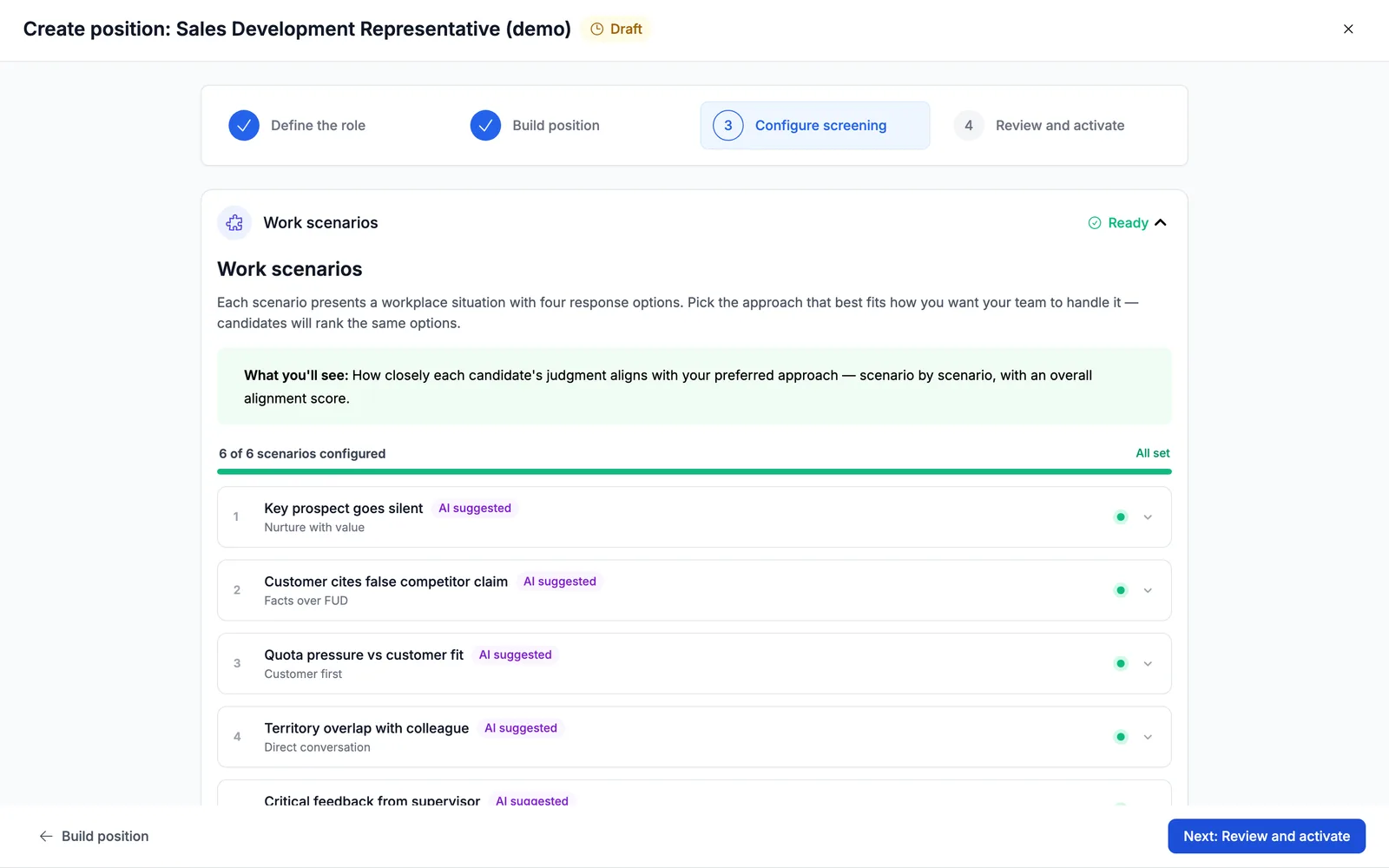
For this role Truffle drafted six scenarios: Key prospect goes silent, Customer cites false competitor claim, Quota pressure vs customer fit, Territory overlap with colleague, Sudden workload spike and Critical feedback from supervisor. Each presents a situation with four response options. Each arrives with one approach already picked and tagged AI suggested, so the counter reads 6 of 6 scenarios configured and All set. The section header reads 6 of 6 scenarios · 7 min and Suggested, not reviewed. The picks are Truffle's suggestion until you check them.
Note. Drafting again for the same role can return a different set. In our captures, one or two of the six scenarios changed between runs.
6Open a scenario
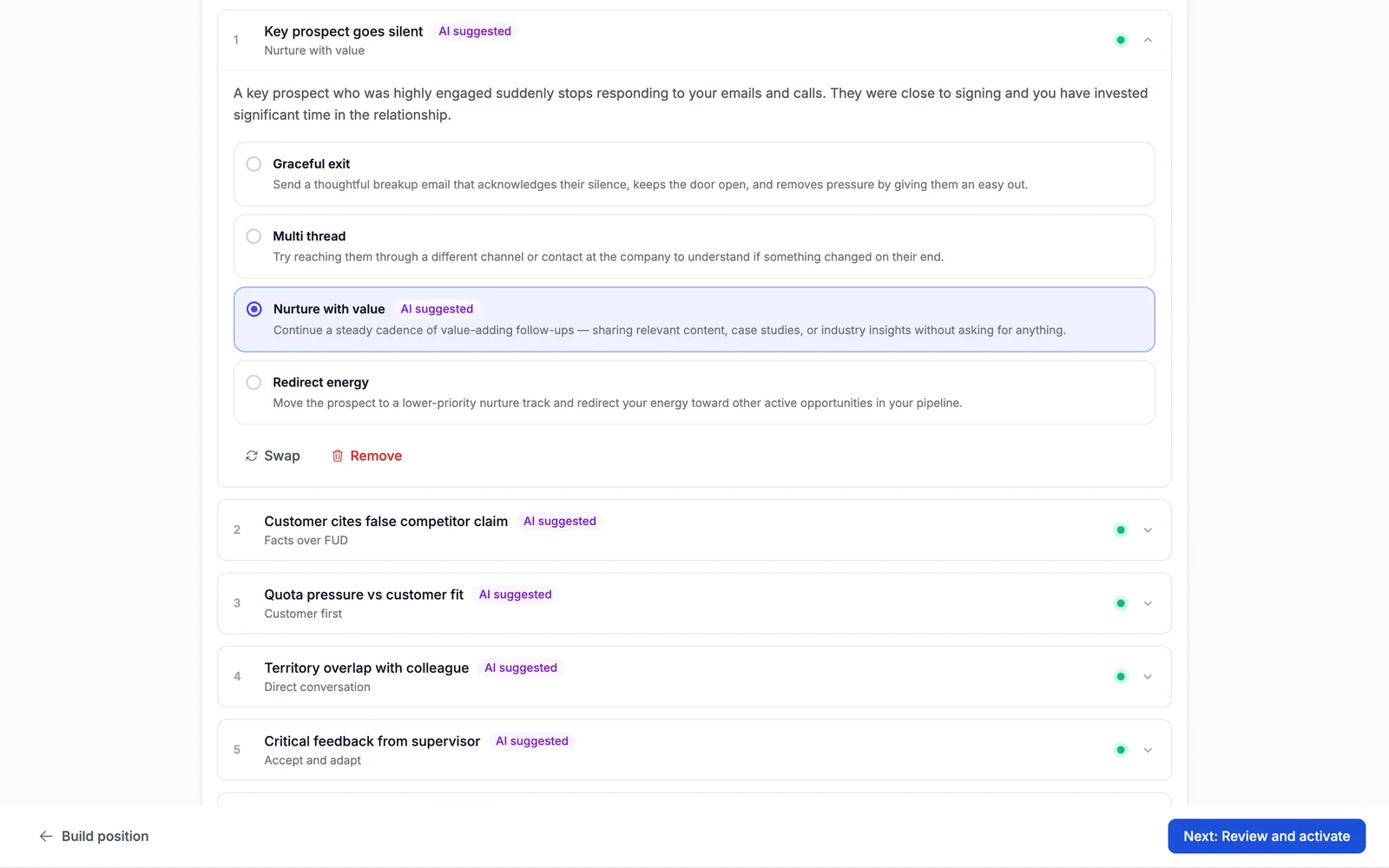
Open a scenario to see the situation and its four approaches, each with a short name and what the candidate would do. For Key prospect goes silent, a prospect who was close to signing stops answering. The approaches are Graceful exit, Multi thread, Nurture with value and Redirect energy. Truffle picked Nurture with value. Below the approaches are Swap and Remove.
7Pick the approach you want
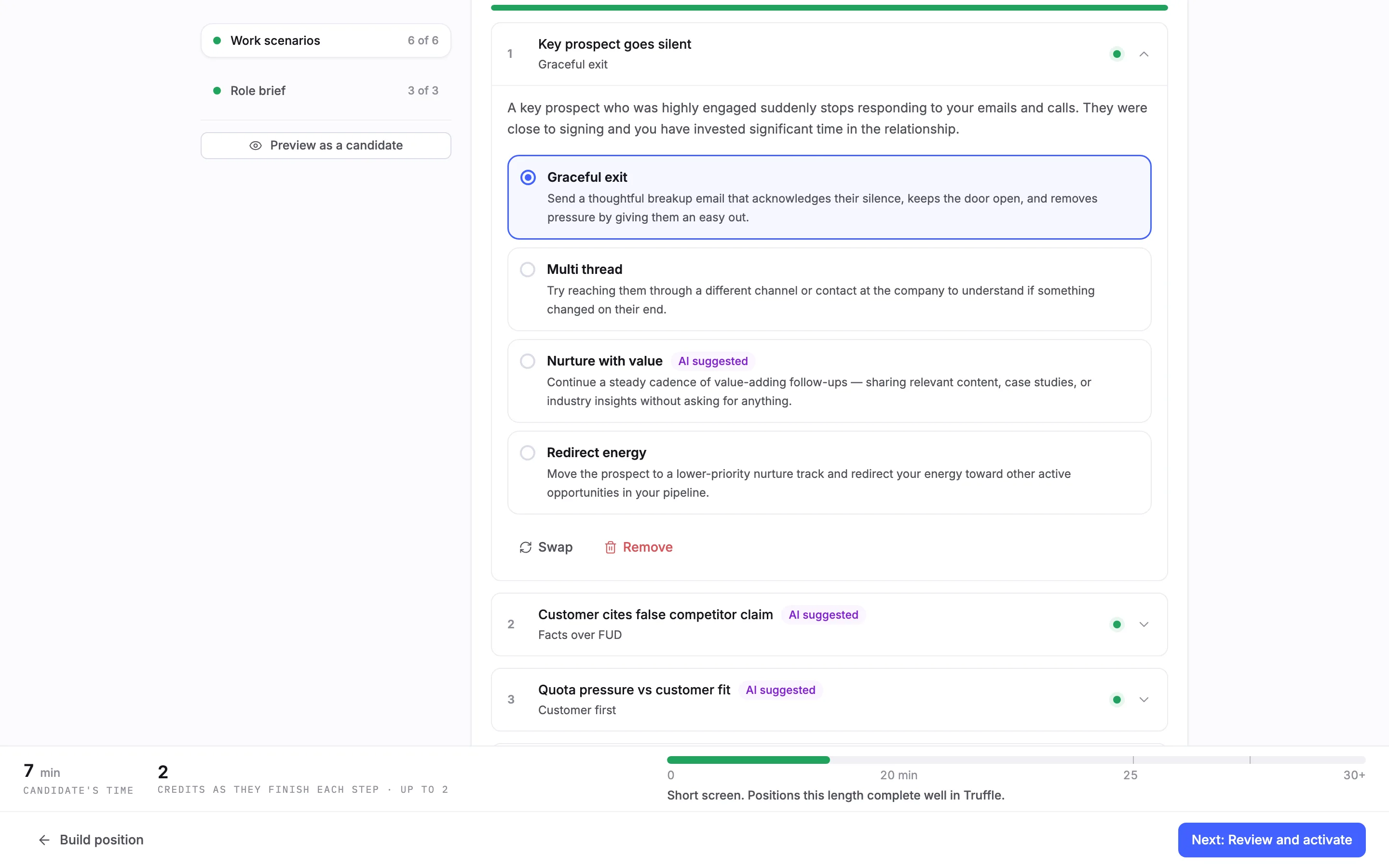
You pick one approach per scenario: the one that best fits how you want your team to handle it. Candidates rank all four. To change Truffle's pick, choose another approach. Here we chose Graceful exit. The AI suggested tag stays on Truffle's choice, the scenario shows your pick under its title, and the section turned Reviewed. If every pick is right as drafted, choose Looks right.
8Swap or add a scenario
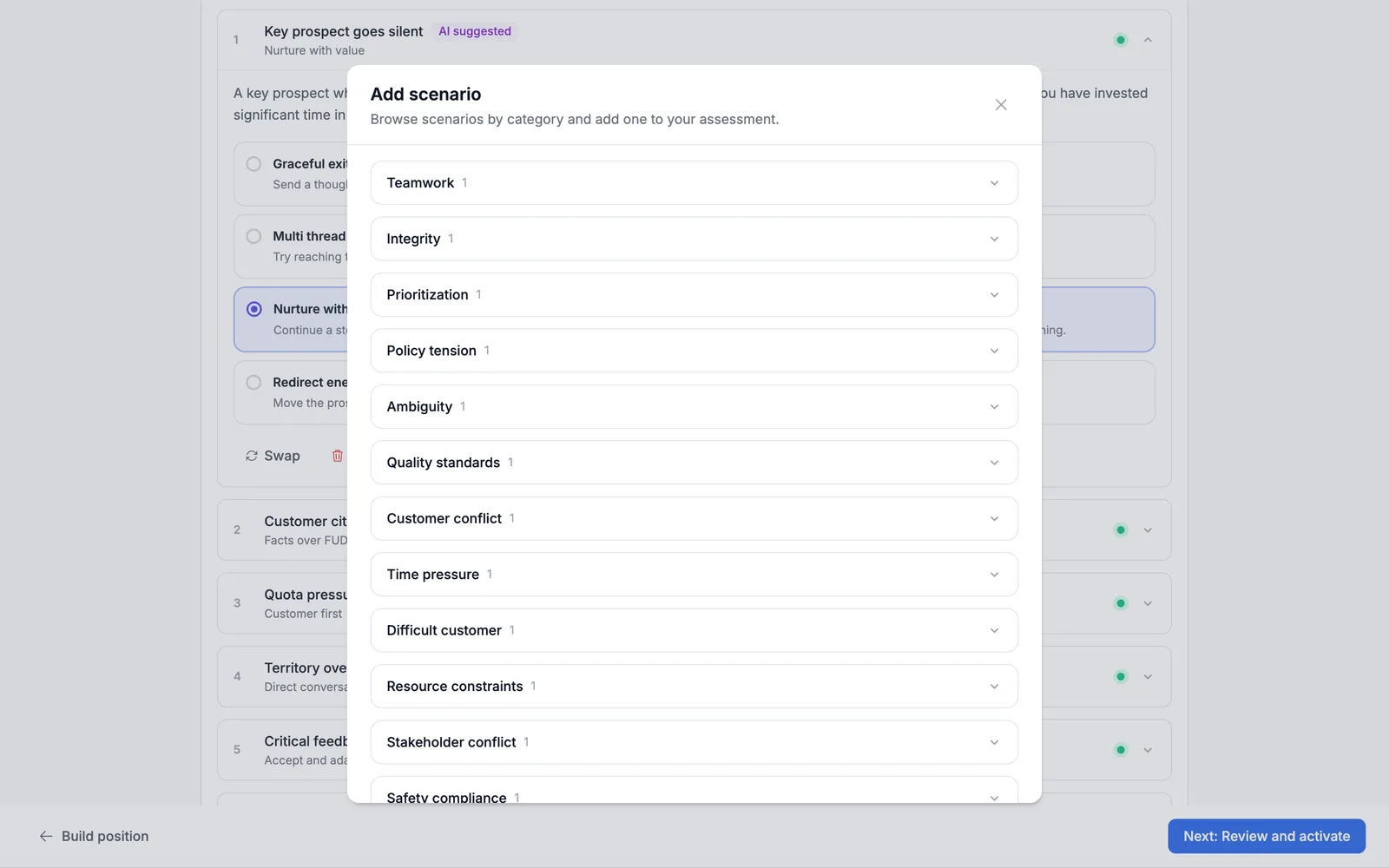
Swap opens the scenario library to Choose a replacement scenario from the library. Add a scenario (6 of 10) opens Add scenario: Browse scenarios by category and add one to your assessment. Categories include Teamwork, Integrity, Prioritization, Customer conflict and Stakeholder conflict. Open a category to read its scenarios, then choose + Add this. A position holds up to 10 scenarios.
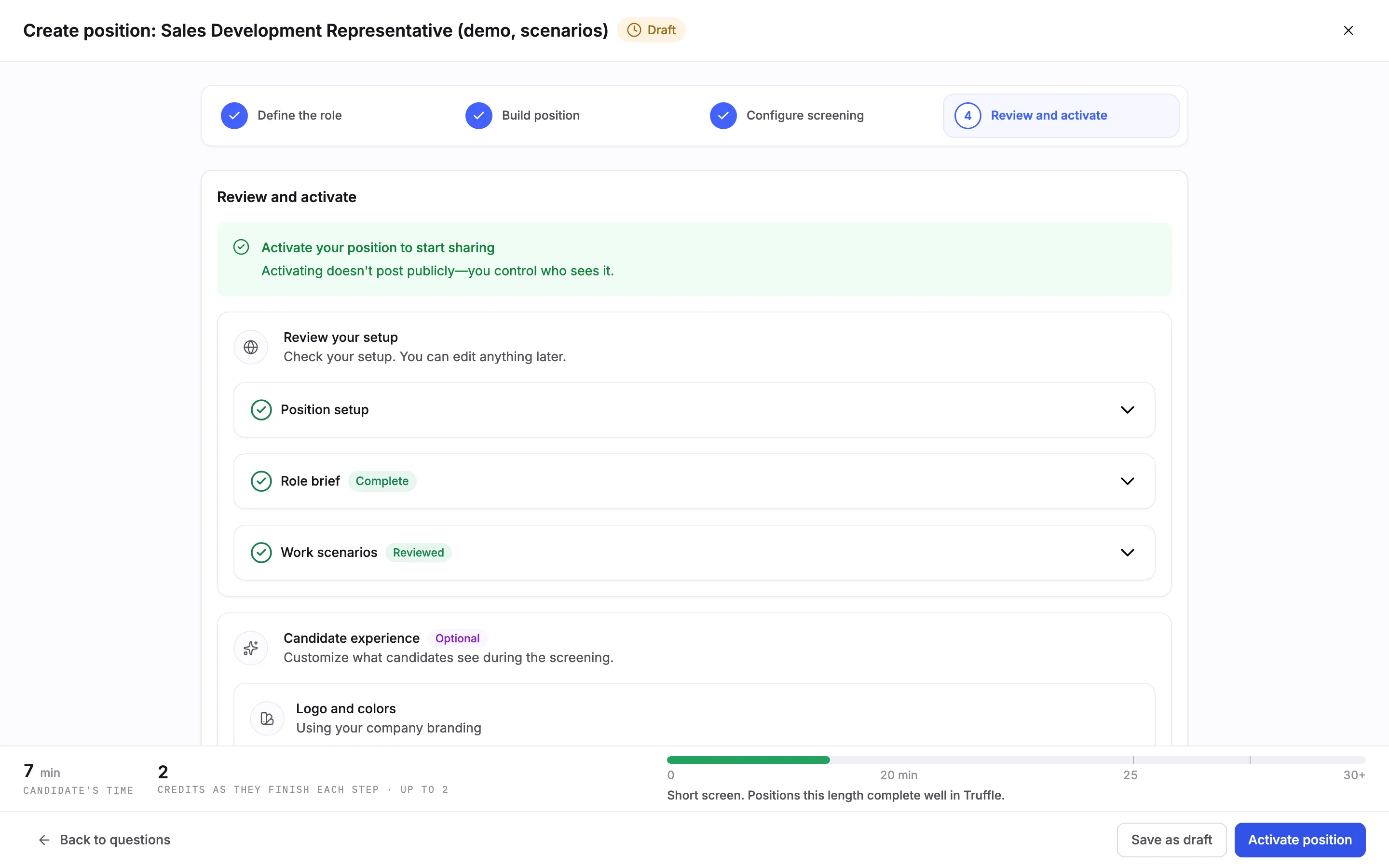
9Review and activate
Choose Next: Review and activate. Under Review your setup, Work scenarios reads Reviewed. Choose Activate position, or Save as draft to finish later. Activating opens Get candidates, which reads Your position is live, with a Shareable link to send to candidates.
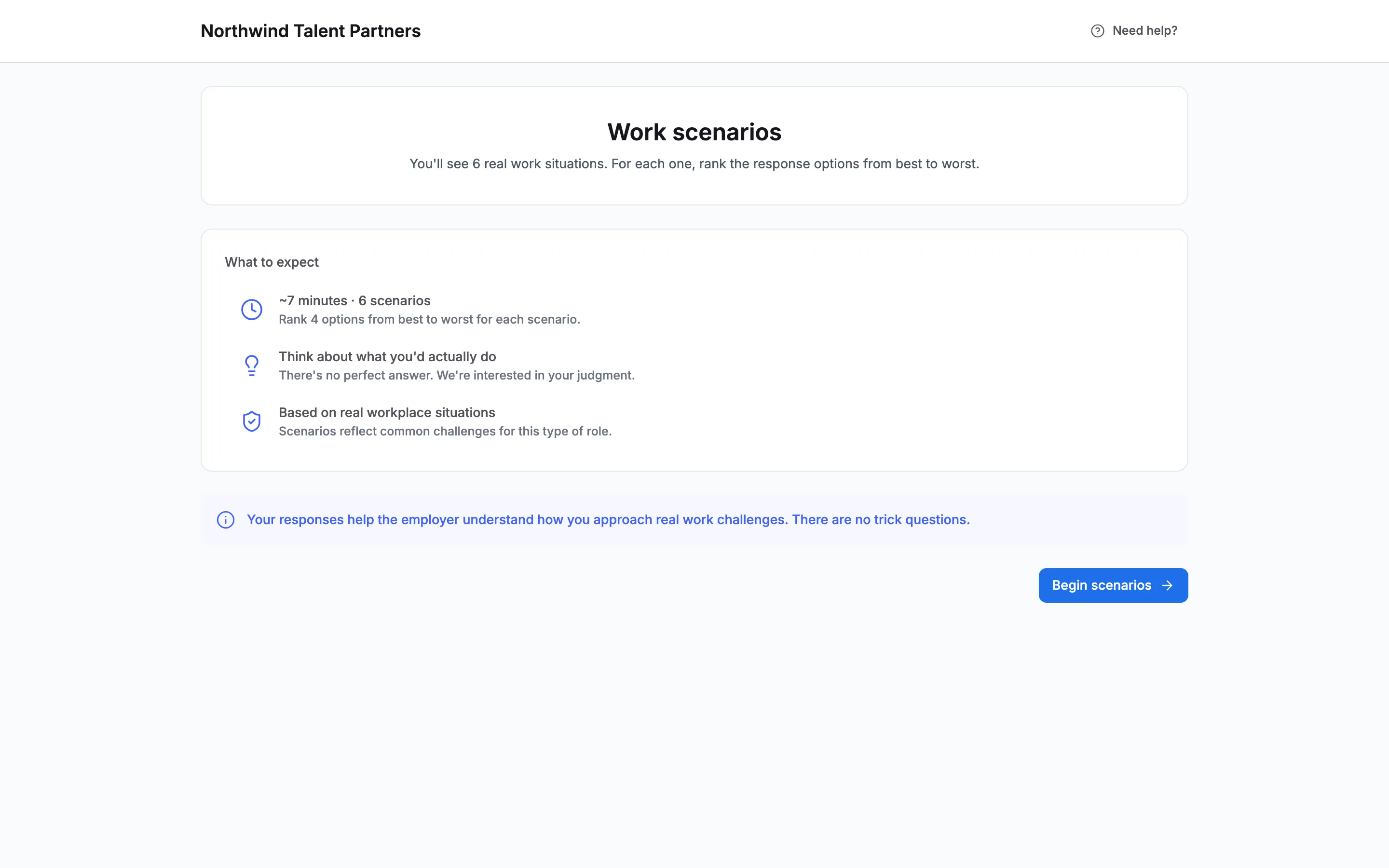
10What candidates see first
The welcome page lists Work scenarios, Rank responses to real workplace situations., and ~7 minutes. After their details, candidates see an intro: ~7 minutes · 6 scenarios, Rank 4 options from best to worst for each scenario. It tells them there is no perfect answer and that there are no trick questions. They choose Begin scenarios.
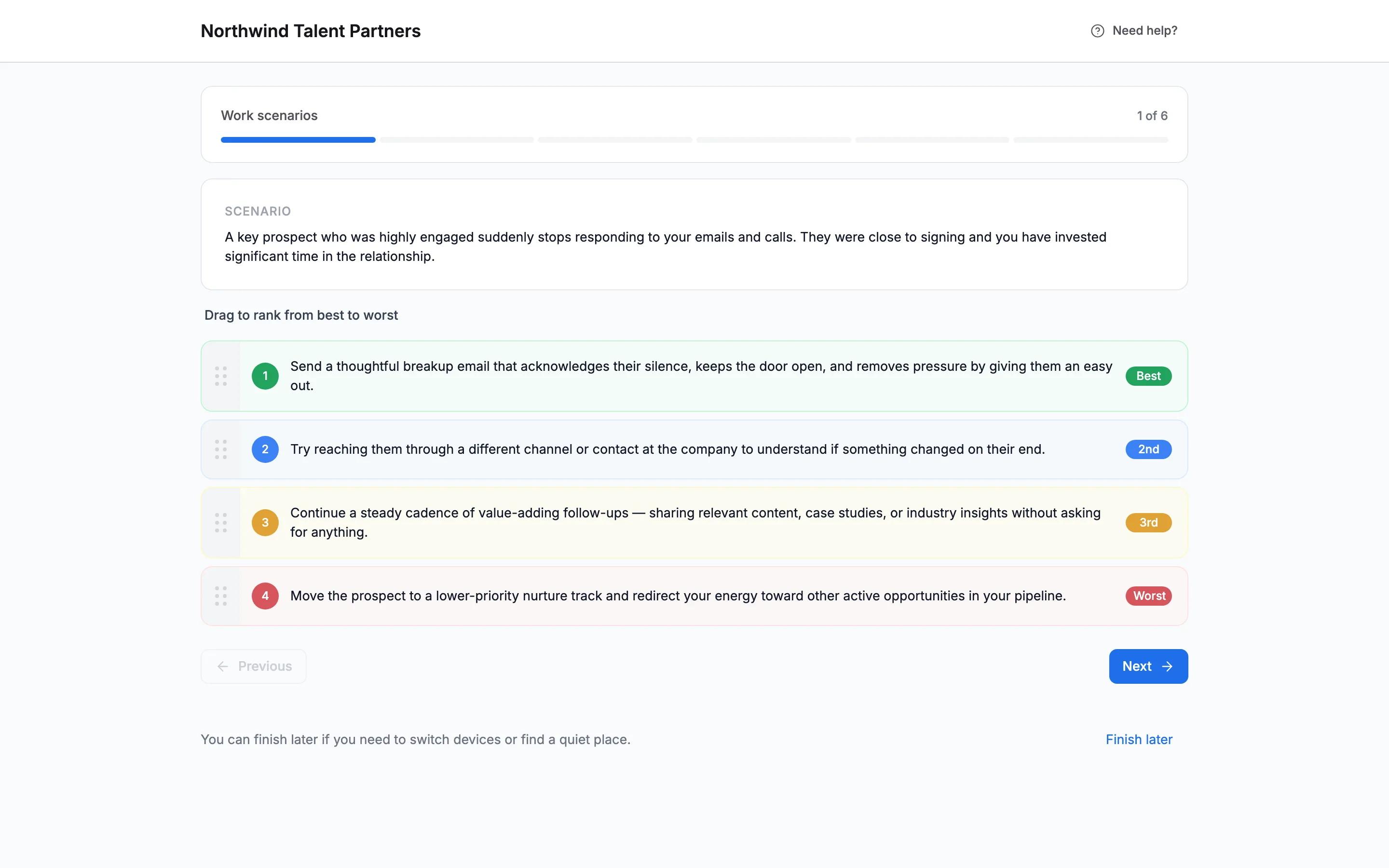
11How candidates rank
Candidates see one scenario at a time, with a progress bar (1 of 6). They read the situation and Drag to rank from best to worst. The four options are numbered and marked Best, 2nd, 3rd and Worst as they move. Candidates see the option text only, not the approach names. They move on with Next and finish with Complete. Finish later lets them come back. When they finish, they see Screening complete and Work scenarios completed.
12Read the result on the candidate
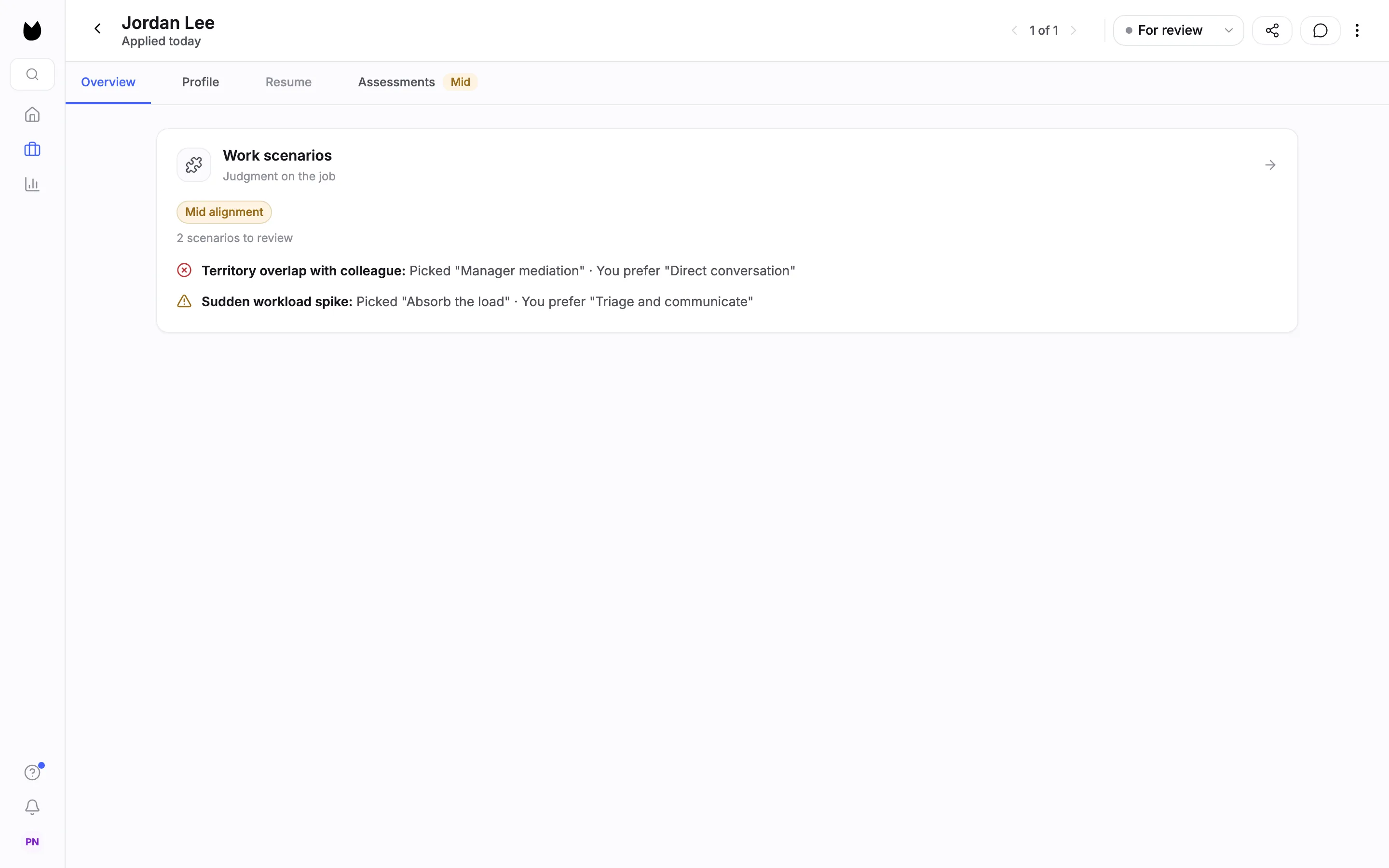
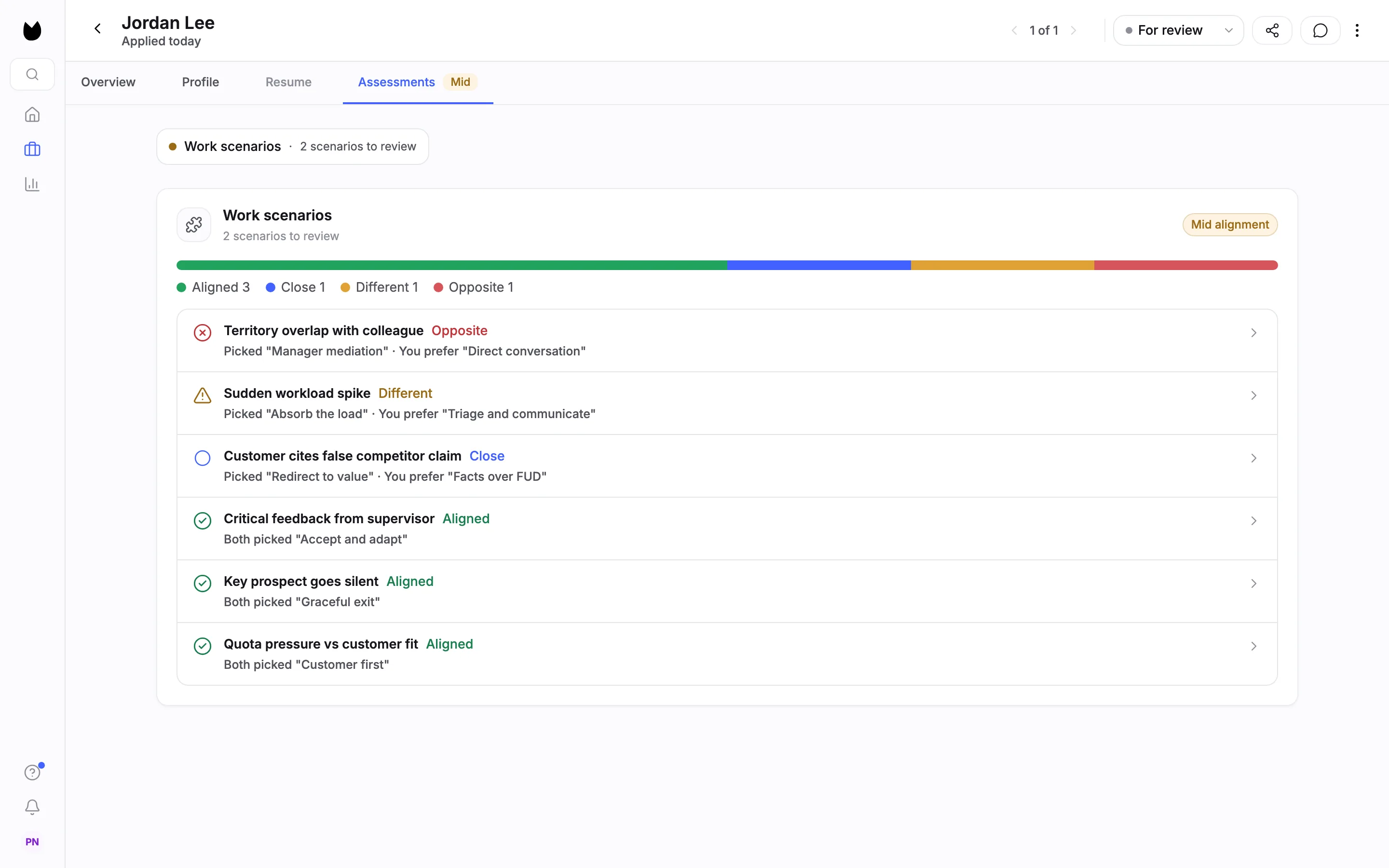
Results appear as soon as a candidate completes the scenarios. Open the candidate. On Overview, the Work scenarios card (Judgment on the job) shows the signal, here Mid alignment, and 2 scenarios to review. Each one names what the candidate ranked first against your pick, here Territory overlap with colleague: Picked "Manager mediation" · You prefer "Direct conversation". The Assessments tab carries the assessment signal, High, Mid or Low (here Mid).
13Compare each scenario with your pick
Open the Assessments tab. A bar counts the scenarios, here Aligned 3, Close 1, Different 1 and Opposite 1, and each scenario gets a row. The label comes from where the candidate ranked your pick: first is Aligned, second Close, third Different and last Opposite. Aligned rows read, for example, Both picked "Graceful exit".
14Open a scenario to see the full ranking
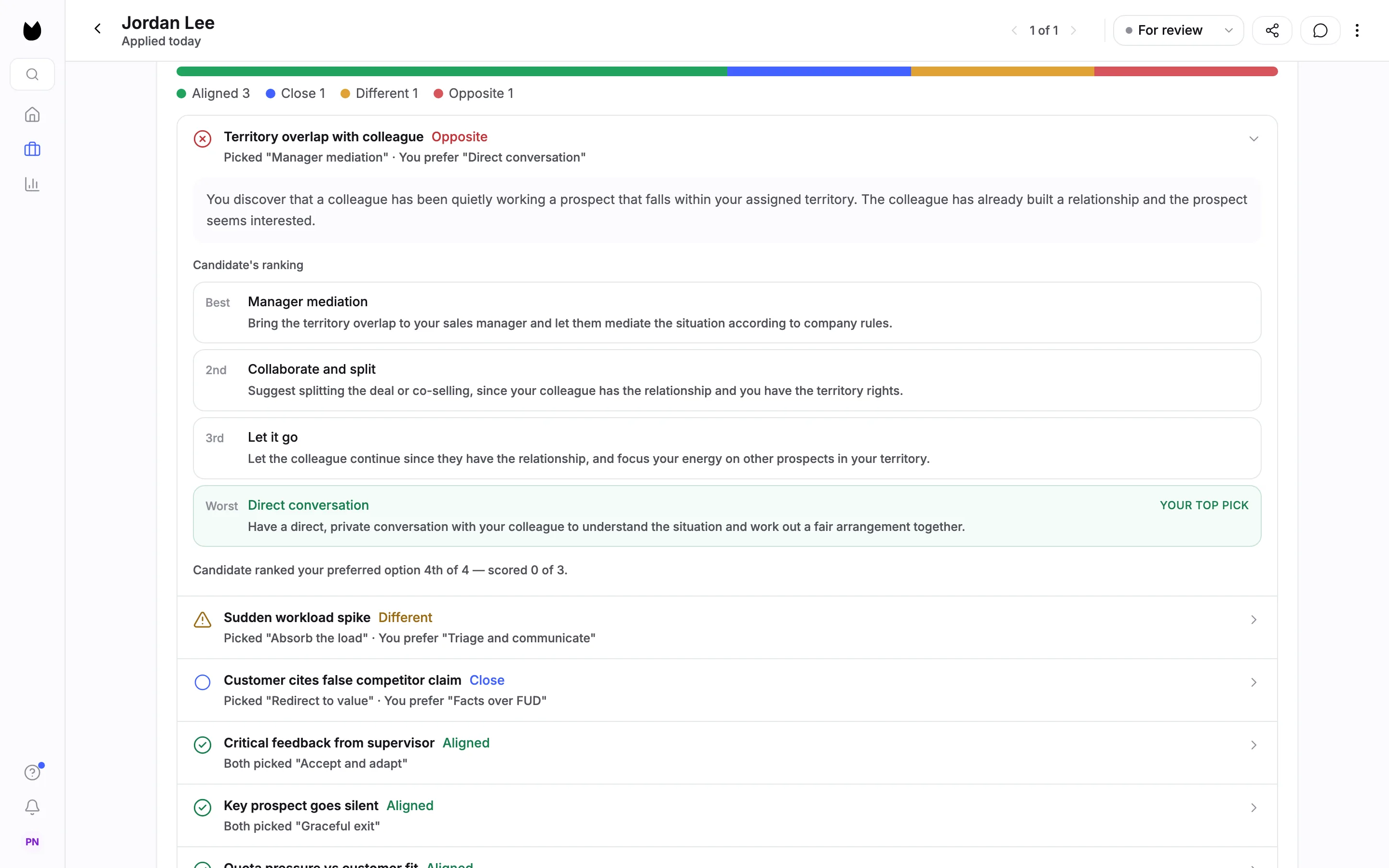
Open a row. It shows the situation and the Candidate's ranking of all four approaches, from Best to Worst, with your approach marked YOUR TOP PICK. A line sums it up, here Candidate ranked your preferred option 4th of 4, which scores 0 of 3. Use a gap to start a conversation about how the candidate would handle the situation. The result is one input to your decision. It rejects no one.
Note. On the position's candidate list, the ASSESS column shows the same signal for every candidate, so you can compare them.
Questions
Is this a situational judgment test?
Yes. Work scenarios is the product's name for Truffle's situational judgment test: a work situation, four plausible responses, ranked by the candidate. The difference from a published test is where the comparison comes from. Truffle compares each candidate's ranking with the approach you picked, so the result shows alignment with how your team handles the work. Work scenarios is Truffle's own question set, not a validated psychometric instrument.
How many scenarios does a position get?
Truffle drafts a set from the role. For the Sales Development Representative in this guide it drafted six. You can swap, remove or add scenarios, up to 10 per position. Drafting again for the same role can return a different set, so check the scenarios each time.
Do I rank all four approaches?
No. You pick one approach per scenario, the one you want your team to use. Candidates rank all four, and the result shows where they put your pick.
What if I disagree with the approach Truffle picked?
Choose a different approach. Every scenario arrives with one approach picked and tagged AI suggested, as a starting point. You can also swap the scenario for another from the library, or remove it.
Can candidates see which answer you prefer?
No. Candidates see the situation and the four options, without the approach names or your pick. The intro tells them there is no perfect answer and no trick questions.
Can work scenarios run without a resume screen or video interview?
Yes. A position can run work scenarios on its own, as this guide does, or alongside resume screening, a one-way interview and the other assessments.
Does a low alignment result reject candidates?
No. The result shows how a candidate's ranking compares with the approaches you picked, scenario by scenario. It rejects no one. The only automatic rejection in Truffle is a qualification check you set to Reject automatically.
What does it cost, and how long does it take candidates?
Assessments cost 2 credits per candidate, charged when a candidate completes them. A candidate who never starts costs nothing. Build position lists Work Scenarios at 6 minutes. With six scenarios, candidates were told about 7 minutes. The 7-day free trial includes 30 credits, with no credit card.
Related
See something here that doesn't match what you see in Truffle? Tell us and we'll fix the page.