Guide
Make a decision on a candidate
By the end you can advance, hold, reject or hire a candidate from the list, decide with one key in Magic Review, clear a decision, decide on several candidates at once, and you know what each decision changes and that none of them emails the candidate.
5 min · 14 steps · Captured from the live product 5 Oct 2026 Changelog Copy as Markdown
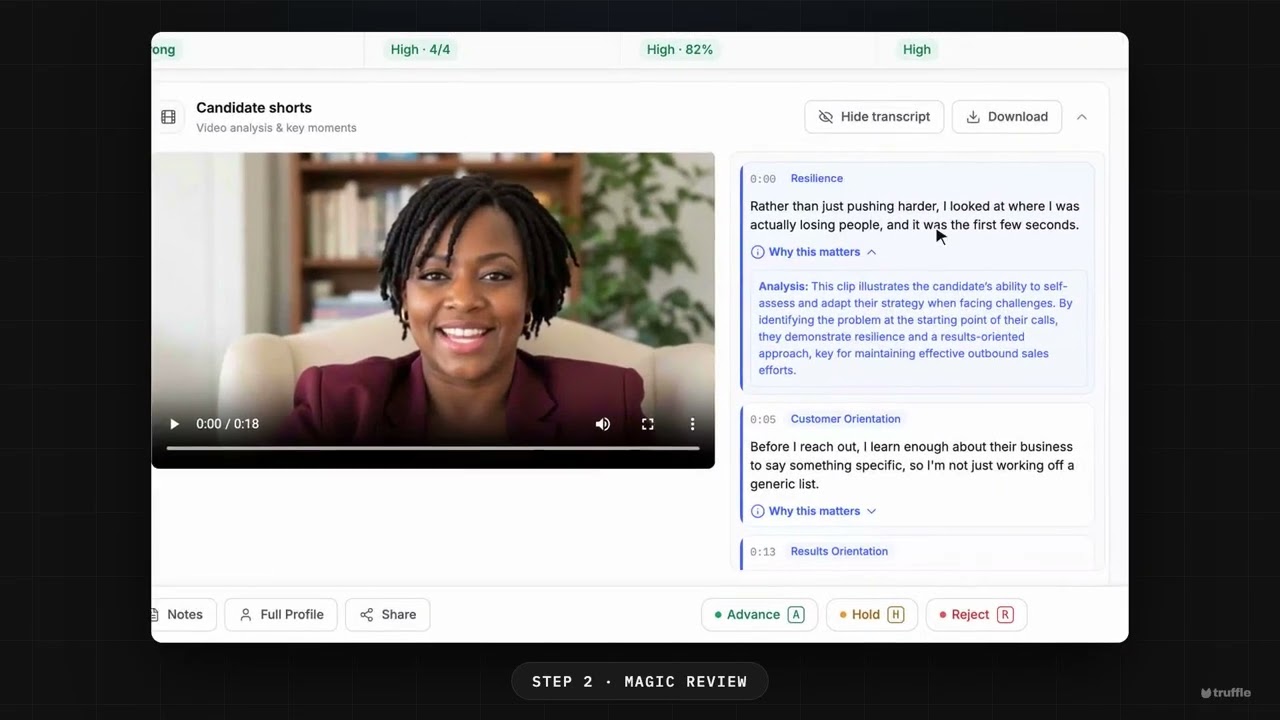
Key moments and transcript
- 0:00 The candidate list and its signals
- 0:16 Magic Review
- 0:37 Decide: Advance, Hold, Reject or Hire
- 0:55 What happens next
Here's how to review a position's candidates in one pass, and decide who moves on. Open a position's candidates. Each row shows its signals. Resume, interview, and assessments, rolled into one overall read. Switch to Focus view for Magic Review. One candidate at a time, with the list beside you. Candidate shorts pull the key moments from their interview, and show why each one matters. Criteria coverage shows how they match each of your criteria. Then read the summary, with the key insights. When you're ready, open Decide. Advance, hold, reject, or hire. Choose Advance, and they move to Reviewed. In Focus view, one key does the same, and the next candidate opens. Every candidate, ranked against your criteria, with the reasons shown. Every decision is yours. Start free at hiretruffle.com.
Before you start
- A Truffle account. The 7-day free trial works: 30 credits, no credit card.
- A position with candidates who have finished their screening.
1Start on For Review
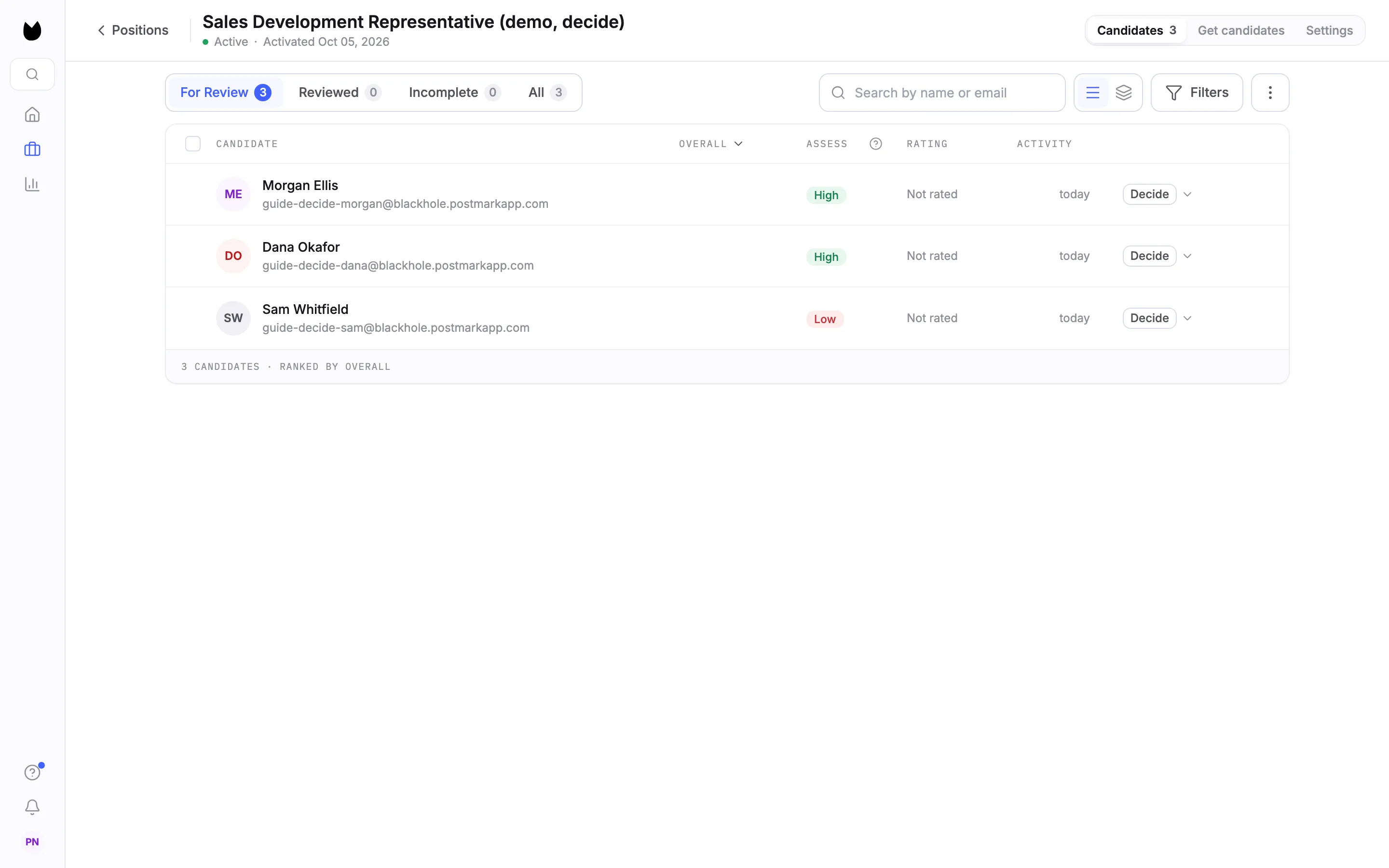
Open a position from Positions. The candidate list opens on For Review: everyone who has finished screening and has no decision yet. Here that is three candidates for a Sales Development Representative role. Each row ends in a Decide control.
2Open the Decide menu
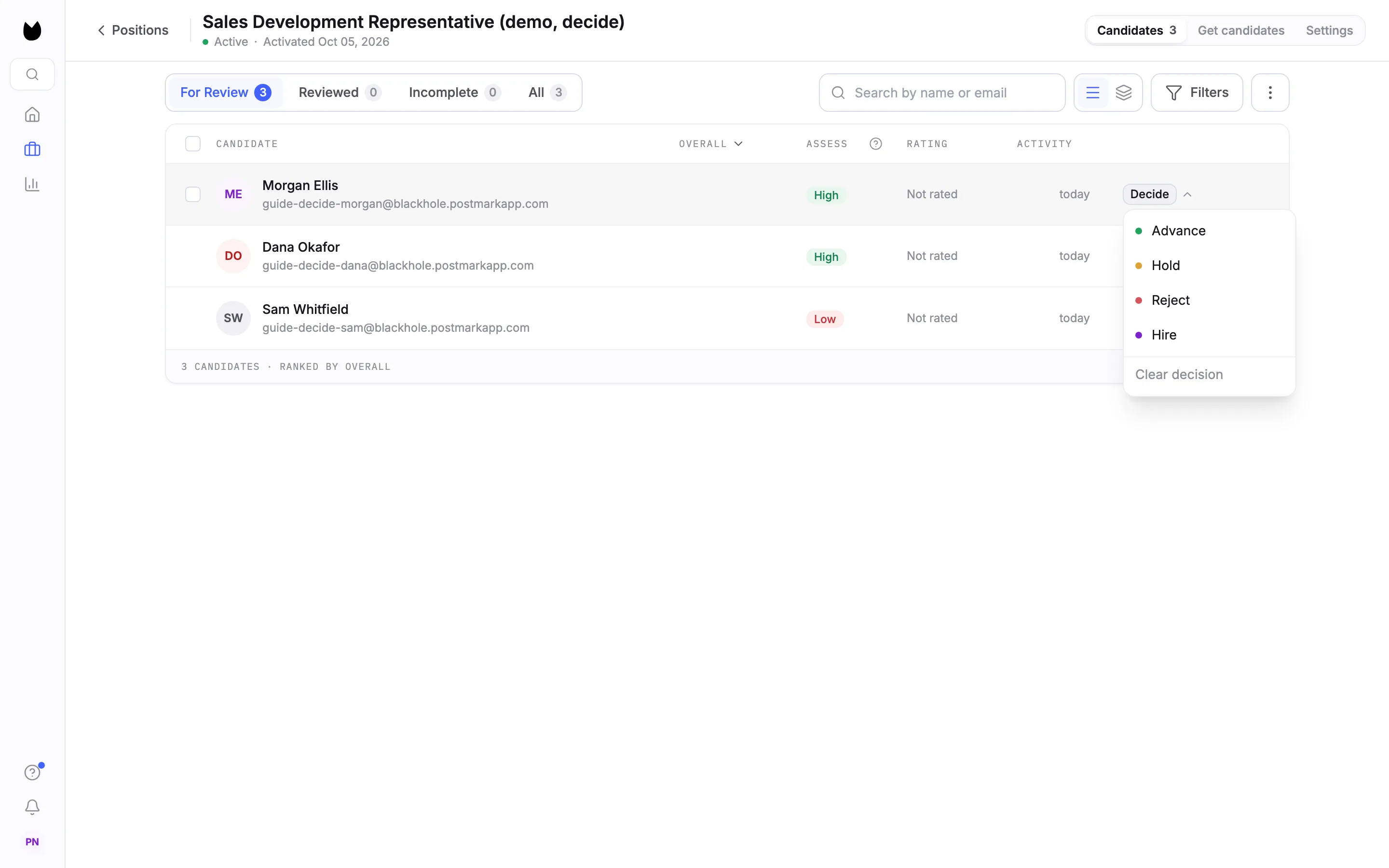
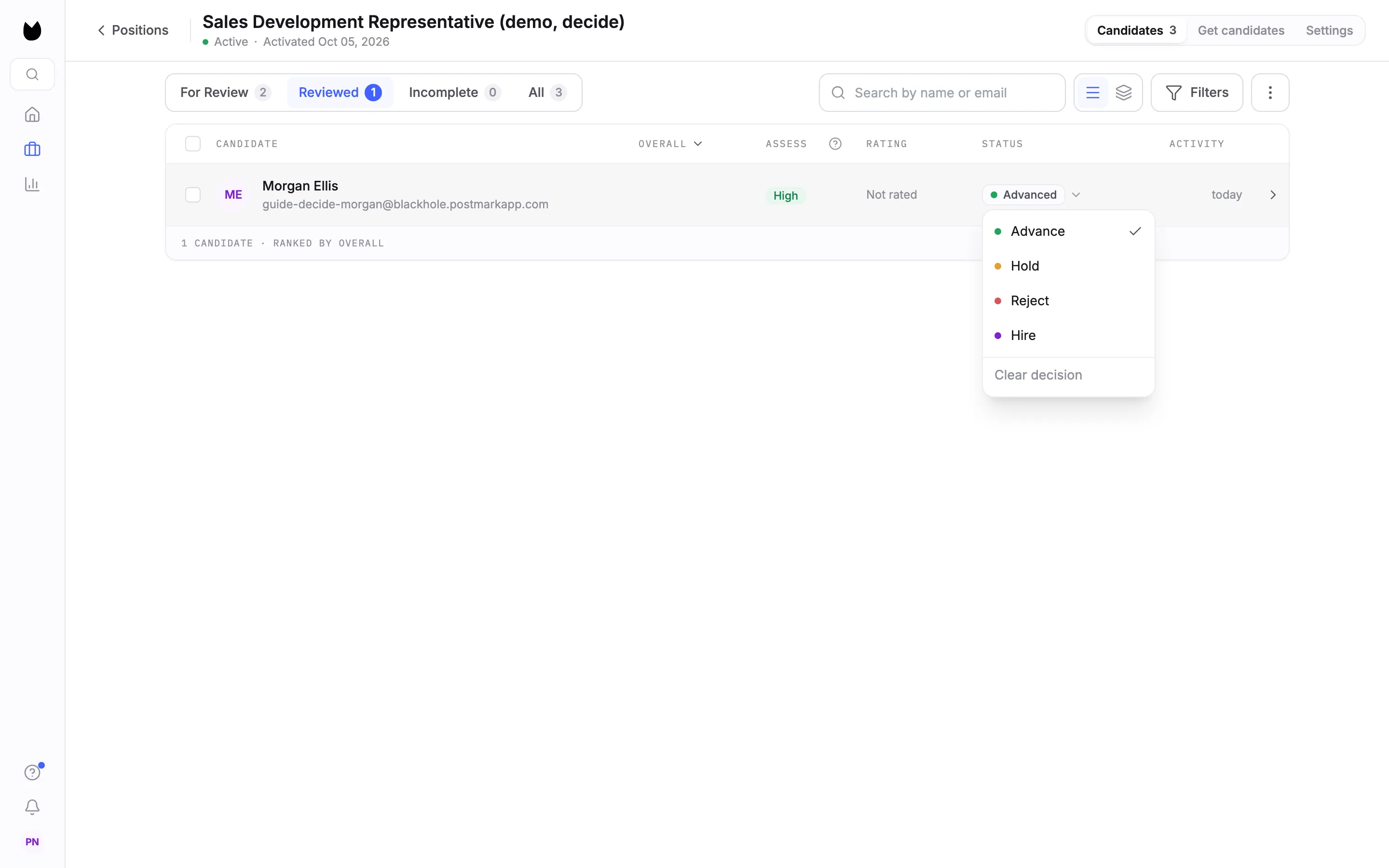
Choose Decide on a row. The menu offers Advance, Hold, Reject and Hire. Clear decision sits under a line, for taking a decision back off.
3Advance a candidate
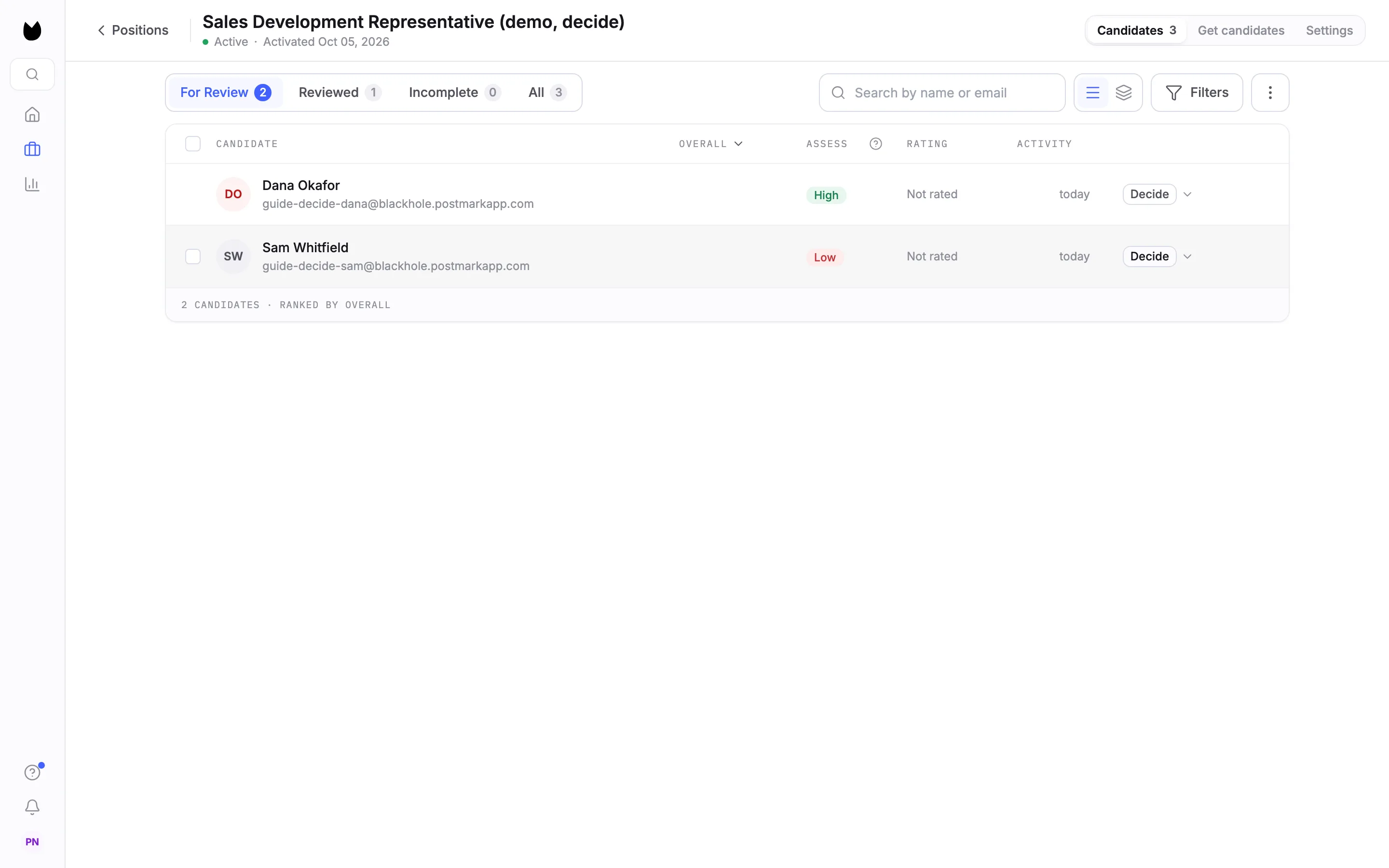
Choose Advance. The candidate leaves For Review straight away and the tab counts change, here to For Review 2 and Reviewed 1. Hold and Reject work the same way.
4Find decided candidates on Reviewed
Open Reviewed. It adds a STATUS column with the decision: Advanced, On hold, Rejected or Hired. The status is a control too: click it to open the same menu and change the decision, or choose Clear decision to send the candidate back to For Review.
Note. On a candidate's full profile, the status control at the top right opens the same menu.
5Decide with one key in Magic Review
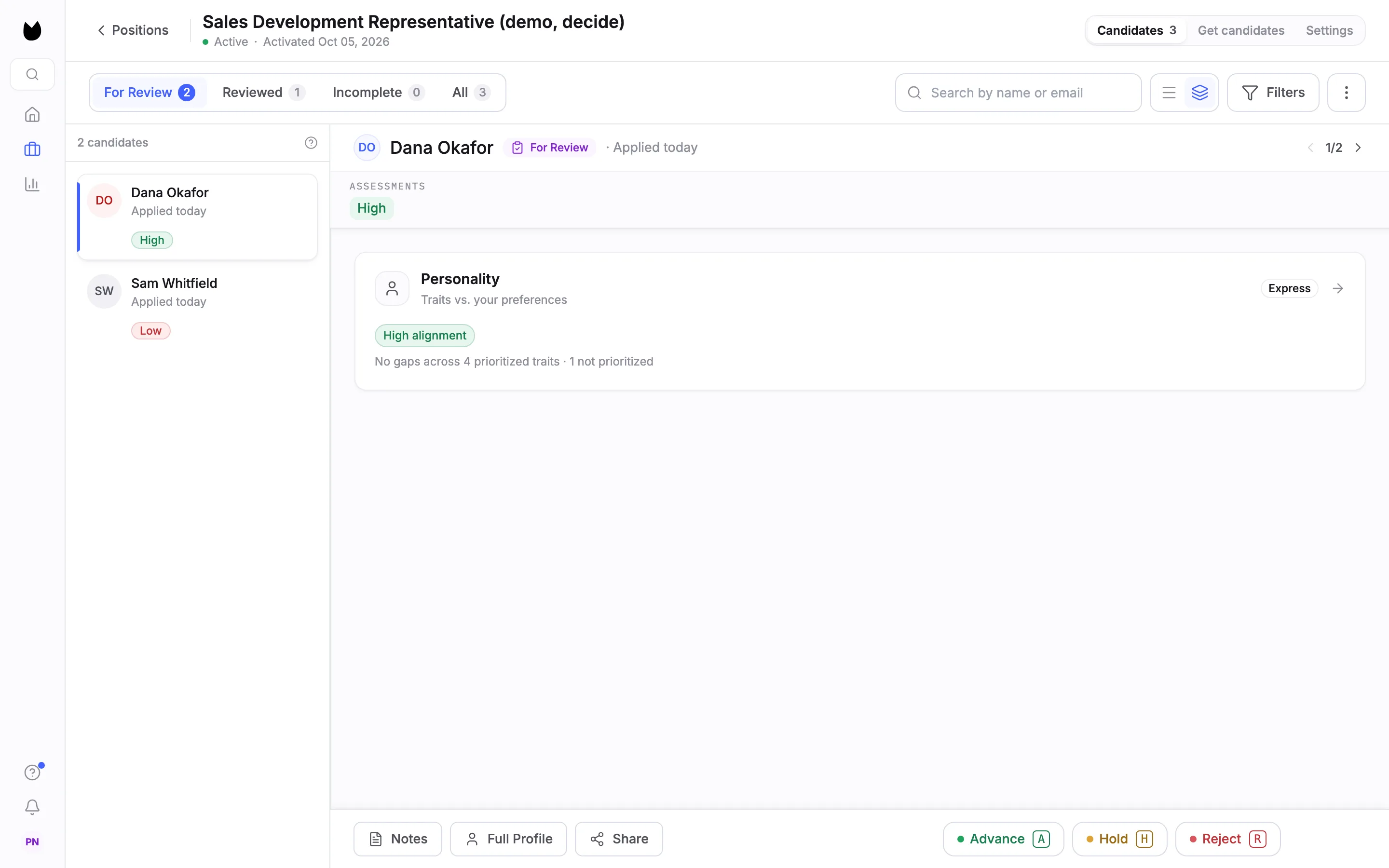
Choose Focus view to open Magic Review. The action bar shows each decision with its key: Advance (A), Hold (H) and Reject (R). Pressing the key does the same as clicking the button, for the candidate on screen.
6Keep going after each decision
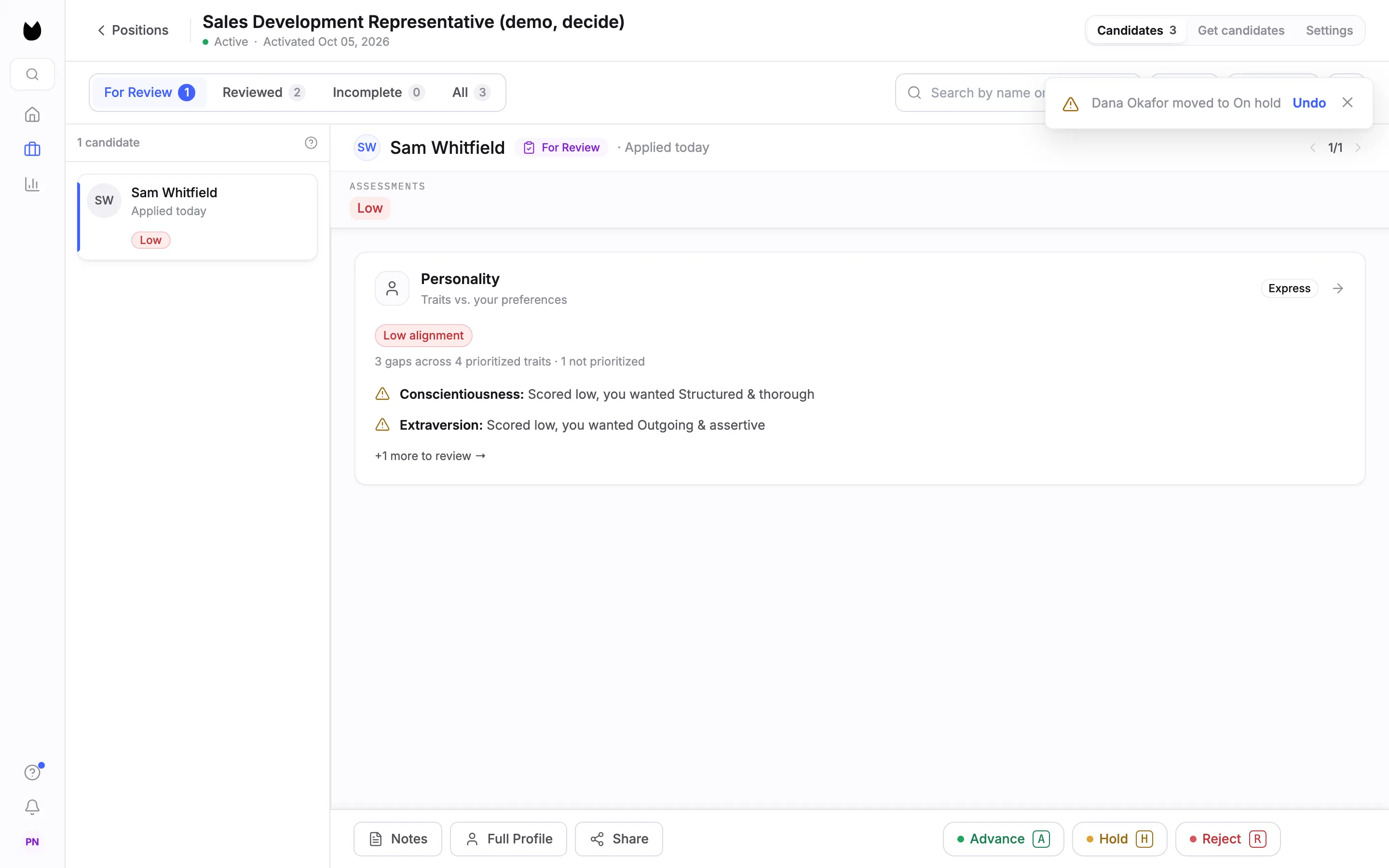
Press H and Truffle confirms it, here Dana Okafor moved to On hold, with Undo in the message. On For Review, the decided candidate leaves the list and the next one opens, so you can work down the list one key at a time.
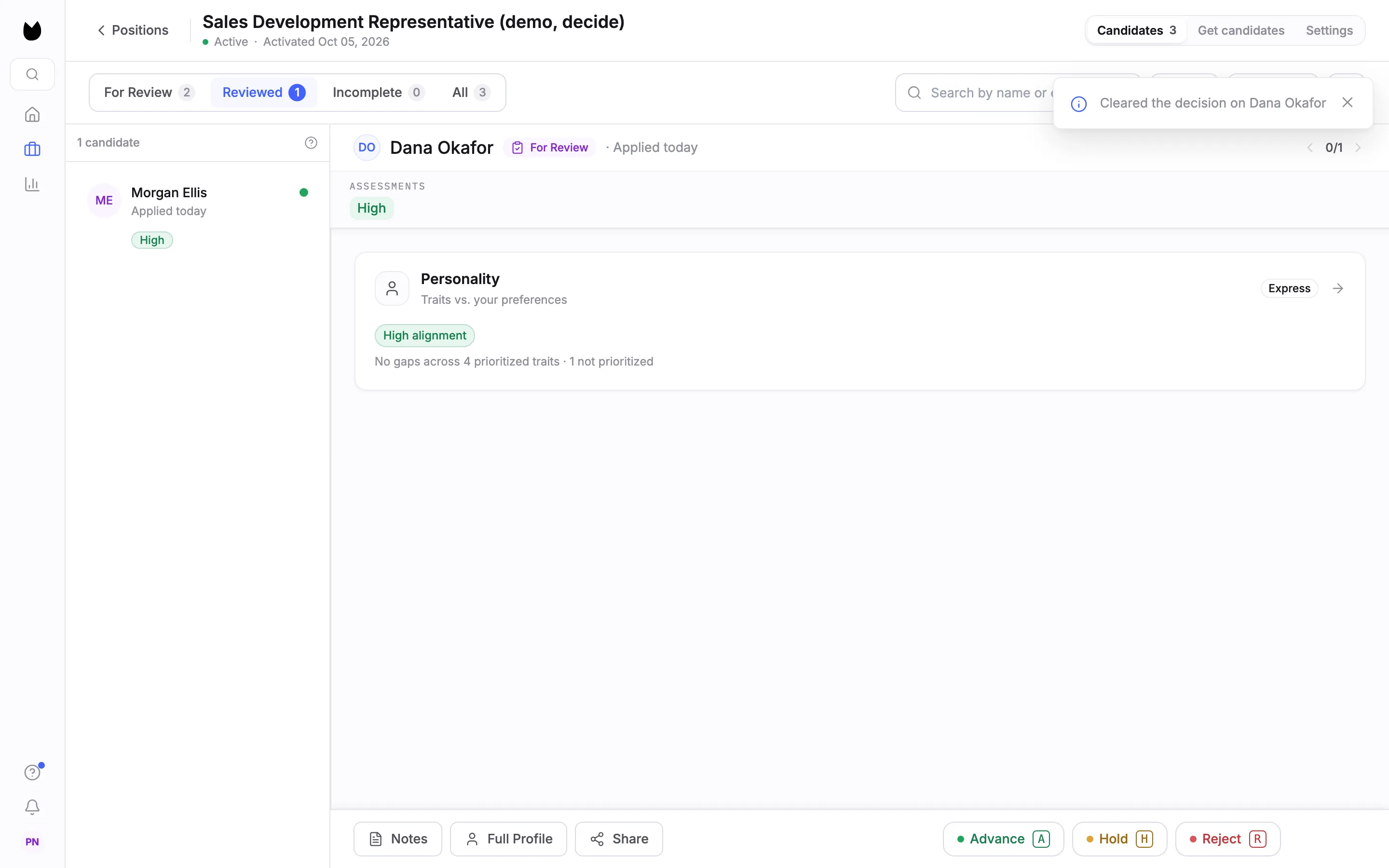
7Clear a decision with Backspace
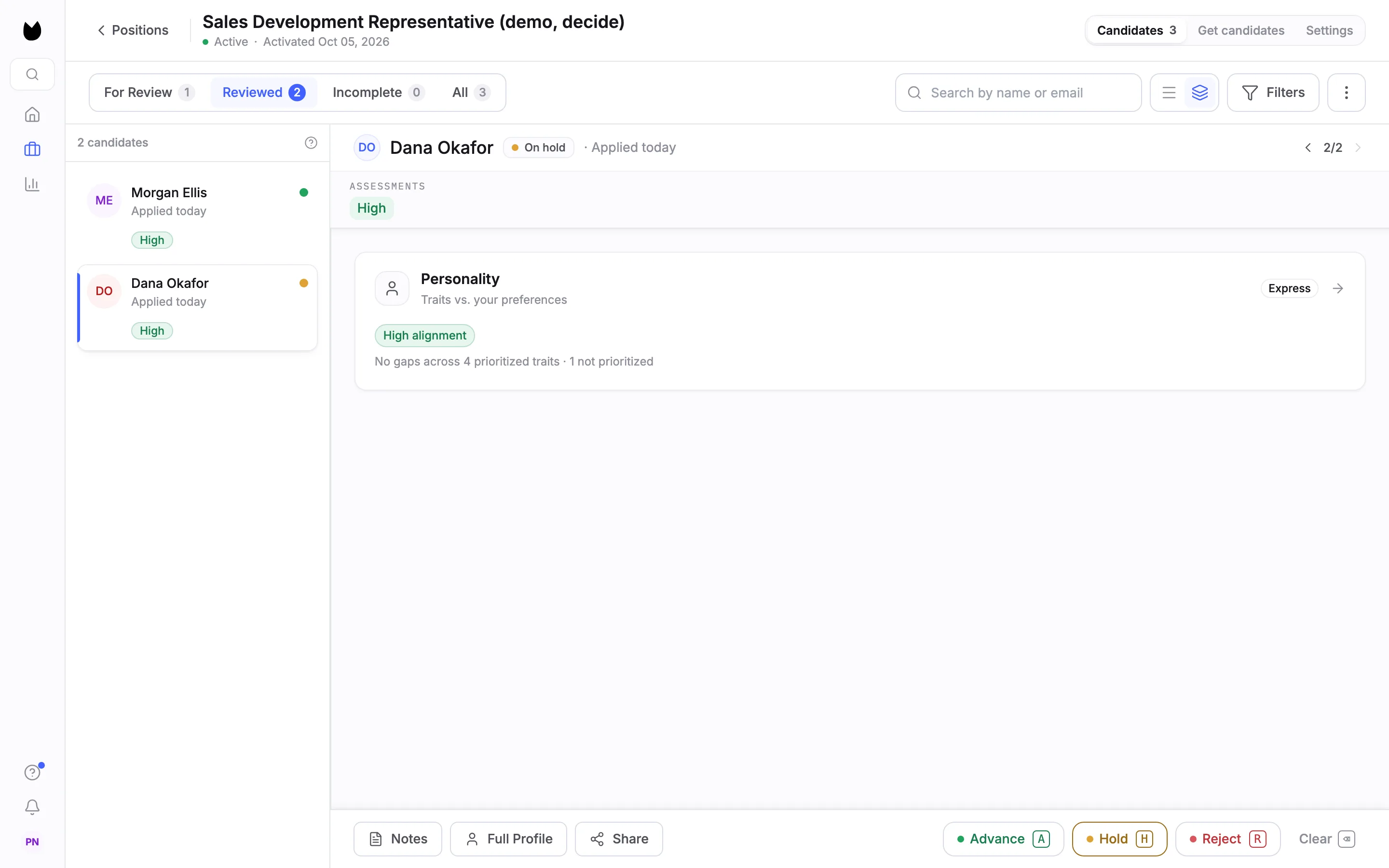
Decided candidates are on Reviewed, in Magic Review too. Open one and the action bar adds Clear with the Backspace key next to the three decisions. The candidate's status shows next to their name, here On hold.
8See the cleared candidate return
Press Backspace. Truffle confirms Cleared the decision on Dana Okafor, and the candidate goes back to For Review.
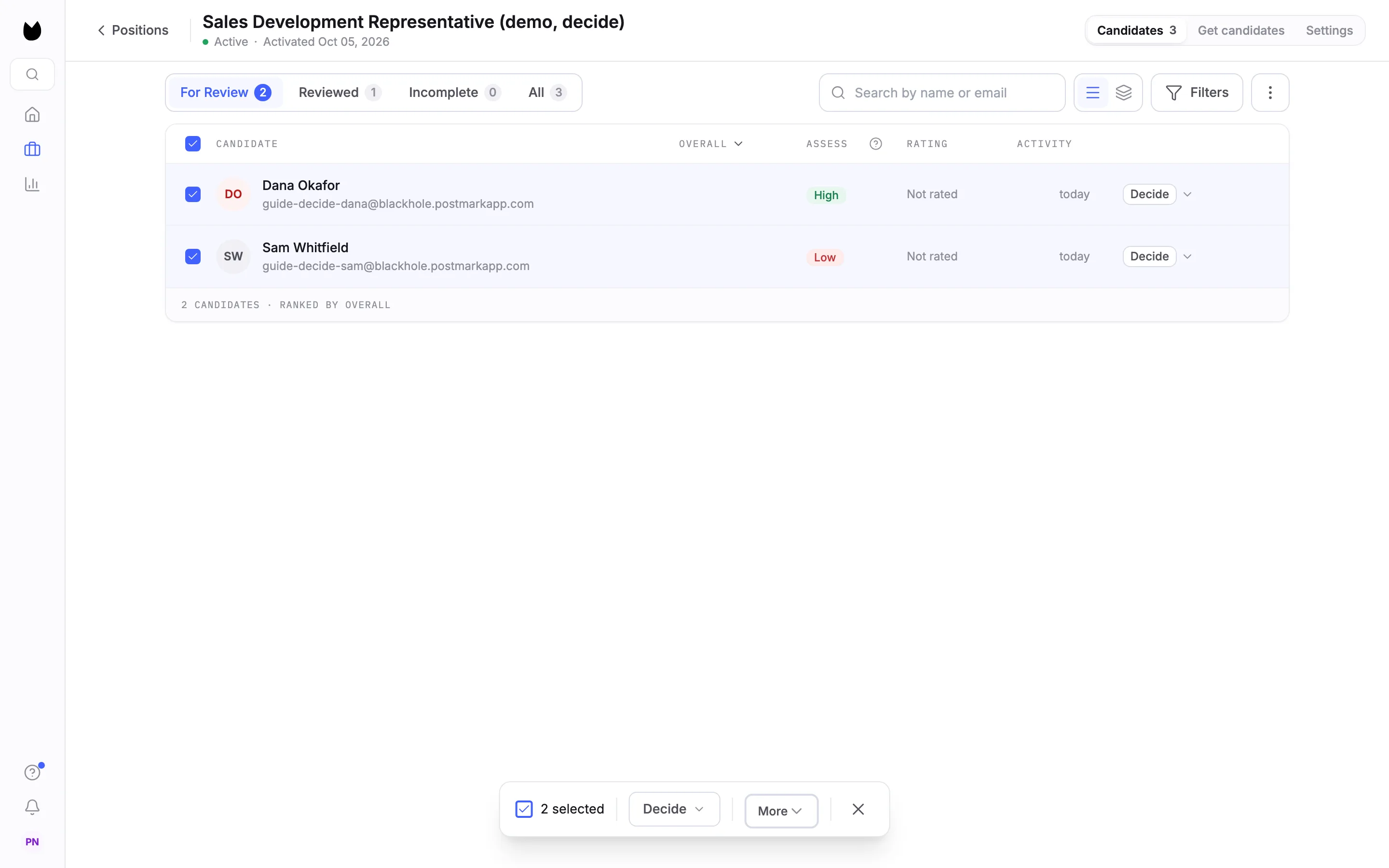
9Select several candidates
Back in the list, tick the box on each candidate you want to decide on. A bar appears at the bottom of the screen with the count, here 2 selected, a Decide menu and More.
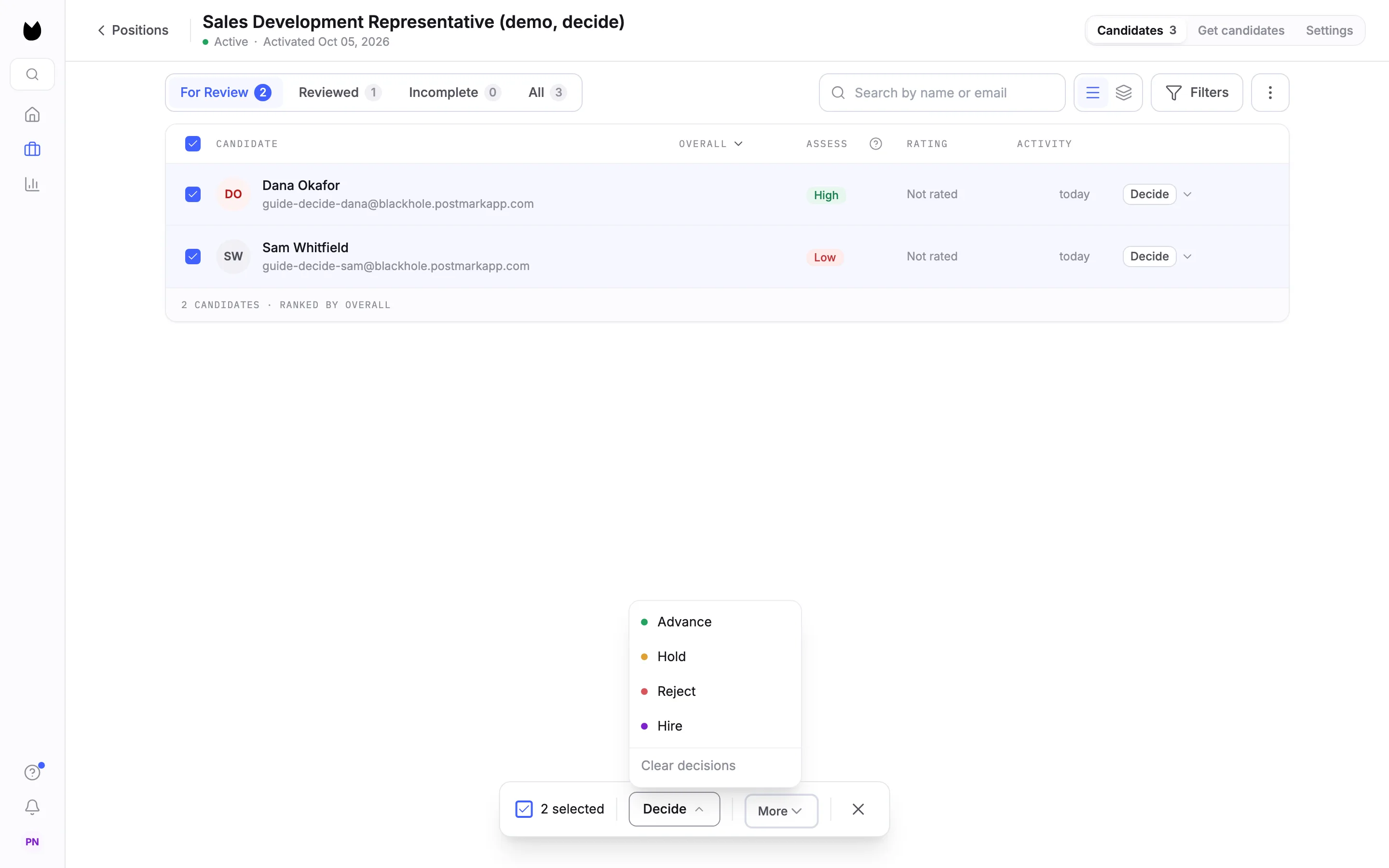
10Decide on all of them at once
The bar's Decide menu has Advance, Hold, Reject, Hire and Clear decisions. Pick one and it applies to every selected candidate. Truffle confirms how many changed, for example 2 rejected.
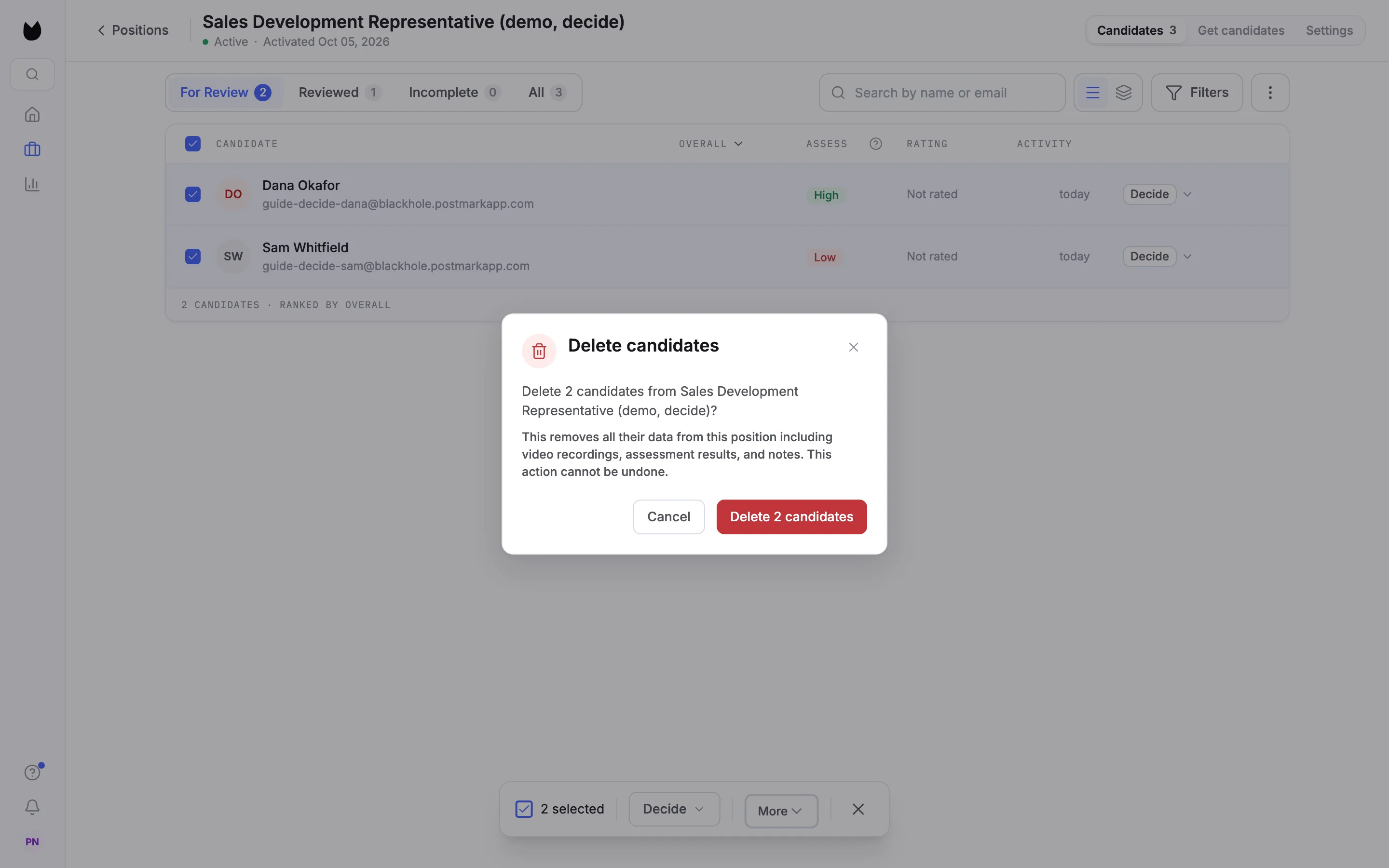
11Delete from the same bar
More on the bar holds Delete selected. Truffle asks first and says what goes: all of the candidates' data on this position, including recordings, assessment results and notes. This action cannot be undone. Choose Cancel to keep them.
12Check every status on Reviewed
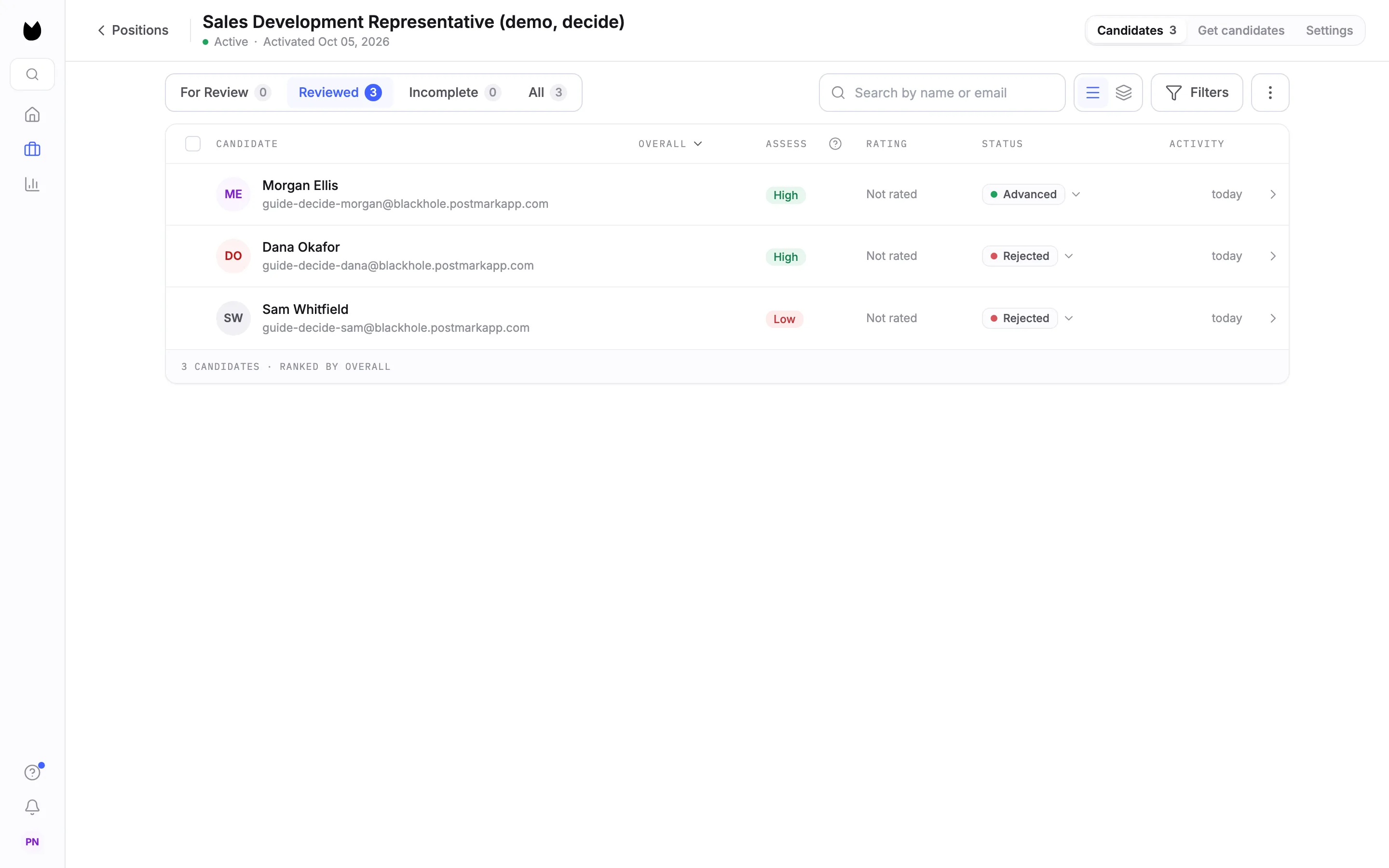
Reviewed now lists each decided candidate with their status. Here Morgan Ellis is Advanced and the other two are Rejected, while For Review is empty.
13Mark a hire
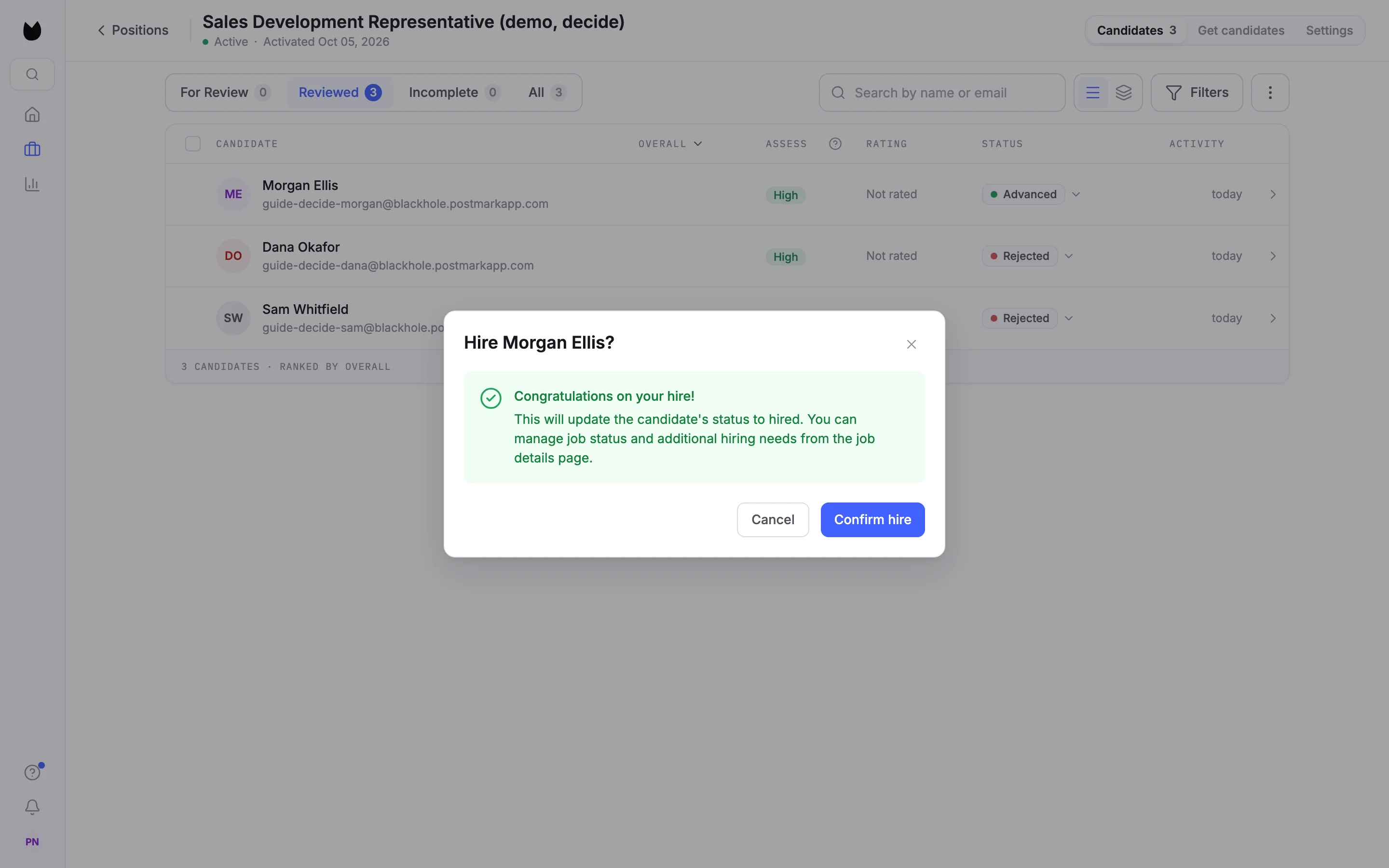
Choose Hire from the menu. Truffle asks you to confirm, Hire Morgan Ellis?, and you choose Confirm hire.
14After the hire
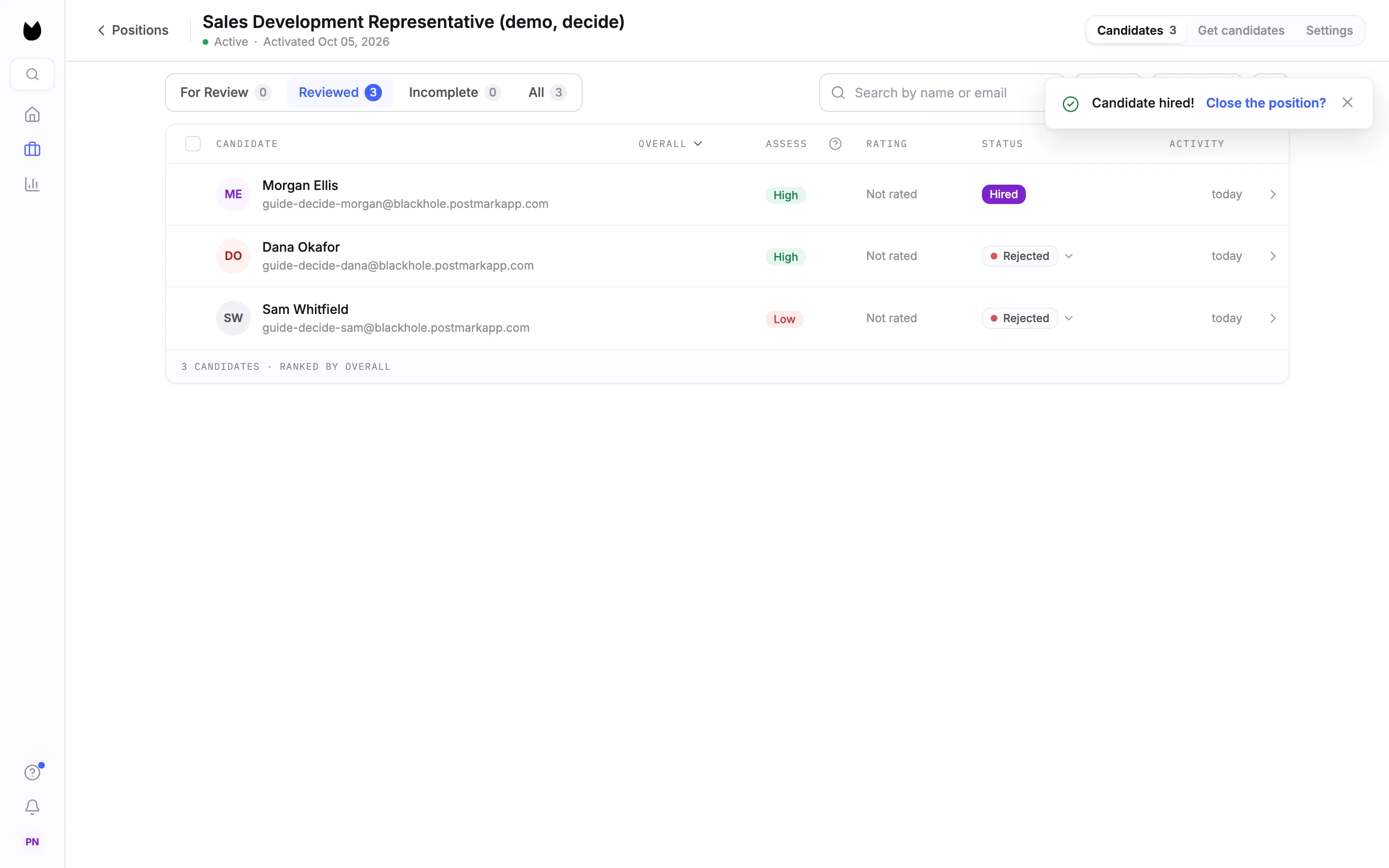
The status reads Hired and a message says Candidate hired! with Close the position? if you have filled the role. Hired is final in the list: the row no longer has a status control.
Note. Hire is not in Magic Review. Use the Decide menu or the status control.
Questions
Does Truffle email the candidate when I make a decision?
No. Advance, Hold, Reject, Hire and Clear decision change the candidate's status in Truffle and nothing else. Tell the candidate yourself.
Where does a candidate go after a decision?
From For Review to Reviewed. The Reviewed tab shows the decision in its Status column. Clearing the decision sends the candidate back to For Review.
Can I undo a decision?
Yes. Choose Clear decision from the status menu, or press Backspace in Magic Review. In Magic Review, the message after each decision also has Undo.
Can I change a hire?
Hired is final in the candidate list: the row has no status control once a candidate is hired.
Does the AI make any decisions?
No. Every decision is yours. Scores never advance, hold or reject anyone. The only automatic rejection is a qualification check you set to Reject automatically.
Related
See something here that doesn't match what you see in Truffle? Tell us and we'll fix the page.