Guide
Invite candidates by email
By the end you can invite one candidate or a pasted list, set a completion deadline, follow each invitation from Invited to finished, and know which emails and reminders go out.
5 min · 12 steps · Captured from the live product 5 Oct 2026 Changelog Copy as Markdown

Key moments and transcript
- 0:00 Open Get candidates, then invite one person
- 0:14 Set a deadline, then send
- 0:24 Paste a list, then where invitations wait
- 0:40 Automatic reminders
- 0:51 What happens next
Already know who you want to screen? Invite them by email, straight into your interview. Open the position, and choose Get candidates. In invite by email, add a name, and an email address. To give them a deadline, turn on completion deadline, and pick the date. Then send. Truffle emails the invitation straight away. Inviting several people? Choose paste from spreadsheet, and paste your list. Check who's on it, then send them all at once. Everyone you invite waits under incomplete, marked invited, and moves to for review when they finish. Reminders go out on their own, to anyone who hasn't started: after one day, three days, and seven days. When they finish, each candidate is scored against your criteria, with the reasons shown. You decide who moves on. Start free at hiretruffle.com.
Before you start
- A Truffle account. The 7-day free trial works: 30 credits, no credit card.
- An active position with a video interview or assessments. A position that only collects resumes has nothing to invite candidates into, so it has no Invite by email row.
- The names and email addresses of the people you want to invite.
1Open Invite by email
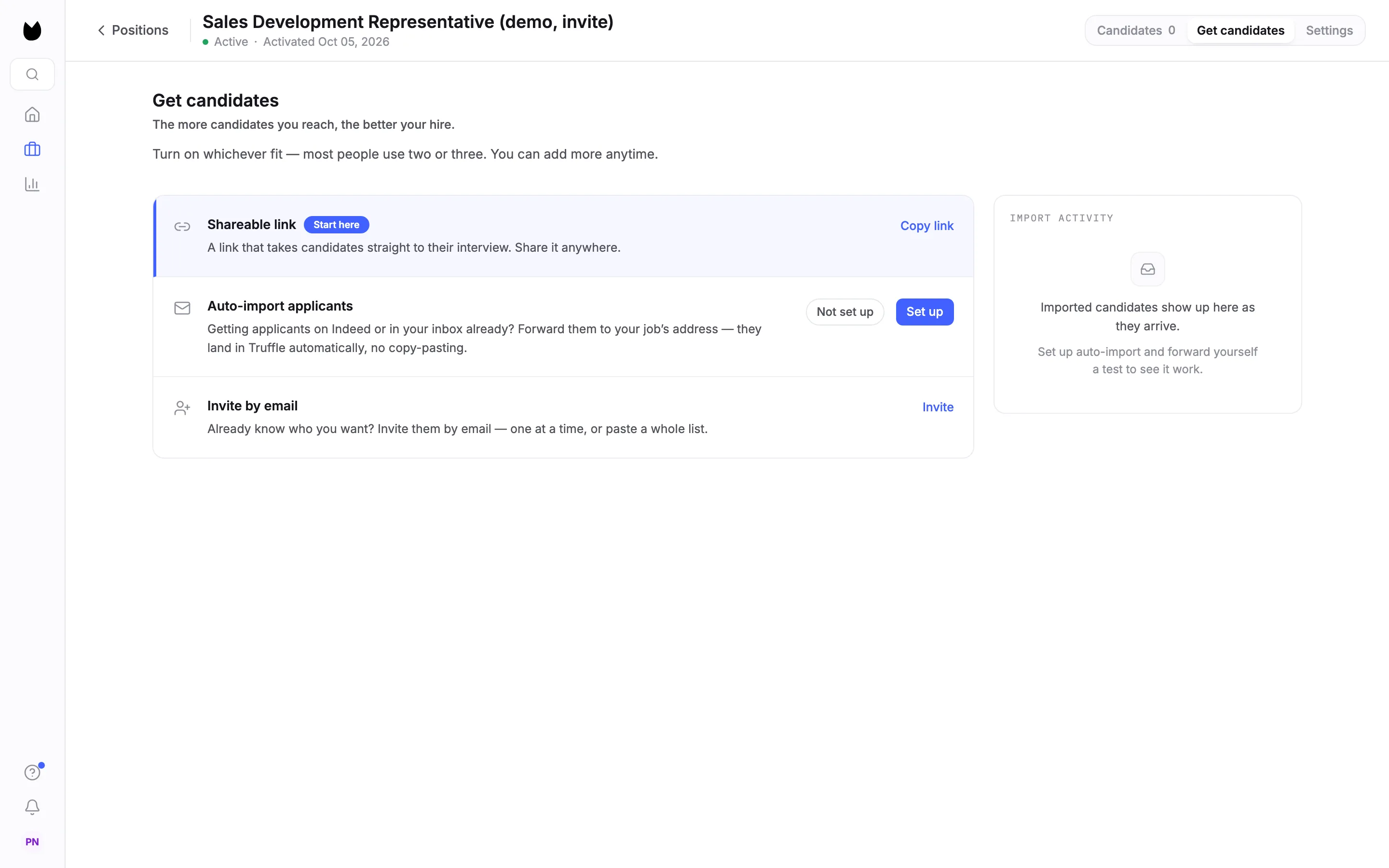
Open the position and choose Get candidates in the tabs at the top right. The last row is Invite by email. On a position with no candidates yet, it reads Already know who you want? Invite them by email, with an Invite action on the right. Choose Invite, or click the row once it has candidates, to open it.
2Type in a candidate
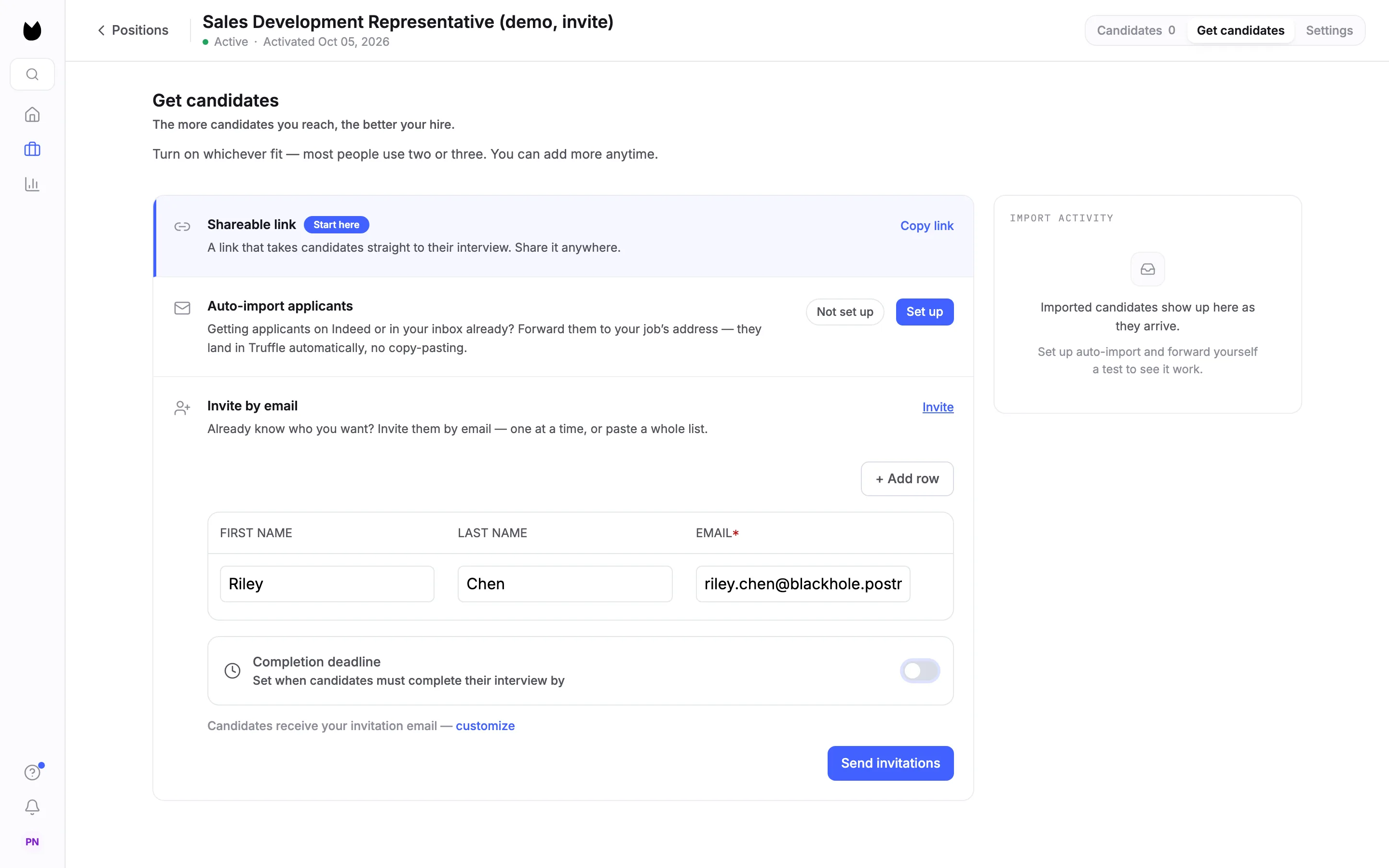
The row opens to a grid with FIRST NAME, LAST NAME and EMAIL*. Only the email is required. Fill in one row per candidate, and use + Add row for each extra person. Every address must be different.
Note. Paste from spreadsheet sits next to + Add row while the grid is empty. It disappears once you type a candidate, so paste first if you have a list.
3Set a completion deadline
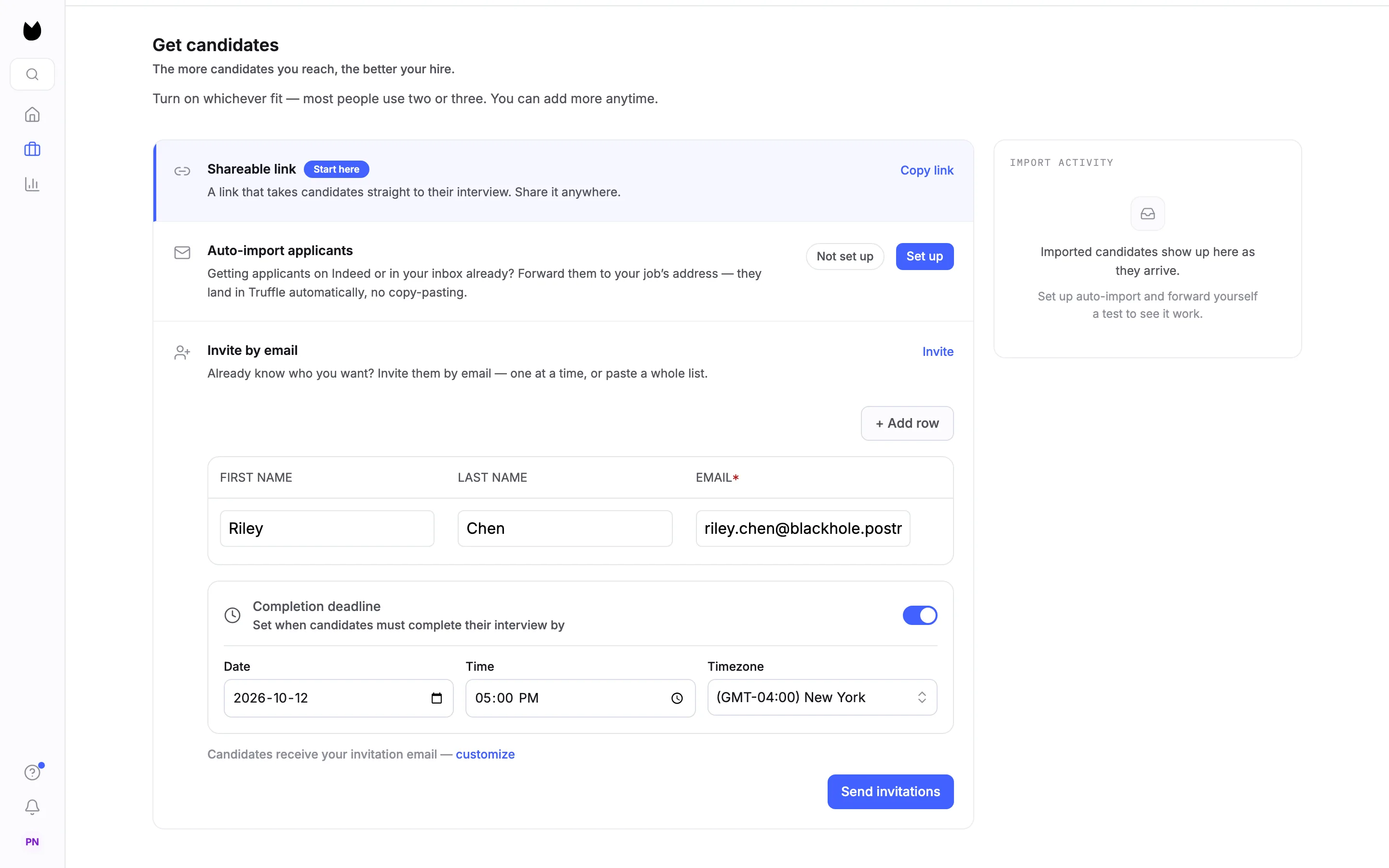
Turn on Completion deadline, which reads Set when candidates must complete their interview by. Pick a Date, a Time (5:00 PM unless you change it) and a Timezone, which starts at your browser's. After the deadline, the candidate's link stops accepting answers. The deadline is printed in the invitation email.
Note. The deadline is optional and applies to the candidates in this send. You can change it later from a candidate's profile.
4Send the invitation
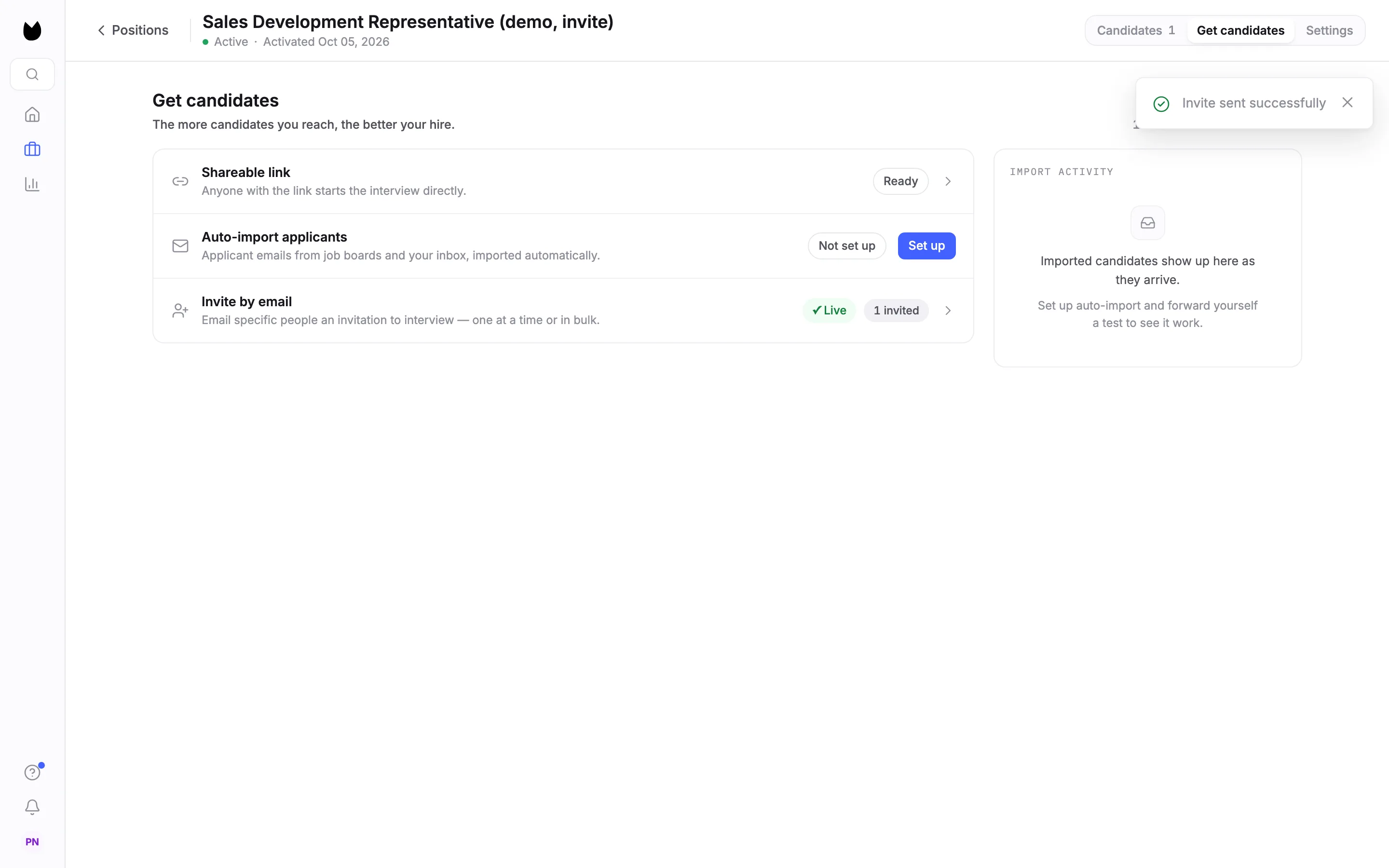
Choose Send invitations. Truffle emails each candidate straight away and confirms with Invite sent successfully. The row closes and its badges show the count, here ✓ Live and 1 invited.
5Paste a list from a spreadsheet
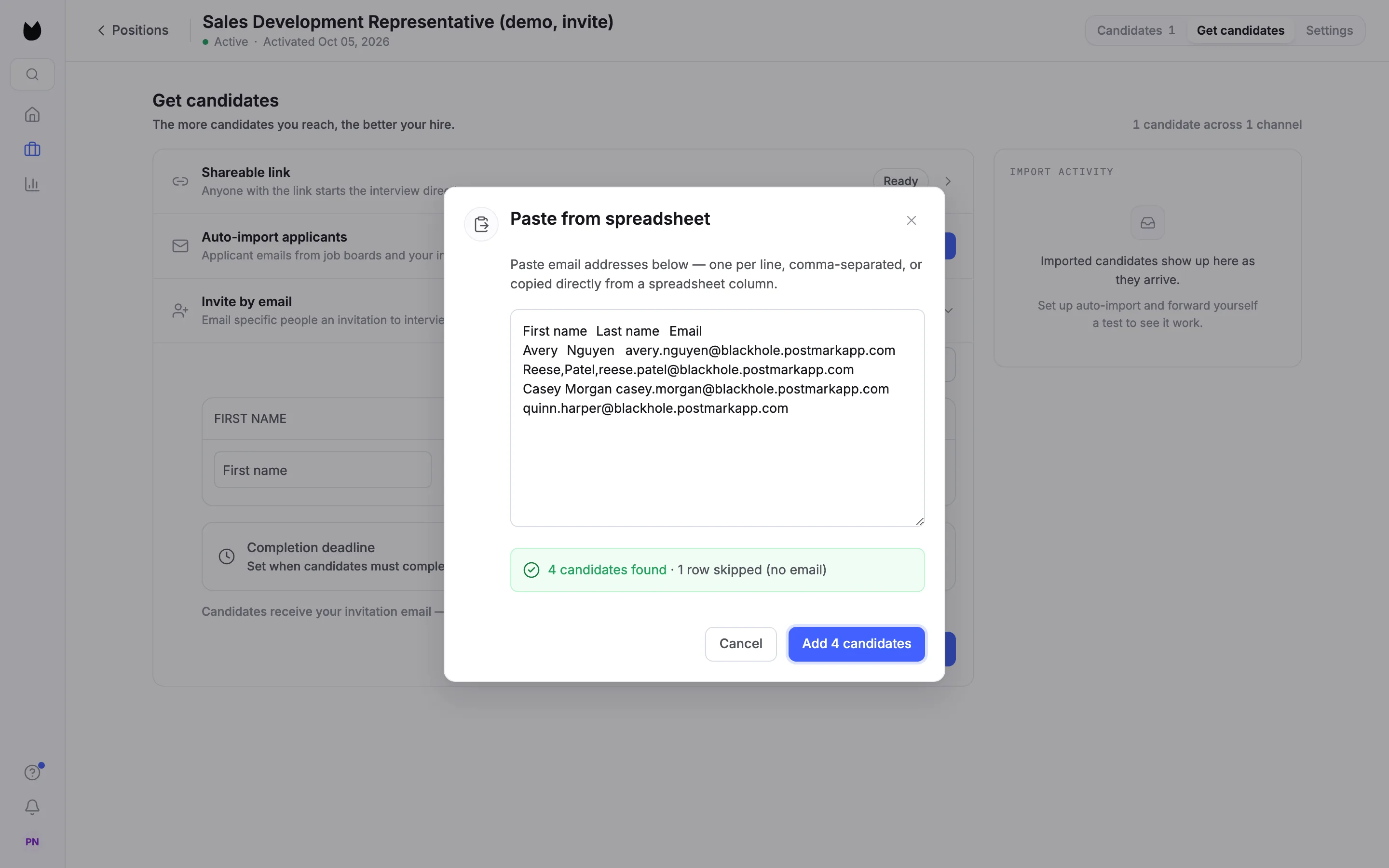
To invite several people, open the row and choose Paste from spreadsheet. Paste email addresses one per line, or rows copied from a spreadsheet with names and an email. Tabs, commas and spaces all work as separators, and a header row without an email is skipped. Choose Add candidates and Truffle reports what it found, here 4 candidates found · 1 row skipped (no email). Then choose Add 4 candidates.
Note. One paste takes up to 200 candidates. Rows without an email address are skipped.
6Check the list, then send
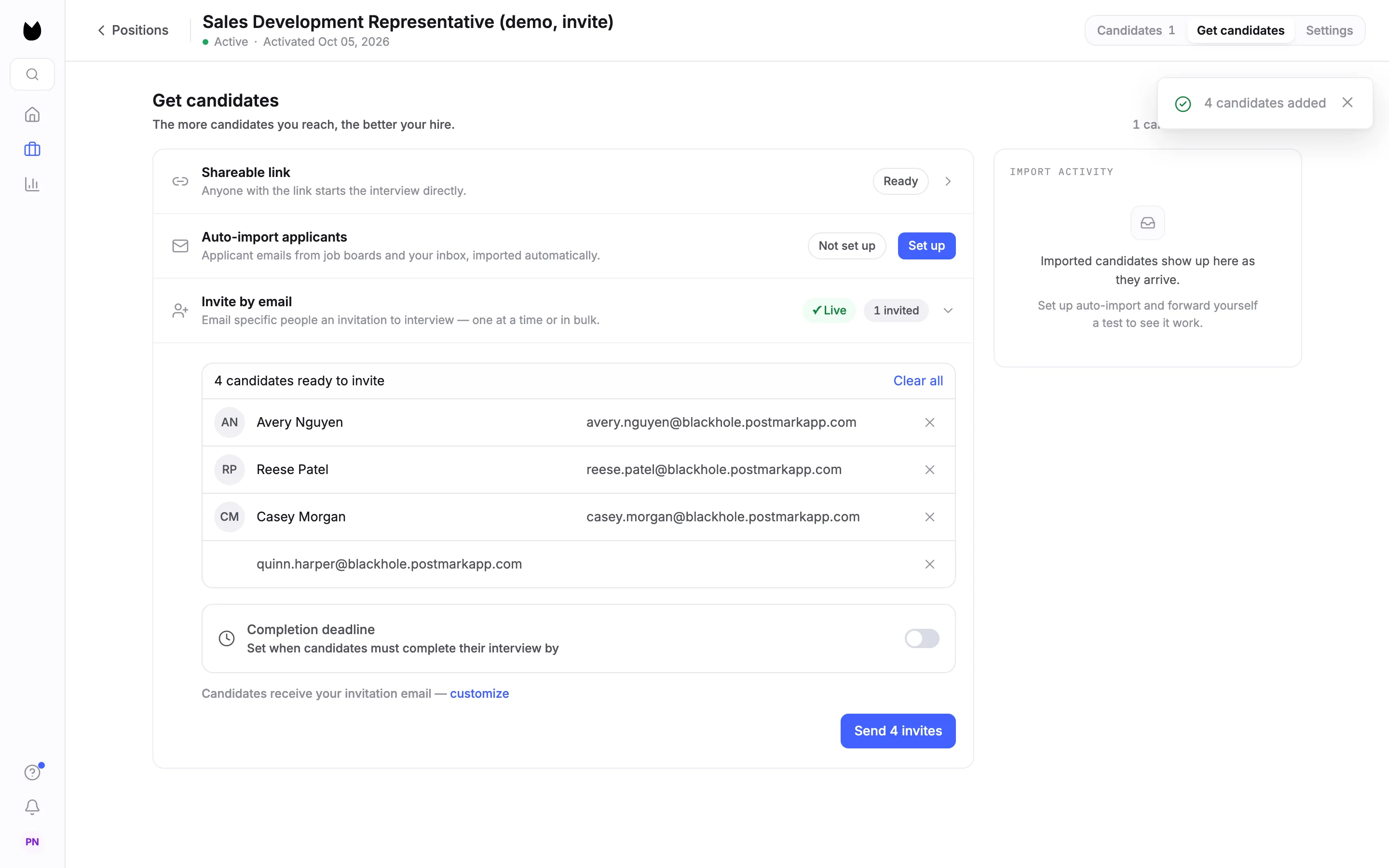
The grid becomes a list headed 4 candidates ready to invite. Remove anyone with the × at the end of their row, or start over with Clear all. The button now counts the invitations: choose Send 4 invites.
7Send 50 at a time
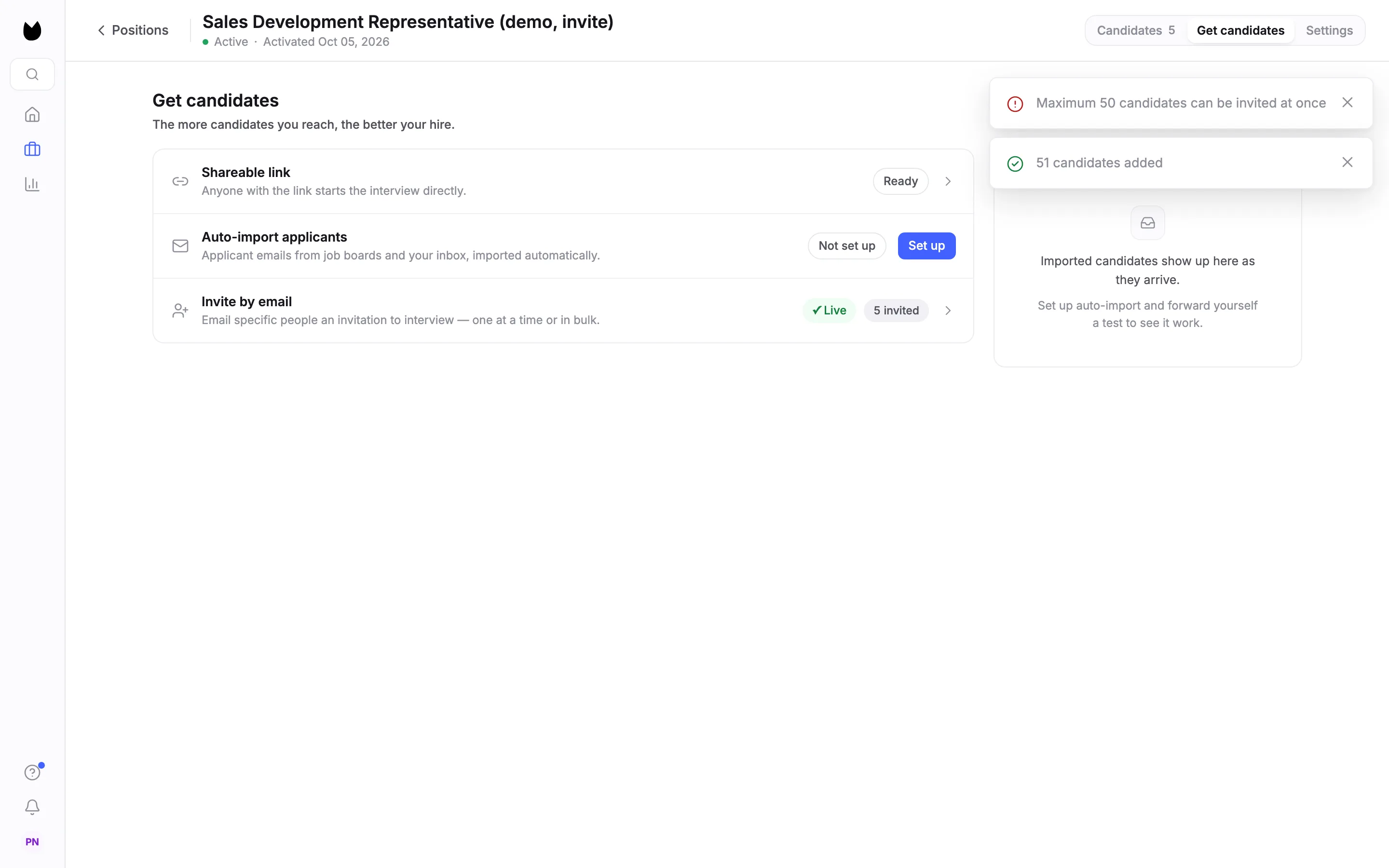
One send takes up to 50 candidates. With more on the list, Truffle sends nothing and says Maximum 50 candidates can be invited at once. Split a longer list into batches of 50 and send each one.
8Find your invited candidates
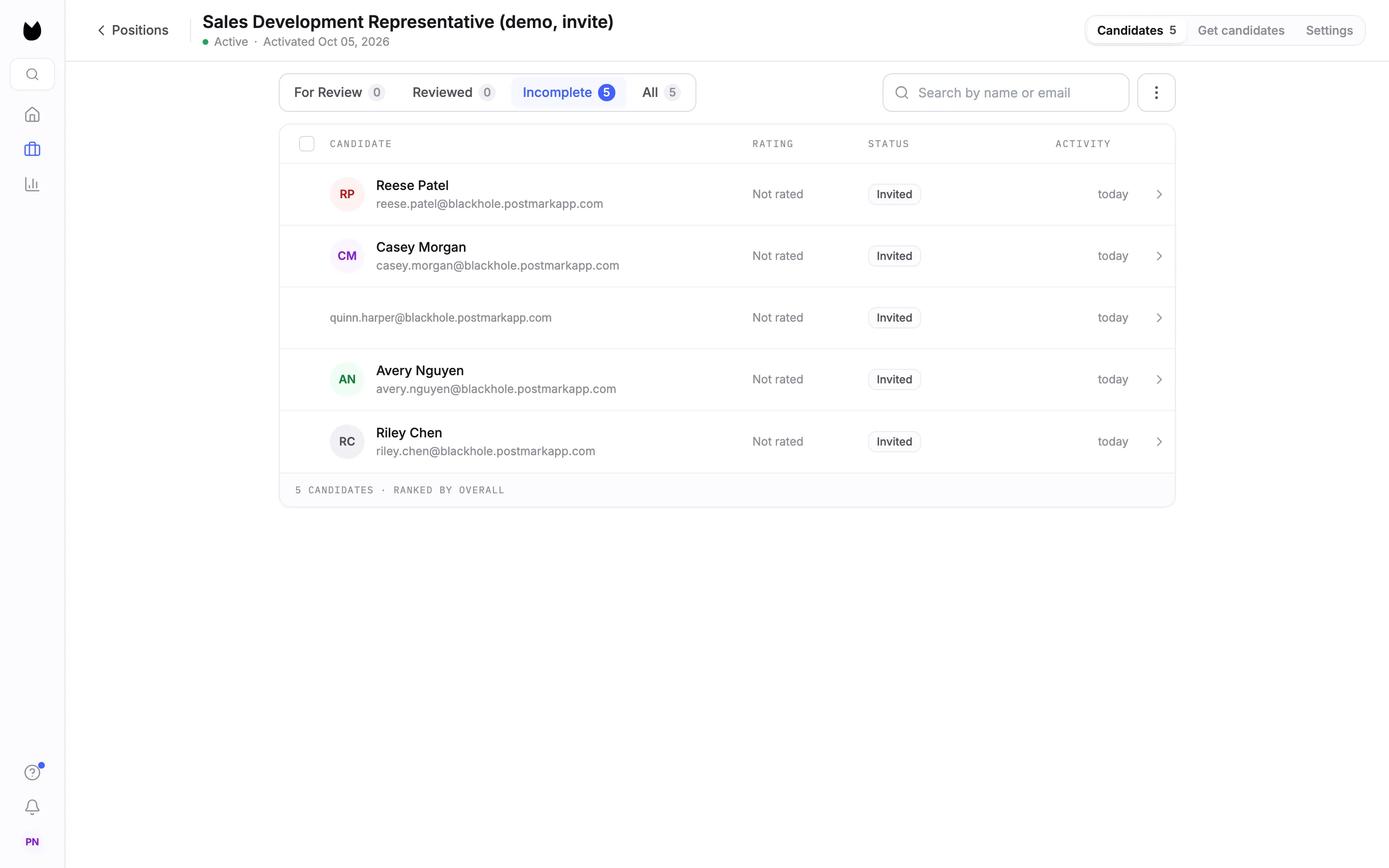
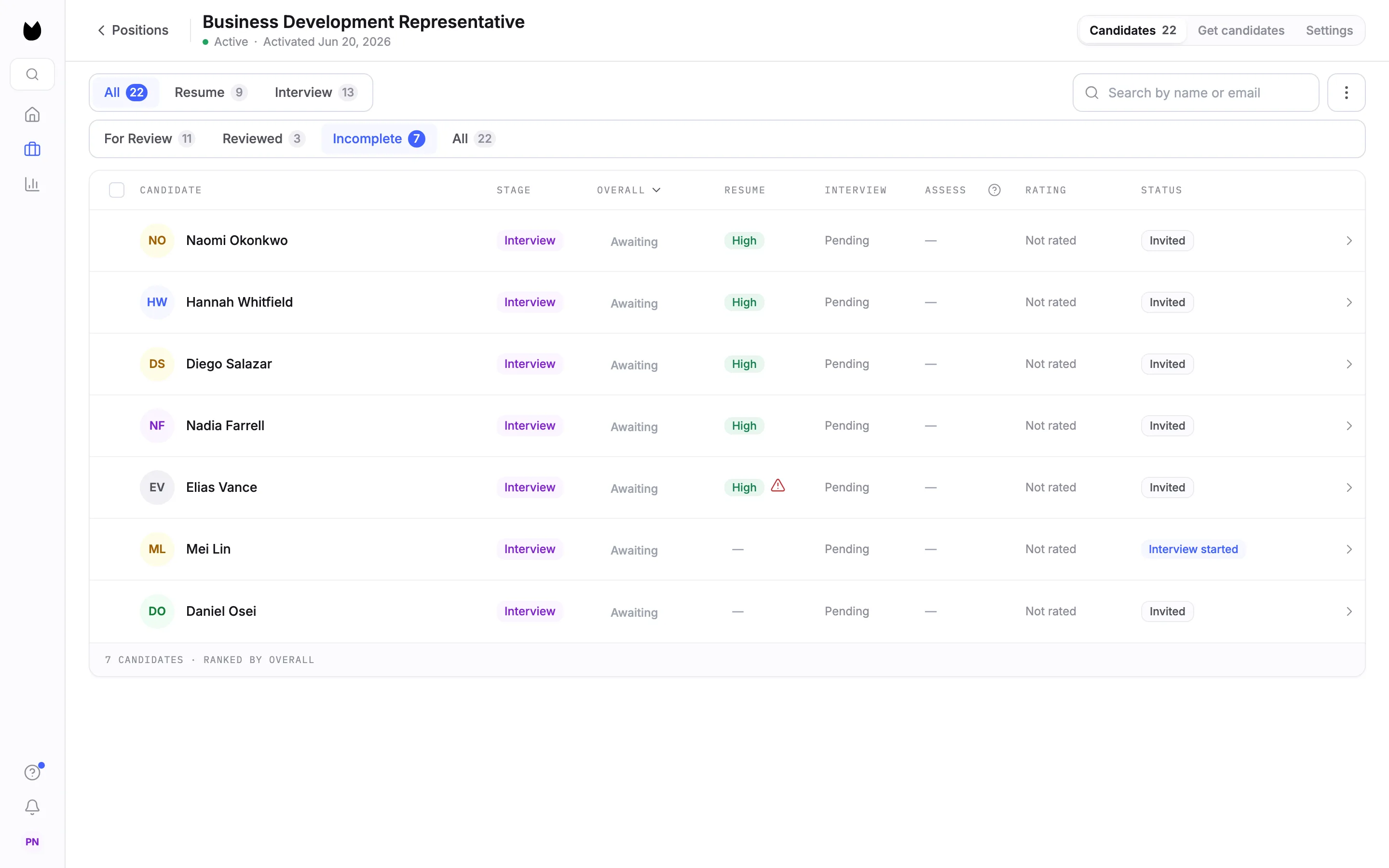
Choose Candidates. For Review stays empty until someone finishes: it says Nothing to review yet and that invites are out and no one has started. Your invited candidates are under Incomplete, each with the status Invited.
9Check one invitation
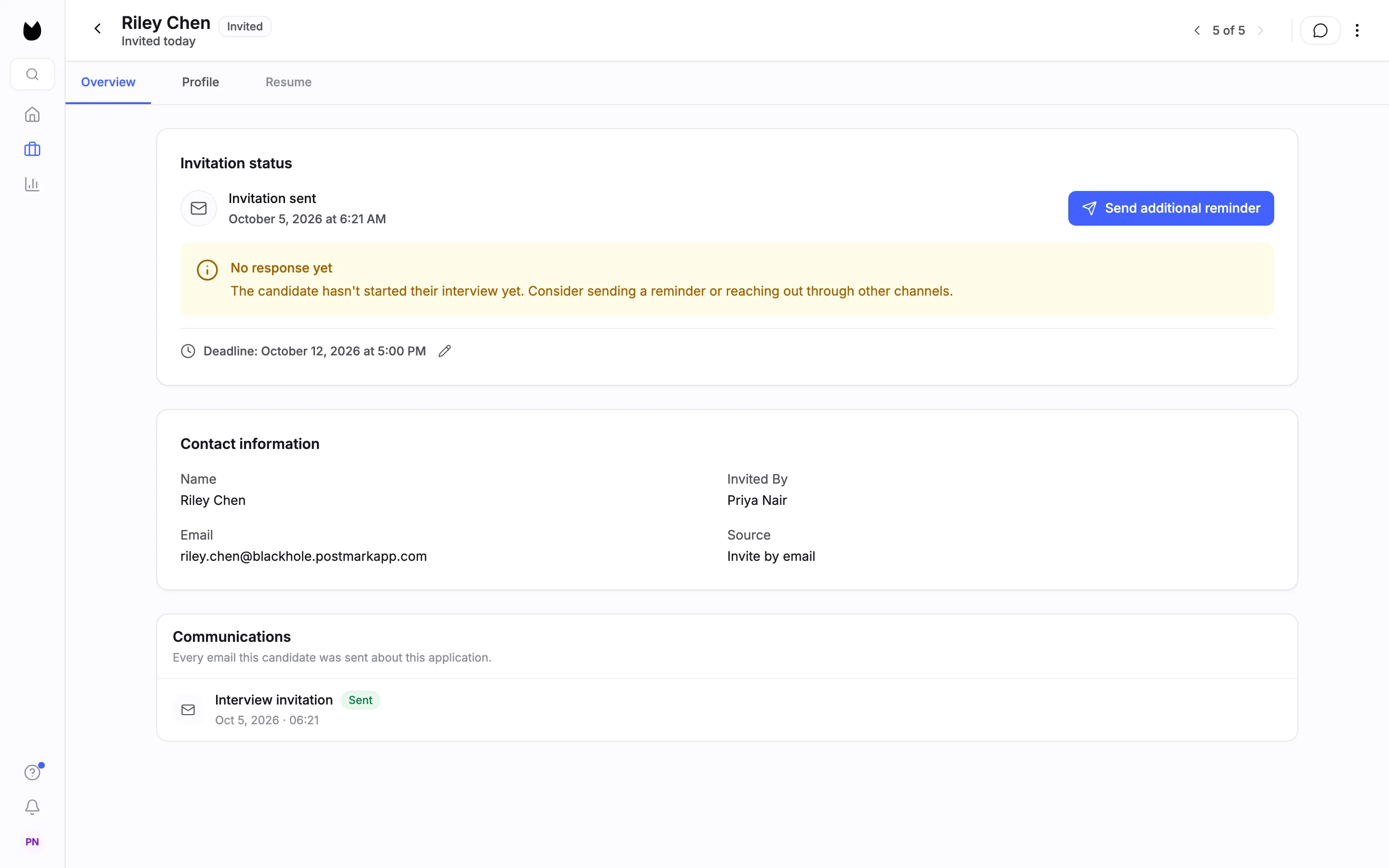
Open a candidate. The header shows Invited and Invited today. Invitation status shows when the invitation went out, No response yet until they start, and the deadline with a pencil to change it. Send additional reminder sends a reminder now. Further down, Invited By names who sent it, Source reads Invite by email, and Communications lists every email the candidate was sent, starting with Interview invitation.
10Follow them to the finish
A candidate's status moves as they go. Invited means the email went out. Interview started means they have begun. When they finish, they leave Incomplete and land in For Review.
11Know which reminders go out
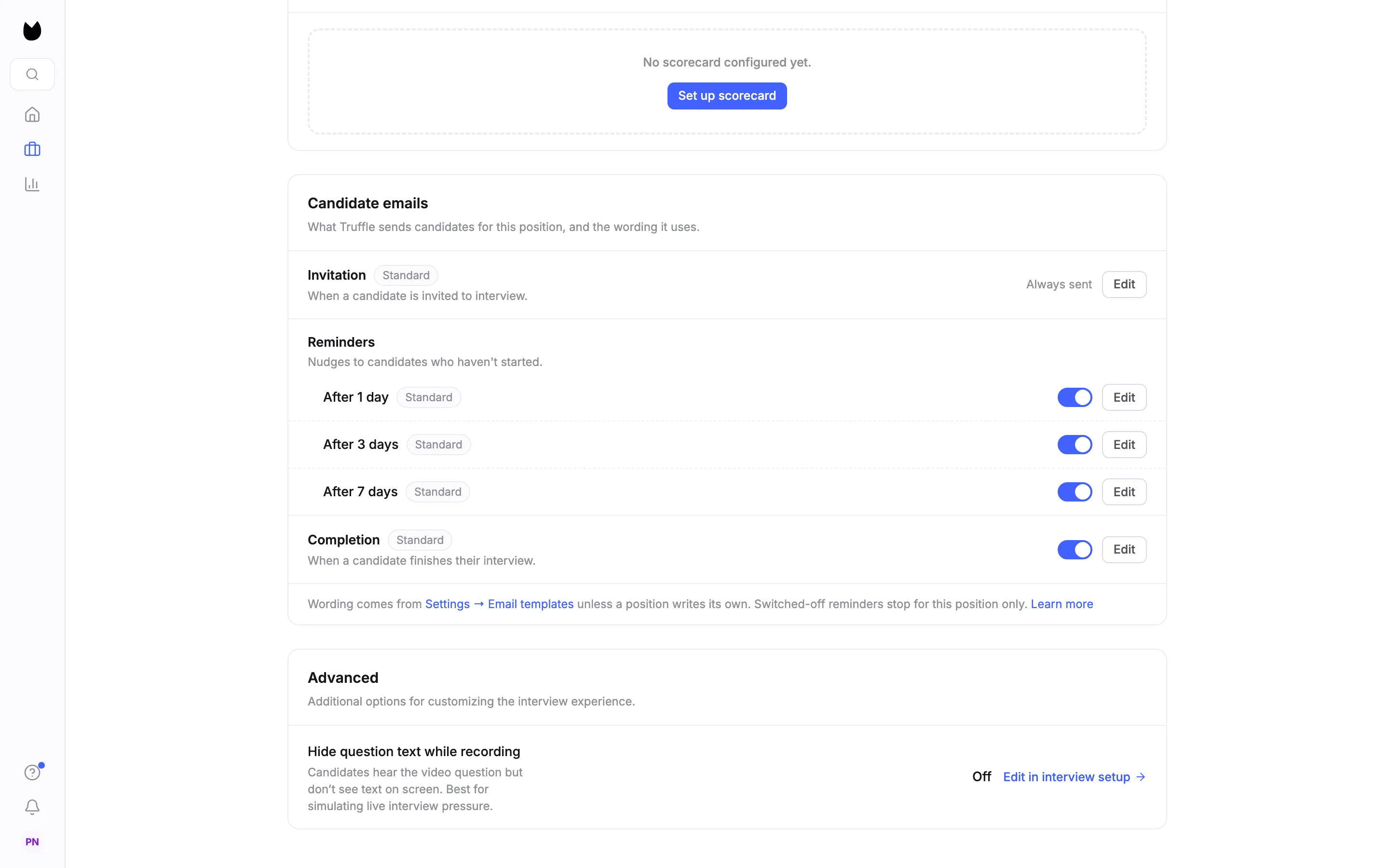
Open the position's Settings and find Candidate emails. The Invitation is Always sent. Reminders are Nudges to candidates who haven't started.: After 1 day, After 3 days and After 7 days, each with its own switch. Completion goes out when a candidate finishes. Switched-off reminders stop for this position only.
Note. The customize link under the invite grid opens this same card.
12Preview the invitation email
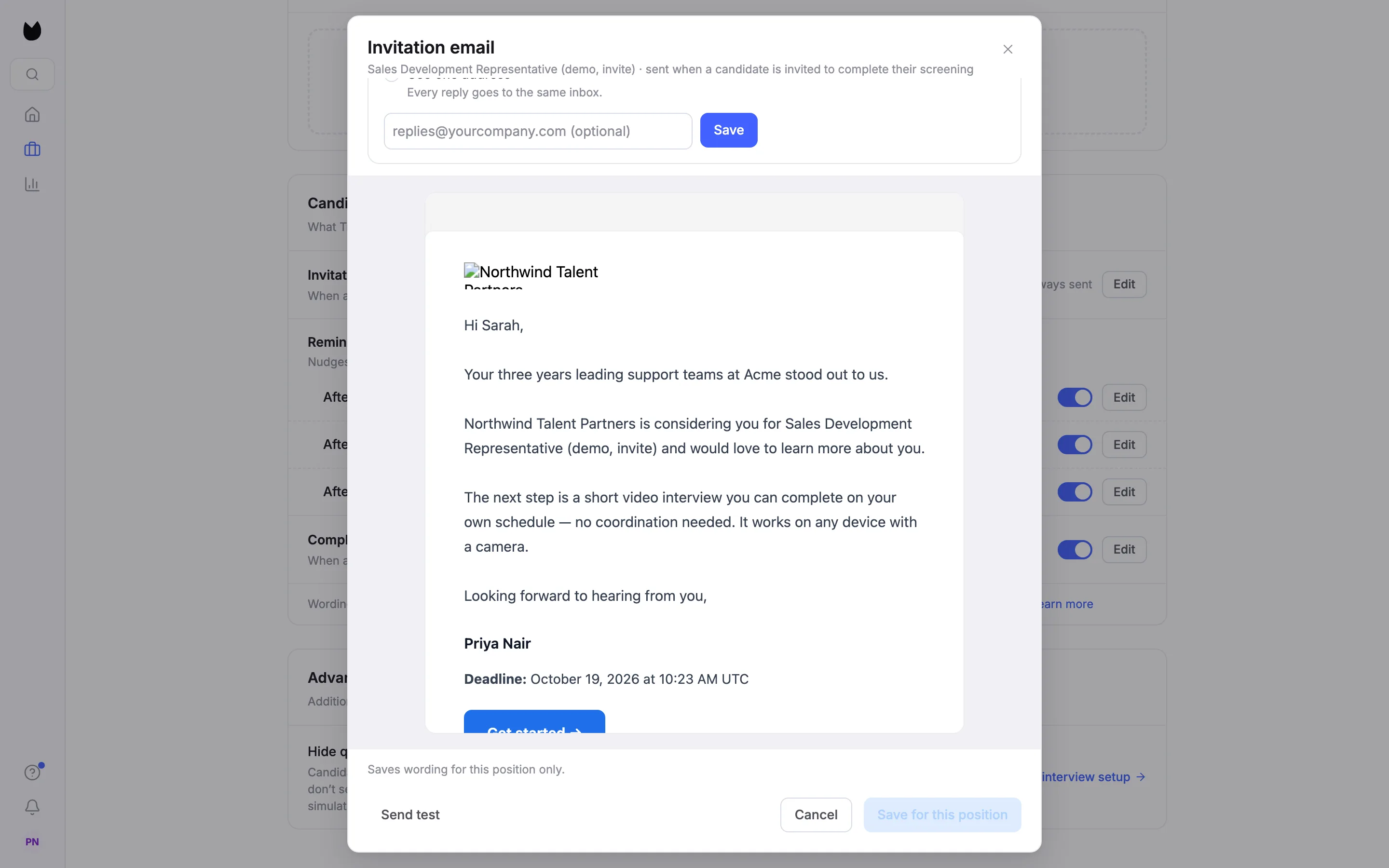
Choose Edit on Invitation, then Preview. The standard invitation greets the candidate by first name, adds a one-line note written from their application when there is something specific to say, says your company is considering them for the role, and explains the next step. It is signed by whoever sent it, shows the deadline, and ends with a Get started → button and a footer line that sends interview trouble to Truffle support. The subject reads {company_name}: next step for your {position_title} application.
Note. The preview fills in sample details. On paid plans you can change the wording here or in Settings, Email templates. Send test sends the email to you, not to a candidate.
Questions
How many candidates can I invite at once?
One paste from a spreadsheet takes up to 200 addresses, and one send takes up to 50 candidates. With more than 50 on the list, nothing is sent and Truffle says Maximum 50 candidates can be invited at once. Send longer lists in batches of 50.
Which separators work when I paste a list?
Tabs, as when you copy from Excel or Google Sheets, commas and spaces. You can also paste bare email addresses, one per line. A first row without an email, such as a header, is skipped, and so is any row without an email.
When do reminders go out?
One day, three days and seven days after the invitation, to candidates who have not started. Each reminder has its own switch under Candidate emails in the position's settings, and switching one off affects that position only. You can also send a reminder by hand from a candidate's profile.
Who does the invitation come from?
From the person who sent it, signed with their name. Where replies go depends on your company's choice, such as Reply to the sender.
What happens when the deadline passes?
The candidate's link stops accepting answers. You can change the deadline from the candidate's profile with the pencil next to it.
Can I invite someone to a position that only collects resumes?
No. Invitations lead to a video interview or assessments, so a position without either has no Invite by email row.
Related
See something here that doesn't match what you see in Truffle? Tell us and we'll fix the page.