Guide
Add qualification checks
By the end you have a position that asks its must-haves before the screening, with a stated outcome for every check, and you know where to read each candidate's answers.
8 min · 10 steps · Captured from the live product 5 Oct 2026 Changelog Copy as Markdown

Key moments and transcript
- 0:00 Define the role
- 0:14 Build the position, then configure screening
- 0:50 Where the answers show up
Here's how to add qualification checks to a position, so your must-haves get asked first. Start a new position. In the description, write each must-have as a plain sentence, like work authorization. On Build position, Truffle suggests checks from the must-haves you wrote. Qualification checks is already on. Truffle drafts the checks. Each one shows its type, and the answer that passes. Open one to set whether it must be answered, and what the answer does. Reject automatically, flag for review, or just collect it. Reject automatically is a rule you set. Scores never reject anyone. Before you go live, read the drafted checks, and choose Looks right. When candidates answer, their Profile tab shows each answer next to what it required. Your must-haves, asked up front. The rules are yours, and so is the call. Start free at hiretruffle.com.
Before you start
- A Truffle account. The 7-day free trial works: 30 credits, no credit card.
- A position description of at least 200 characters. Truffle drafts the checks from it, and a position cannot go live on less.
- At least one hard requirement for the role, such as work authorization or a minimum number of years in sales.
1State the must-haves in the description
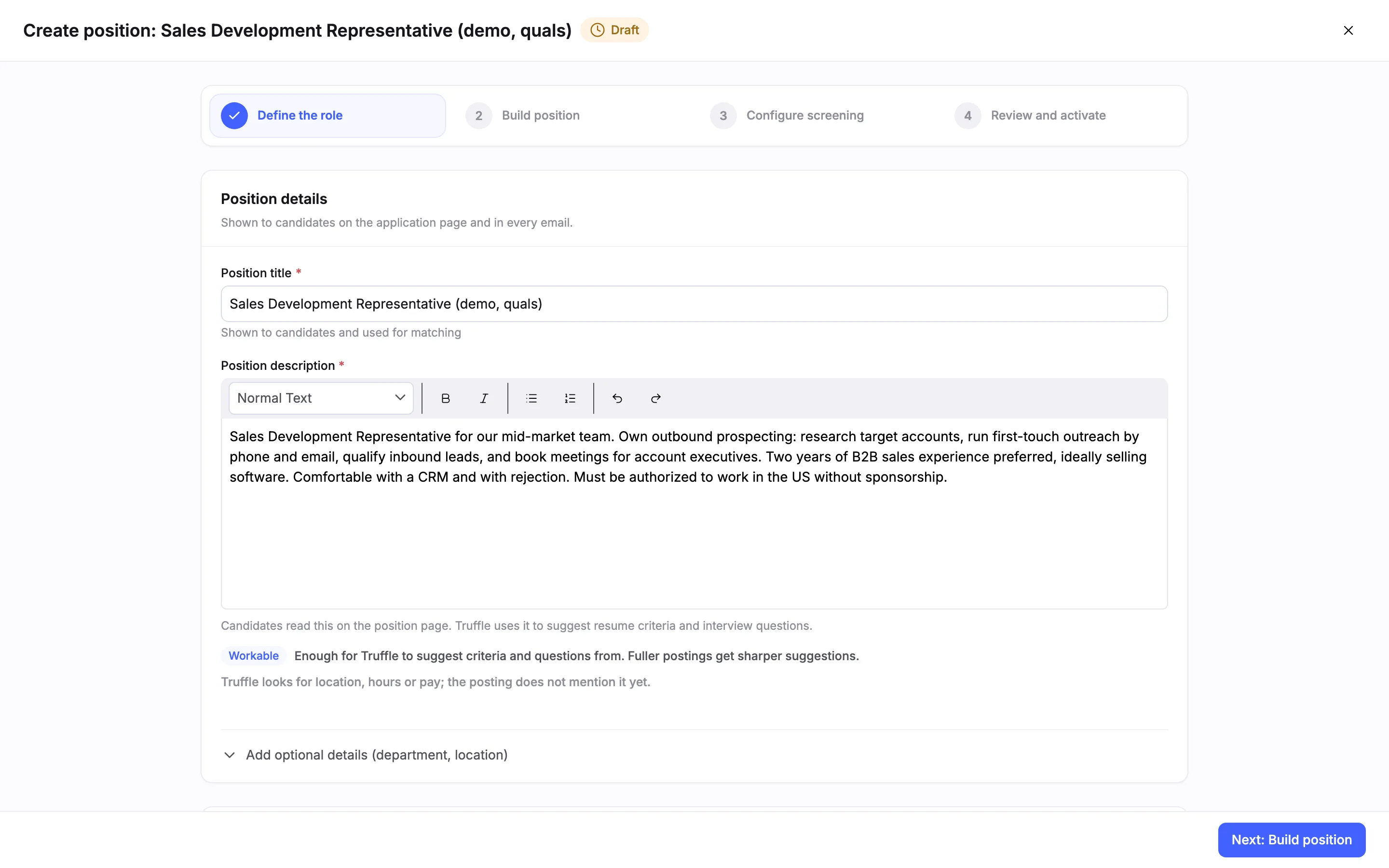
Start a new position. On Define the role, enter a Position title and a Position description. Write each hard requirement as a plain sentence, such as Must be authorized to work in the US without sponsorship. Truffle reads the description to suggest the screen and to draft the checks. Then choose Next: Build position.
2Check that Qualification checks is on
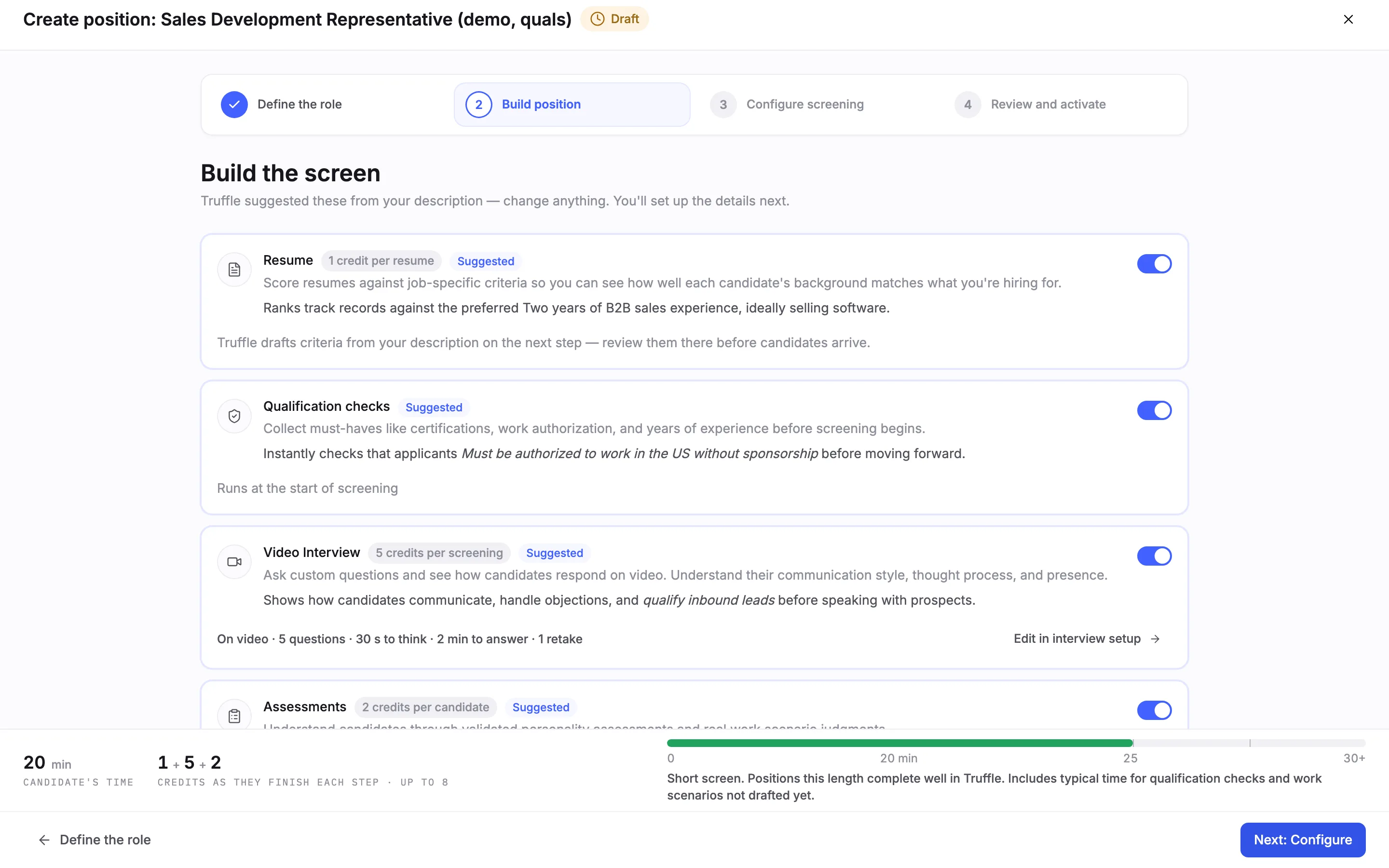
Build the screen arrives with Truffle's suggestions already switched on. When the description states a hard requirement, Qualification checks is on and marked Suggested, with a line that quotes the requirement. Unlike the other cards, it shows no credit cost. Checks cannot run on their own. With every other component off, the card reads Needs Resume, Video Interview, or Assessments enabled to run and Next: Configure stays off. This guide keeps Video Interview on and switches Resume and Assessments off. Then choose Next: Configure.
Note. If the description names no hard requirement, the card reads Skipped for now with a line on when to add it. In our capture it said to add checks if two years of B2B sales experience becomes a strict requirement. Switch it on yourself if you want checks.
3Read the drafted checks
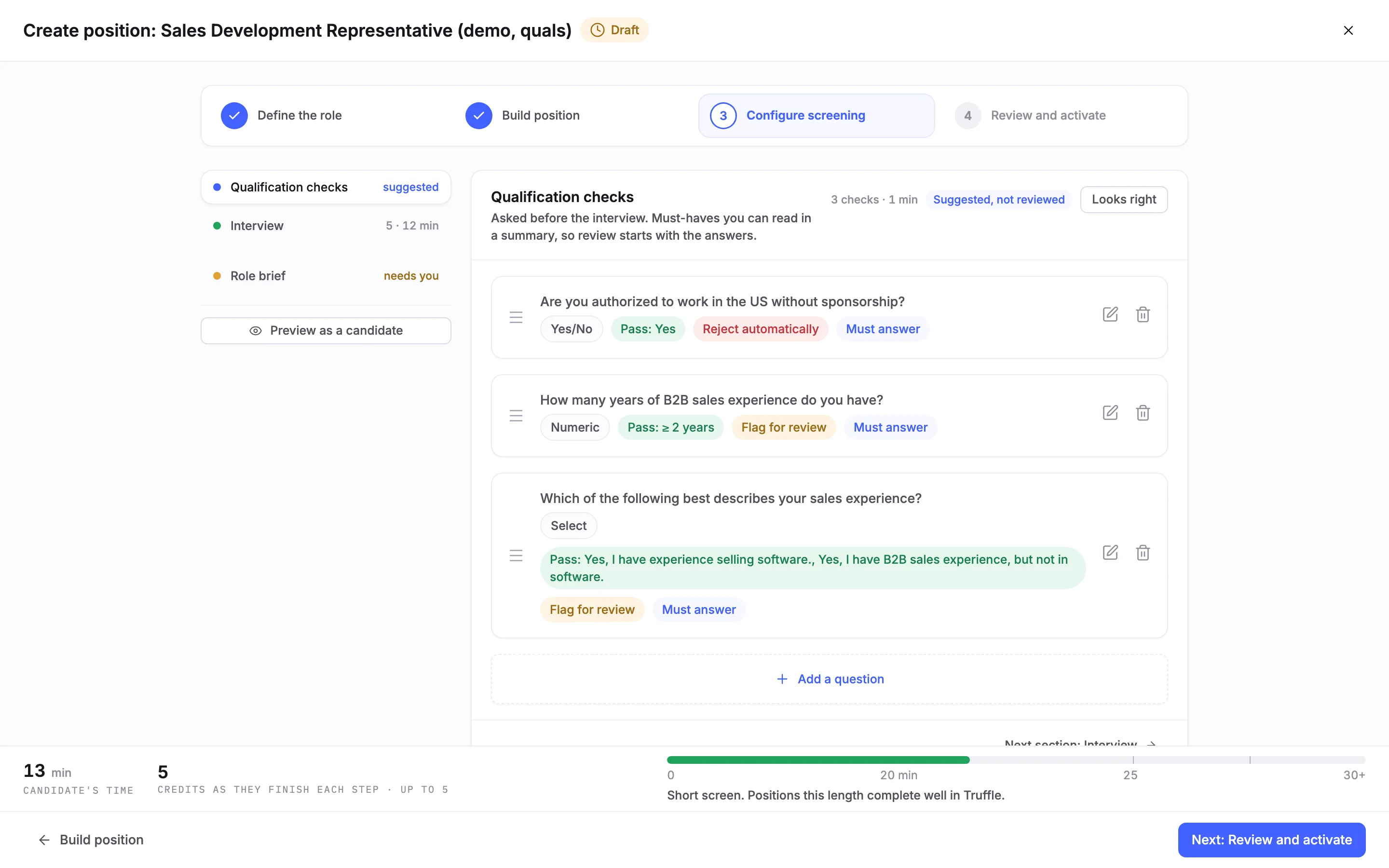
Configure screening lists your sections on the left, each with its state. Truffle drafts the checks in the background, usually in about 15 seconds. They land as Suggested, not reviewed, with a count such as 3 checks · 1 min and a Looks right button. Each check shows its type, the answer that passes (for example Pass: Yes or Pass: ≥ 2 years), what a missed answer does, and Must answer if the candidate cannot skip it. Use the pencil to edit a check and the bin to delete it.
Note. Check the outcome on every drafted check. In our capture Truffle proposed Reject automatically for work authorization and Flag for review for the other two. If the list is empty, the section offers Generate with AI or Create your own.
4Choose what a missed answer does
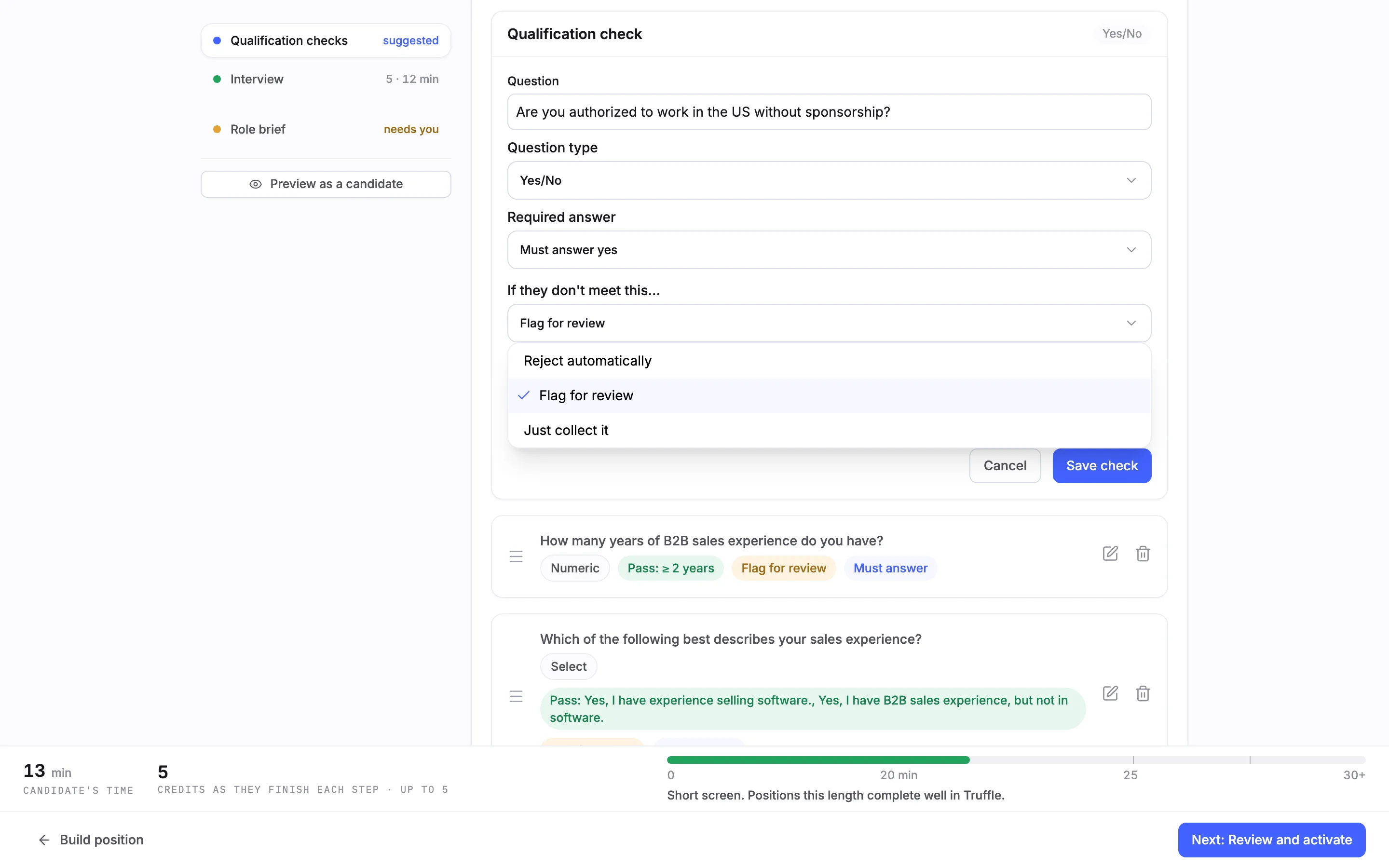
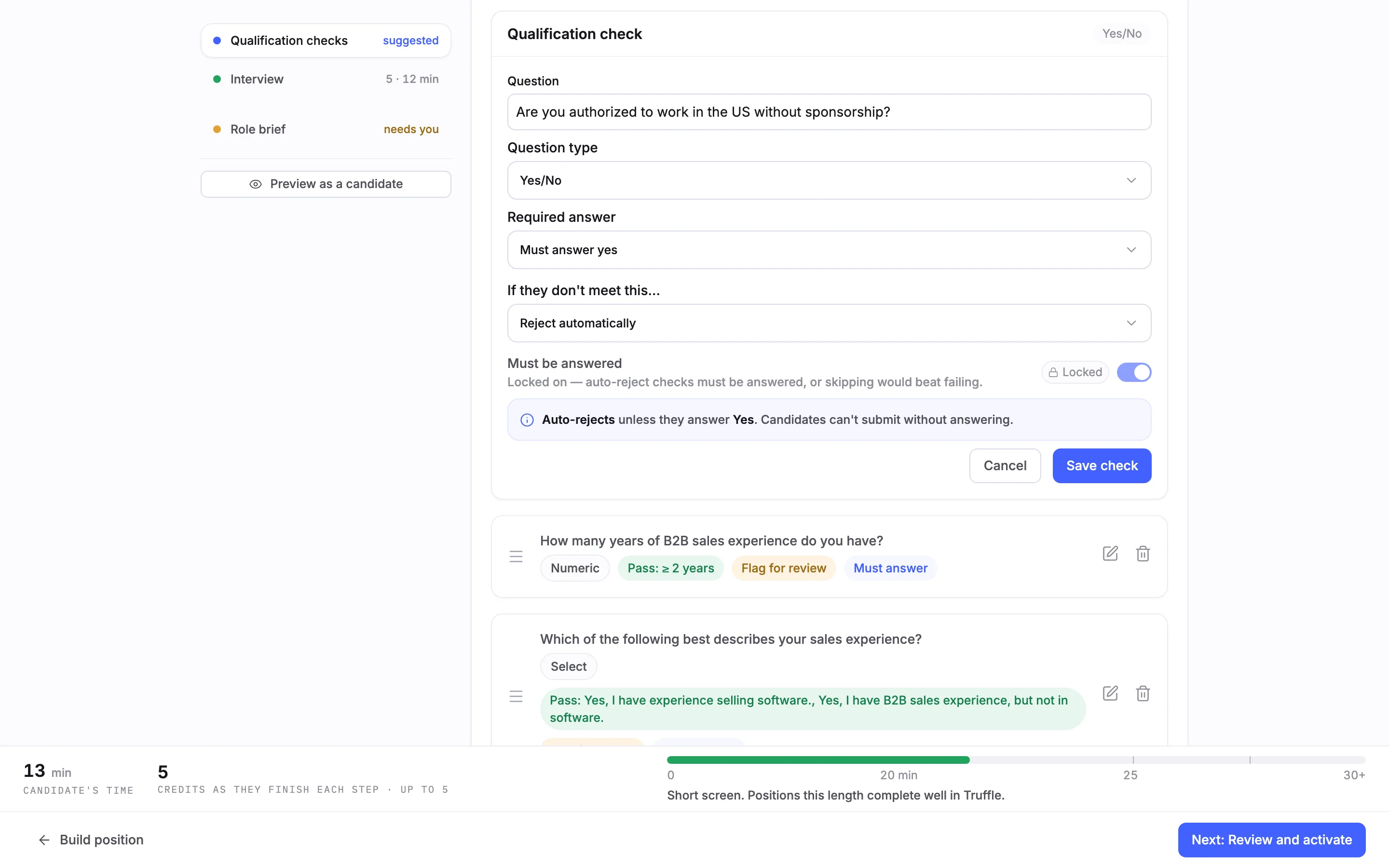
Open a check with its pencil. The editor shows Question, Question type, Required answer (here Must answer yes) and If they don't meet this…, which sets what happens when an answer misses the rule. Reject automatically rejects the candidate. Flag for review flags the answer for you and rejects no one. Just collect it records the answer for your review and never evaluates it. Below the choice, the editor reads the rule back in plain words, such as Flags for review unless they answer Yes.
Note. Must be answered is a separate switch. It decides whether the candidate can skip the question, not what the answer does.
5Keep Reject automatically for real dealbreakers
Reject automatically is a fixed rule you set. It is the only automatic rejection in Truffle. AI scores never reject anyone. Choosing it locks Must be answered on, so a candidate cannot pass by skipping the question, and the editor reads back Auto-rejects unless they answer Yes. Candidates can't submit without answering. Use it for requirements the role cannot go ahead without, such as work authorization you cannot sponsor. Use Flag for review for anything you would still weigh. Choose Save check.
6Write a check of your own
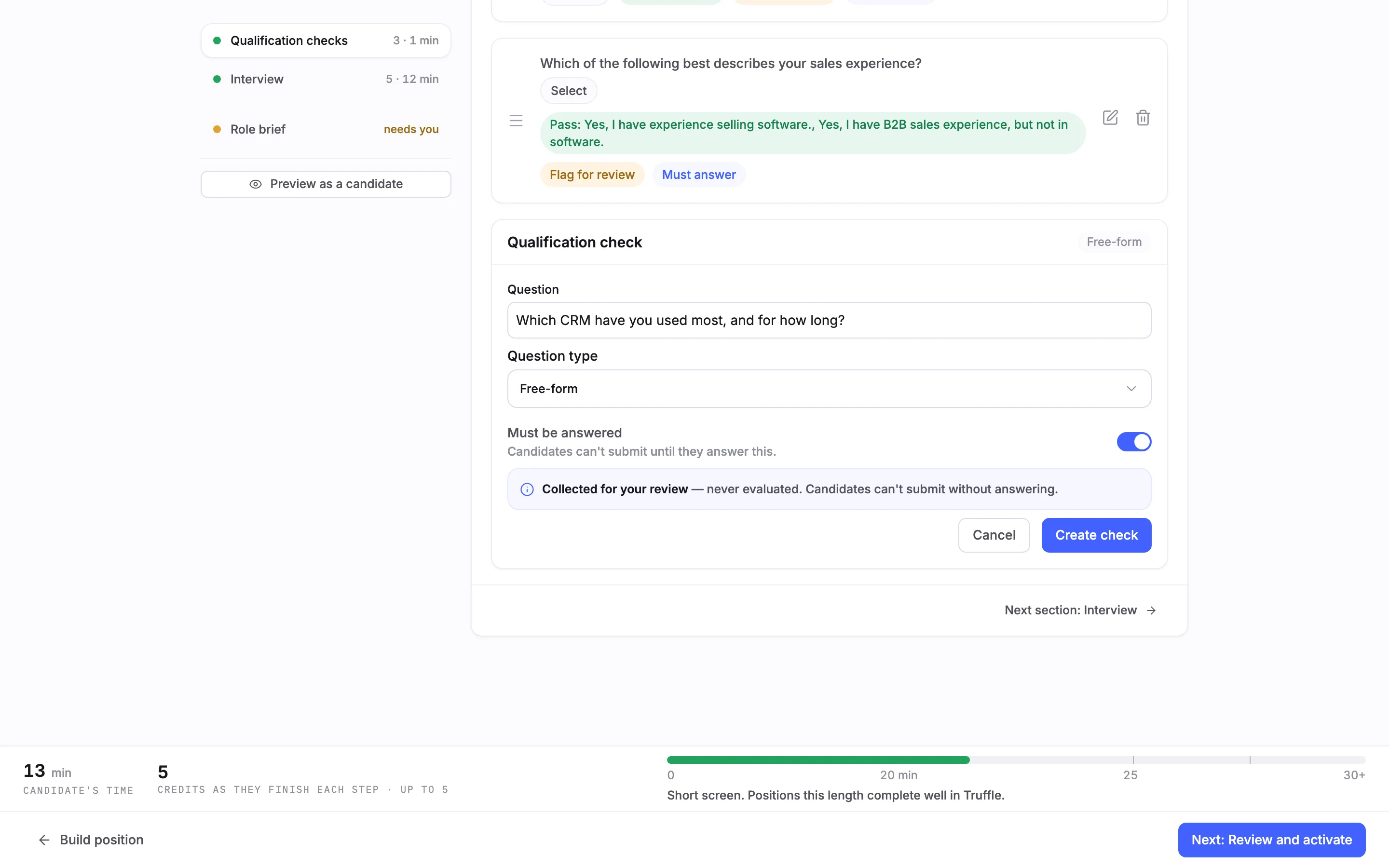
Choose Add a question. Write the question and pick a Question type: Yes/No, Numeric, Select, Free-form, Multiple select or Date. Numeric takes a minimum, a maximum or both, with an optional unit. Multiple select passes on any, all, none or exactly one of the options you mark. Date takes a fixed date or one relative to today. A Free-form check has no pass rule. Its answer is collected for your review and never evaluated. You can still switch on Must be answered. Choose Create check.
Note. Create check stays off until the rule is complete, and the form says what is missing.
7Mark the checks reviewed
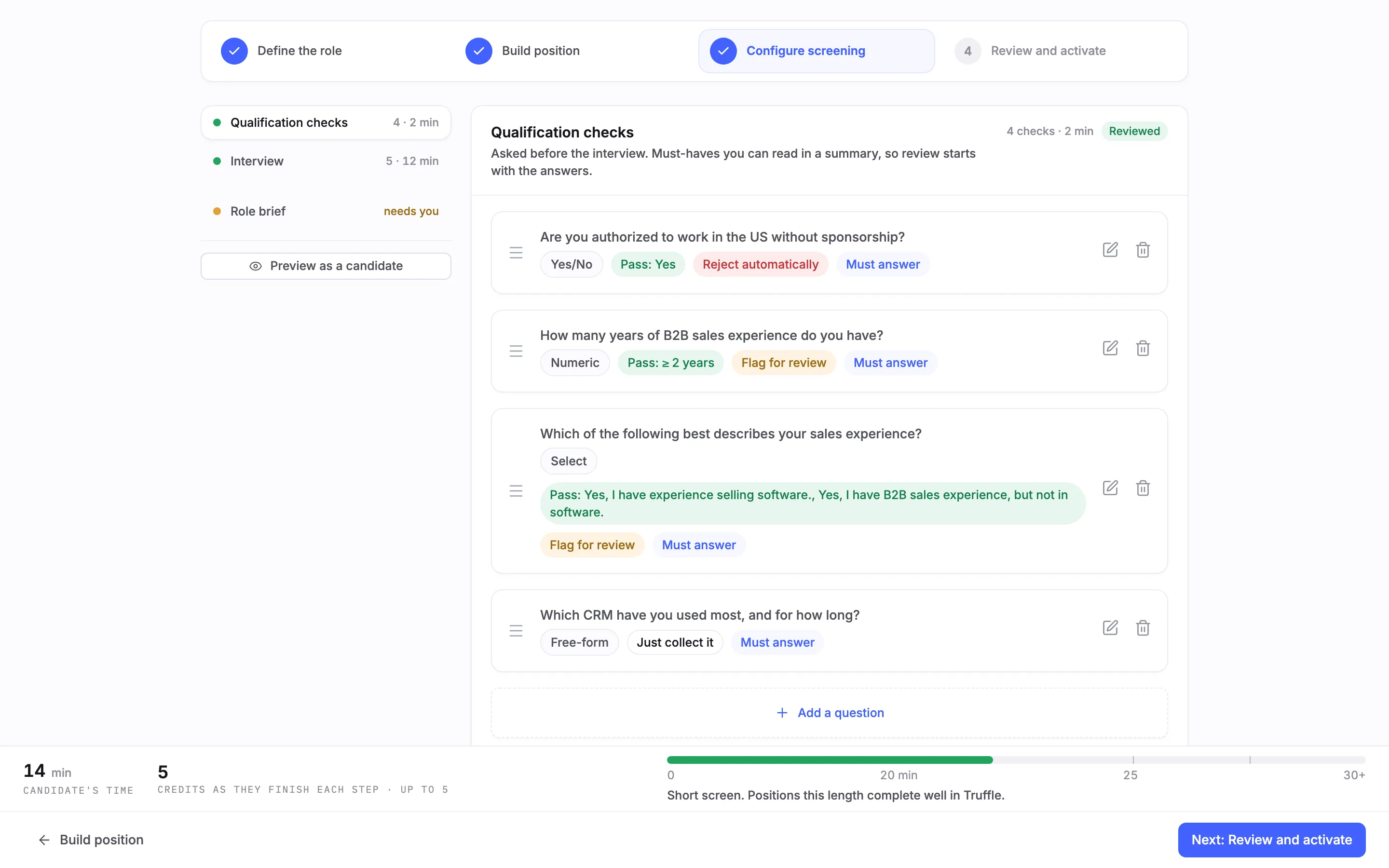
Editing or adding a check marks the set Reviewed, and the count updates, here to 4 checks · 2 min. If you read the drafted checks and change nothing, choose Looks right.
8Review and activate
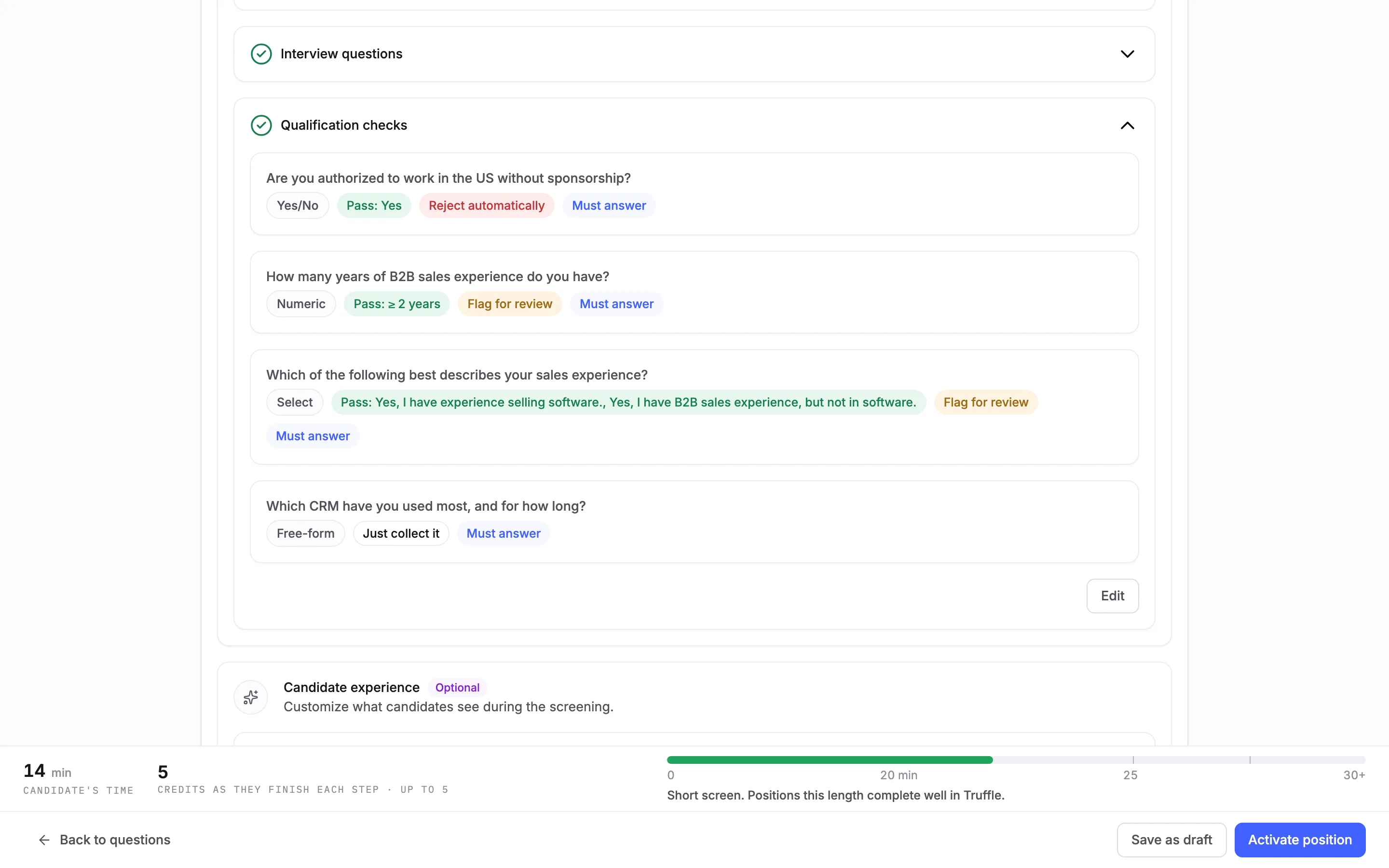
Choose Next: Review and activate. Under Review your setup, open Qualification checks to see every check with its outcome. When nothing blocks go-live, choose Activate position, or Save as draft to finish later.
Note. If the drafted checks are still unreviewed, Review says Truffle's suggested qualification checks haven't been reviewed and Activate position stays off. Review qualification checks takes you back to the section.
9Read a candidate's results
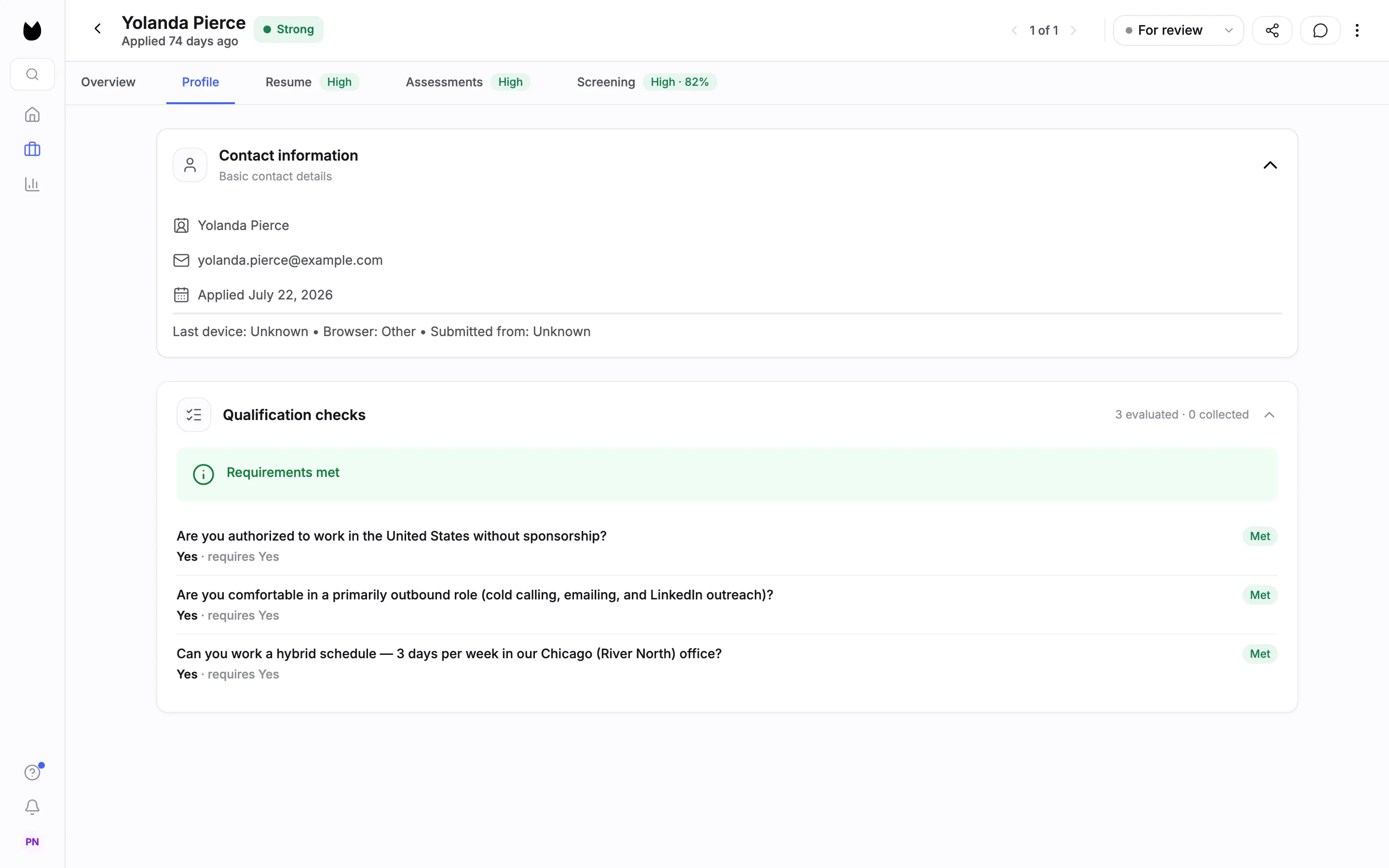
Once candidates answer, open a candidate and choose the Profile tab. Qualification checks shows a count such as 3 evaluated · 0 collected, a result line, and each answer next to what it required, such as Yes · requires Yes, marked Met or Not met. The result line reads Requirements met, Requirements met with the number flagged for review, or Auto-rejected with how many requirements were not met.
10See why a candidate was rejected
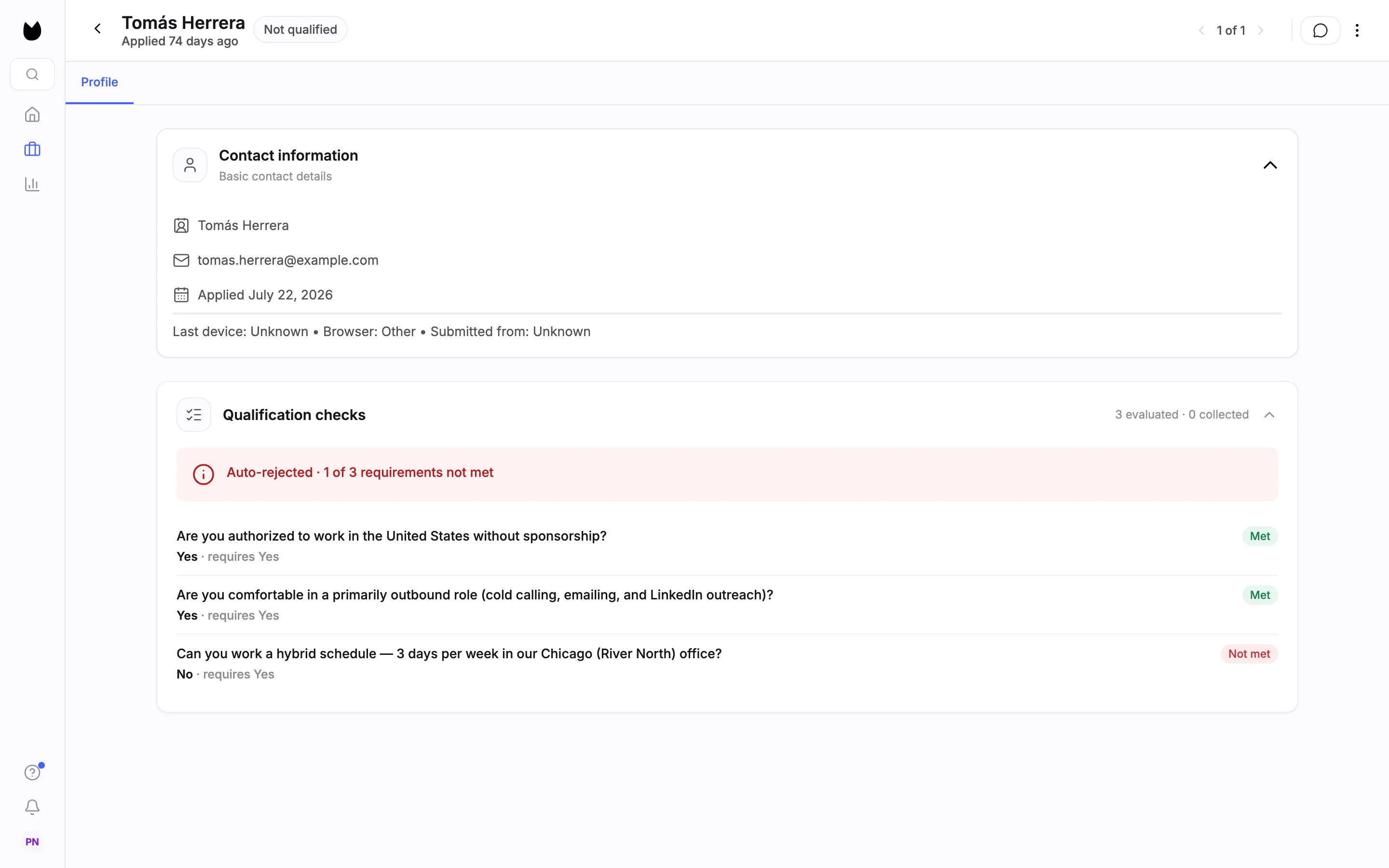
A candidate who misses a Reject automatically check is marked Not qualified. Their Profile tab names the result, here Auto-rejected · 1 of 3 requirements not met, and marks the answer that missed Not met. On the position's candidate list, Filters includes Flagged for review, to find the answers you asked to see.
Questions
Does Truffle reject candidates automatically?
Only when you tell it to. A qualification check set to Reject automatically is a fixed rule you write, and it is the only automatic rejection in Truffle. AI scores never reject anyone. Checks set to Flag for review or Just collect it reject no one.
What is the difference between Flag for review and Just collect it?
Flag for review checks the answer against the rule and flags it for you when it misses. Just collect it records the answer for your review and never evaluates it. Neither one rejects the candidate.
Is Must be answered the same as Reject automatically?
No. They are two separate settings. Must be answered decides whether a candidate can skip the question. If they don't meet this… decides what a missed answer does. A check set to Reject automatically is always Must be answered, so skipping cannot beat failing.
Can a free-text question be required?
Yes. A Free-form check can be set to Must be answered, so candidates cannot submit without answering it. It has no pass rule, so its answer is collected for your review and never evaluated.
Does Truffle write the checks for me?
It drafts them from your position description when it suggests checks for the role. They land as Suggested, not reviewed, and the position cannot go live until you choose Looks right or edit them. You can edit, delete, reorder or add your own.
Can I use qualification checks on their own?
No. Checks run at the start of a screening, so a position needs Resume, Video Interview or Assessments switched on as well. With everything else off, Build position says so and Next: Configure stays off.
Where do I see a candidate's answers?
On the candidate's Profile tab, under Qualification checks. Each answer shows what it required and whether it was met, under a result line such as Requirements met or Auto-rejected with how many requirements were not met.
Related
See something here that doesn't match what you see in Truffle? Tell us and we'll fix the page.