Guide
Edit a live position
By the end you can change a live position's questions and messages, leave the changes as a draft, find positions with unpublished changes, publish them so candidates see the new version, and throw a draft away.
5 min · 13 steps · Captured from the live product 5 Oct 2026 Changelog Copy as Markdown
Before you start
- A Truffle account. The 7-day free trial works: 30 credits, no credit card.
- An active position.
1Open Edit position
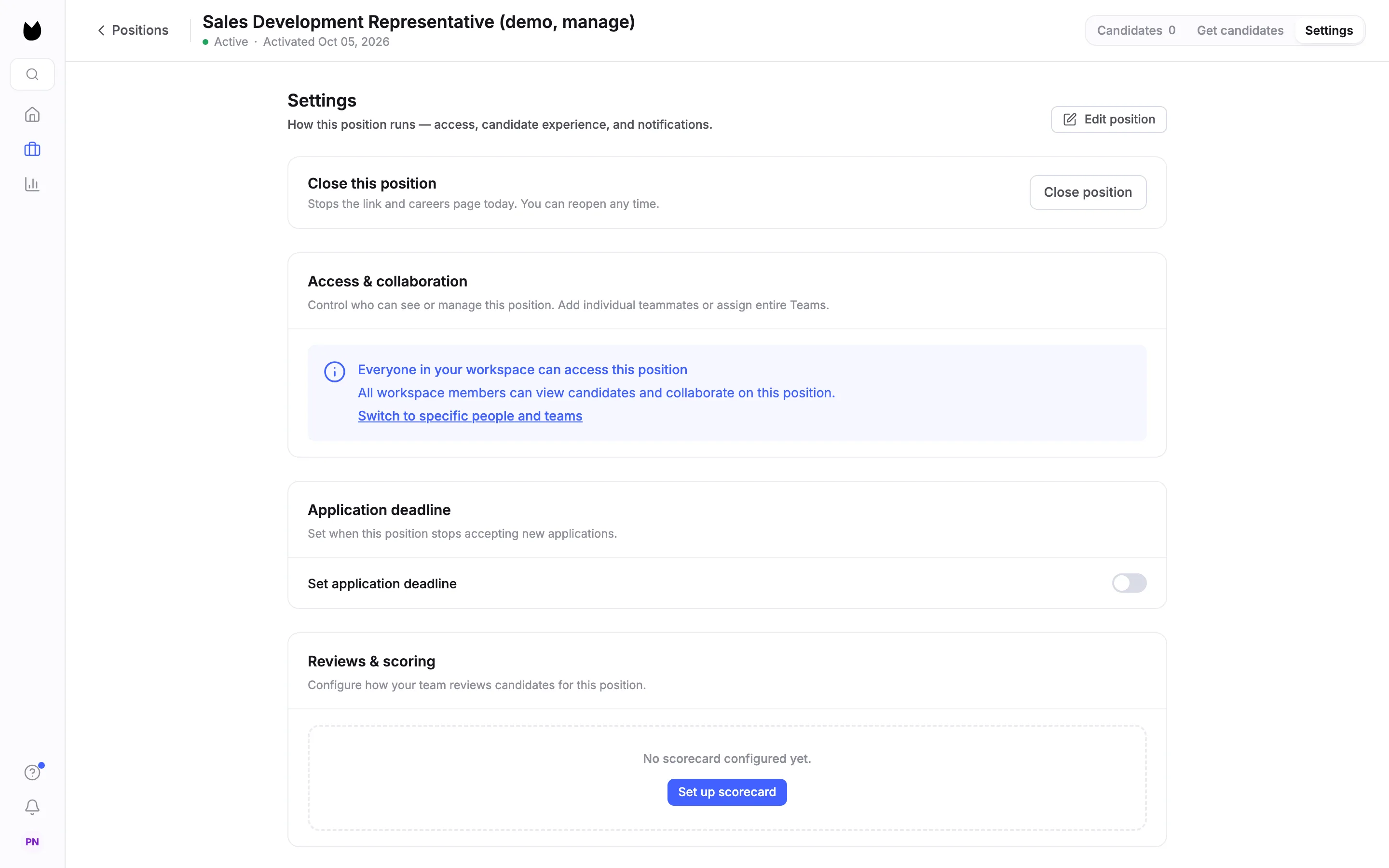
Open the position from Positions and choose Settings at the top right. Edit position sits at the top of the page. The header shows the position is Active.
2Edit in the same wizard
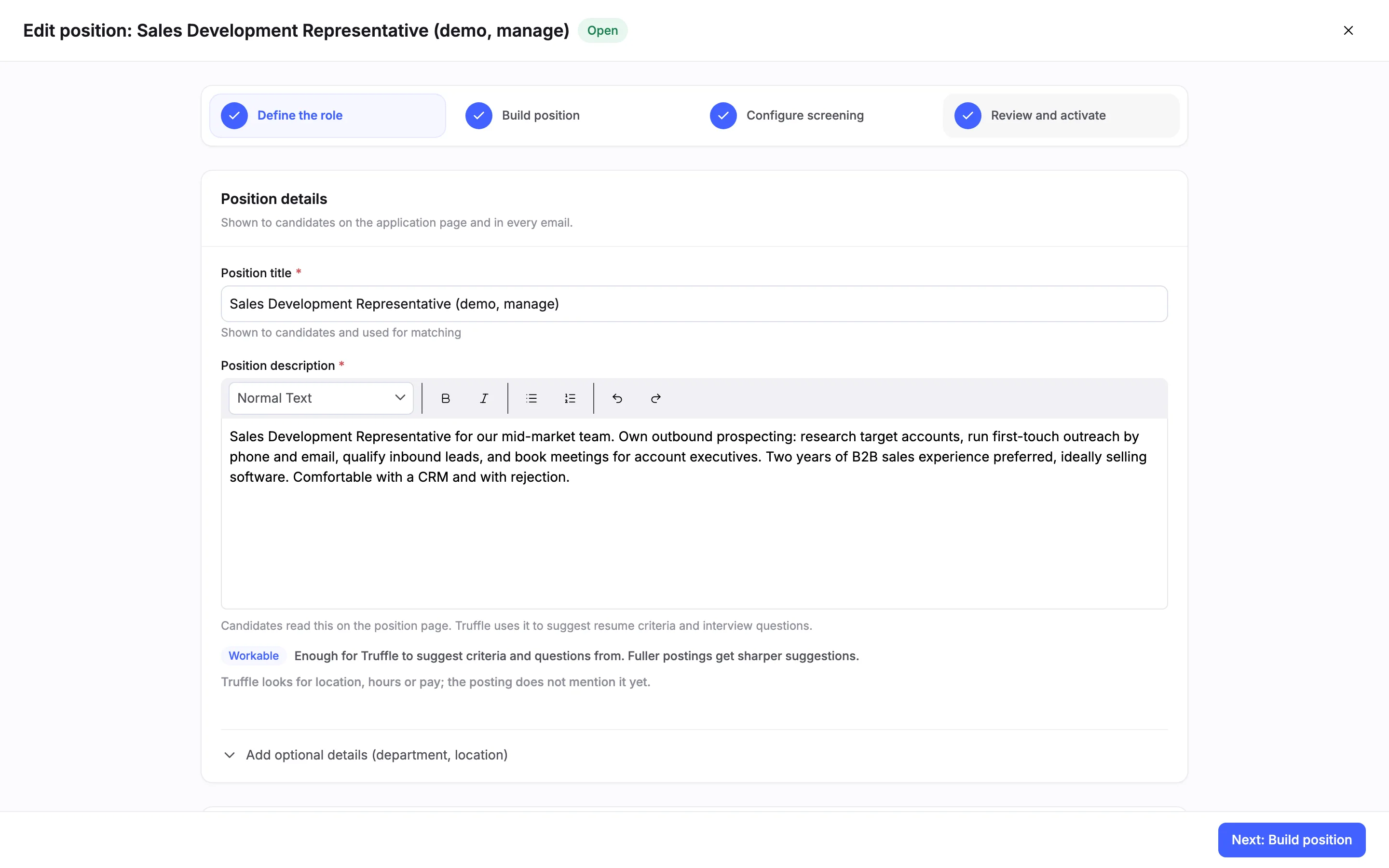
The wizard opens on Define the role, titled Edit position with the position's name and an Open pill. Every step is ticked, so you can go straight to the one you want to change. Opening the wizard changes nothing.
3Change a question
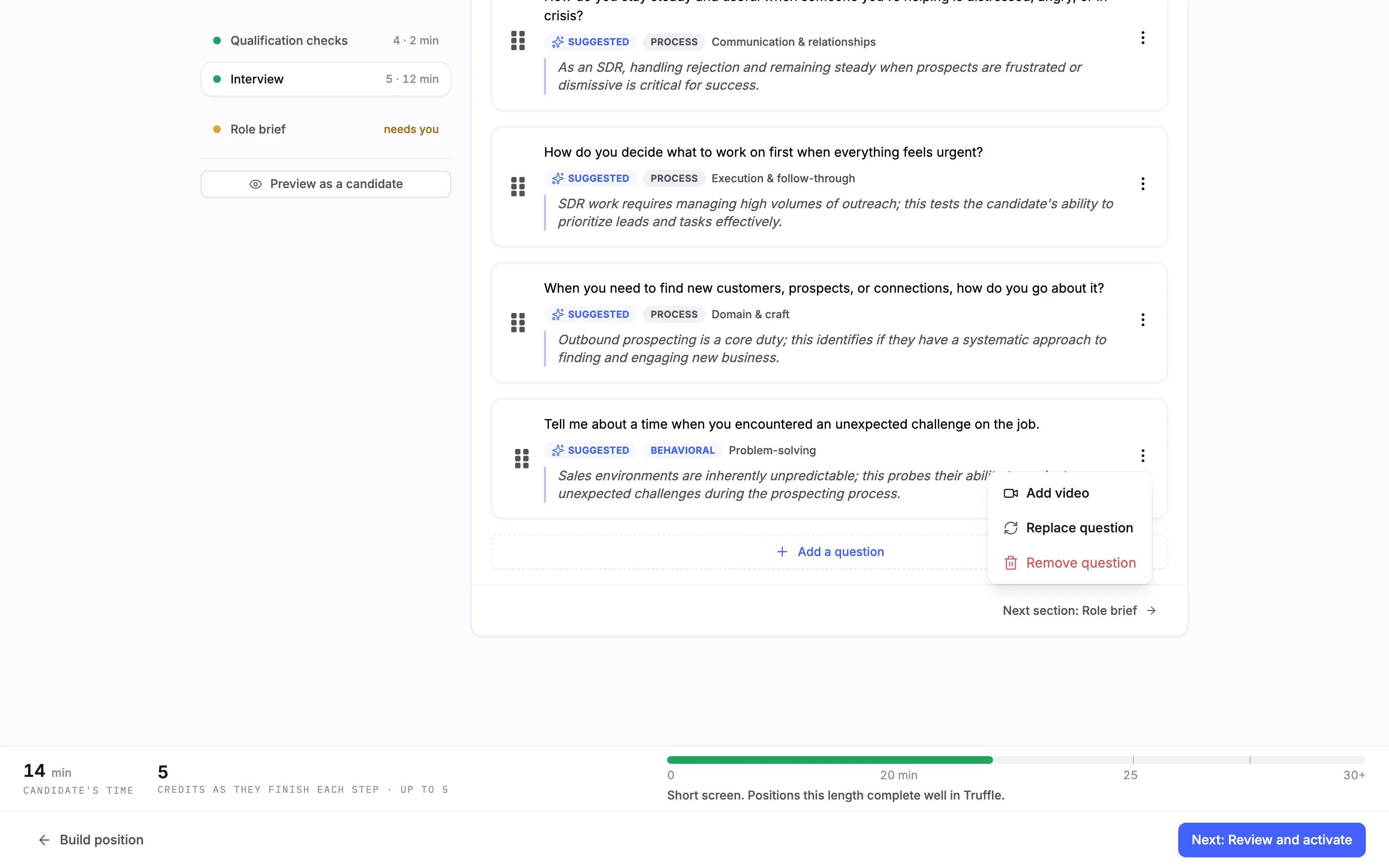
In Configure screening, open Interview in the rail. Each question has a menu with Add video, Replace question and Remove question. Here the last question is removed.
4See the change marked as unpublished
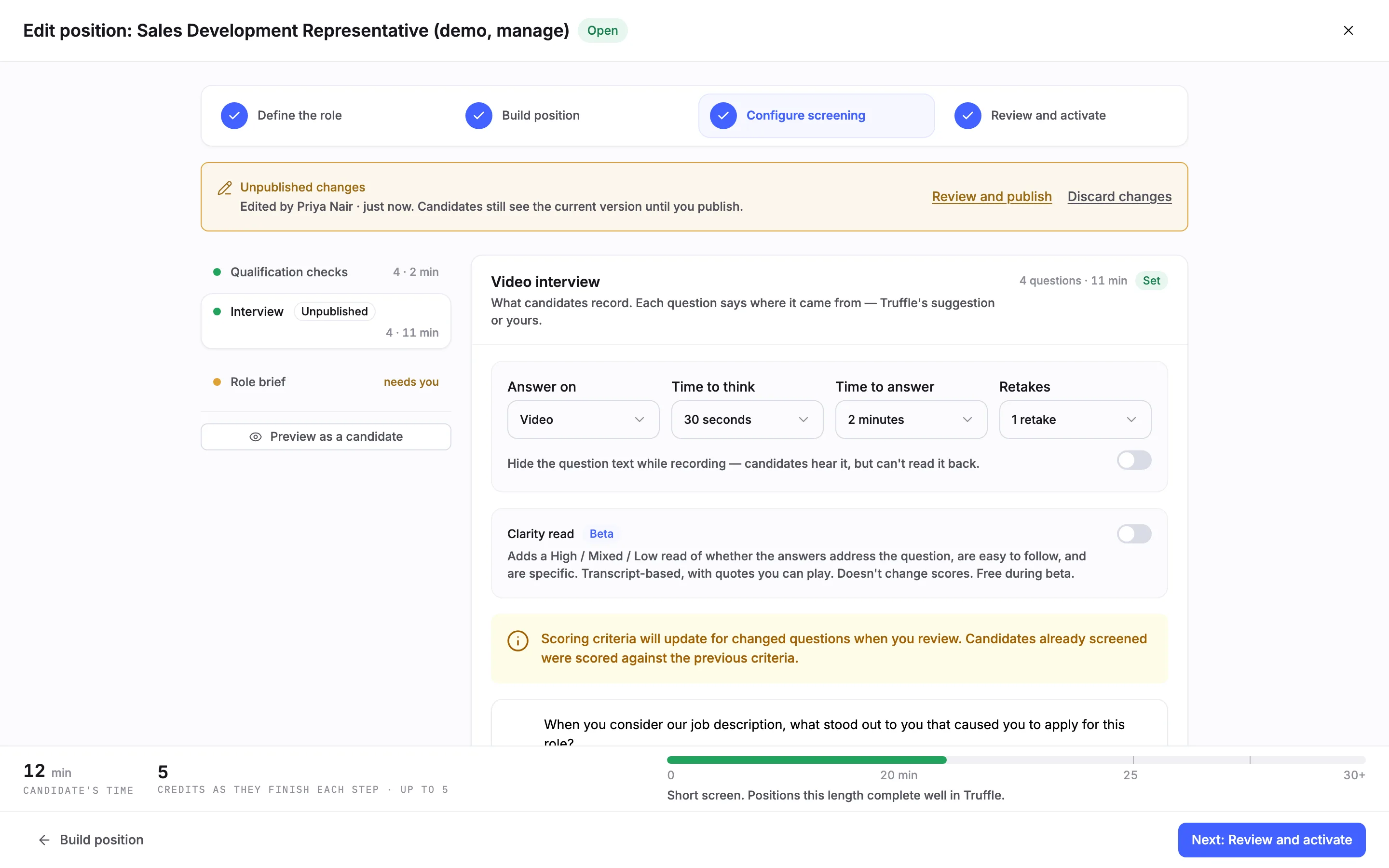
As soon as you change something, a banner reads Unpublished changes, with who edited and when, and says candidates still see the current version until you publish. The rail marks the changed section Unpublished, here Interview with 4 questions. A note says scoring criteria update for changed questions when you review, and candidates already screened keep the scores they got against the previous criteria.
5Change the candidate experience
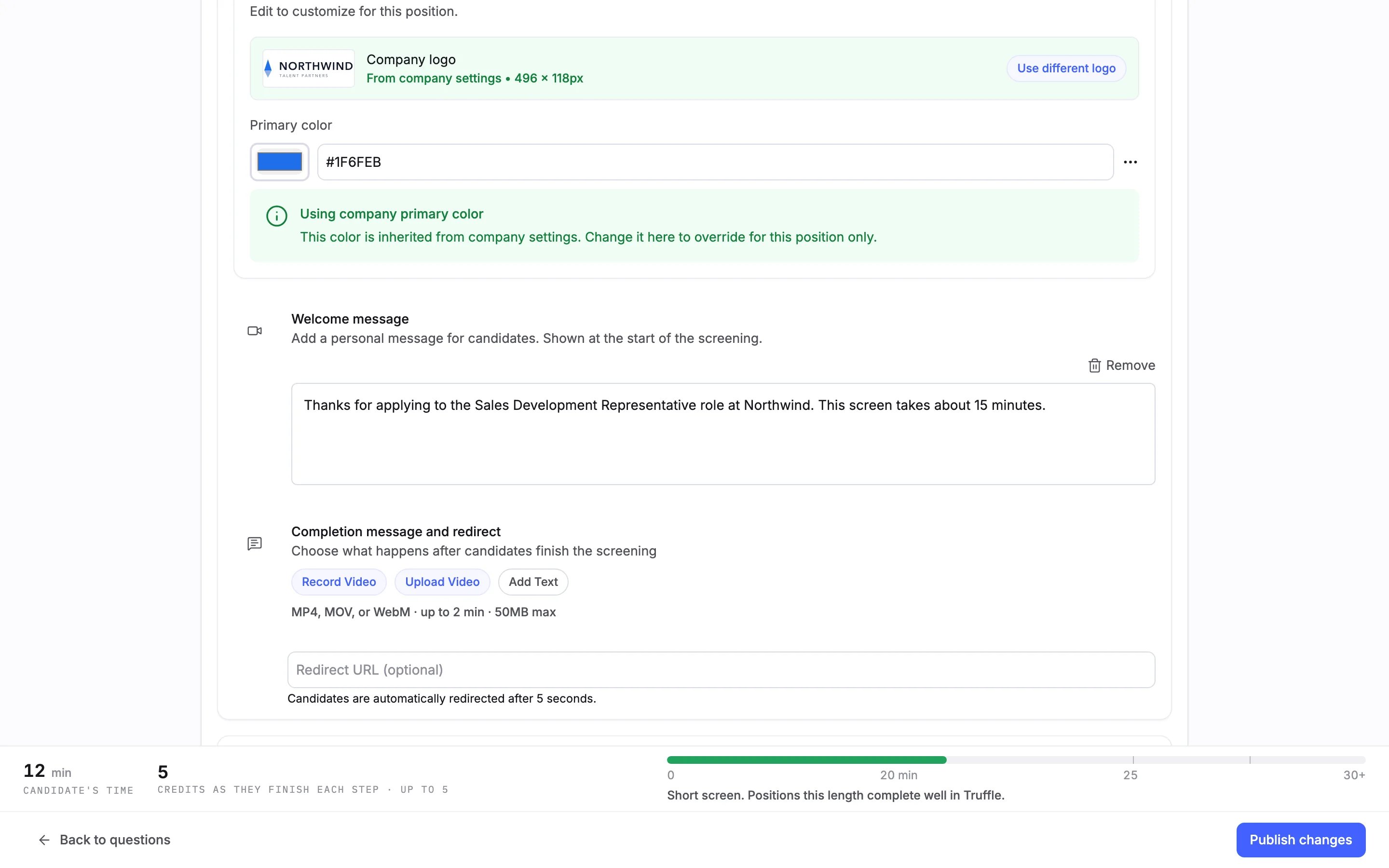
On Review and activate, the candidate experience is editable too. Here a text Welcome message is added. On a live position the footer button reads Publish changes where a new position has Activate position.
6Leave and keep the draft
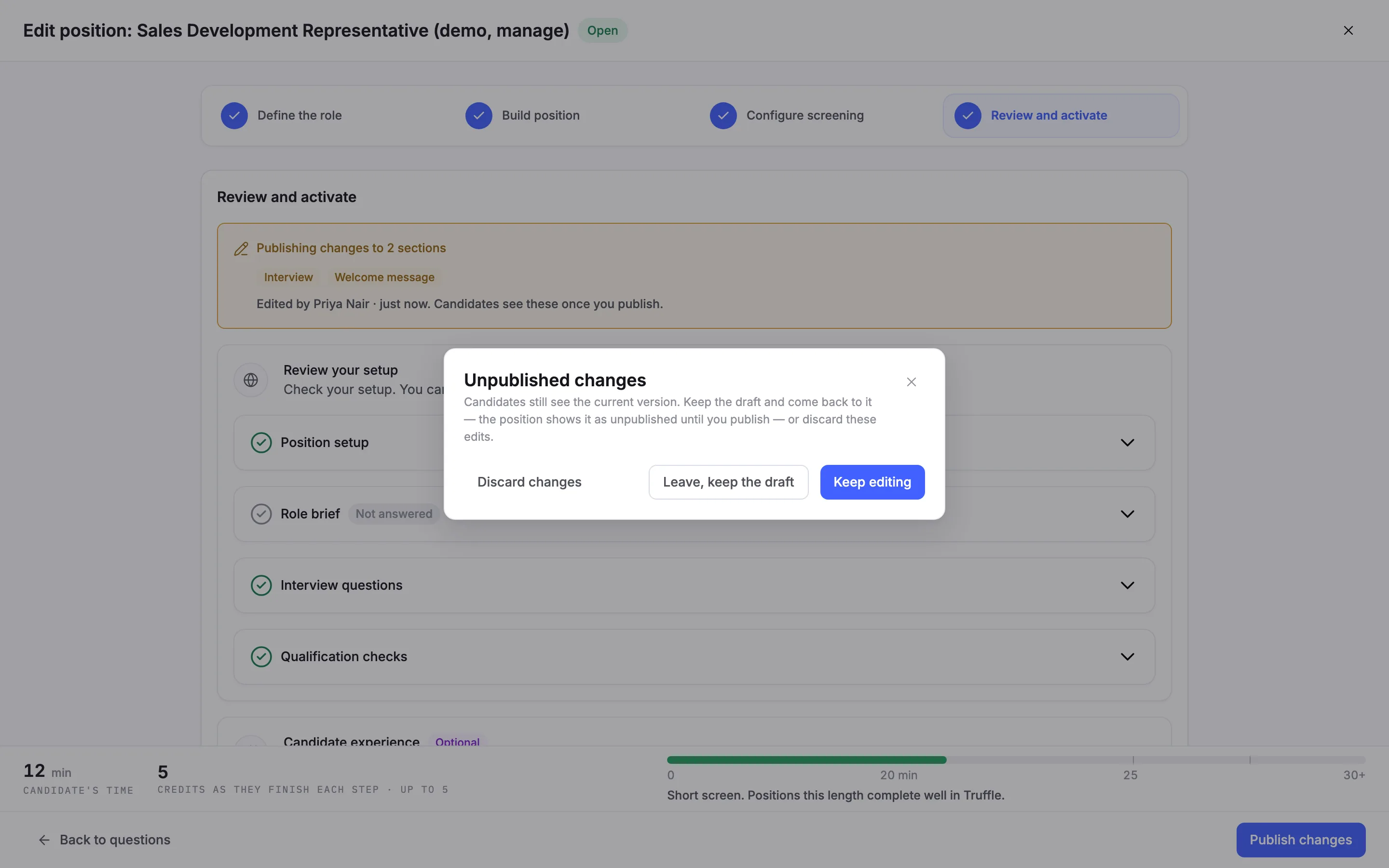
You do not have to publish now. Choose the X at the top right. Truffle asks what to do with Unpublished changes: Keep editing, Leave, keep the draft or Discard changes. Keeping the draft saves your edits next to the live version.
7Find positions with a draft waiting
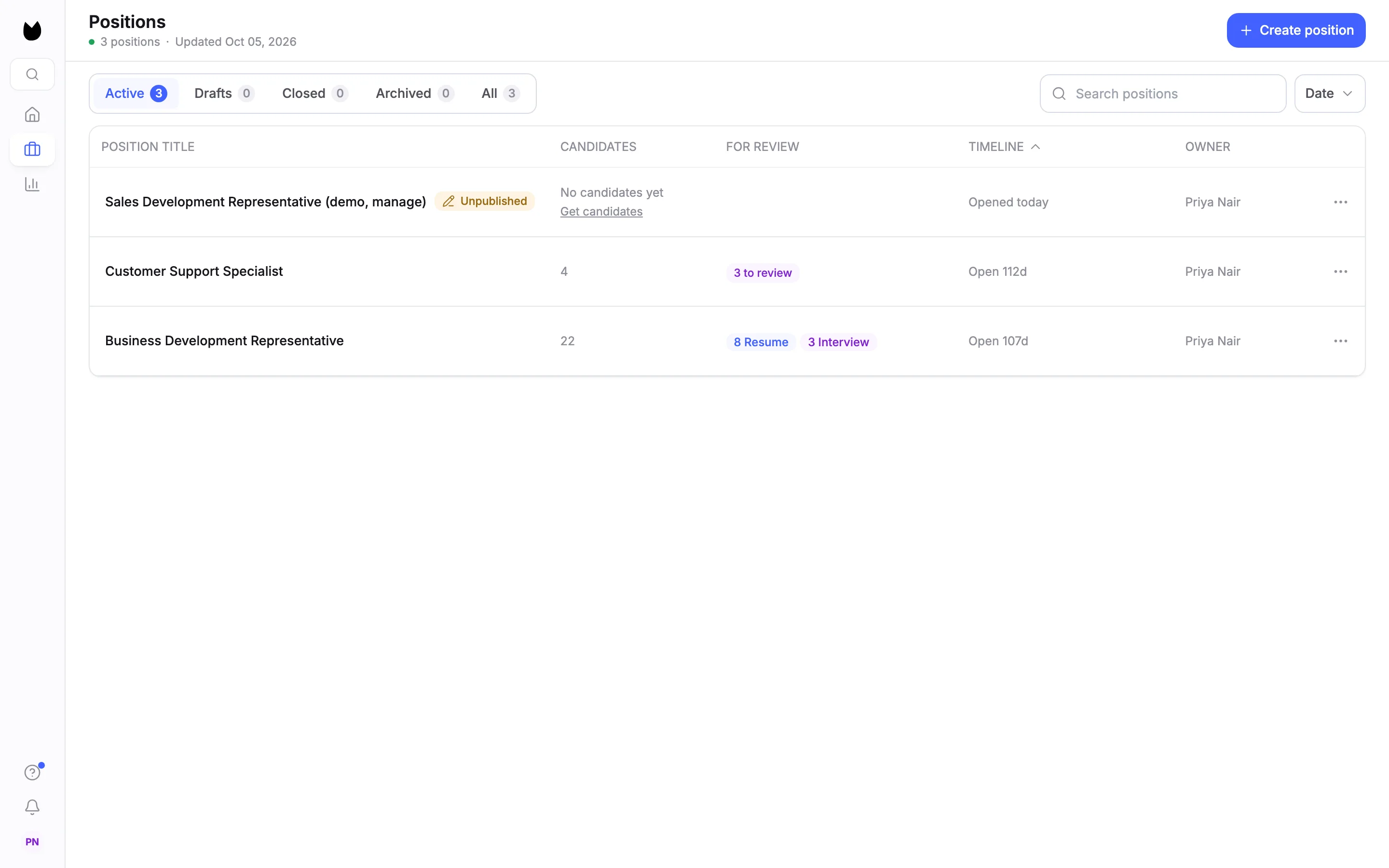
On Positions, a position with a draft carries an Unpublished chip next to its title.
8Check what candidates see meanwhile
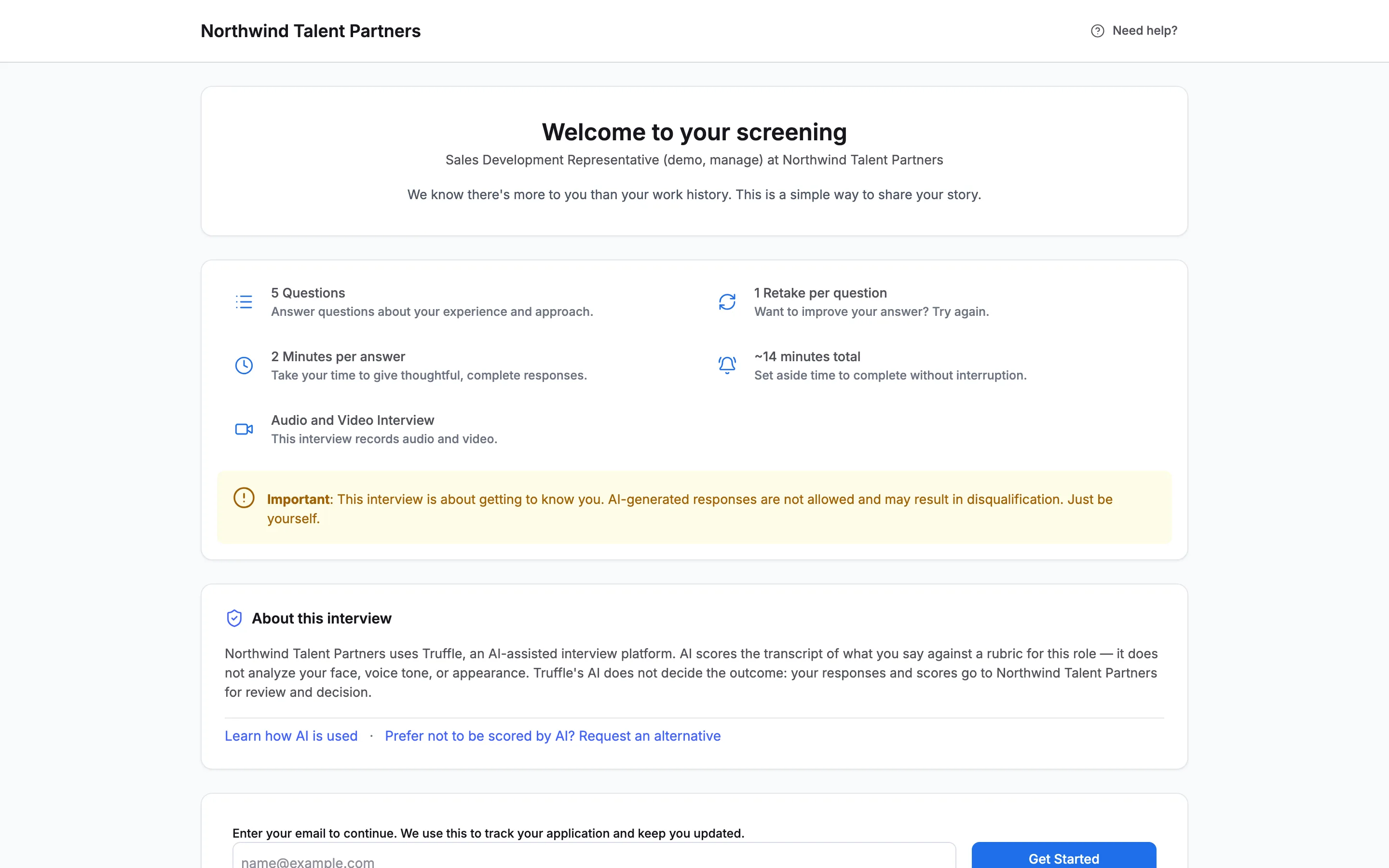
While the draft waits, the position's link still shows the live version. Here the welcome page still lists 5 Questions and has no welcome message.
9Come back to the draft
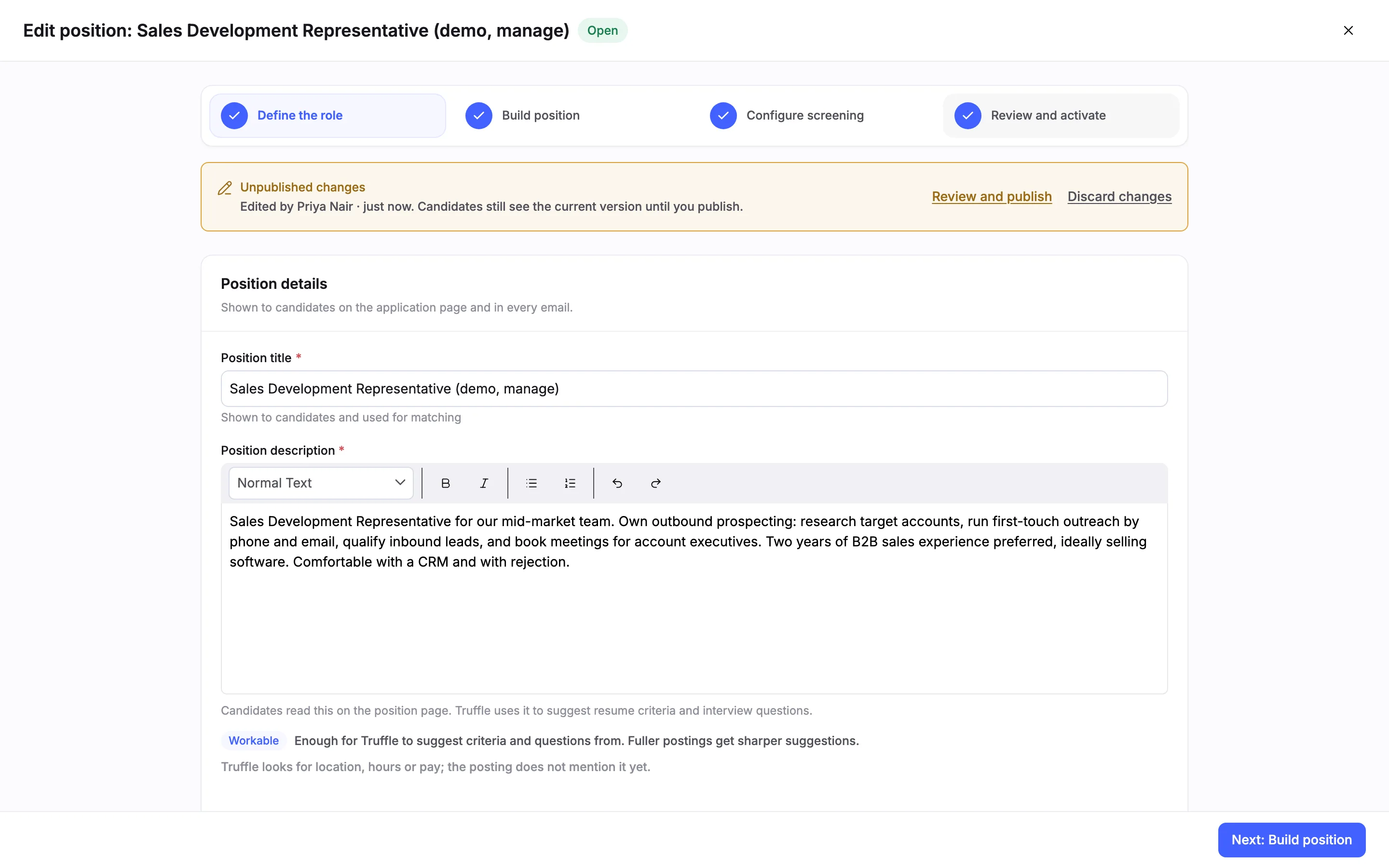
The position's header also shows Unpublished changes. Choose Edit position again and the banner is waiting at the top of every step, with Review and publish and Discard changes.
10Review what you are publishing
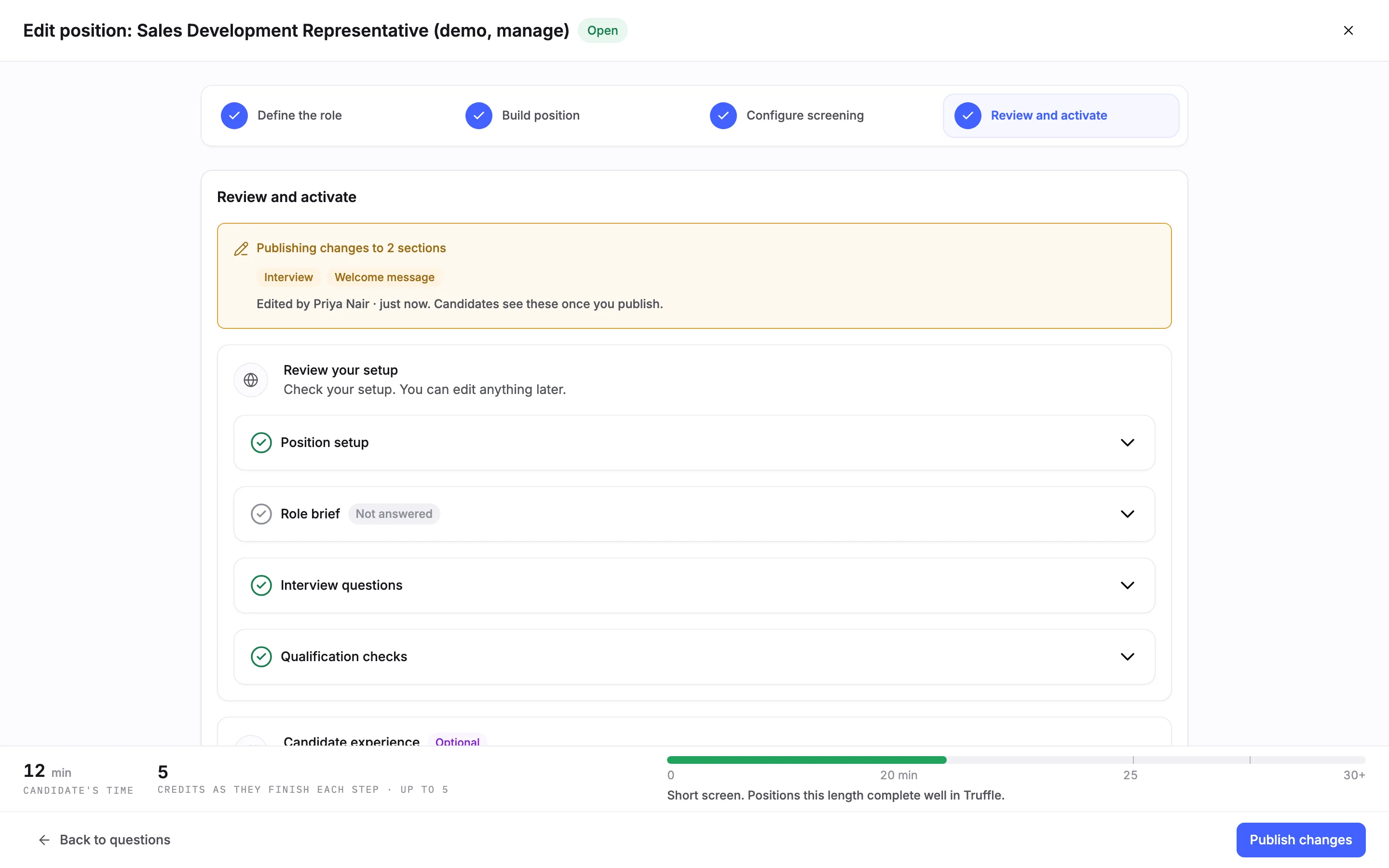
Choose Review and publish. Review lists the sections you changed, here Publishing changes to 2 sections: Interview and Welcome message. Publishing runs the same go-live checks as a new position.
11Publish the changes
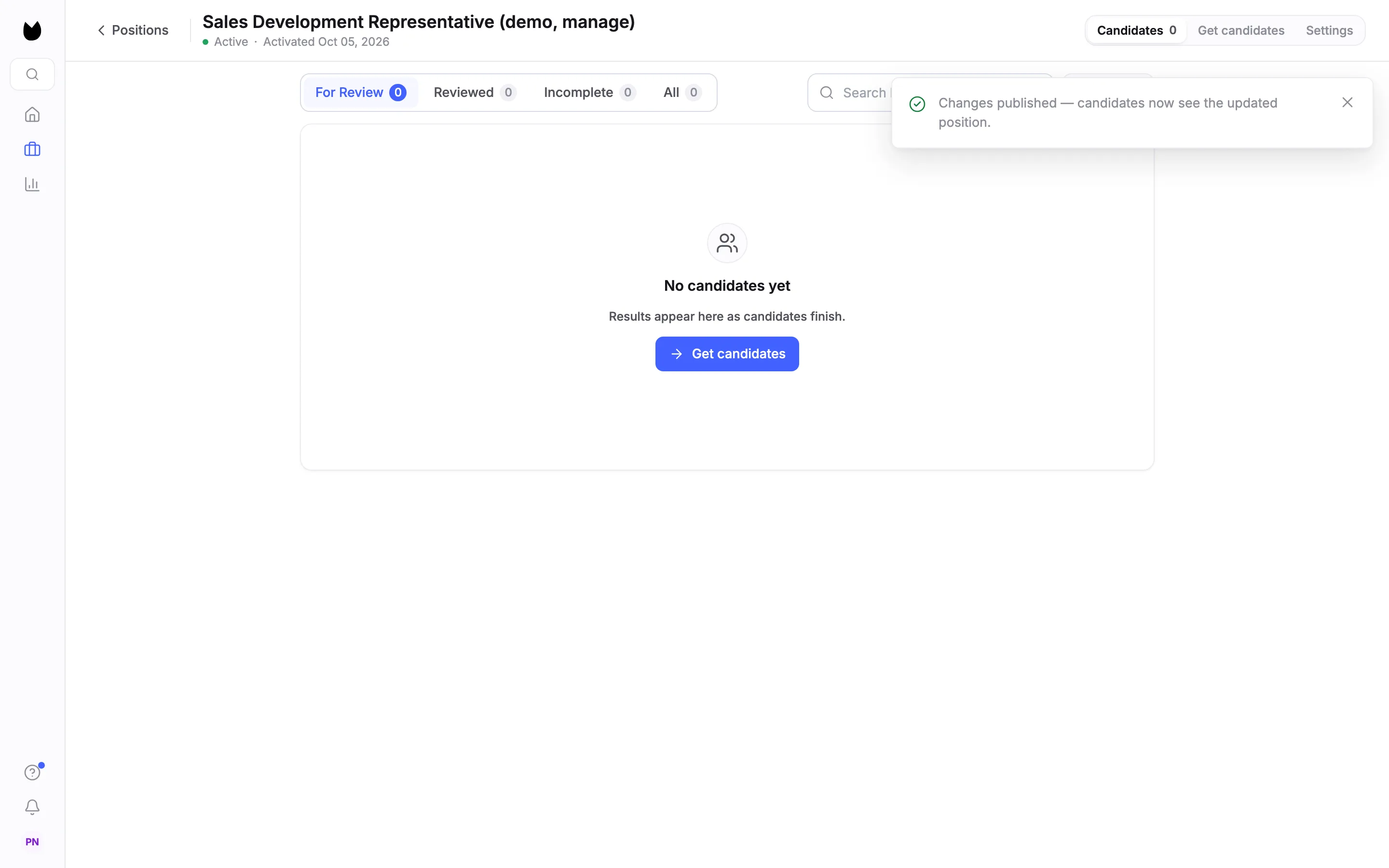
Choose Publish changes in the footer. Truffle opens the position's candidates and confirms Changes published: candidates now see the updated position. The Unpublished chips are gone.
12Check the candidate view
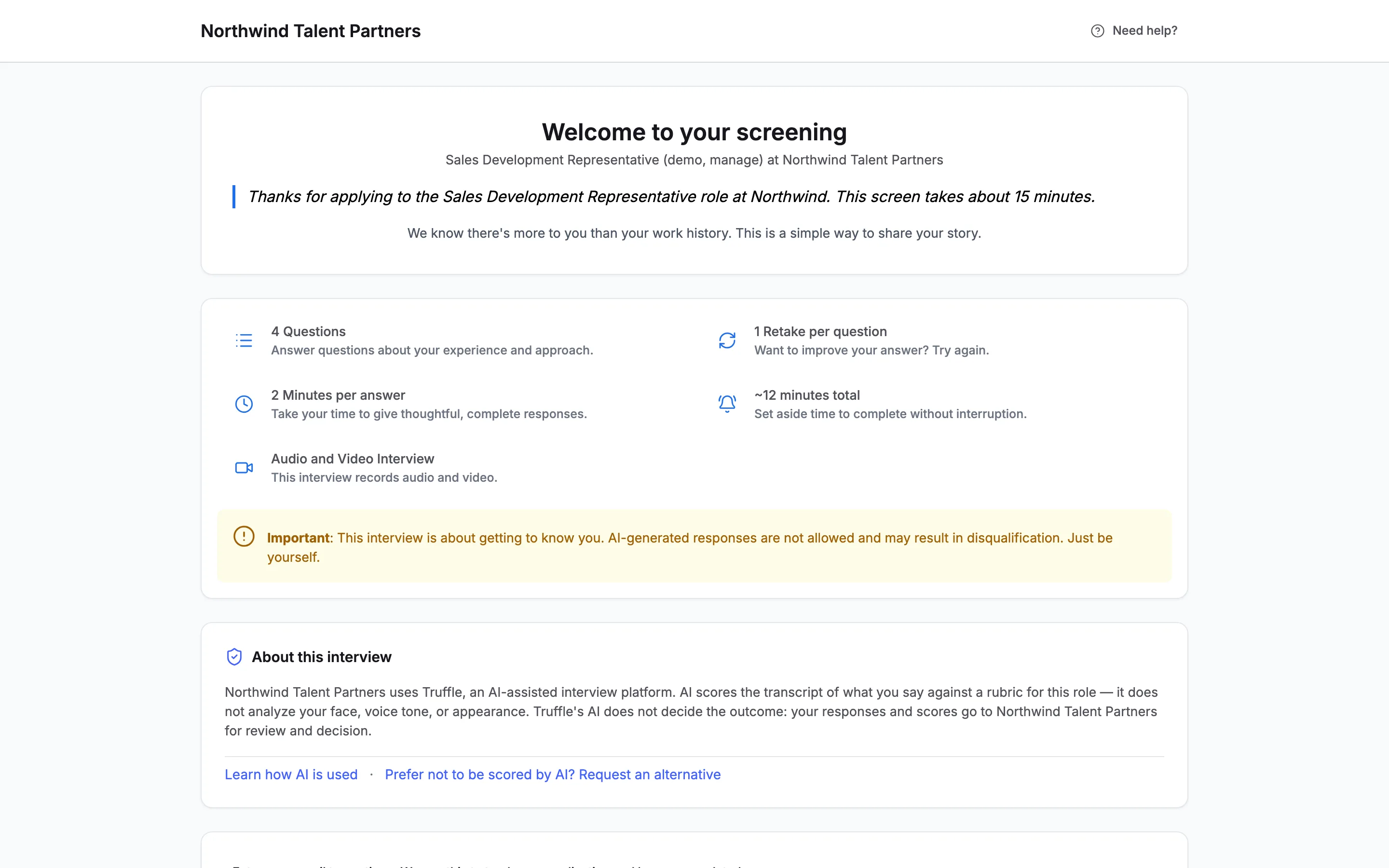
The link now shows the new version: the welcome message at the top and 4 Questions, with the estimated time updated to match.
13Or throw a draft away
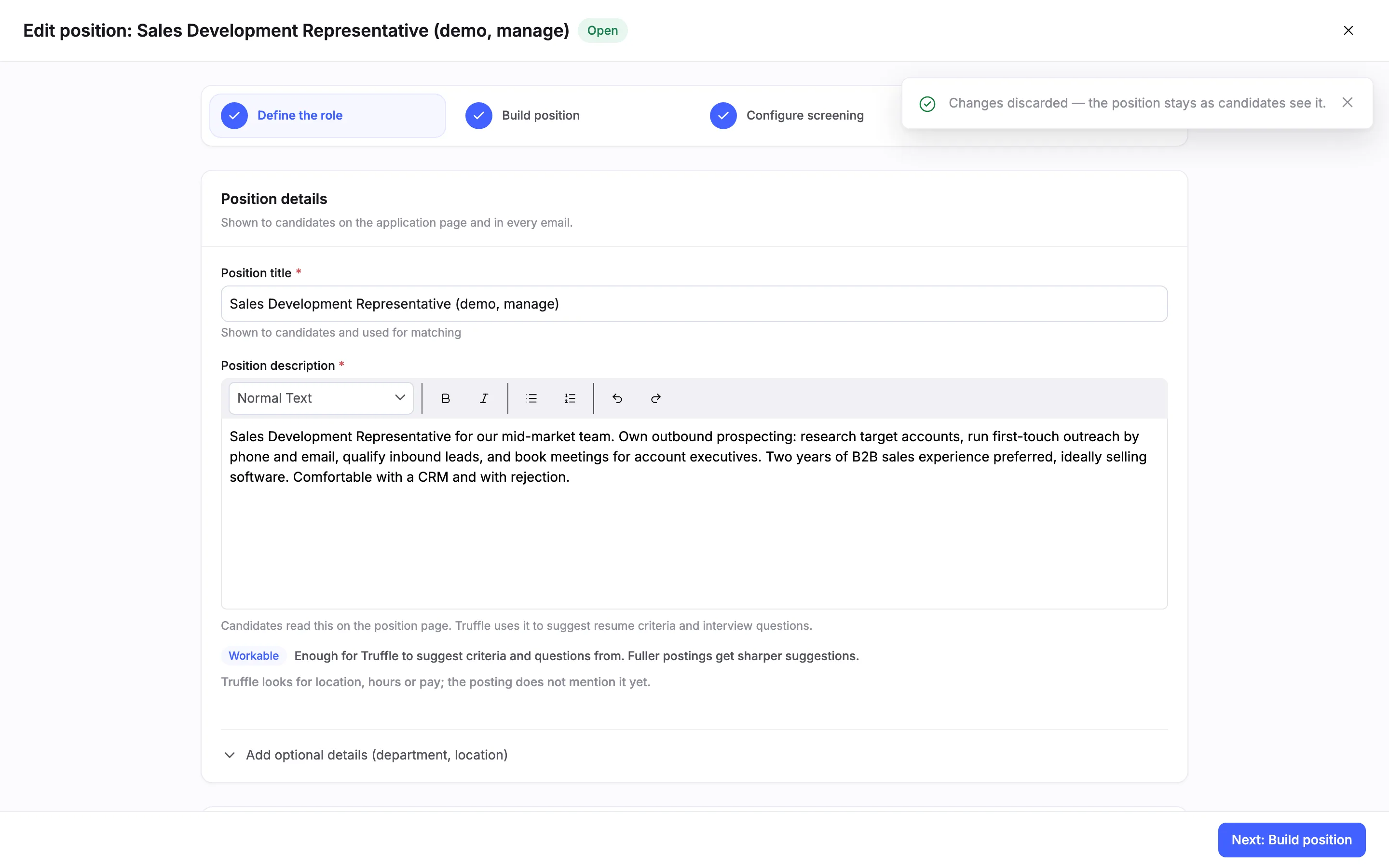
To drop edits you have not published, open Edit position and choose Discard changes in the banner. Truffle confirms Changes discarded, and the position stays as candidates see it.
Questions
Do candidates see my edits while I am still working?
No. Edits to a live position wait as a draft. The position's link keeps showing the current version until you choose Publish changes.
What can I change on a live position?
Anything in the wizard, including questions, assessments, qualification checks, and the welcome and completion messages. All of it waits in the same draft.
What happens to candidates who already finished?
They keep the scores they got. Scoring criteria update for changed questions when you review, and candidates already screened were scored against the previous criteria.
How do I know a position has changes waiting?
An Unpublished chip shows on its row in Positions, and Unpublished changes shows next to its name in the position header. The wizard banner says who edited it last and when.
Can I undo a draft?
Yes, before you publish. Choose Discard changes in the wizard banner, or in the dialog when you close the wizard. The live version stays as it is.
Related
See something here that doesn't match what you see in Truffle? Tell us and we'll fix the page.