Concepts
What candidates see
A Truffle screening from the candidate's side, step by step. Written so a candidate can read it too.
Checked against the live product 5 Oct 2026 Changelog Copy as Markdown
This page walks through a Truffle screening as the candidate sees it. If you are a candidate, it tells you what to expect and what you can ask for. If you are hiring, it shows what the people you invite go through. The employer sets up each screening, so the steps you see depend on the role.
Applying does not need an account. A typical one-way interview takes 10 to 15 minutes, and the assessments take about 12 to 13 minutes for all three together.
How you get there
You reach a screening in one of two ways. You apply through a link, from a job listing, the company’s careers page or the company’s own website. Or the company invites you by email, with a link that is unique to you. Either way, the screening carries the company’s logo and colour, set in its Company profile. For the hiring side of this, see Share your Position Link.
Applying on a job page
A role can start with a job page that describes the role and has an apply button. To apply, upload your resume as a PDF or Word (DOCX) file, up to 5 MB. Your resume is read in your browser, and you confirm the details it found. If it cannot be read, you can type your details in. Scanned resumes are read with text recognition.
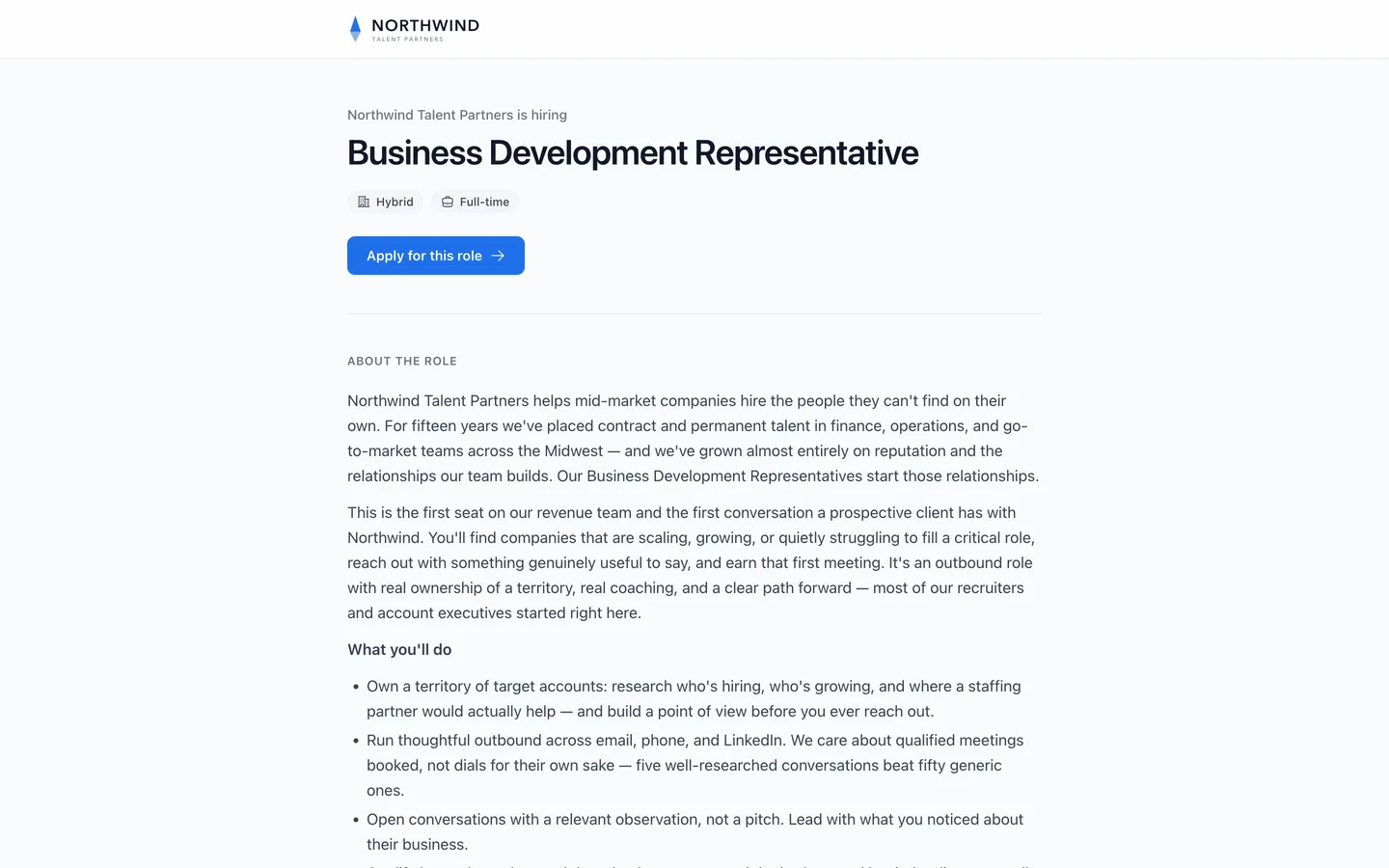
What comes next depends on how the employer set up the role. Some roles take you into the screening. Others look at applications first and invite you to the interview by email.
Before you start
The welcome screen tells you about the company and the role, what the role requires, and a “What you’ll complete” list of every part of this screening. The time estimate is worked out from the parts this employer actually set up. The employer may also have recorded a short welcome video or written a welcome message.
The welcome screen tells you that AI is used in this screening and asks for your consent before you continue. It also links to a request for an alternative selection process, described below. You will also see this line: “AI-generated responses are not allowed and may result in disqualification.”
Step by step
Your details
You enter your name, email, phone number and location. If the employer collects resumes inside the screening, you upload yours as part of the flow.
Qualification questions
Some roles ask a few must-have questions first, such as work authorization, certifications or years of experience. Answers can be yes or no, a number, a choice from a list, a date, or free text. Some questions are required.
The employer decides what each answer does. An answer can simply be collected, flagged for the hiring team to look at, or set to end the application automatically. An automatic rejection comes from a fixed rule the employer wrote. It is not an AI judgement.
Mic and camera check
Before the questions, you check your microphone, and your camera if the role uses video. On supported devices you can choose a background: none, a blur, or an image of your own. This step also shows tips: find a quiet space, speak clearly, use a stable connection, be prepared, and for video, mind your lighting and framing.
Answering the questions
Each question has a short countdown to think before recording starts. The employer sets how long you have to think, how long you have to answer, and how many retakes you get. For a new position Truffle’s default is 30 seconds to think and two retakes, and the employer can change both. Some employers hide the question text while you record.
The employer also chooses whether you answer on video or with audio only. Every screening step can be used with a keyboard.
Assessments
Some roles add one or more short assessments, alongside the interview questions or instead of them. All three together take about 12 to 13 minutes.
- Personality. You answer a set of personality questions.
- Work scenarios. After a short introduction, you rank possible responses to a work situation by dragging them into order.
- Environment fit. After a short introduction, you pick which of two options sounds more like you, for each question.
When you finish
A success screen confirms you are done. The employer may show a closing video or message, or send you on to a page of their choosing. Truffle emails you a confirmation once you have finished everything, assessments included.
After you finish, Truffle’s AI transcribes your answers and scores them against the criteria the employer set. People on the hiring team review your responses and make every decision.
Finishing in one sitting
A screening is designed to be completed in one sitting, without leaving. If you do have to stop, you can come back. Go to the interview and enter your email. Truffle shows “Check your email for a link to continue your application” and sends you a link. That link is the only way back in, so it also works on another device, and nobody else can pick up your interview with just your email address.
You can come back as long as your invitation deadline and the role’s own closing date have not passed. If the employer set a deadline for you, it shows in your invitation email, on the screening’s landing page and on the Finish later screen. If you try to leave with less than a day remaining, you get a warning first. Once a role’s closing date passes, its link shows an expired page.
Across Truffle, between 30 July and 23 September 2026, about 9 in 10 candidates started the screening, and 55% of candidates who started a Truffle screening finished it.
If a link has been cut off or mistyped, you see “This interview link is incomplete” with three steps to get a working link. A link with stray characters on the end is repaired and opens the interview. If you get stuck during the screening, the Need help? link at the top opens a support chat.
The emails you get
Your invitation comes from the person at the company who invited you, with their signature, or from the company. The subject reads {Company}: next step for your {Role} application. It may open with a one-line note written from your application, and it says how long the screening takes and, if there is one, your deadline.
If you haven’t started, you may get up to three reminders, after 1 day, 3 days and 7 days. They arrive as replies in the same email thread as the invitation. The employer can switch any of them off. When you finish, you get the confirmation.
If you reply to one of these emails, your reply goes to the person who sent it or to an inbox the company chose, depending on the company’s settings. Every email ends with “Trouble with the interview itself? Email support@hiretruffle.com.”
To stop these emails, use the unsubscribe link in any recurring email, such as a reminder, or your mail app’s one-click unsubscribe. Truffle records the request and stops every email from that company to you. If an employer uploaded your resume from somewhere else, you get no email at all unless they invite you to an interview.
Asking for an alternative
If you cannot, or would rather not, complete a video or audio interview, look at About this interview on the welcome page: it has Prefer not to be scored by AI? Request an alternative. Give your name, your email and, if you like, a reason, and you get an email confirming the request. It goes to the employer, who sees it on their home screen and in their candidate list and marks it as handled. For the employer’s side, see Alternative requests. Requests go to their own address at the company, separate from ordinary replies.
Seeing it as an employer
To check what your own candidates will see, use Preview as a candidate in Configure screening, or Preview position on the Review and activate step. It opens the candidate’s landing page in a new tab with a private preview link, works on a draft, and walks through the interview with your timing and branding.
To try being a candidate yourself, Experience a Demo Interview on your dashboard gives you a short demo interview with two questions. It is separate from your live positions and does not affect your data.
What it does not do
- Truffle’s AI does not make hiring decisions. It scores responses against the employer’s criteria, and people on the hiring team decide.
- An automatic rejection on a qualification question is a rule the employer wrote, not an AI judgement.
- Applying on a job page does not need an account.
- You cannot return to a started screening after your invitation deadline or the role’s closing date has passed.
- Your email address alone does not reopen a started interview. You need the link Truffle emails you.
- Background blur and custom backgrounds work on supported devices only.
- Resumes must be PDF or DOCX, 5 MB or less.
- If an employer uploads your resume, Truffle sends you nothing unless they invite you to an interview.
Related
See something here that doesn't match what you see in Truffle? Tell us and we'll fix the page.