Guide
Close, archive or delete a position
By the end you can close a position and record who you hired, reopen it, let it close itself on a deadline, archive and unarchive it, delete it, and you know what candidates see at each point.
8 min · 21 steps · Captured from the live product 5 Oct 2026 Changelog Copy as Markdown
Before you start
- A Truffle account. The 7-day free trial works: 30 credits, no credit card.
- An active position.
- To archive, unarchive or delete, you need to be the position's owner, an org owner or an admin.
1Find positions by status
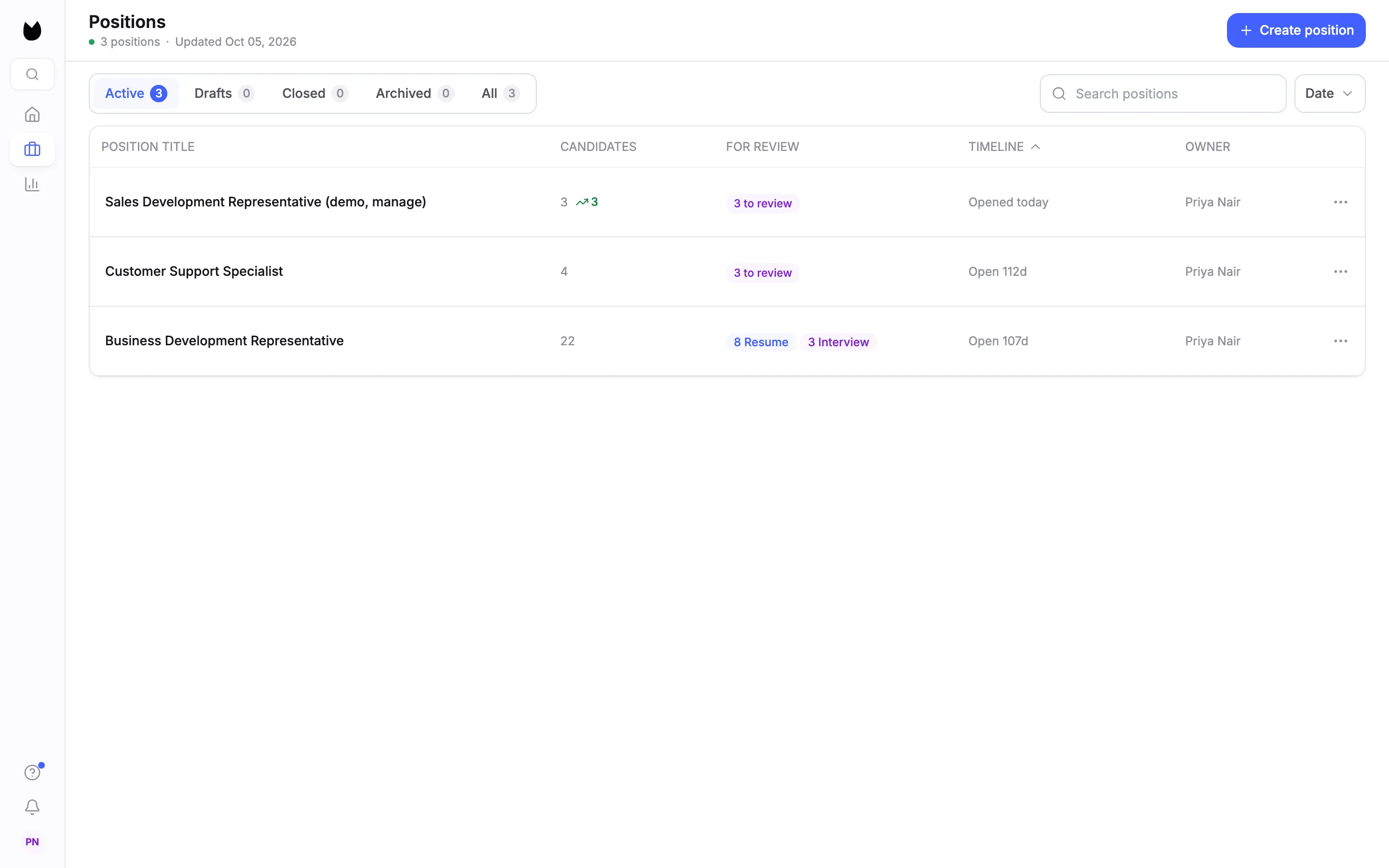
Positions has five tabs: Active, Drafts, Closed, Archived and All, each with a count. Each row's ⋯ menu holds the actions for that status.
2Start the close
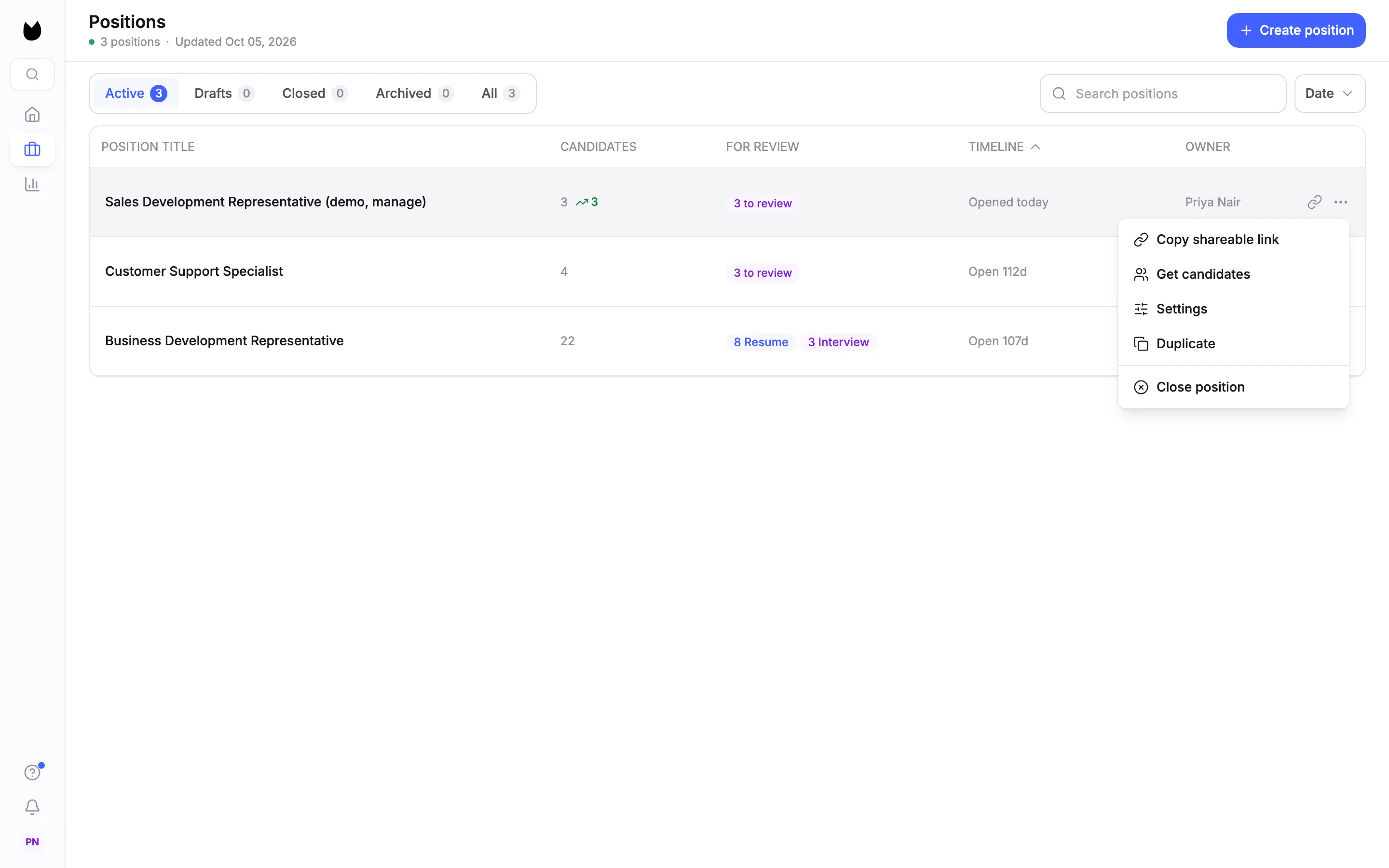
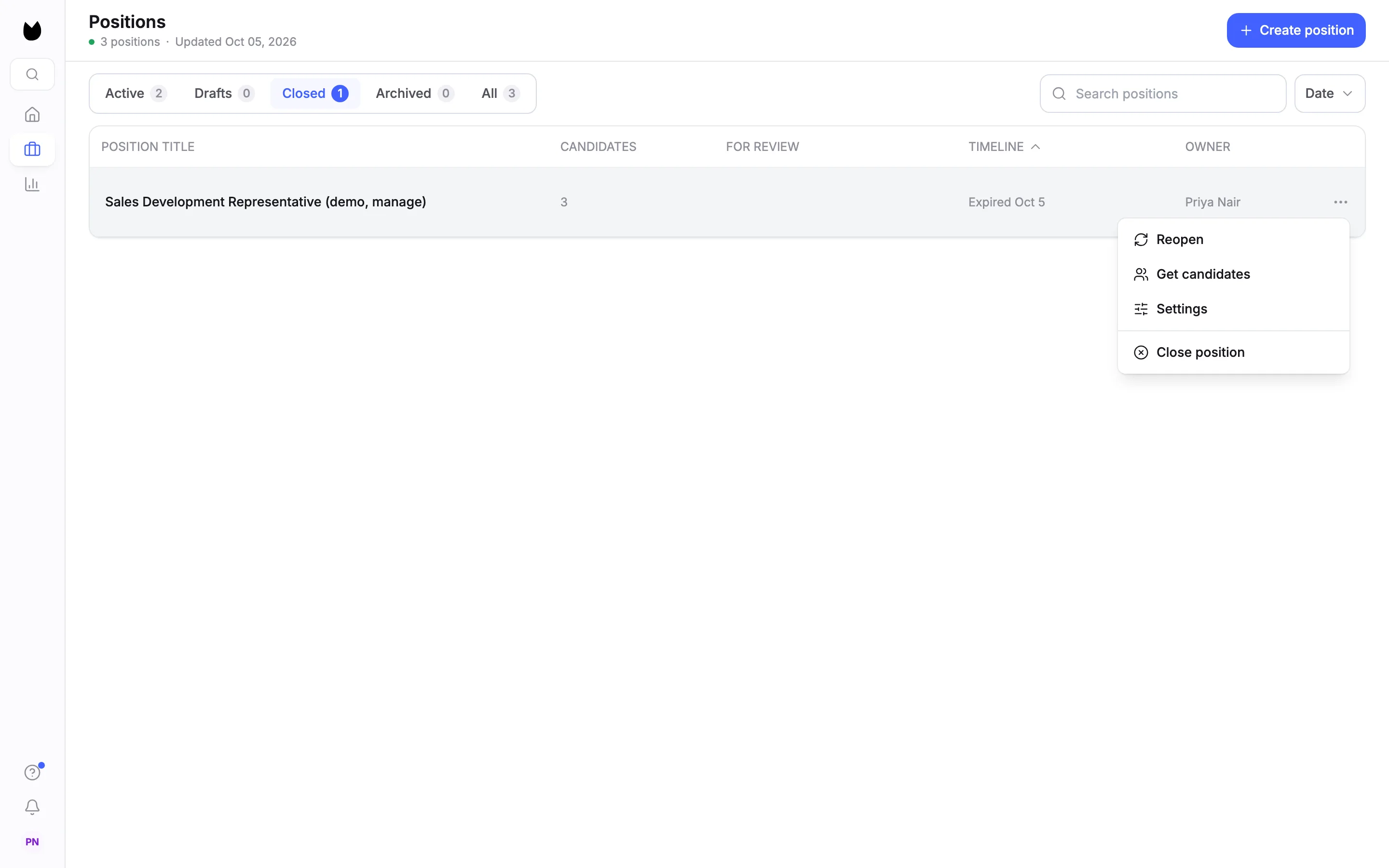
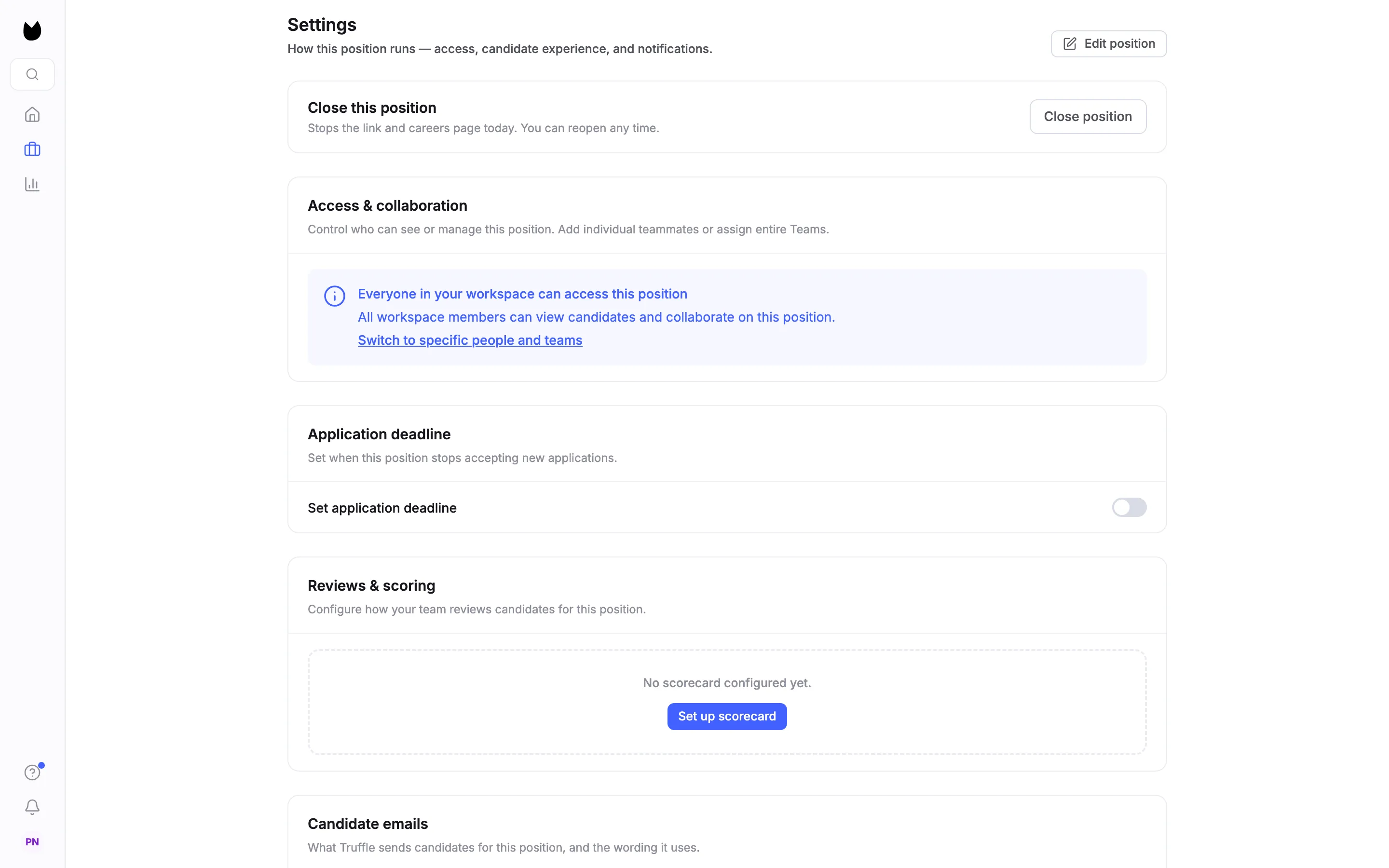
On an active position, choose ⋯ and then Close position, the last item. You can also start from Close this position at the top of the position's Settings.
3Say why it is closing
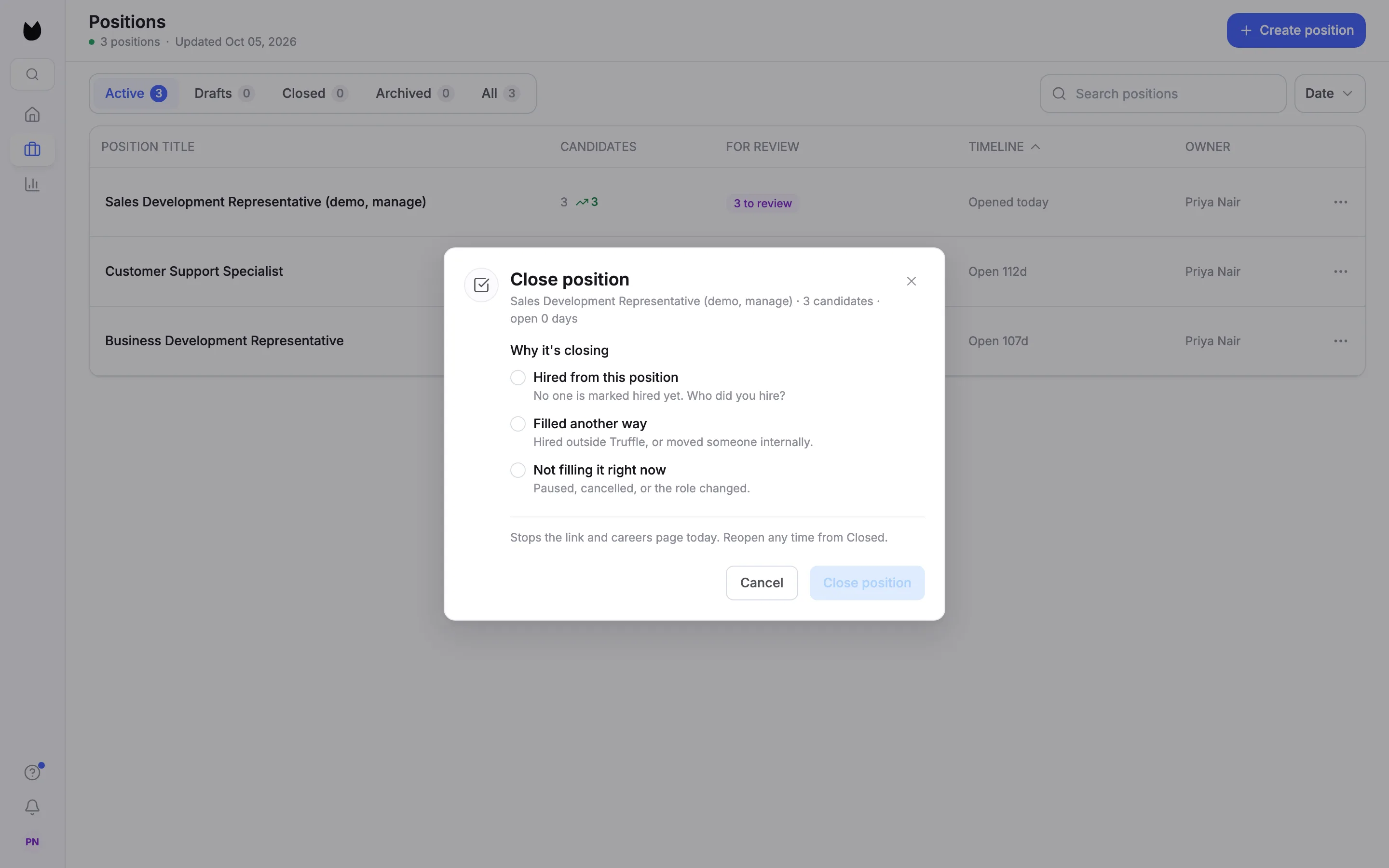
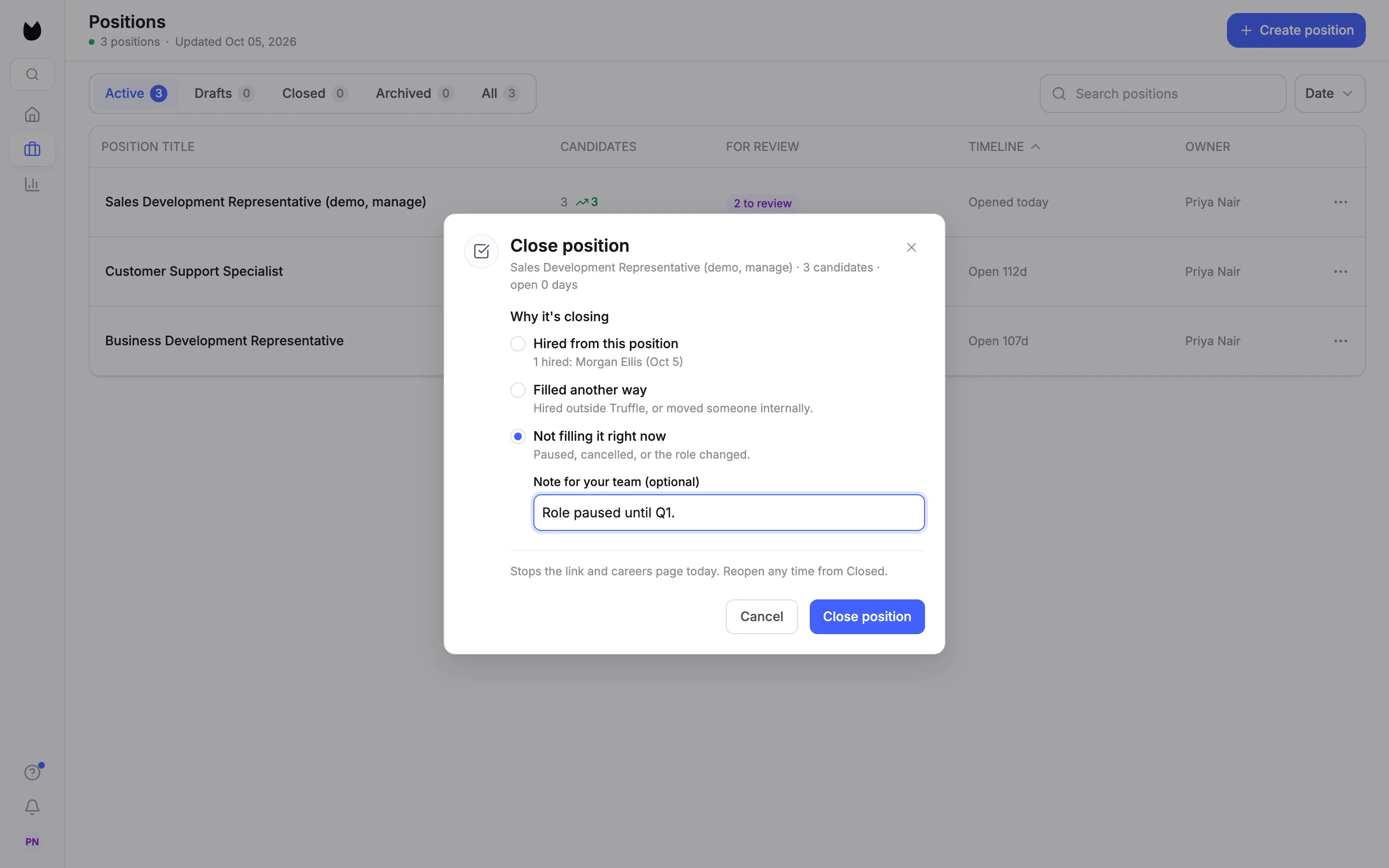
Close position asks Why it's closing. Choose Hired from this position, Filled another way (hired outside Truffle, or moved someone internally) or Not filling it right now. There is no default, so Close position stays off until you pick one.
4Record who you hired
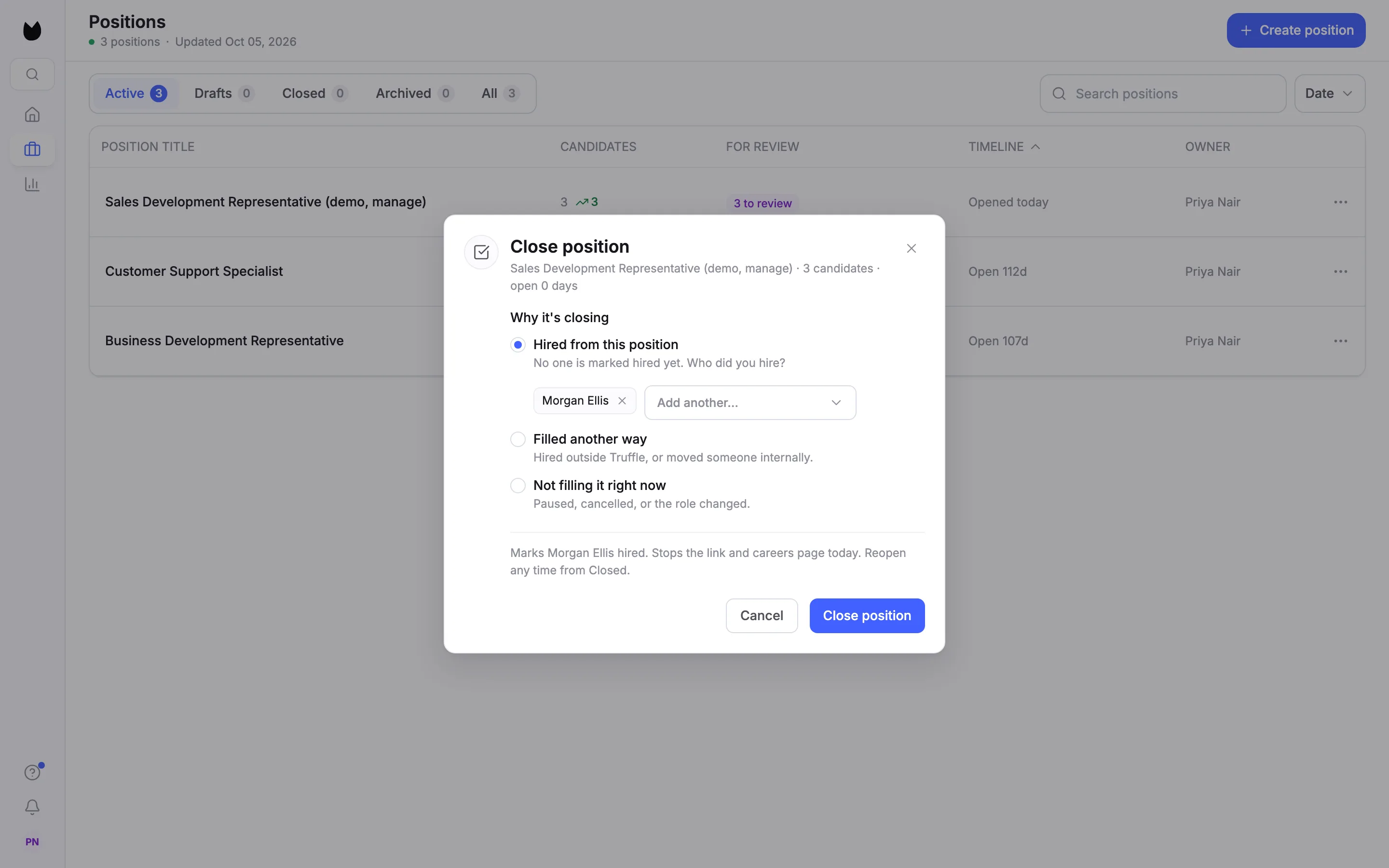
With Hired from this position, pick the candidate you hired, here Morgan Ellis, and Add another… if there were more. The line above the buttons says what will happen: Marks Morgan Ellis hired. Stops the link and careers page today. Reopen any time from Closed. Choose Close position.
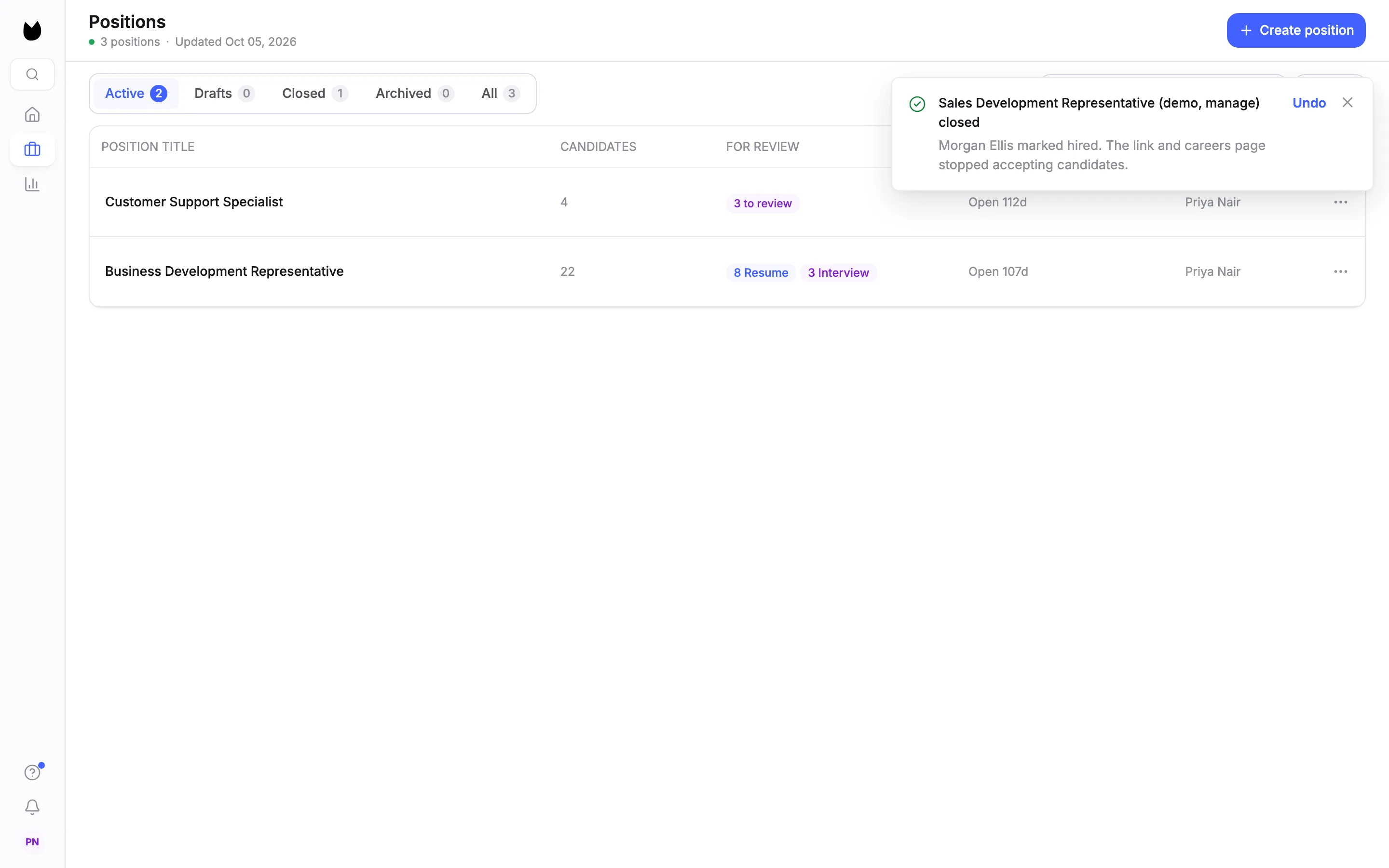
5Check the confirmation
Truffle confirms the position is closed, that Morgan Ellis is marked hired, and that the link and careers page stopped accepting candidates. The message has Undo in case you closed the wrong one.
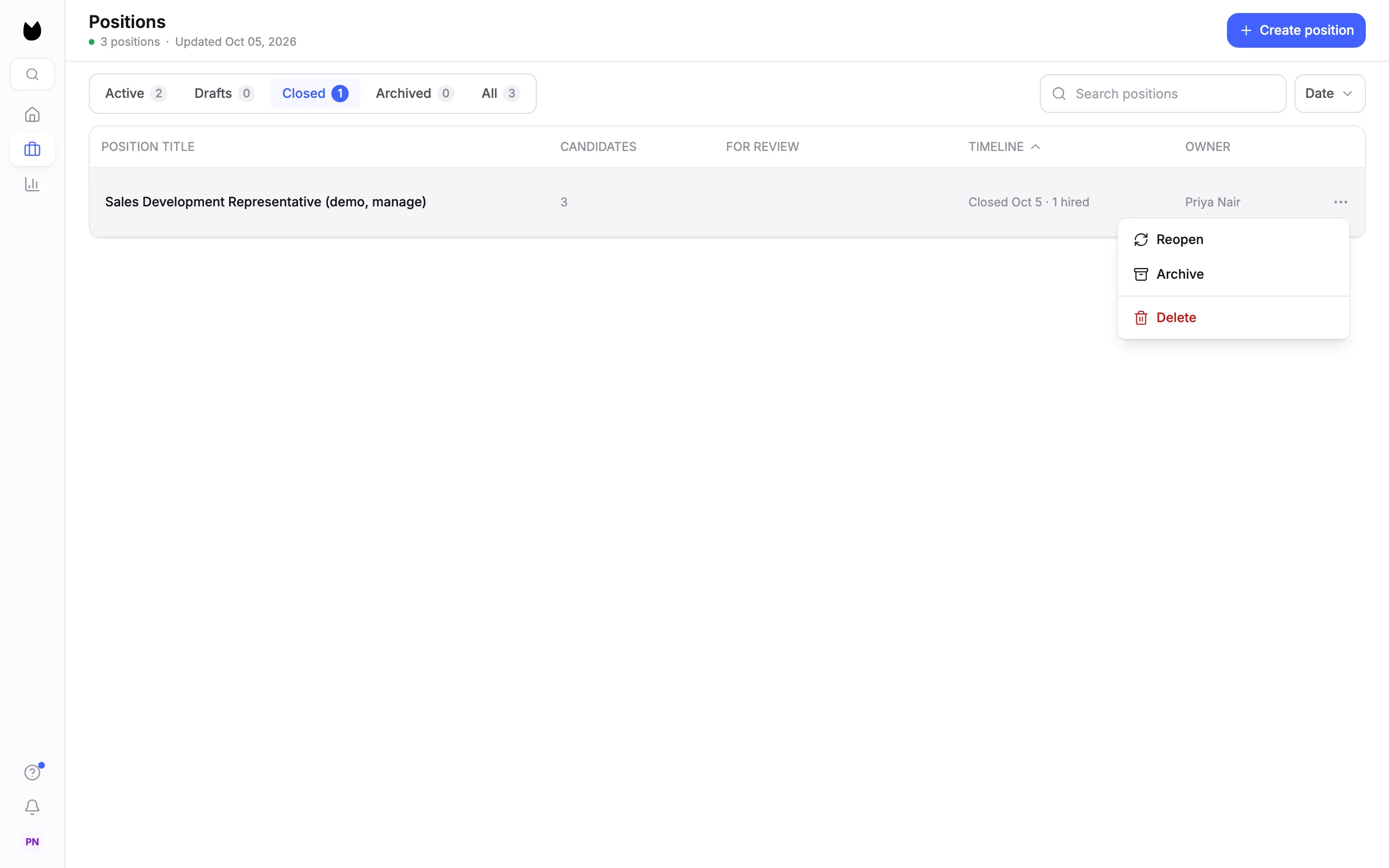
6Find it under Closed
The position moves to Closed. Its timeline reads Closed Oct 5 · 1 hired. The ⋯ menu on a closed position has Reopen, Archive and Delete.
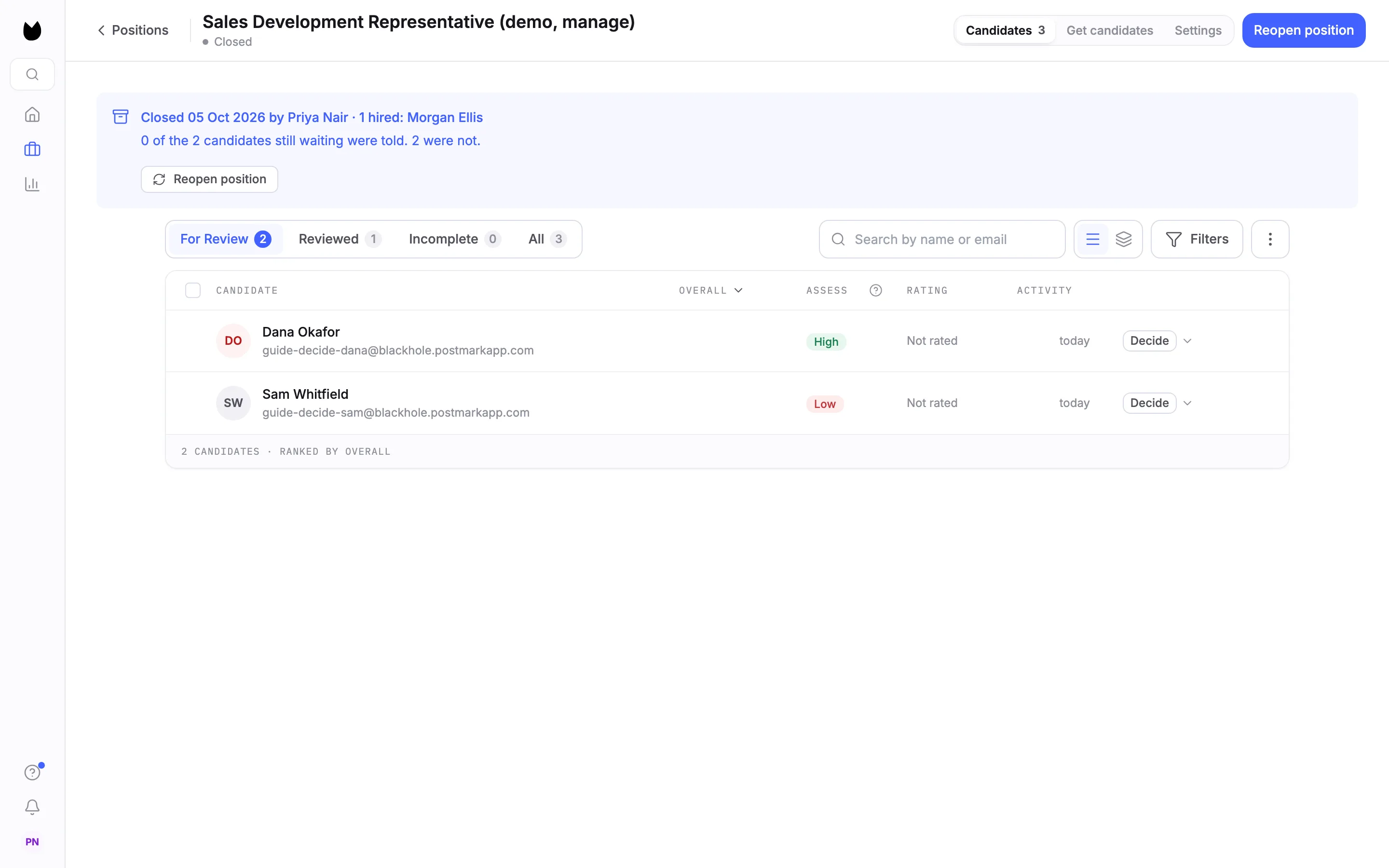
7Read the closed position's banner
Open the position. A banner says who closed it, when and why, here 1 hired: Morgan Ellis, with Reopen position. It also counts the candidates still waiting, here 0 of the 2 candidates still waiting were told. 2 were not. Closing does not email them, so tell them yourself. All candidate data stays available.
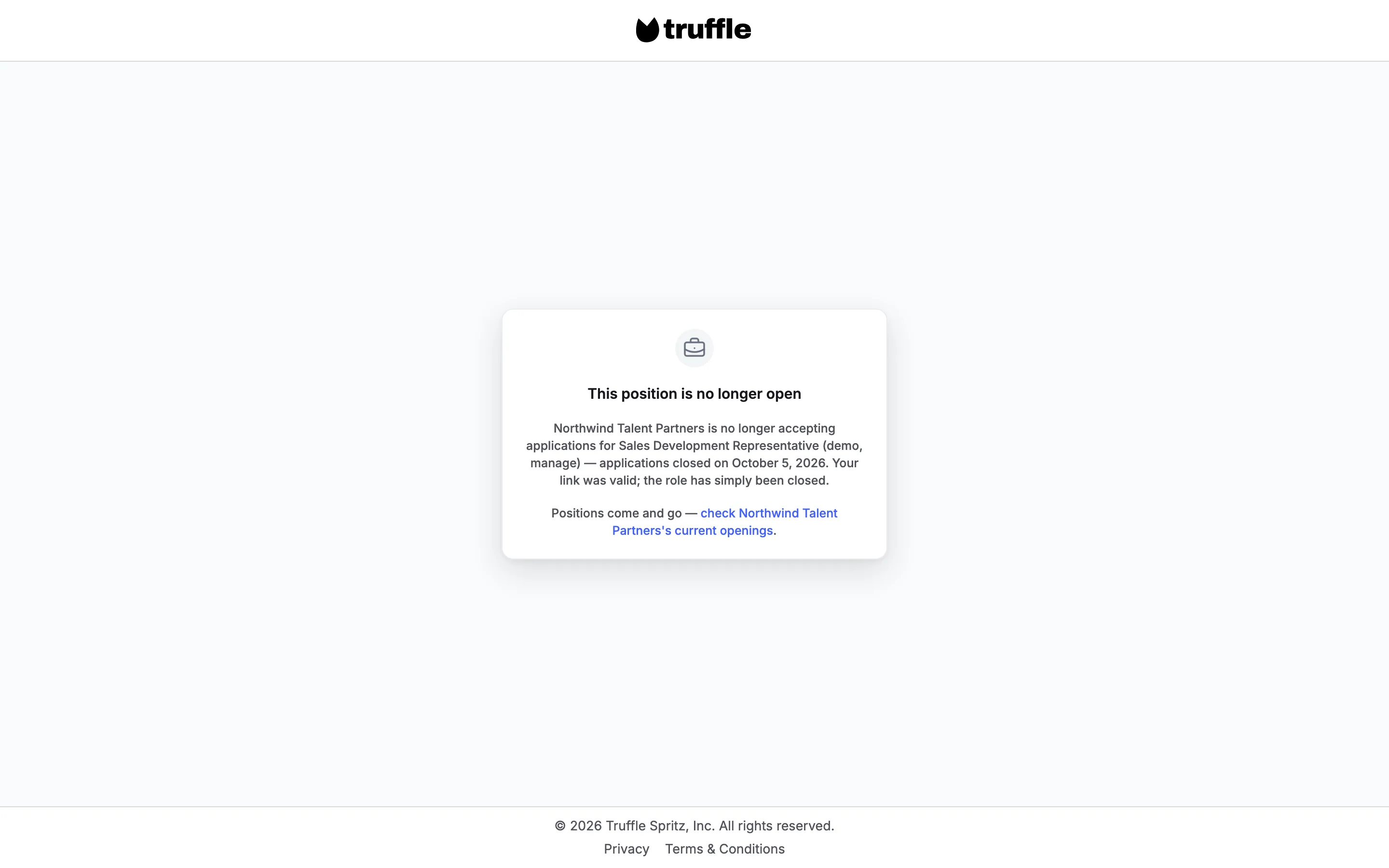
8See what candidates see
Anyone who opens the position's link now sees This position is no longer open, with the date it closed and a pointer to your current openings.
9Reopen it
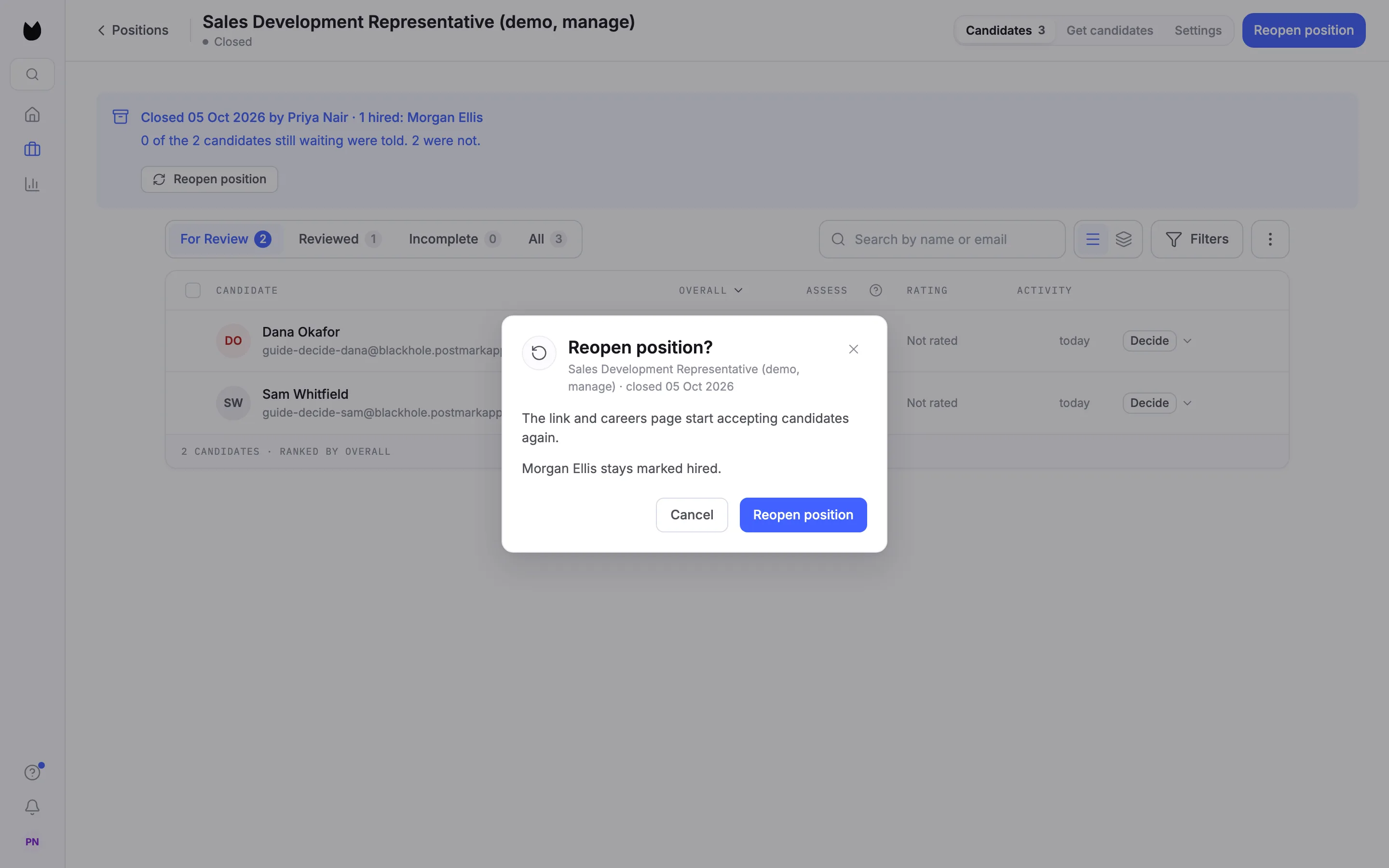
Choose Reopen position on the banner, or Reopen in the row menu. Reopen position? says the link and careers page start accepting candidates again and that Morgan Ellis stays marked hired. Confirm with Reopen position. Truffle confirms Position reopened.
10Set an application deadline
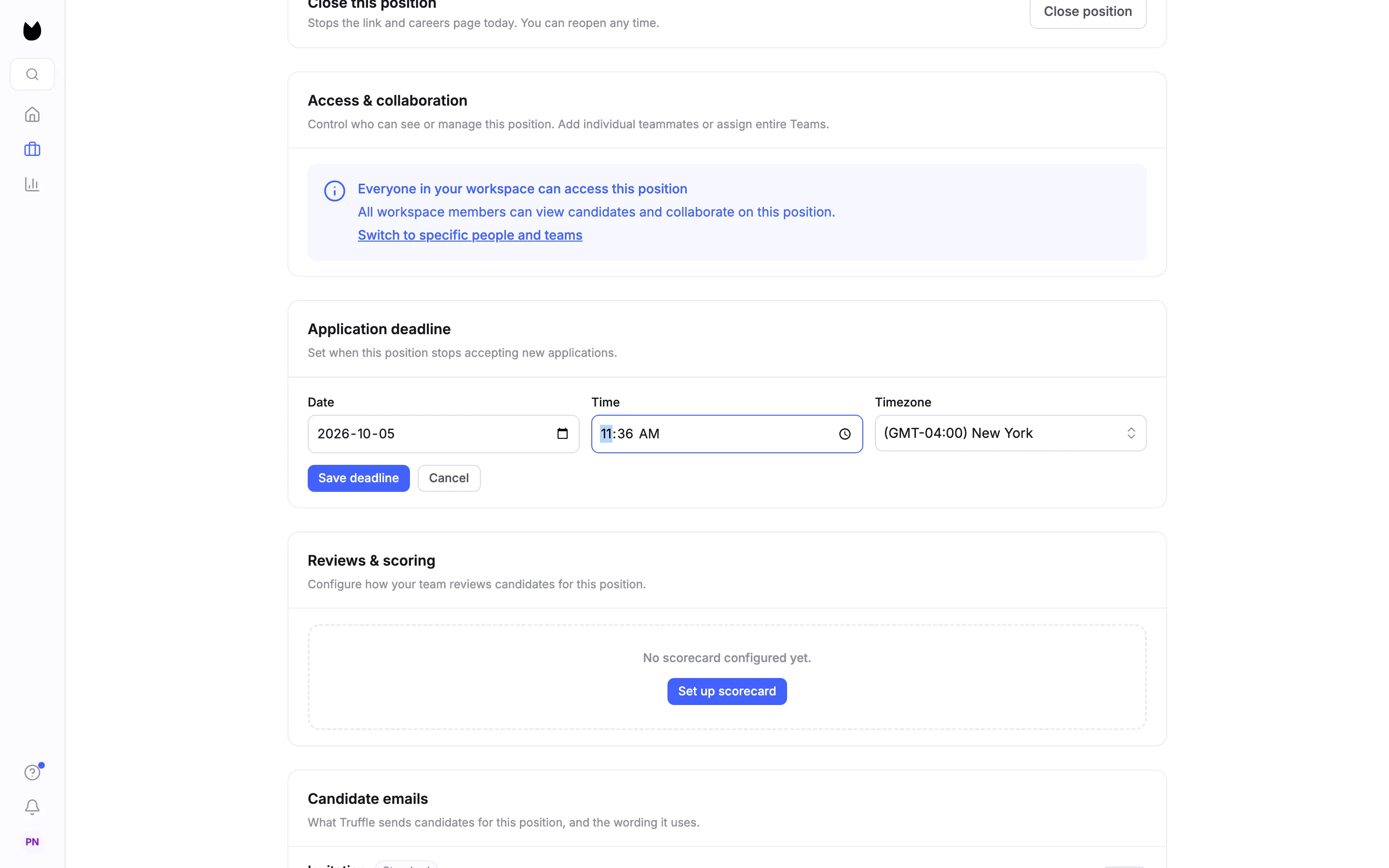
To have a position close itself, open its Settings and turn on Set application deadline. Choose a Date, a Time and a Timezone, then Save deadline.
11Check the saved deadline
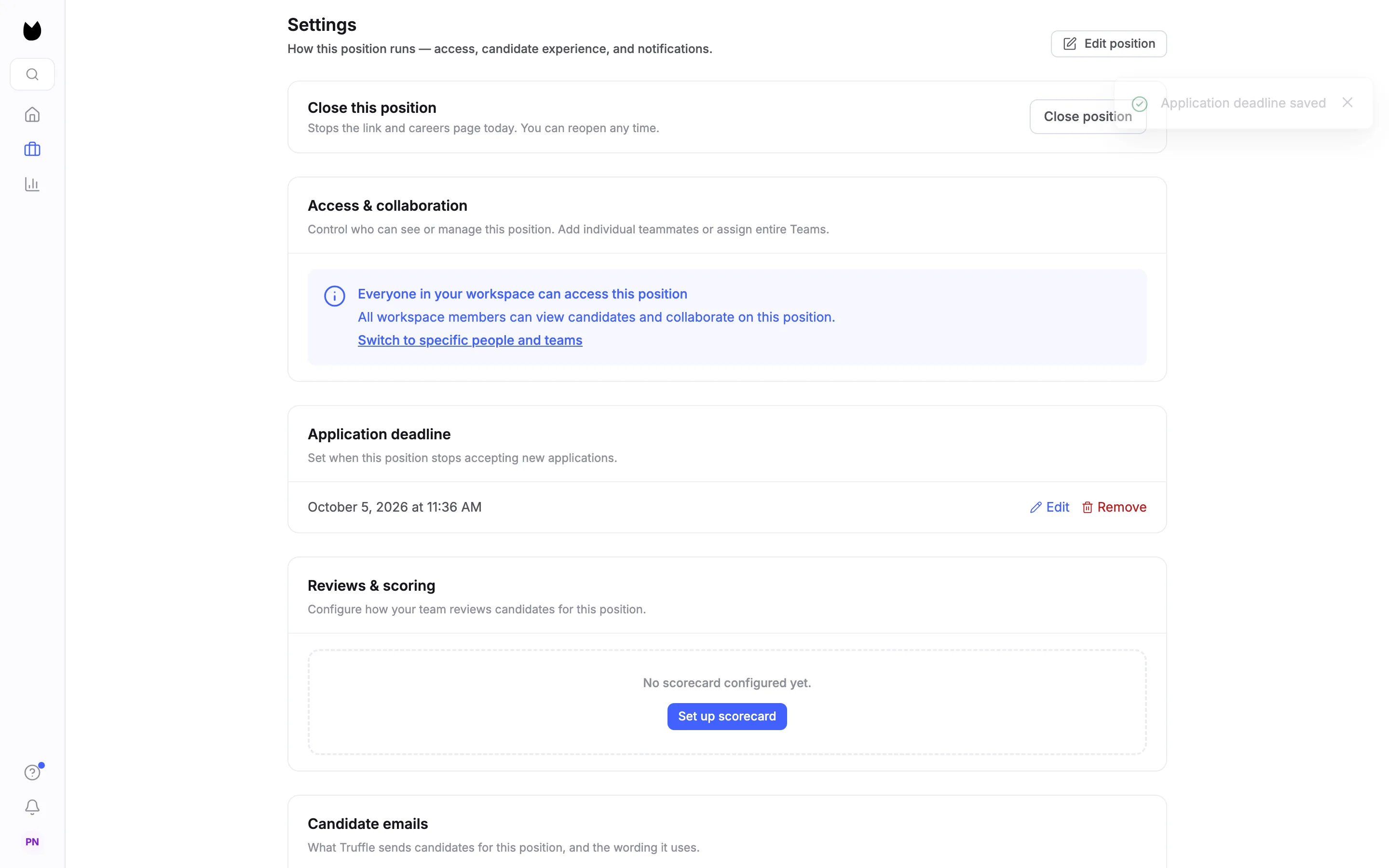
Truffle confirms Application deadline saved and shows the date and time with Edit and Remove. To give candidates longer, choose Edit before the deadline passes.
12Watch the timeline
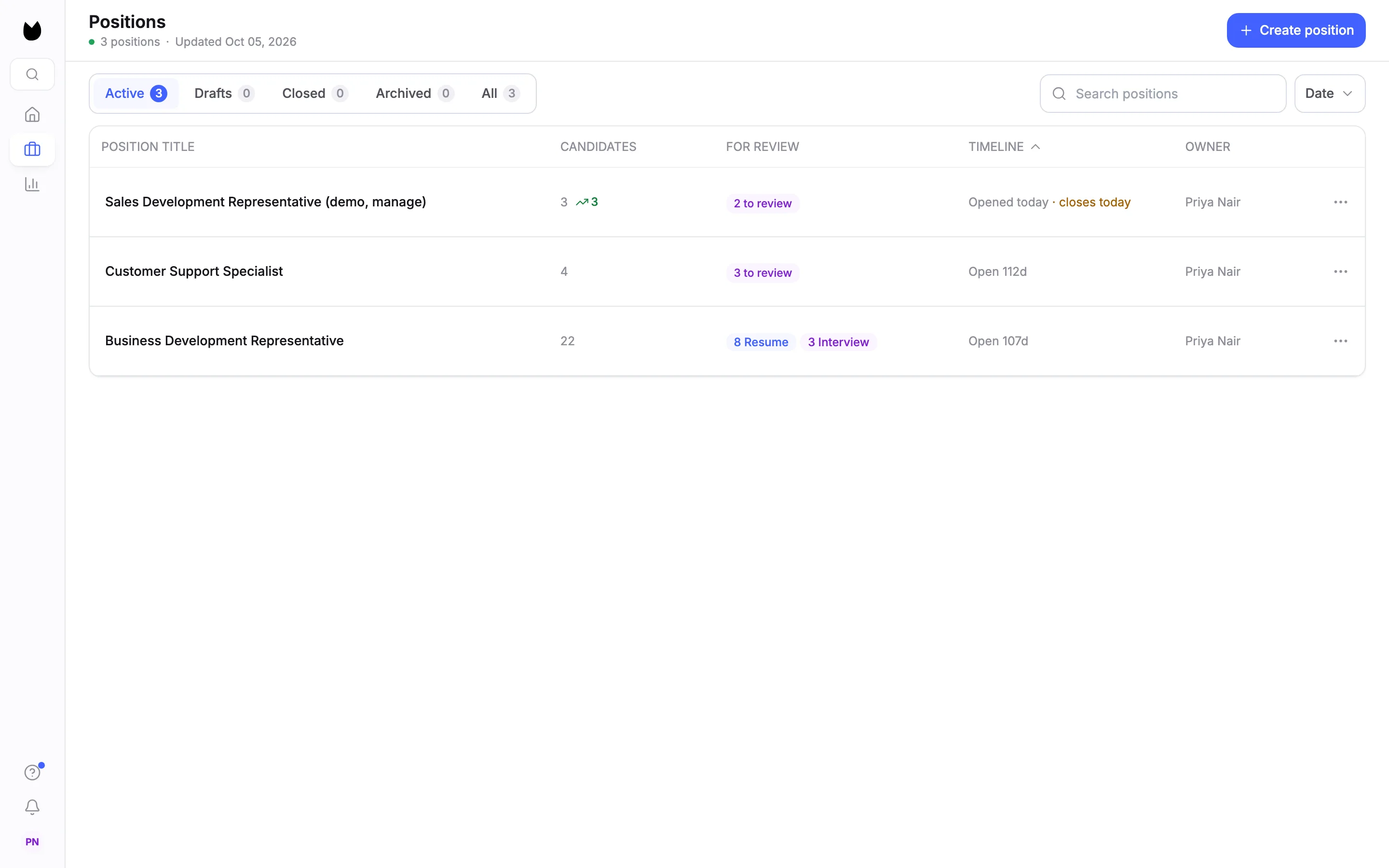
On Positions, the timeline shows when the position closes, here Opened today · closes today.
13After the deadline passes
The position stops accepting candidates and moves to Closed, where its timeline reads Expired with the date. The position header reads Expired too. An expired position's menu leads with Reopen and has no copy-link item.
14See the expired page
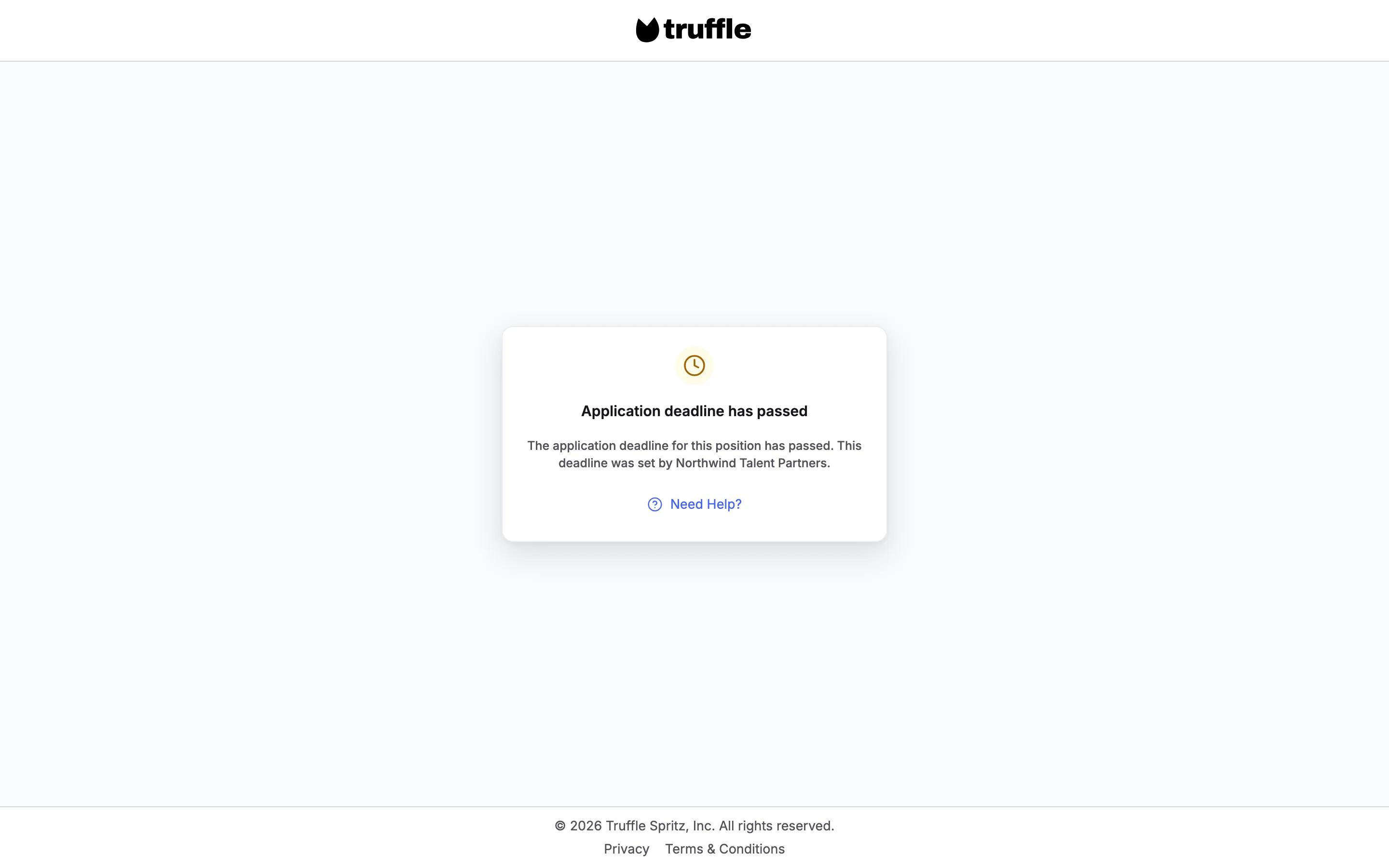
Anyone who opens the link after the deadline sees Application deadline has passed.
15Reopen an expired position
Choose Reopen from the row menu and confirm. Truffle confirms Position reopened and that the position is now accepting applications. Reopening clears the deadline, so Set application deadline is off again. Turn it on to set a new one.
Note. Editing the deadline of a position that already reads Expired does not reopen it. Reopen first, then set the new deadline.
16Close it when you are not filling it
When a role is paused or cancelled, close it with Not filling it right now. You can add a Note for your team (optional), here Role paused until Q1. A hire you recorded earlier still shows under Hired from this position.
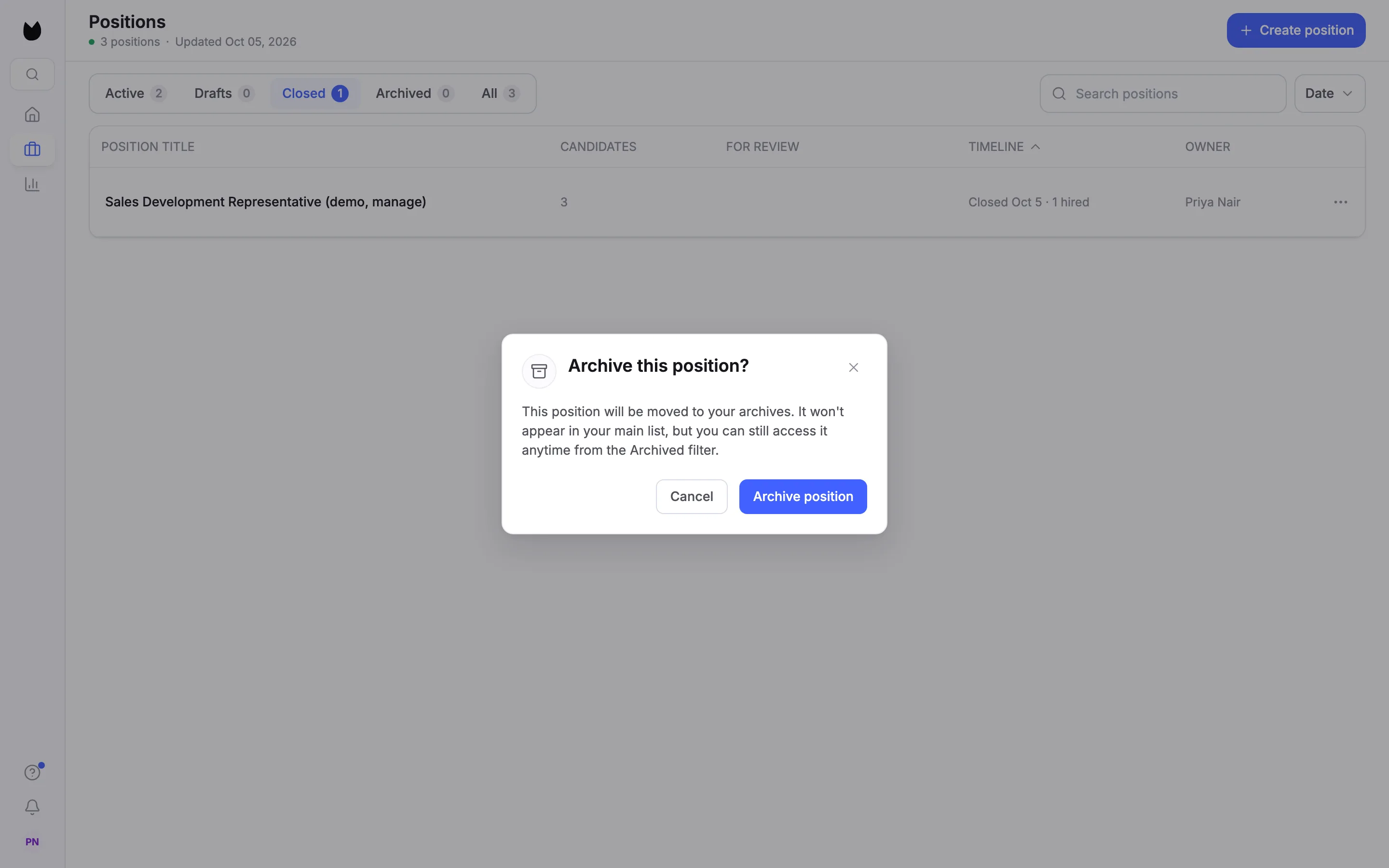
17Archive a closed position
Archive takes a closed position out of your main list without deleting anything. Choose Archive in the closed position's menu. Archive this position? says it moves to your archives and you can still find it from Archived. Choose Archive position.
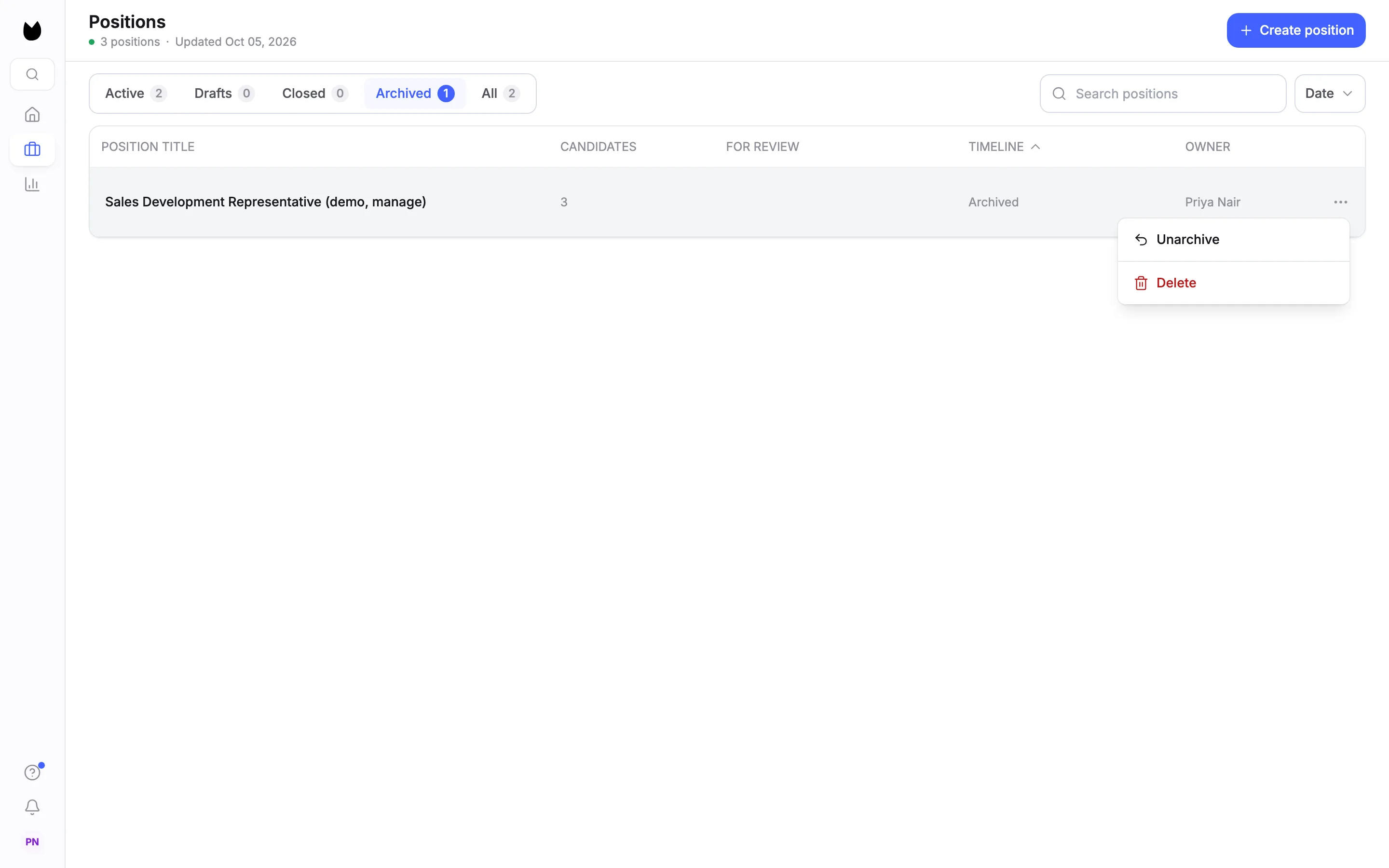
18Find it under Archived
The position now sits under Archived, and All leaves it out, here All 2. An archived position's menu has Unarchive and Delete. It cannot be reopened or duplicated while archived.
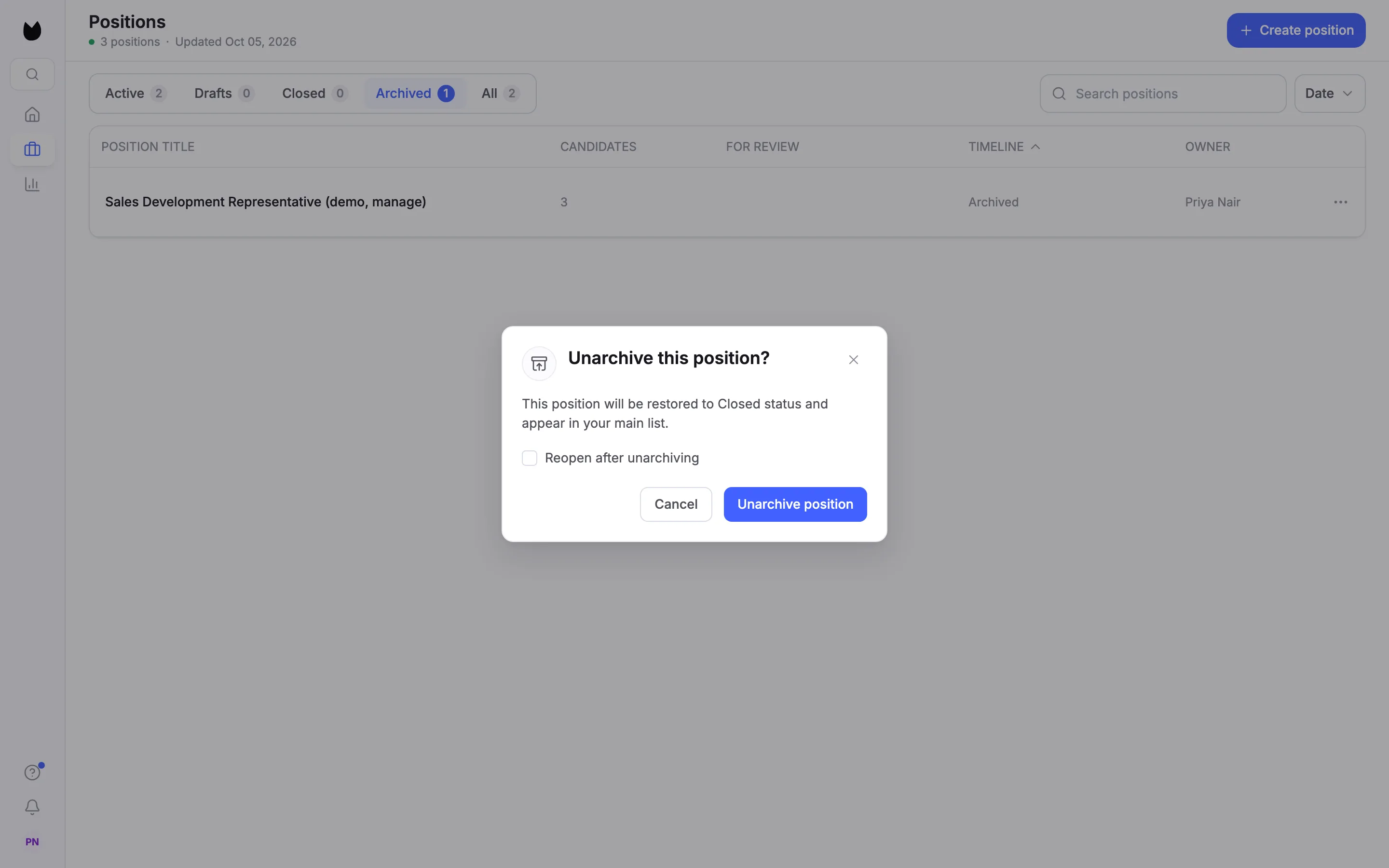
19Unarchive it
Choose Unarchive. Unarchive this position? says it goes back to Closed and into your main list. The dialog also offers Reopen after unarchiving. Choose Unarchive position.
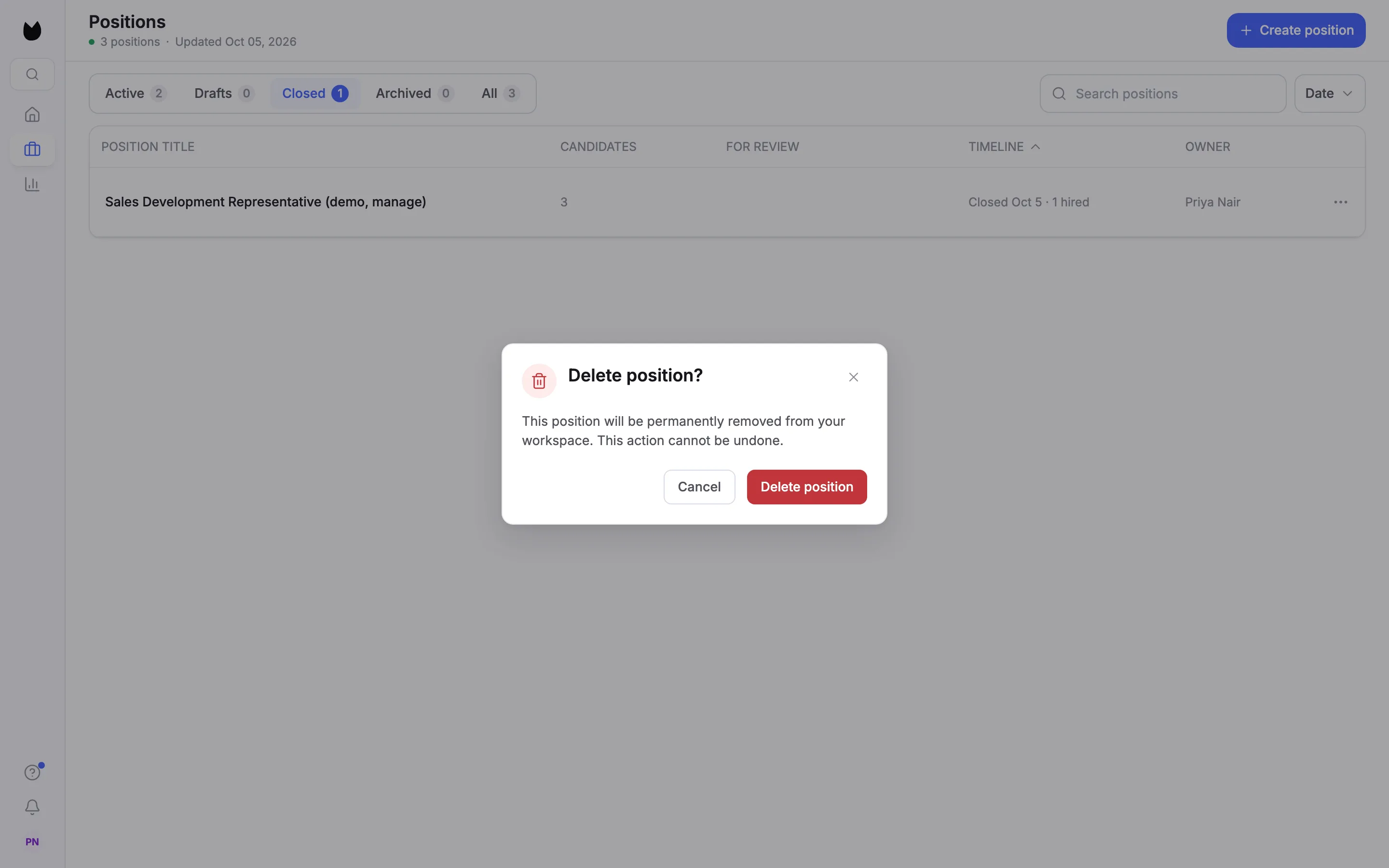
20Delete a position
Delete is in the menu of closed, archived and draft positions, never on an active one. Choose Delete. Delete position? warns that the position is permanently removed from your workspace and that This action cannot be undone. Choose Delete position.
21After you delete
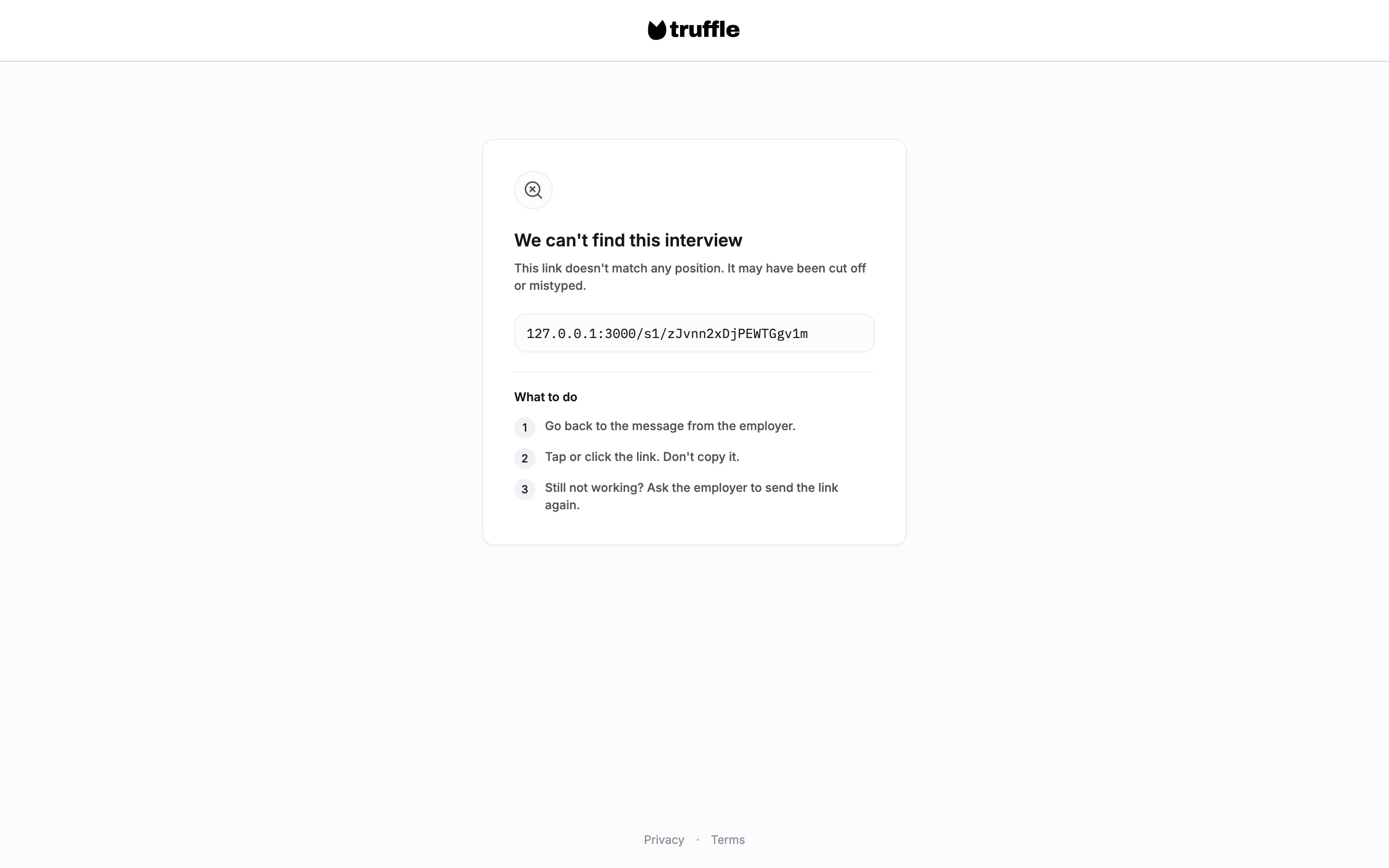
The position is gone from every tab, including All, and from search. Its link no longer finds a position: candidates who open it see We can't find this interview.
Questions
Does closing a position email the candidates still waiting?
No. Closing stops the link and careers page and records the reason. The closed position's banner counts the candidates still waiting who were not told, so you can contact them yourself.
What happens to the candidates when I close a position?
Nothing is deleted. All candidate data stays available on the closed position, and candidates you picked under Hired from this position are marked hired.
What is the difference between closed and expired?
You close a position yourself. A position expires on its own when its application deadline passes. Both sit under Closed, both stop the link, and both can be reopened. Reopening an expired position clears its deadline.
What does archiving do?
It moves a closed position from Closed to Archived, out of your main list and out of All. Nothing is deleted. Unarchive puts it back under Closed, and its dialog also offers Reopen after unarchiving.
Can I undo a delete?
No. Delete position removes the position from your workspace for good. Archive it instead if you might need it again.
Why can't I delete an active position?
Delete is only offered on closed, archived and draft positions. Close the position first.
Related
See something here that doesn't match what you see in Truffle? Tell us and we'll fix the page.