Get started
Quick start
How to go from a job description to a live Position Link, and what happens when your first candidate finishes.
Checked against the live product 5 Oct 2026 Changelog Copy as Markdown
You sign up, describe the role, let Truffle draft the screening, check what it drafted, and share one link. A role goes live in about 10 minutes.
Each branch of the setup has its own step-by-step guide. They are linked where they come up.
Sign up
You start on a 7-day free trial with 30 credits and no credit card.
- Go to hiretruffle.com and choose Sign up. The first screen asks
What brings you here?. ChooseI'm hiring. - Enter your work email, then your name and a password. You can also sign in with Google or with a one-time code sent to your email.
- Set up your company profile with its name, industry, size and how often you hire.
- Confirm your free trial.
Your workspace opens with a demo position that already has candidate examples in it. Home tracks your first steps: create a position, get a candidate in, and review and decide.
Build the position
Choose Create position from Positions or from Home. The position wizard has four steps, shown across the top of the screen.
-
Define the role. Add the position title and the position description. You can type or paste it, copy the description from a previous position, or import it from a link to the public posting withImport from a link. Truffle reads the description back as Thin, Workable or Strong. A position needs at least 200 characters of description to go live. Below the description is theRole brief, three optional questions about what good looks like in this role. Truffle uses your answers alongside the description when it drafts and scores. ChooseNext: Build position. -
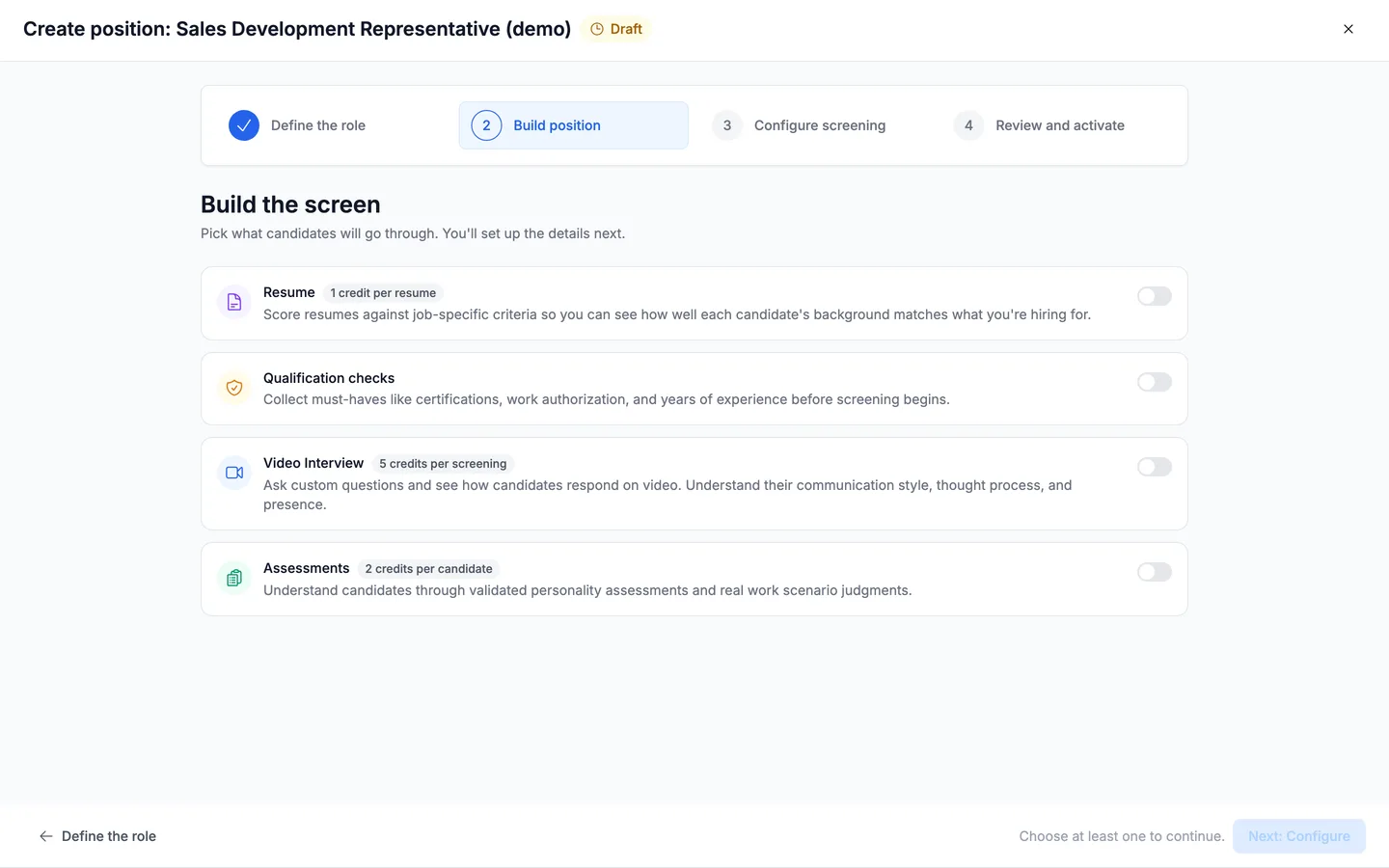
Build position. This step is titled “Build the screen”. From your description, Truffle suggests which components to run: resume scoring, qualification checks, a video interview and assessments. Each suggestion has a plain reason next to it, and you can switch any component on or off. A budget bar shows the candidate’s estimated time and the credits charged as candidates finish each step. A resume costs 1 credit, an assessed candidate 2, and a one-way interview 5. The bar turns amber past 20 minutes of candidate time. This step also prices the two intake routes, “Apply first” and “One sitting”, and shows which one Truffle suggests.
-
Configure screening. A rail lists the sections you switched on. Each shows its state:Drafting,Suggested, not reviewed,Needs you,SetorReviewed. Truffle drafts resume criteria, qualification checks, interview questions and assessment content in the background. Read what it drafted. Resume criteria and qualification checks that Truffle drafted have to be markedLooks rightor edited before the position can go live. UsePreview as a candidateon the rail to open the candidate’s page in a new tab. -
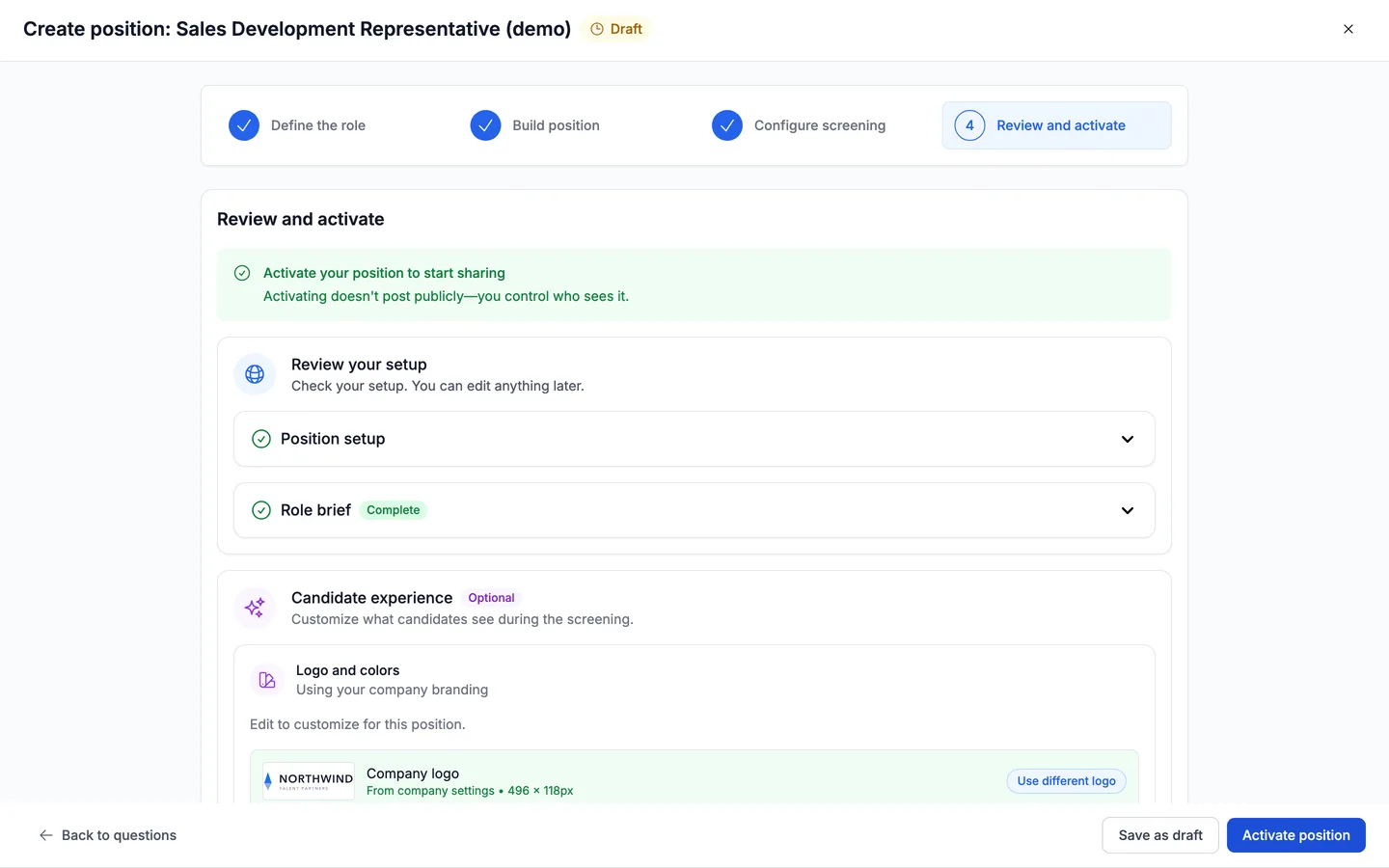
Review and activate. Review lists anything that still blocks go-live, and each row links straight to the fix. UnderCandidate experienceyour company logo and brand color are already applied, and you can add a welcome message and a completion message. When nothing is blocking, chooseActivate position.
For the detail of each branch, follow the guide that matches what you switched on:
- Resume scoring: Screen resumes with AI criteria
- Video interview: Set up a one-way video interview
- Qualification checks: Add qualification checks
- Assessments: Add a personality assessment, Add work scenario questions and Add environment fit questions
Share the Position Link
Once a position is live, you send candidates to it.
Every live position has one shareable link, its Position Link. To copy it, hover the position’s row on the Positions list and use the copy button, or open the row’s ⋯ menu and choose Copy shareable link. Get candidates on the same menu shows the same link. Every published position also gets a hosted public job page. Candidates upload a resume there and apply without creating an account, and search engines can find and index the page.
You can also invite candidates directly by email. Each invitation carries a unique link and a 7-day deadline by default, and you can paste up to 200 names and emails at a time from a spreadsheet. Getting candidates in covers every route.
When the first candidate finishes
The candidate opens the link and works through the screening you built: a welcome page, their details, your qualification questions, a mic and camera check, the interview questions and any assessments. When they submit, their status changes to Completed and the analysis runs on its own. The candidate gets a confirmation email straight away.
Settings → Notifications controls the email you get when a candidate completes. You can get one for every completed interview, only when the match score passes a threshold you pick, or none. Each teammate sets their own.
The candidate then appears on the position’s candidate list, which is split into tabs such as For Review, Reviewed and Incomplete. Each row shows only the signals this position measures. Open the candidate to see:
- A match score from 0 to 100 against your criteria, with the reasoning behind it.
- A short summary of their answers, a Gaps section where they fell short of what the position calls for, and Key Insights per criterion.
- Candidate Shorts, highlight clips from the video interview, each tagged by competency with a note on why it matters.

Magic Review keeps the candidate list on the left and the profile on the right. Press A to advance, H to hold and R to reject. Every one of those decisions is yours.
What it does not do
- Truffle does not activate a position for you. A description under 200 characters, or drafted resume criteria and qualification checks nobody has marked
Looks rightor edited, keeps a position from going live. - The budget bar does not stop you. It turns amber past 20 minutes of candidate time and never blocks Next.
- Truffle does not decide who moves forward. It scores against your criteria and shows the reasoning. The only automatic rejection is a qualification rule you set.
- Candidates do not need a Truffle account to apply or to complete a screening.
Related
See something here that doesn't match what you see in Truffle? Tell us and we'll fix the page.