Guide
Brand the candidate experience for a position
By the end you can override your company logo and color for one position, upload a welcome video and a question video, set a completion message and redirect, and check the result the way a candidate sees it.
10 min · 11 steps · Captured from the live product 5 Oct 2026 Changelog Copy as Markdown
Before you start
- A Truffle account. The 7-day free trial works: 30 credits, no credit card.
- A position with a one-way video interview, new or already live.
- Any videos you want to use as MP4, MOV or WebM files, up to 2 minutes and 50MB each. A logo as PNG, JPG or SVG, up to 2MB.
1Open a question's menu
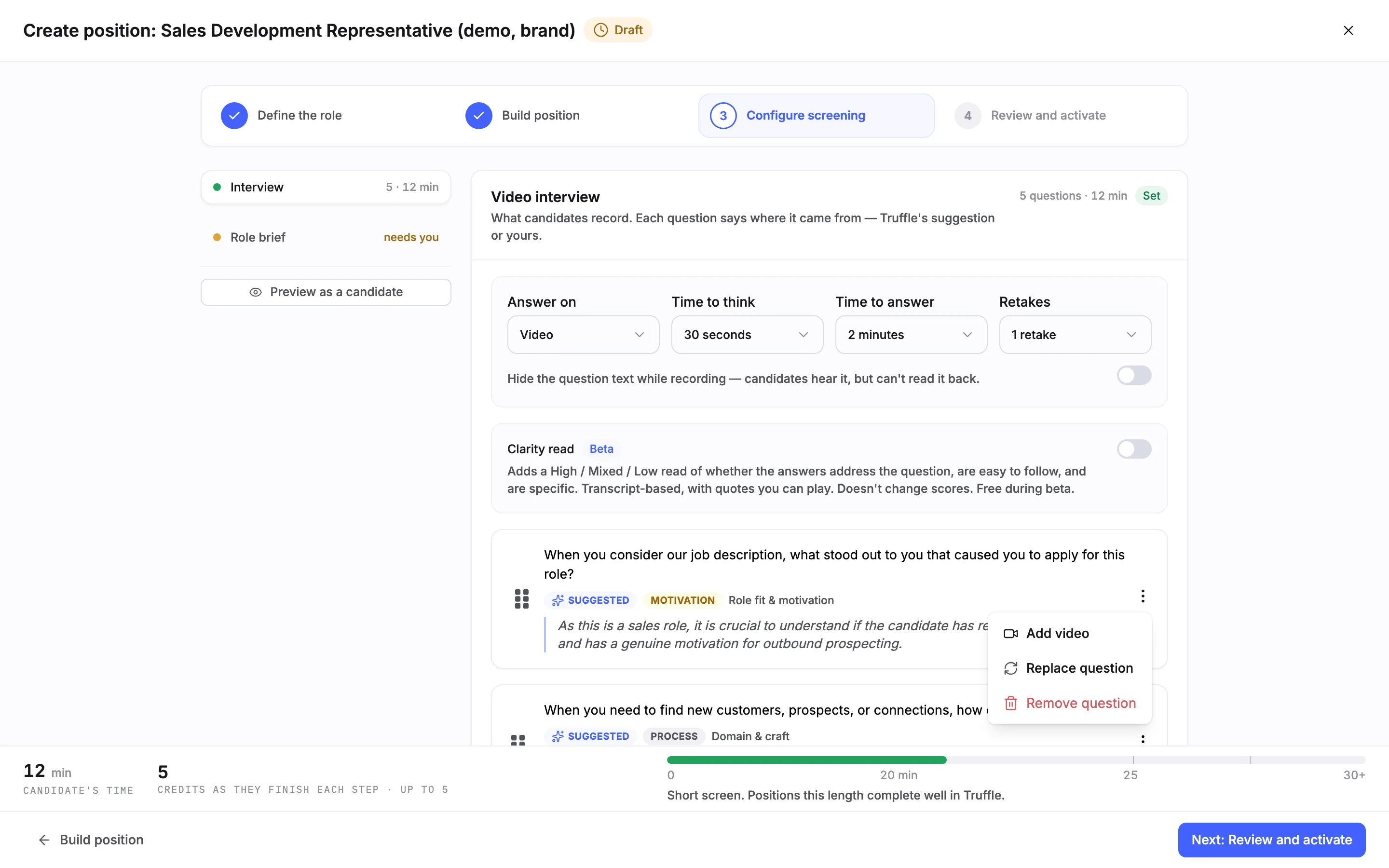
In Configure screening, each interview question has a menu with Add video, Replace question and Remove question. Choose Add video to put a video of the question in front of candidates.
2Record the question or upload a file
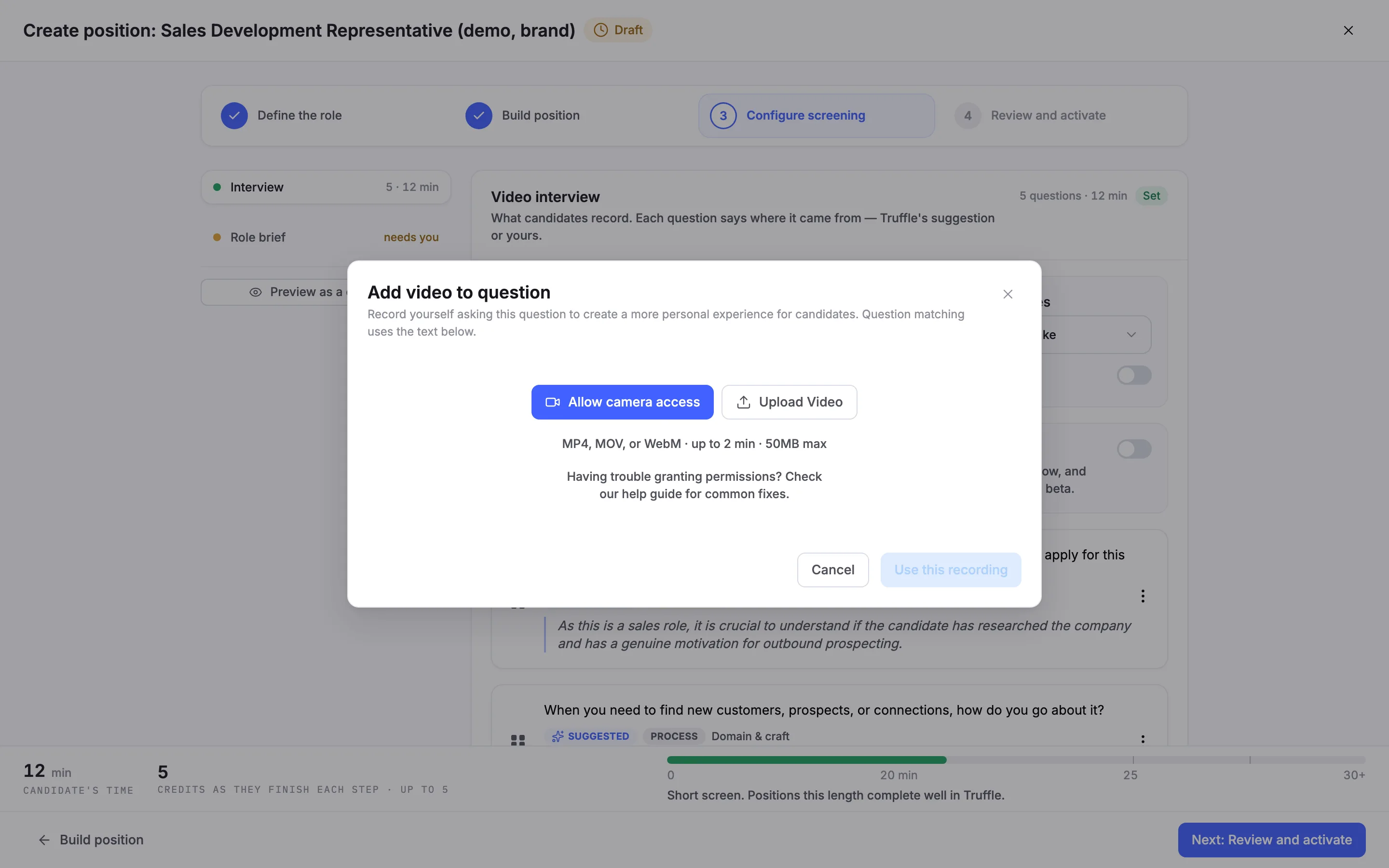
Add video to question offers Allow camera access, to record in the browser, and Upload Video, for a file you already made. Files can be MP4, MOV, or WebM · up to 2 min · 50MB max.
3Check the question has its video
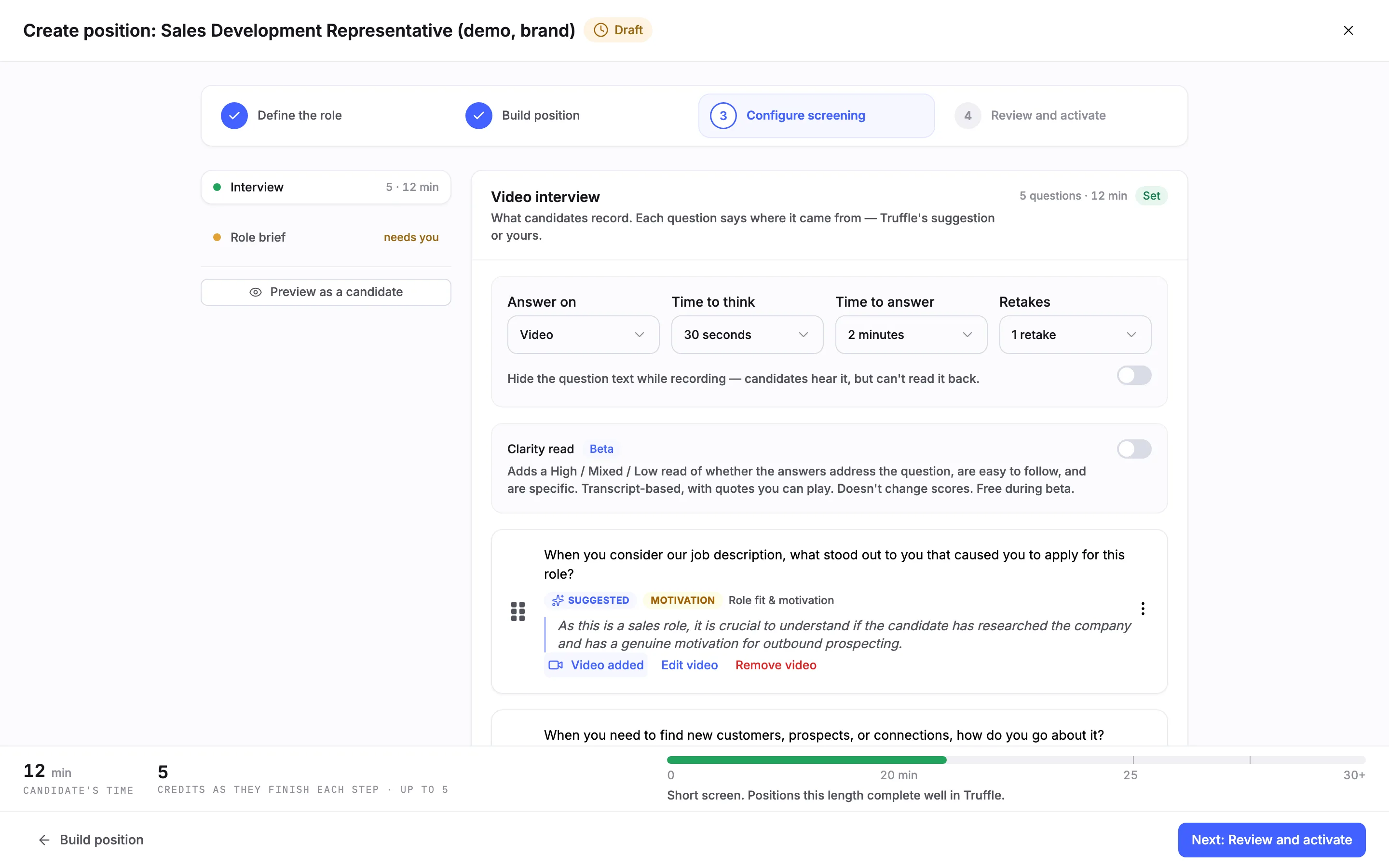
An uploaded file shows Video processing... while Truffle prepares it. When it is ready, the question reads Video added, with Edit video and Remove video.
4Find the candidate experience
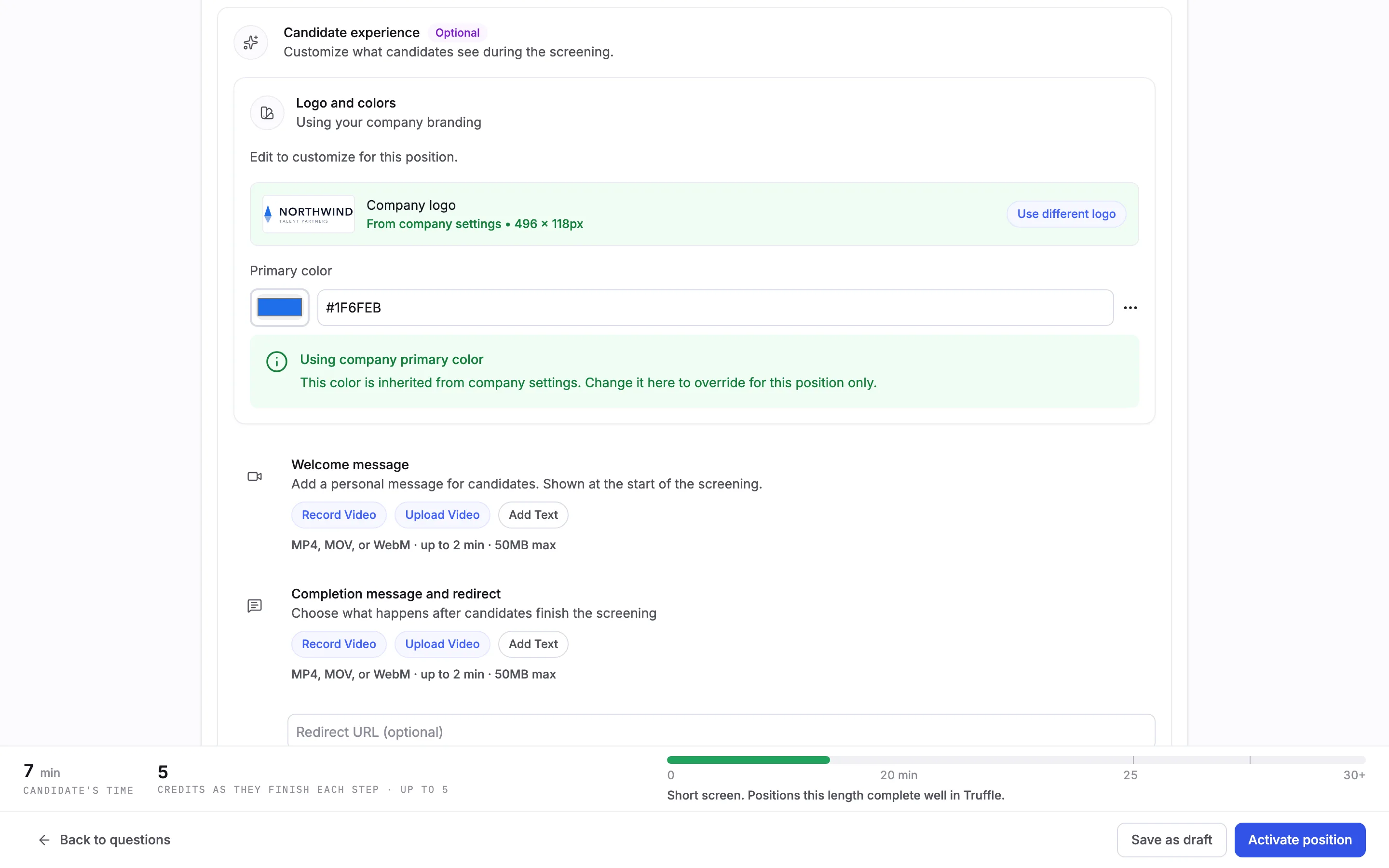
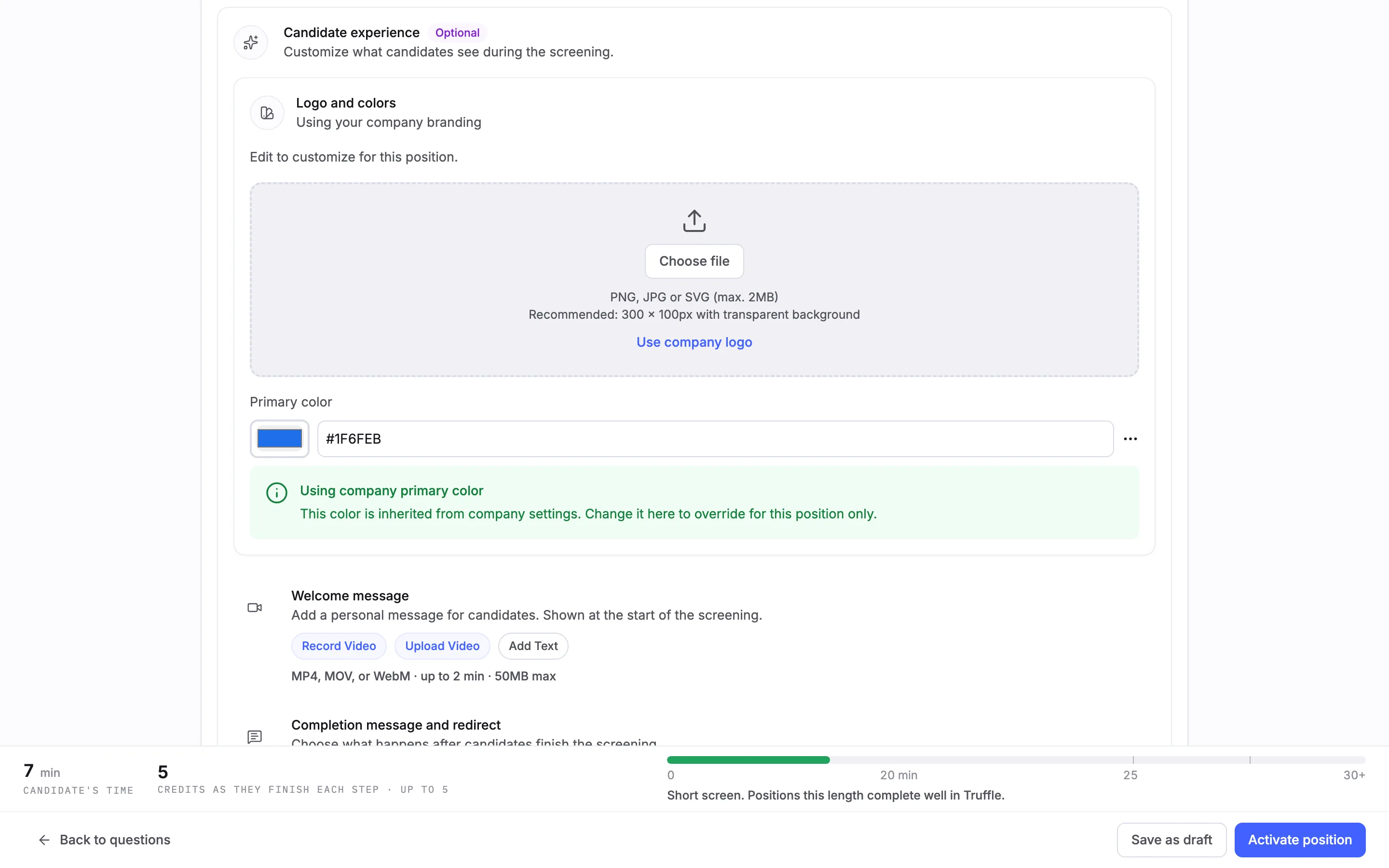
Go to Review and activate. Candidate experience is marked Optional. Under Logo and colors, a new position reads Using your company branding: the Company logo from your settings and the company primary color, with the note Using company primary color.
5Use a different logo for this position
Choose Use different logo. A drop zone takes PNG, JPG or SVG (max. 2MB). Use company logo takes you back to the company one.
6Set the logo and color
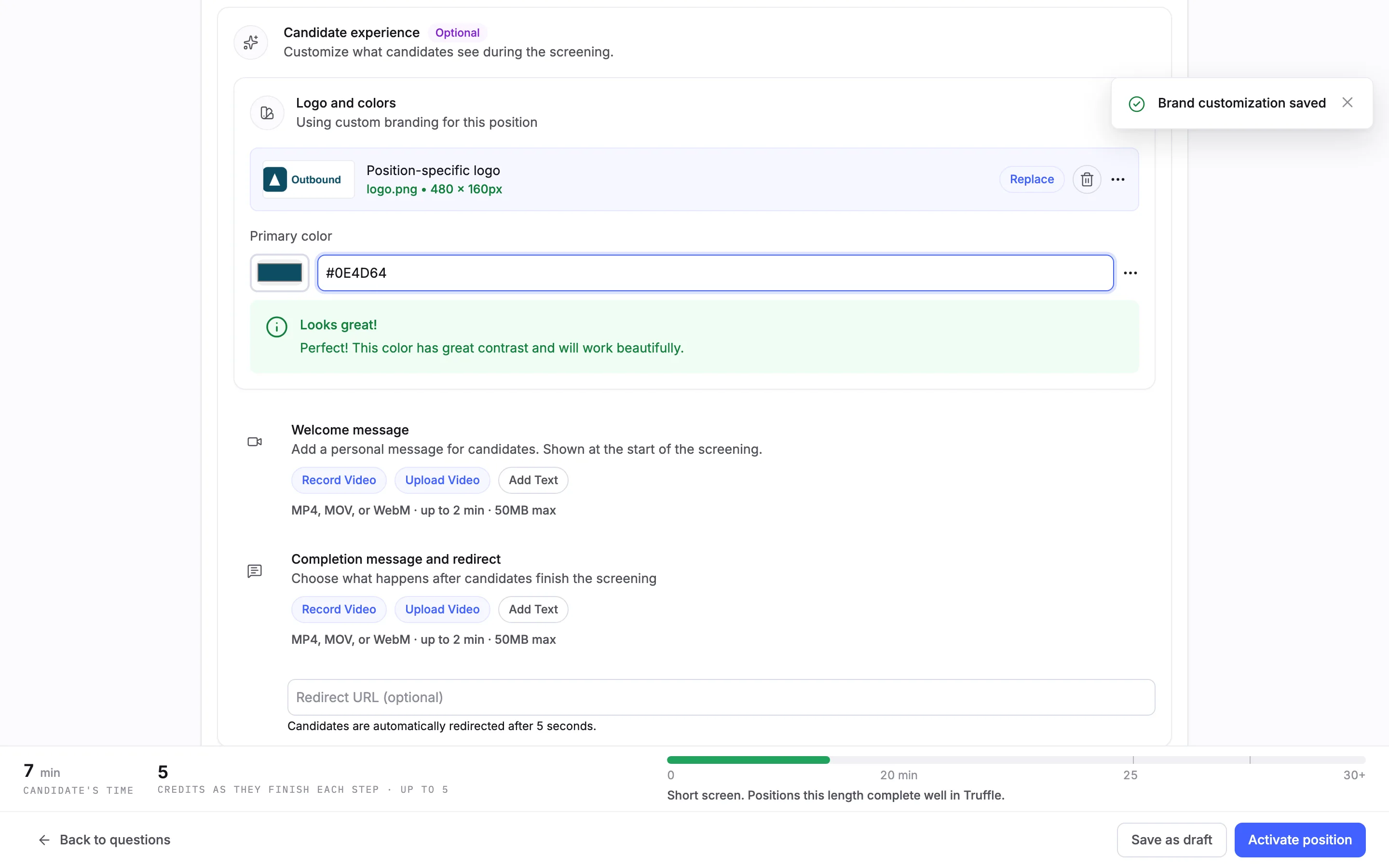
Add your file and type a hex code, or pick one, under Primary color. Truffle saves as you go and confirms Brand customization saved. The section now reads Using custom branding for this position and shows the Position-specific logo. Truffle also says whether the color has enough contrast.
7Keep the override on this position
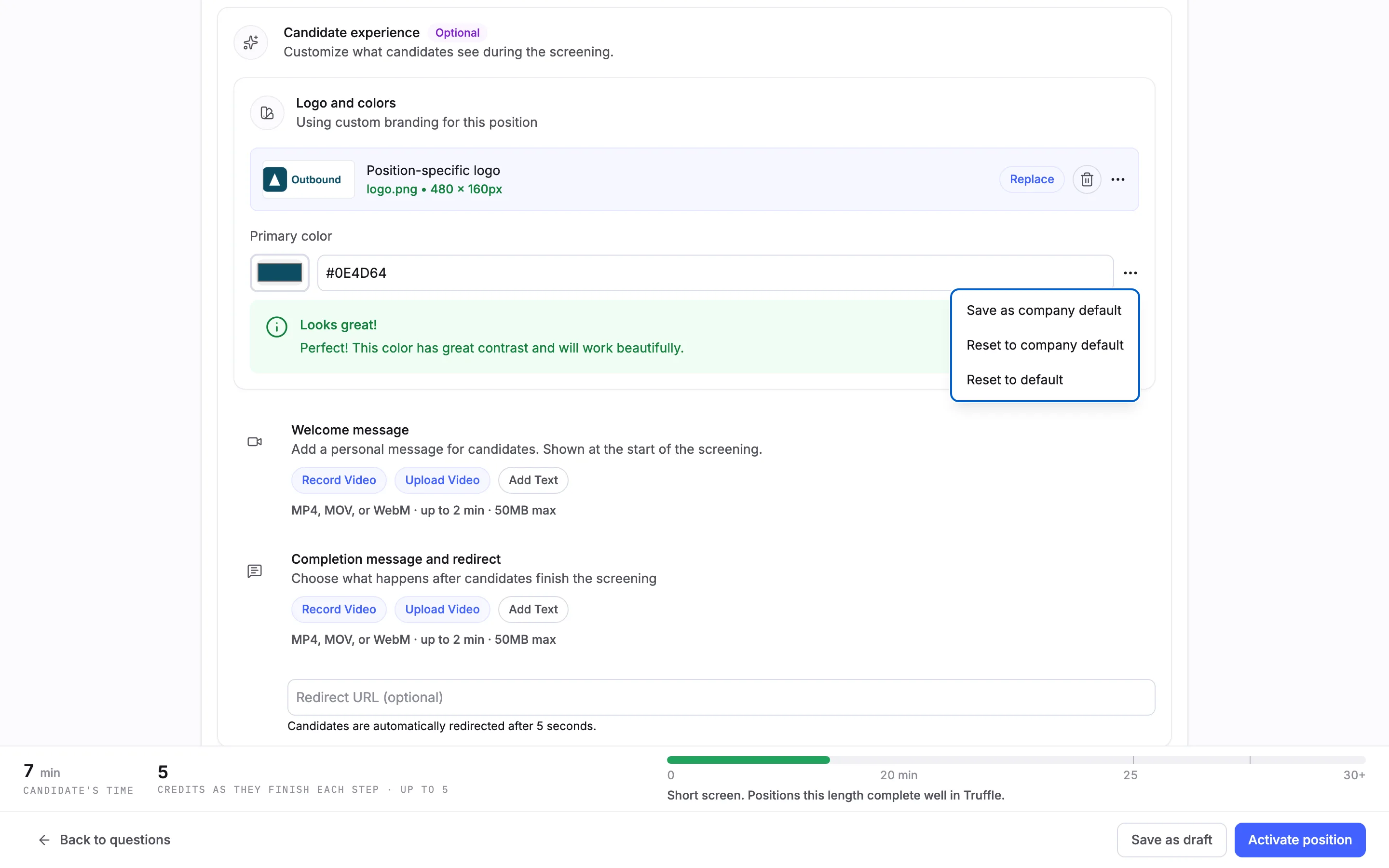
The menu next to the color has Save as company default, Reset to company default and Reset to default. The logo has its own menu with the first two. Leave them alone to keep the change on this position only. Save as company default changes the branding for your whole company.
Note. To change the company logo and color for every position, use Brand identity in your company settings instead.
8Add a welcome and a completion message
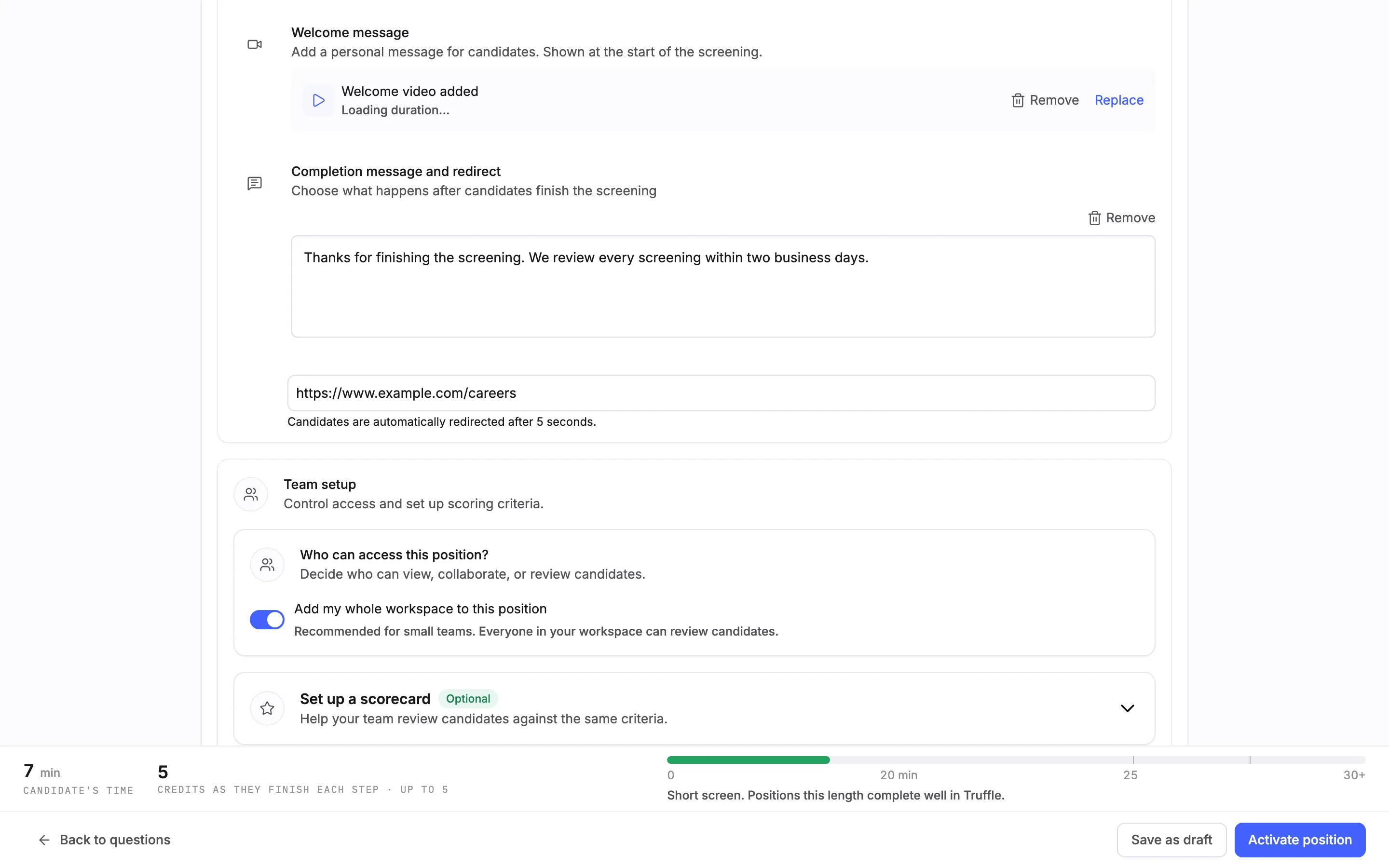
Welcome message and Completion message and redirect each offer Record Video, Upload Video and Add Text. Here the welcome is an uploaded video, which shows Welcome video added with Remove and Replace. The completion is text, plus a redirect URL: Candidates are automatically redirected after 5 seconds.
9Preview it as a candidate
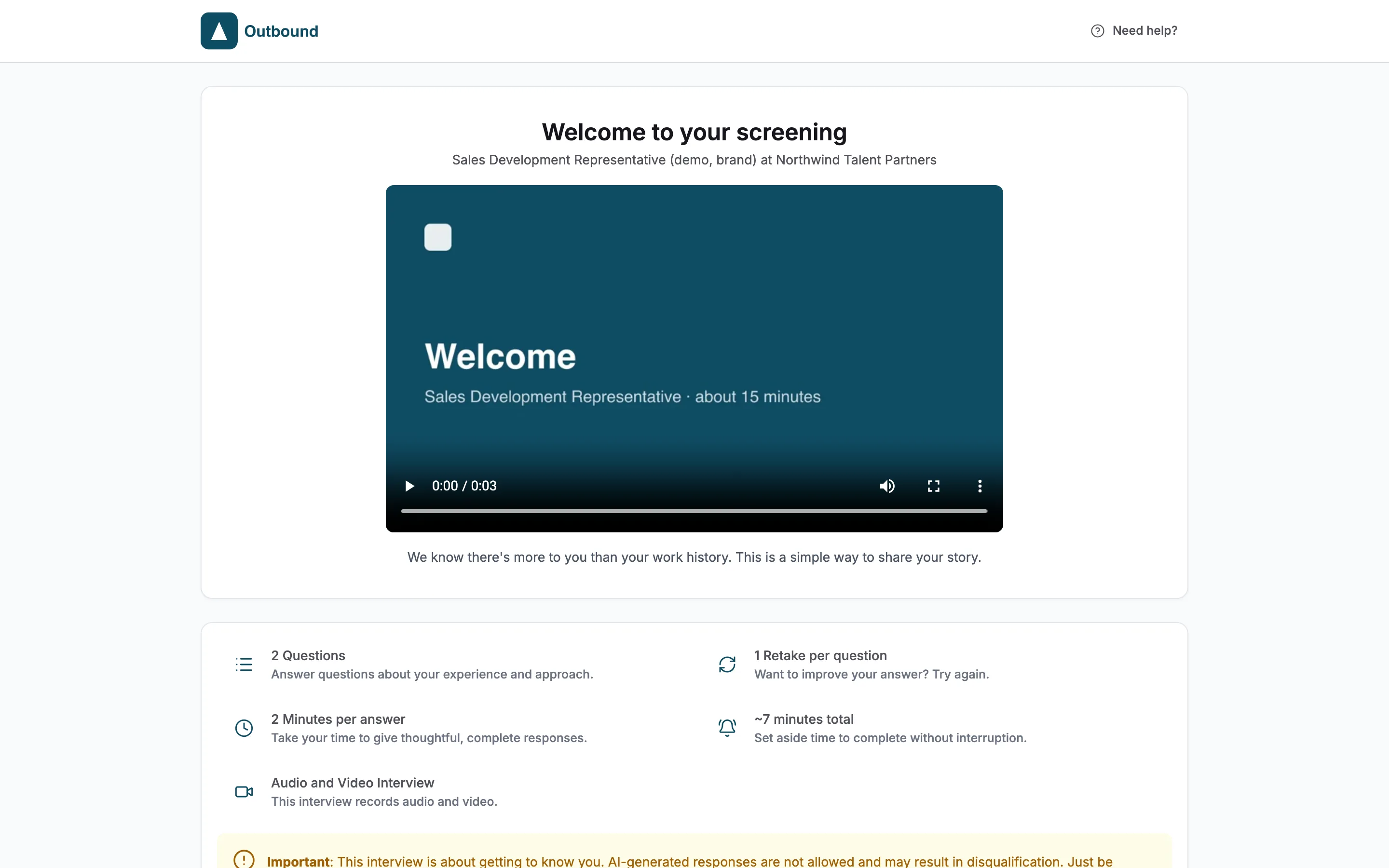
Under Position preview, choose Preview position. The candidate's welcome page opens in a new tab, even for a draft: the position logo at the top and the welcome video under Welcome to your screening.
10See a question with a video
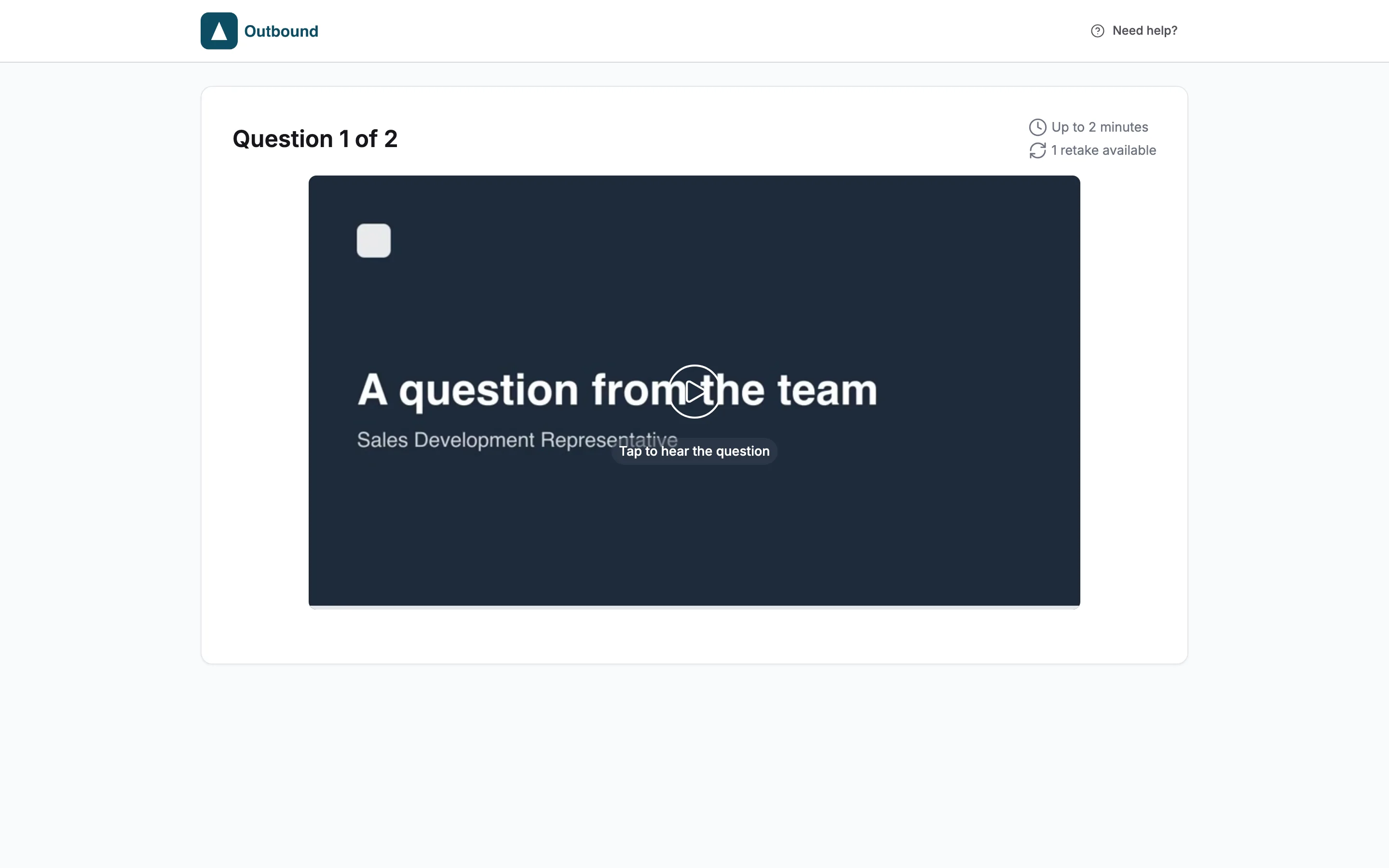
In the interview, a question that has a video opens on the video with Tap to hear the question. After it plays, the candidate sees the question text, Replay question and Start recording.
11See the completion message
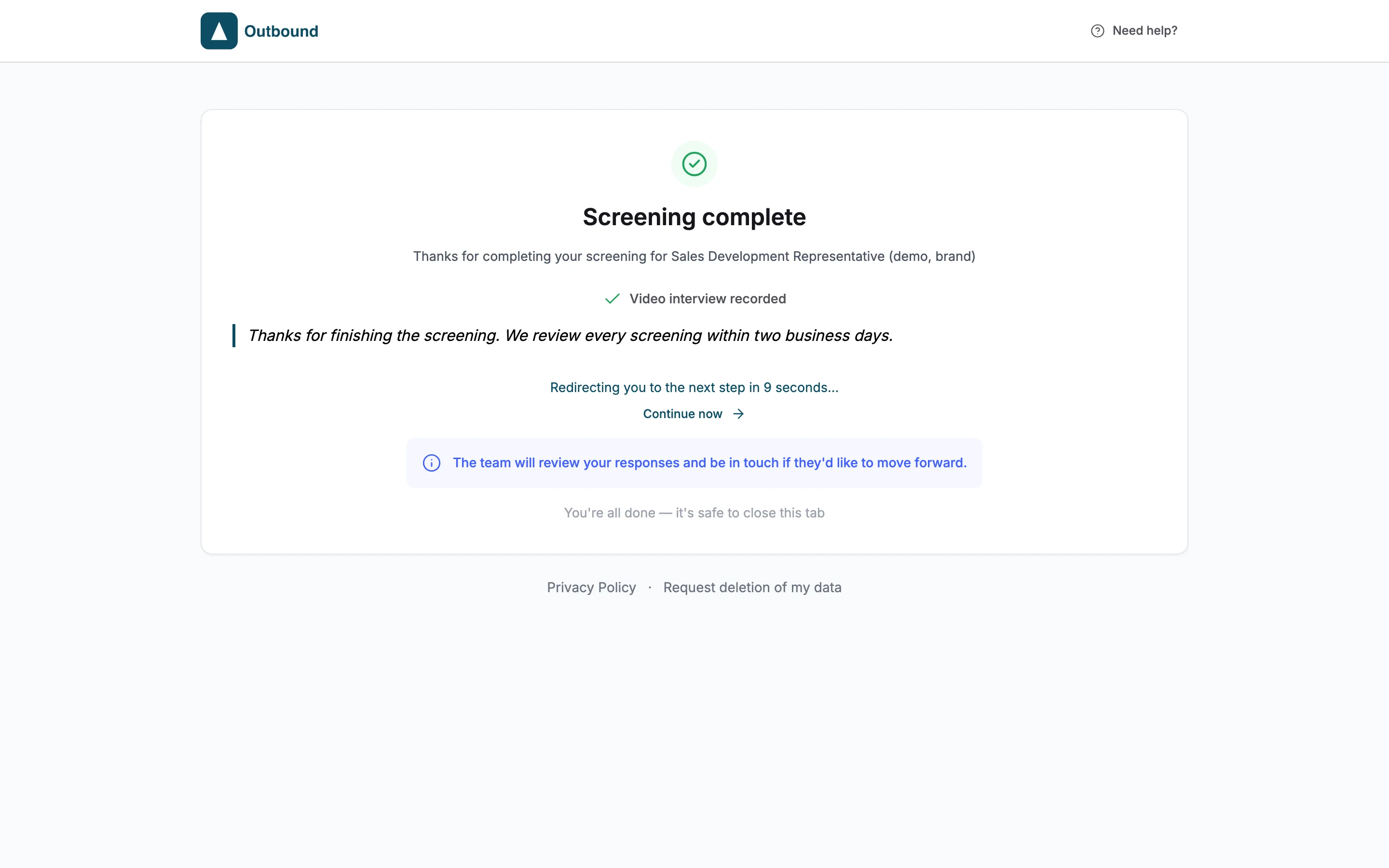
When the candidate finishes, Screening complete shows your completion message. Then a countdown sends them to your redirect URL, with Continue now to go straight away.
Questions
Does changing the logo or color here change my company branding?
No. A logo or color you set under Logo and colors applies to this position only. Your company logo and color stay the default for every other position. Only Save as company default changes the company branding.
Where do the default logo and color come from?
From Brand identity in your company settings. Every position uses them until you override them on that position.
Can I go back to the company branding?
Yes. Use company logo in the logo drop zone, or Reset to company default in the logo or color menu.
What files can I upload for videos?
MP4, MOV or WebM, up to 2 minutes and 50MB. The same limits apply to question videos, the welcome video and the completion video.
Can I record instead of uploading?
Yes. Record Video on the welcome and completion messages, and Allow camera access in Add video to question, record in the browser.
What happens if I change the branding on a live position?
Welcome and completion message edits on a live position wait with the rest of the position's unpublished changes until you publish them.
Related
See something here that doesn't match what you see in Truffle? Tell us and we'll fix the page.