Guide
Manage your notifications and sign-in security
By the end your profile and time zone are right, your password meets the rules, you know how to sign in with a login code, and you get the candidate emails you want.
5 min · 8 steps · Captured from the live product 5 Oct 2026 Changelog Copy as Markdown
Before you start
- A Truffle account. The 7-day free trial works: 30 credits, no credit card.
- Any role. Profile, Notifications and Security are your own settings, so every teammate has them.
1Open Settings
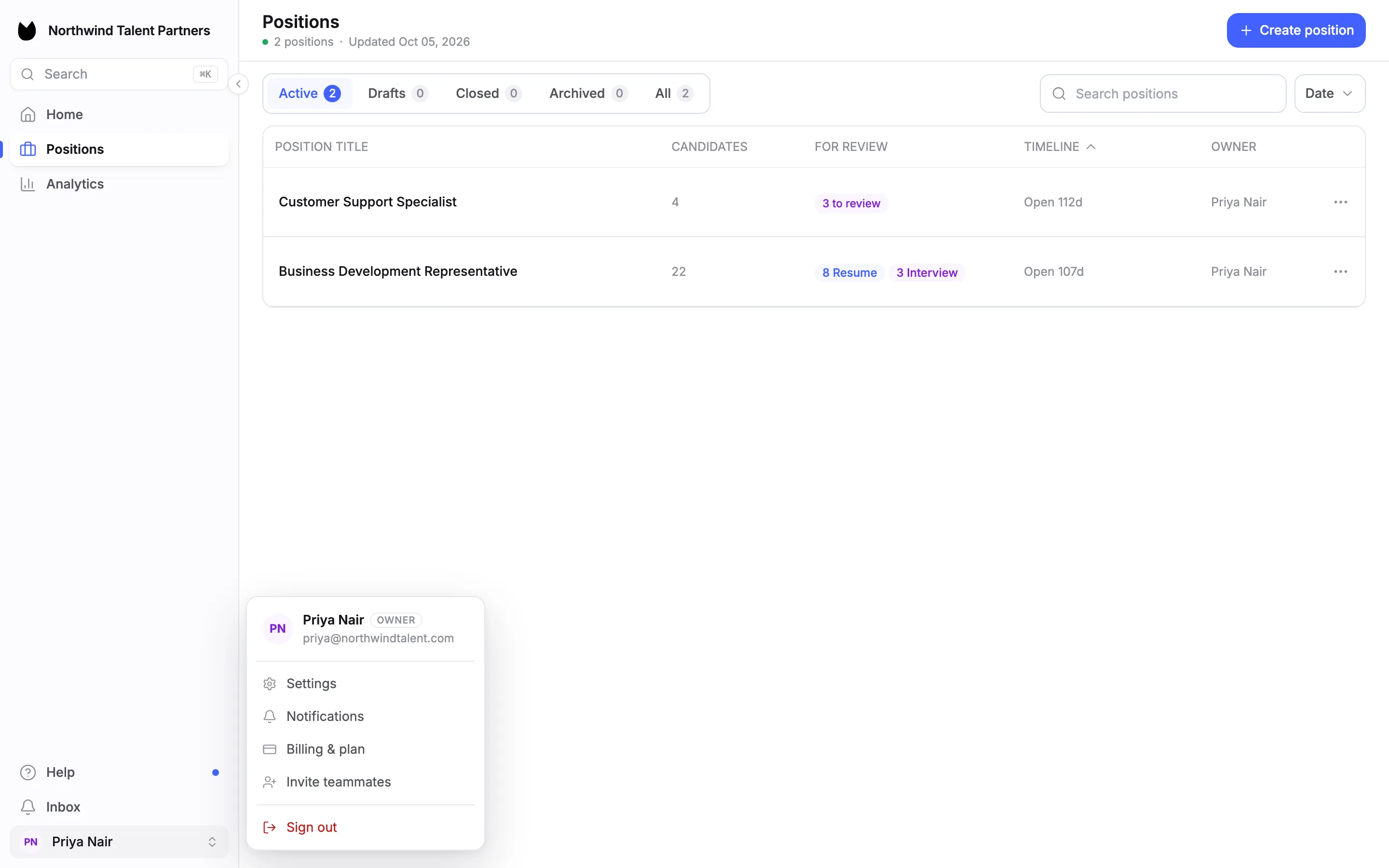
Choose your name at the bottom of the sidebar. The menu shows your role and email, then Settings and Notifications. Choose Settings. Your own pages sit under YOU: Profile, Notifications and Security.
2Update your profile
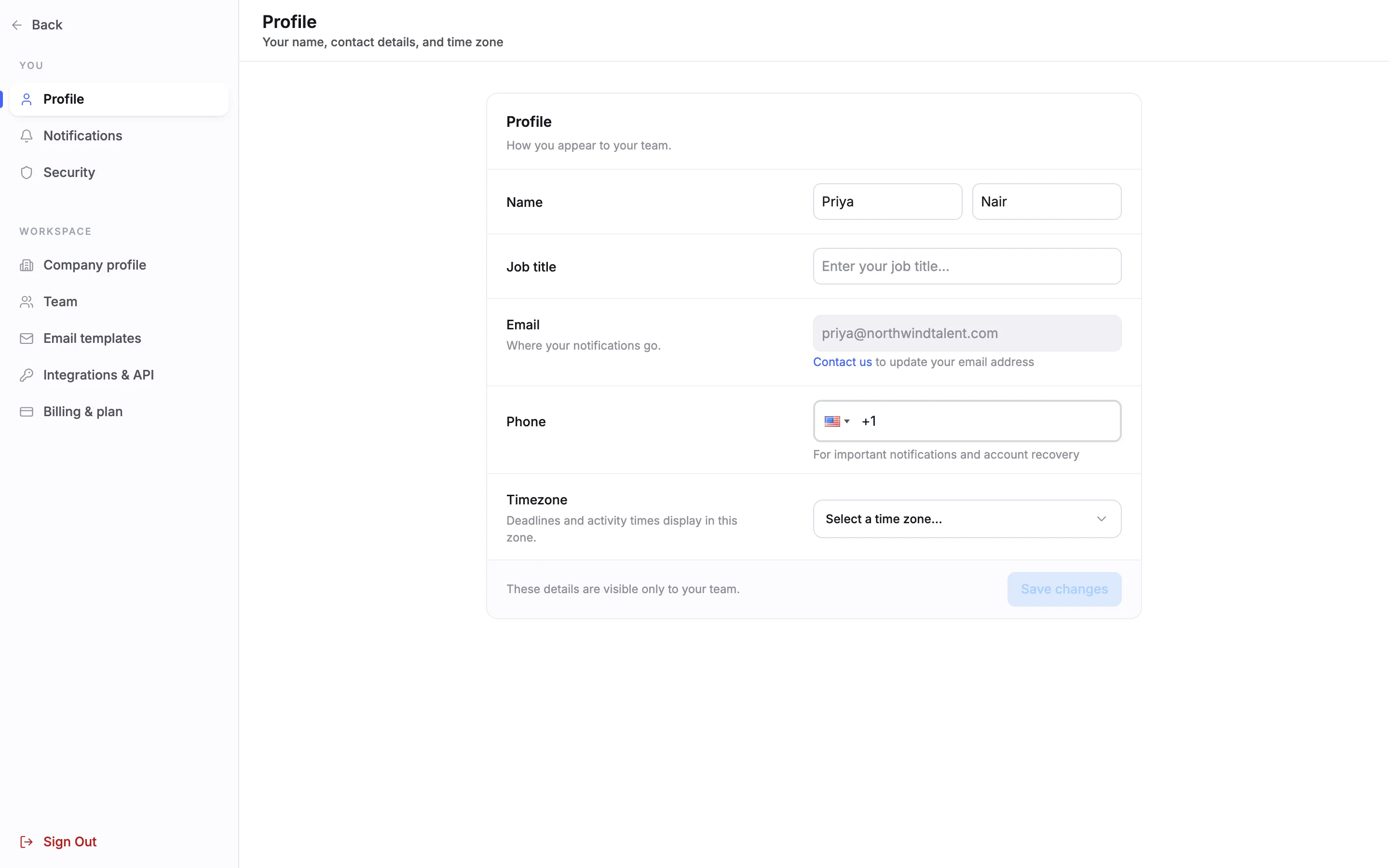
Profile holds your Name, Job title, Phone and Timezone. Deadlines and activity times display in the time zone you pick. Your Email is where your notifications go. It cannot be edited here: use Contact us to change it. Choose Save changes when you are done. These details are visible only to your team.
3Change your password
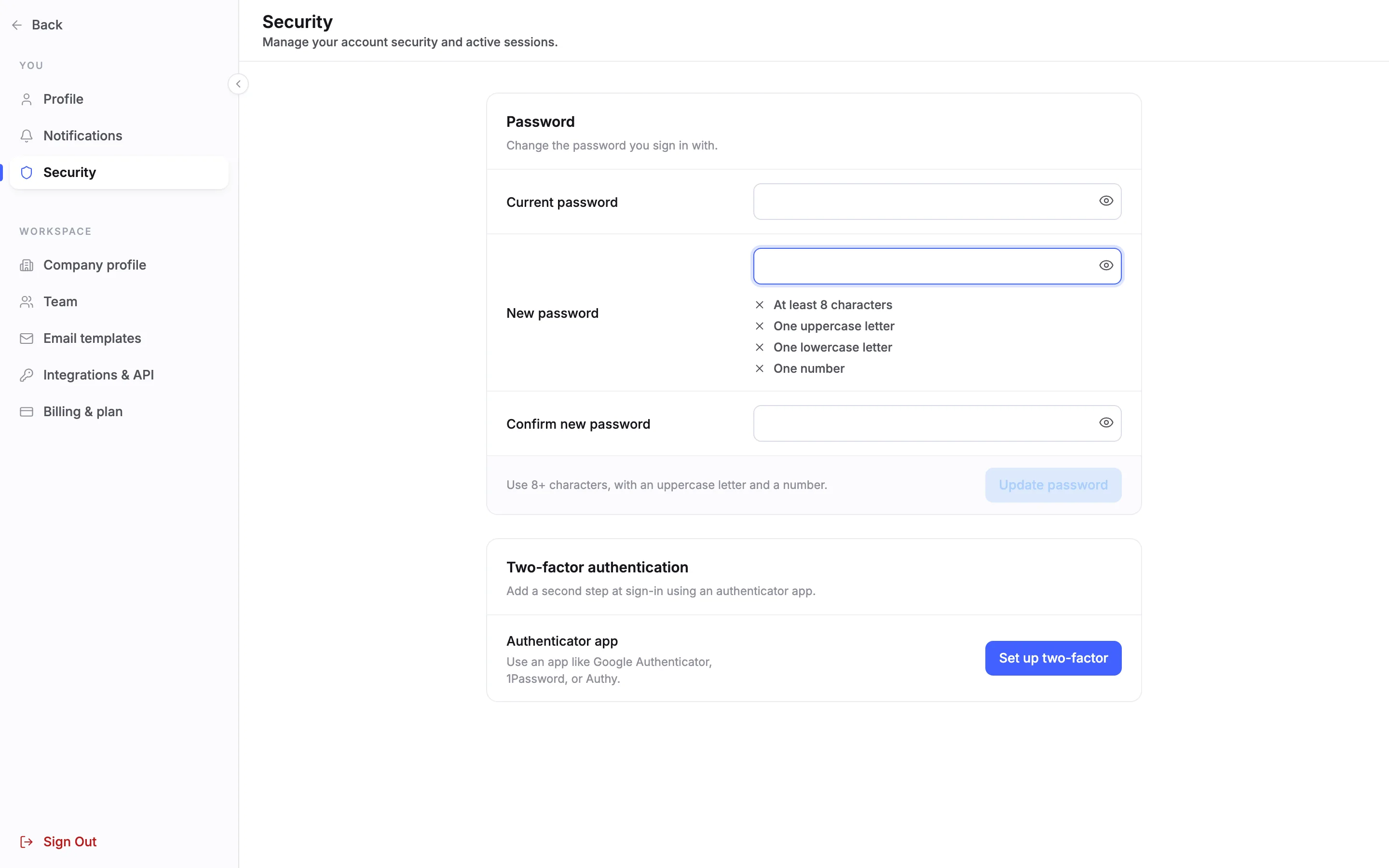
Choose Security. Under Password, enter your Current password, then a New password and Confirm new password. A checklist under the new password ticks off each rule as you type: At least 8 characters, One uppercase letter, One lowercase letter and One number. Update password becomes available once the form is valid.
Note. If you sign in with Google only, you can still sign in with a login code, shown below.
4Choose your candidate emails
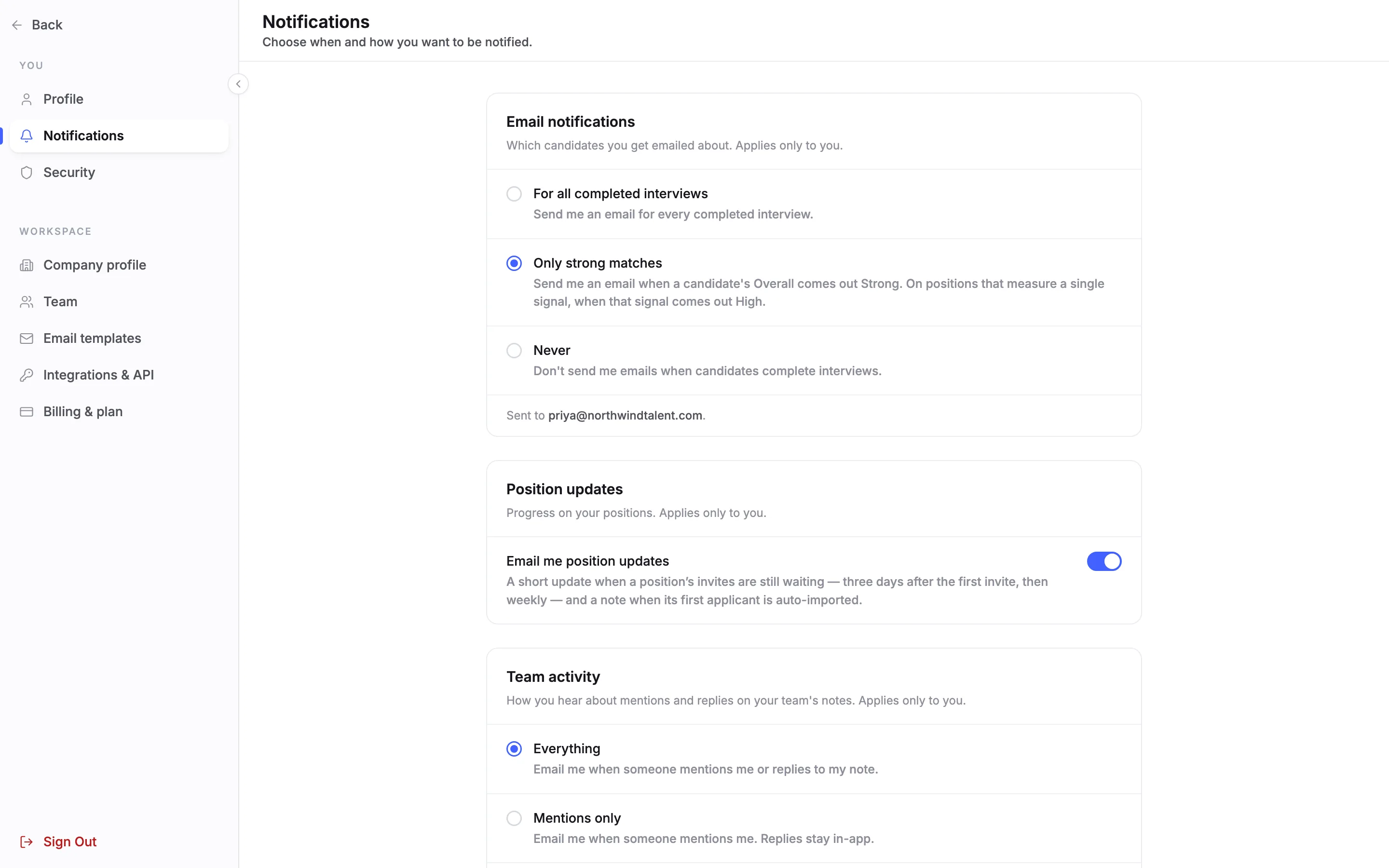
Choose Notifications. Email notifications decides which candidates you get emailed about, and it applies only to you. Pick For all completed interviews, Only strong matches or Never. Only strong matches emails you when a candidate's Overall comes out Strong, or, on a position that measures a single signal, when that signal comes out High. The emails go to the address shown under the options. There is no Save button: your choice applies when you pick it.
Note. The setting is per person, not per position. Each teammate picks their own. You also get an email when a candidate asks for an alternative to the video interview.
5Open What's new
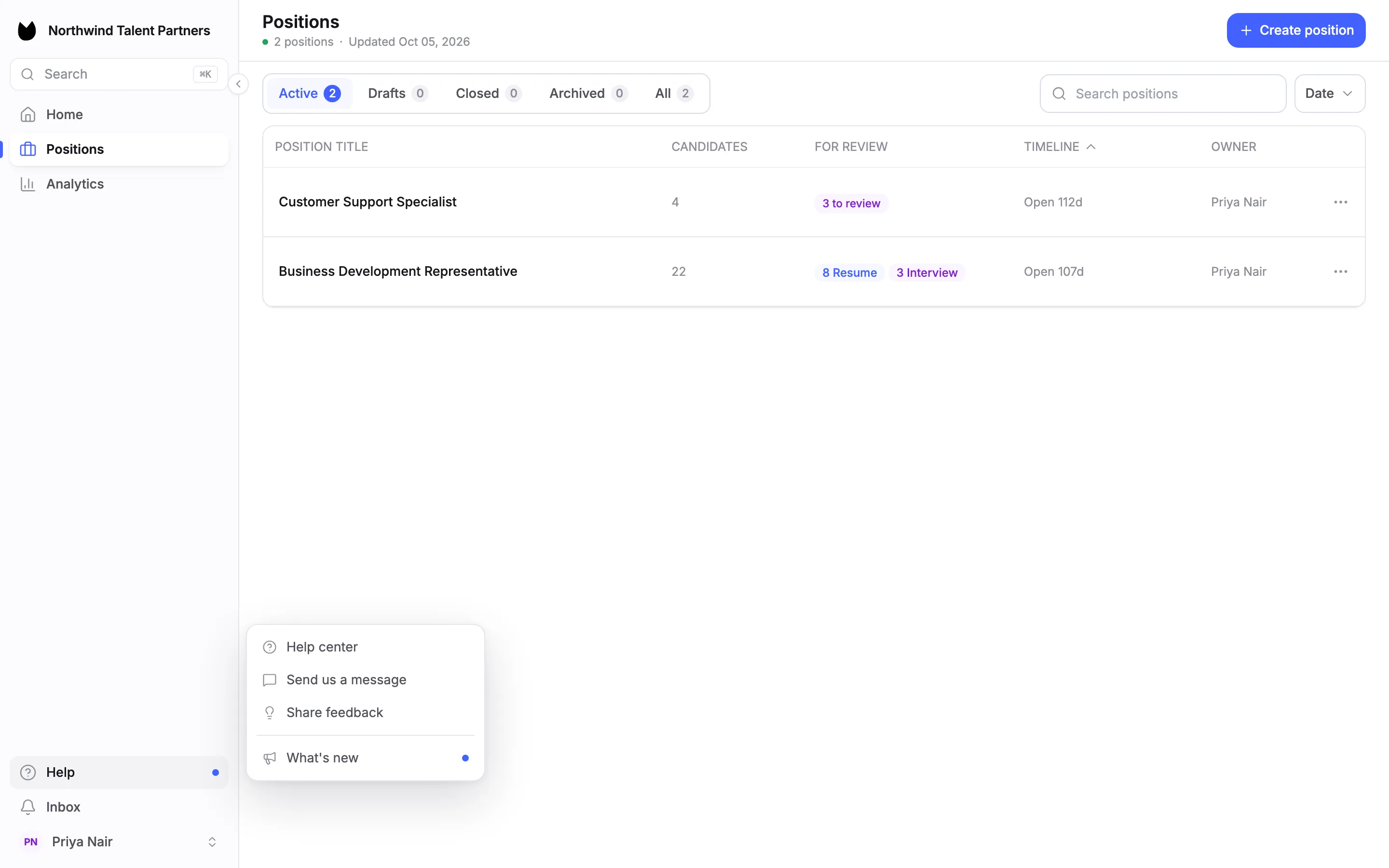
Choose Help in the sidebar. The menu has Help center, Send us a message, Share feedback and What's new. A dot next to What's new means there are entries you have not seen.
6Read the latest changes
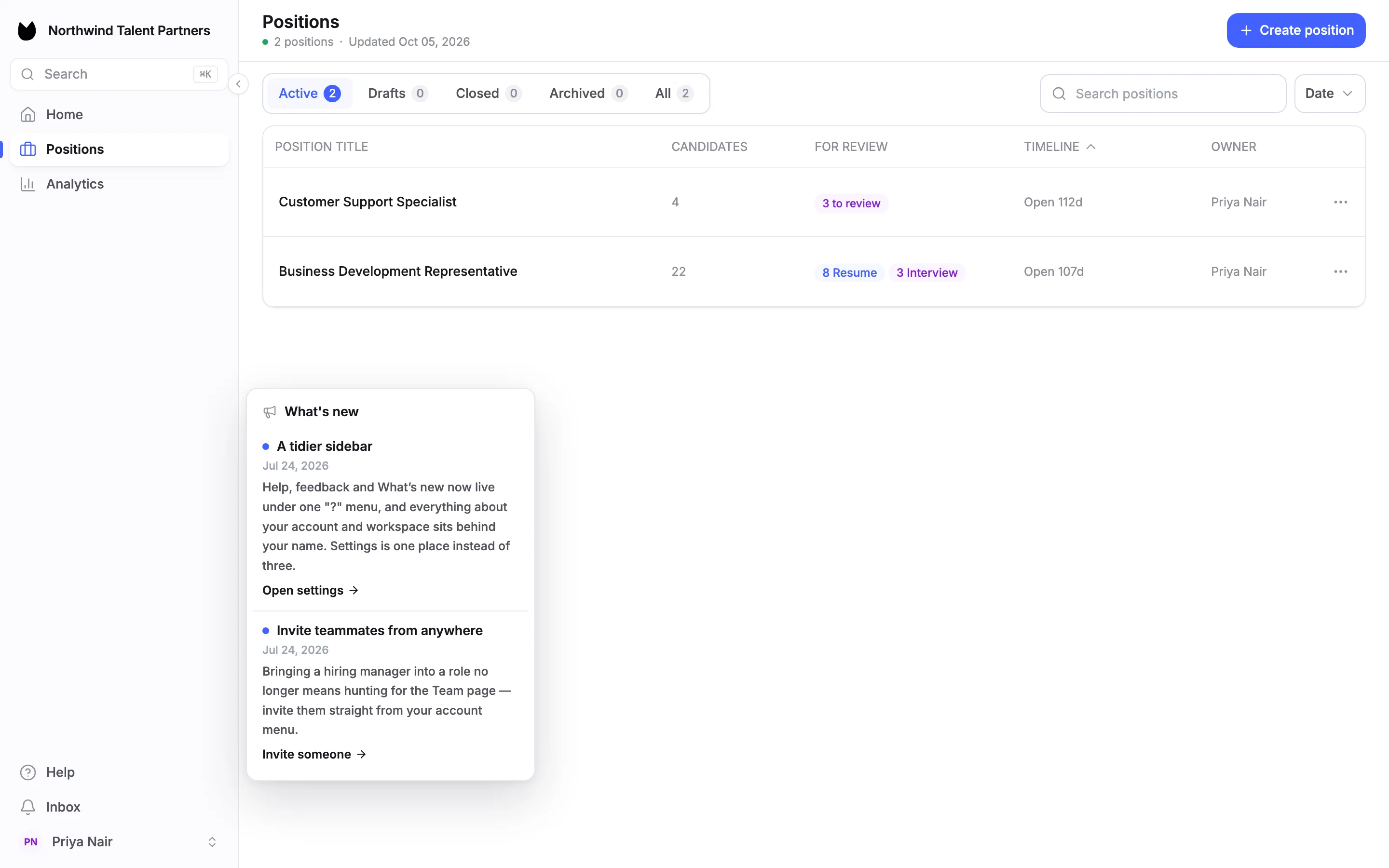
The What's new panel lists recent changes to Truffle, each with a date and a short description. A dot marks the ones you have not seen. An entry can link straight to the part of the product it describes, such as Open settings. You only see entries that apply to your plan and role.
7Sign in with a code instead of a password
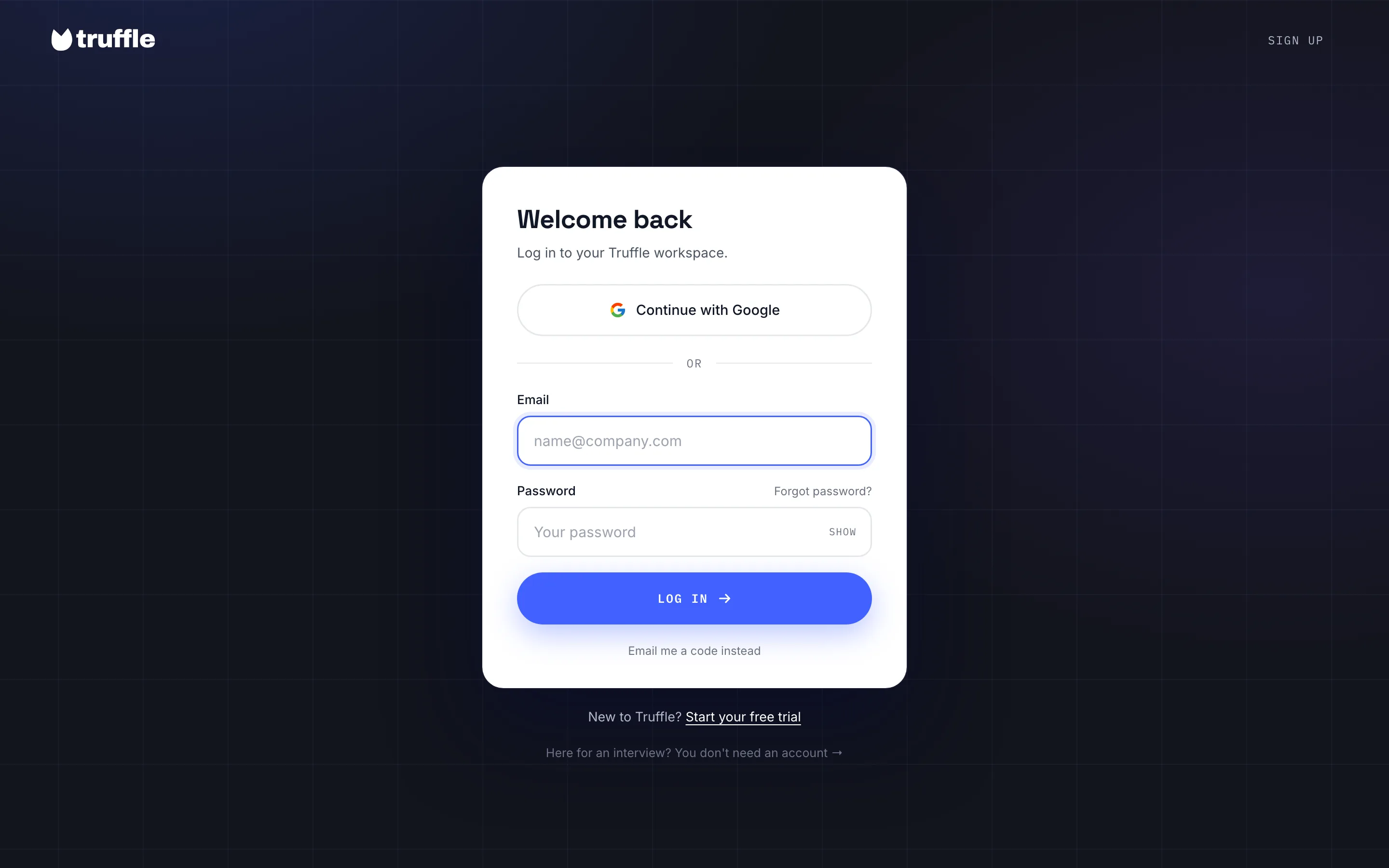
On the login page, Welcome back, you can choose Continue with Google, or enter your Email and Password and choose Log in. To skip the password, type your email and choose Email me a code instead. Forgot password? sends you a reset link instead.
8Enter the 6-digit code
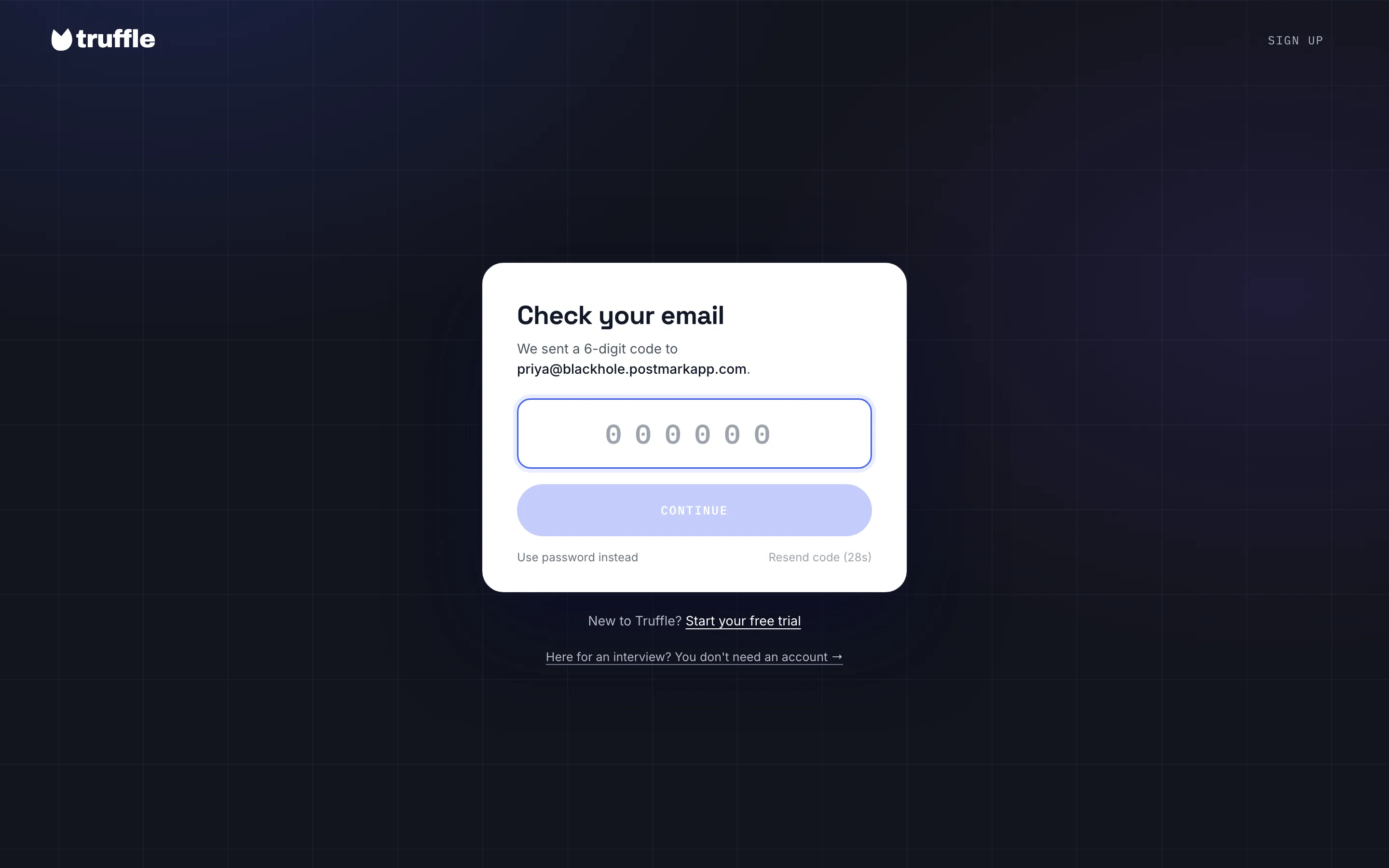
Check your email confirms where the 6-digit code went. Type the code into the box and choose Continue. If it has not arrived, Resend code becomes available after a short countdown. Use password instead takes you back. After you sign in, Truffle opens the page you were trying to reach, such as a candidate link from a teammate.
Note. Login codes work for every account, including ones that used to sign in with Google only.
Questions
How do I change my email address?
Your email is shown on Profile but cannot be edited there. Use Contact us on that page and support changes it for you.
What are the password rules?
At least 8 characters, with one uppercase letter, one lowercase letter and one number. You enter your current password first.
How does a login code work?
On the login page, type your email and choose Email me a code instead. Truffle emails you a 6-digit code. Type it in and choose Continue.
I forgot my password. What do I do?
Choose Forgot password? on the login page. Reset your password asks for your email and sends you a reset link. You can also sign in with a login code.
Does my notification choice change what my teammates get?
No. Email notifications apply only to you. Each teammate picks their own.
Can I get notifications for one position only?
No. The setting is per person, not per position.
Why does What's new not show an update a teammate mentioned?
What's new only shows entries that apply to your plan and role.
Related
See something here that doesn't match what you see in Truffle? Tell us and we'll fix the page.